Adobe Premiere Pro Tools, Buttons, and Icons

0.0(0)
Studied by 0 people
call kaiCall Kai
learnLearn
examPractice Test
spaced repetitionSpaced Repetition
heart puzzleMatch
flashcardsFlashcards
GameKnowt Play
Card Sorting

1/24

encourage image

There's no tags or description

Looks like no tags are added yet.

Last updated 2:19 AM on 3/31/26
Name
Mastery
Learn
Test
Matching
Spaced
Call with Kai

No analytics yet

Send a link to your students to track their progress

25 Terms

1
New cards

Selection Tool

This tool is used to move a clip on the timeline without changing the in/out points of the selected clip, but changing the in/out points of the clips on either side.

<p>This tool is used to move a clip on the timeline without changing the in/out points of the selected clip, but changing the in/out points of the clips on either side.</p>
2
New cards

Track Selection Tool

Select this tool to select all the clips to the right of the cursor in a sequence. To select a clip and all clips to the right in its own track, click the clip. To select a clip and all clips to its right in all tracks, Shift-click the clip. Pressing Shift changes the Track Selection Tool into the Multi-track Selection Tool.
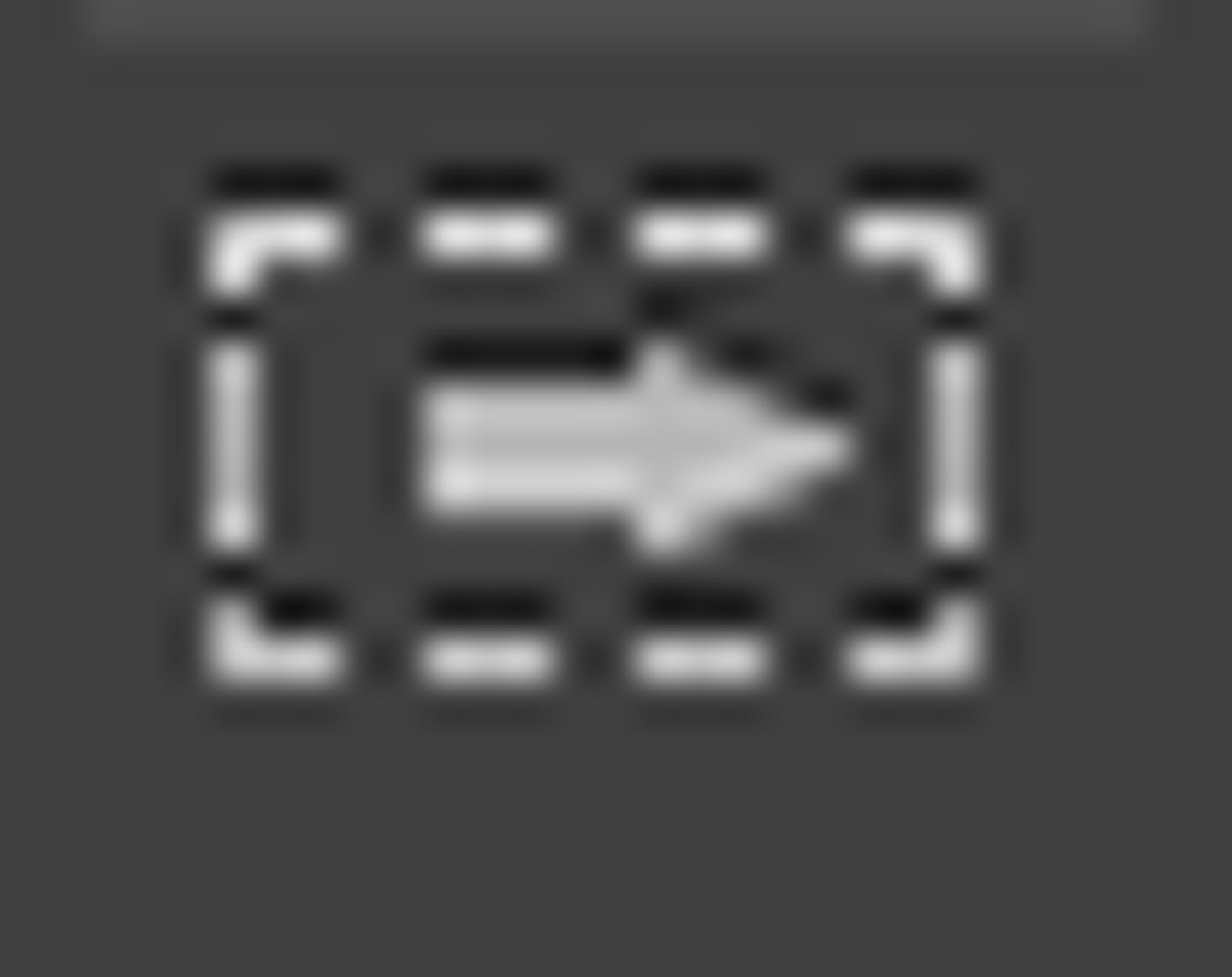
<p>Select this tool to select all the clips to the right of the cursor in a sequence. To select a clip and all clips to the right in its own track, click the clip. To select a clip and all clips to its right in all tracks, Shift-click the clip. Pressing Shift changes the Track Selection Tool into the Multi-track Selection Tool.</p>
3
New cards

Ripple Edit Tool

This tool is used to change the In or Out point of a clip on the Timeline and then automatically rippling or closing the gaps to the left or right of the trimmed clip.

<p>This tool is used to change the In or Out point of a clip on the Timeline and then automatically rippling or closing the gaps to the left or right of the trimmed clip.</p>
4
New cards

Rolling Edit Tool

This tool trims the In point of one and the Out point of the other, while leaving the combined duration of the two clips unchanged.

<p>This tool trims the In point of one and the Out point of the other, while leaving the combined duration of the two clips unchanged.</p>
5
New cards

Rate Stretch Tool

Select this tool to shorten a clip in a Timeline by speeding up its playback, or to lengthen it by slowing it down. The Rate Stretch Tool changes speed and duration, but leaves the In and Out points of the clip unchanged.

<p>Select this tool to shorten a clip in a Timeline by speeding up its playback, or to lengthen it by slowing it down. The Rate Stretch Tool changes speed and duration, but leaves the In and Out points of the clip unchanged.</p>
6
New cards

Razor Tool

Select this tool to make one or more incisions in clips in a Timeline. Click a point in a clip to split it at that precise location. To split clips in all tracks at that location, Shift-click the spot in any of the clips.

<p>Select this tool to make one or more incisions in clips in a Timeline. Click a point in a clip to split it at that precise location. To split clips in all tracks at that location, Shift-click the spot in any of the clips.</p>
7
New cards

Slip Tool

Select this tool to simultaneously change the In and Out points of a clip in a Timeline, while keeping the time span between them constant.

<p>Select this tool to simultaneously change the In and Out points of a clip in a Timeline, while keeping the time span between them constant.</p>
8
New cards

Slide Tool

Select this tool to move a clip to the left or right in a Timeline while simultaneously trimming the two clips that surround it. The combined duration of the three clips, and the location of the group in the Timeline, remain unchanged.

<p>Select this tool to move a clip to the left or right in a Timeline while simultaneously trimming the two clips that surround it. The combined duration of the three clips, and the location of the group in the Timeline, remain unchanged.</p>
9
New cards

Pen Tool

Select this tool to set or select keyframes, or to adjust connector lines in a Timeline. Drag a connector line vertically to adjust it. Ctrl-click (Windows) or Command-click (Mac OS) on a connector line to set a keyframe. Shift-click noncontiguous keyframes to select them.
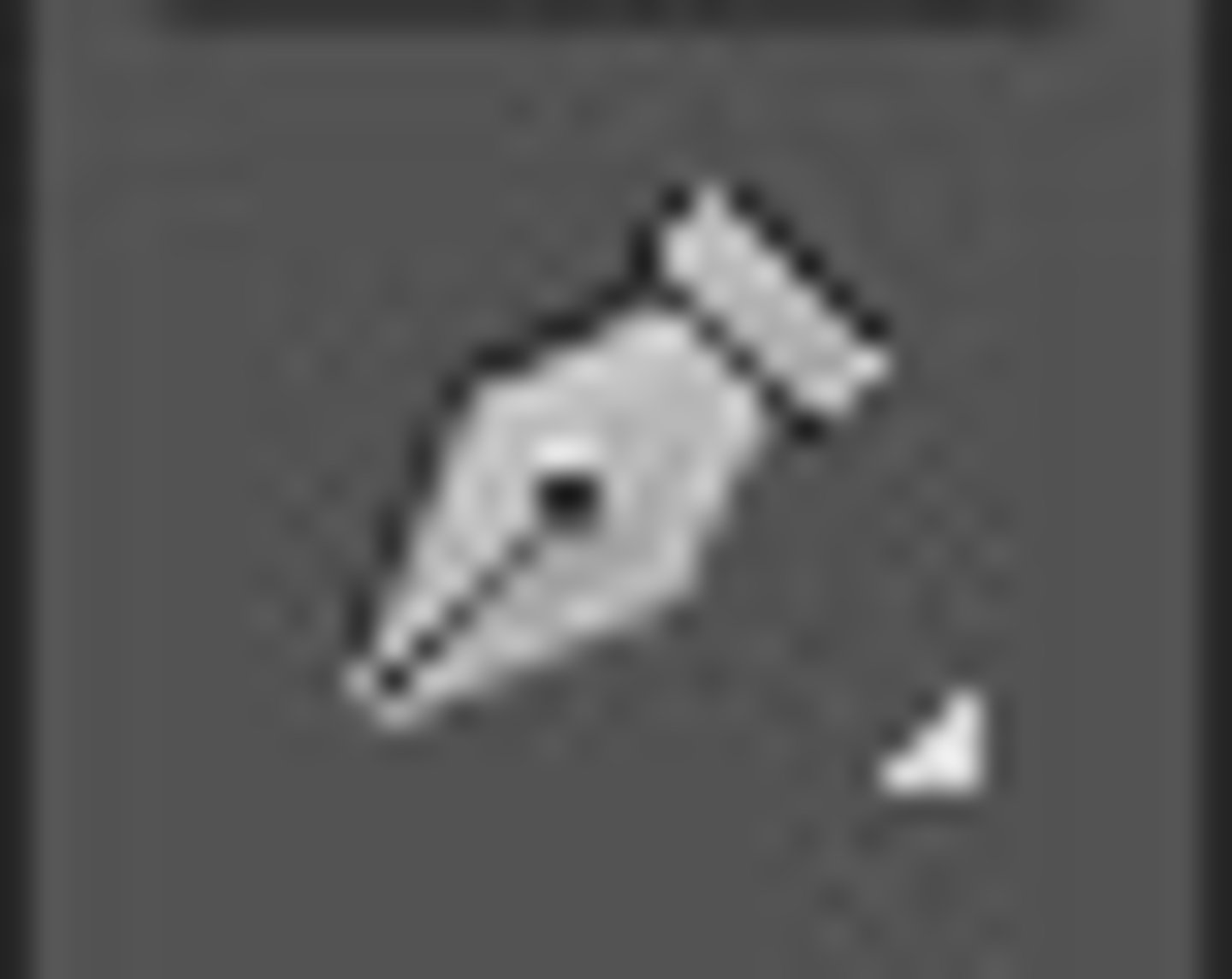
<p>Select this tool to set or select keyframes, or to adjust connector lines in a Timeline. Drag a connector line vertically to adjust it. Ctrl-click (Windows) or Command-click (Mac OS) on a connector line to set a keyframe. Shift-click noncontiguous keyframes to select them.</p>
10
New cards

Hand Tool

Select this tool to move the viewing area of a Timeline to the right or left. Drag left or right anywhere in the viewing area.
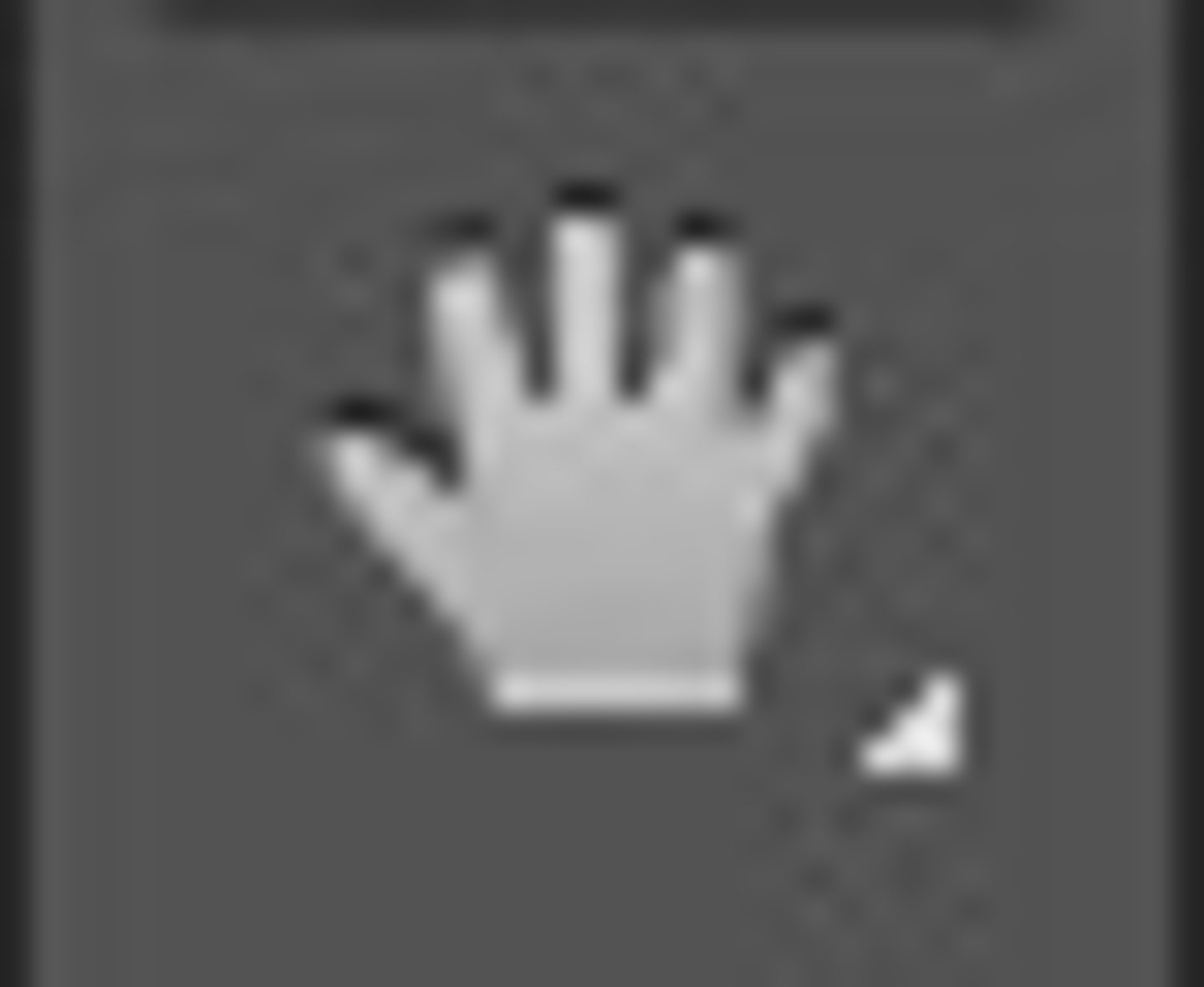
<p>Select this tool to move the viewing area of a Timeline to the right or left. Drag left or right anywhere in the viewing area.</p>
11
New cards

Zoom Tool

Select this tool to zoom in or out in the Timeline. Click in the viewing area to zoom in by one increment. Alt-click (Windows) or Option-click (Mac OS) to zoom out by one increment.

<p>Select this tool to zoom in or out in the Timeline. Click in the viewing area to zoom in by one increment. Alt-click (Windows) or Option-click (Mac OS) to zoom out by one increment.</p>
12
New cards

Overwrite edit icon

Clicking this icon in the Source Monitor will replace or overwrite the video or audio on the timeline sequence.

<p>Clicking this icon in the Source Monitor will replace or overwrite the video or audio on the timeline sequence.</p>
13
New cards

Insert edit icon

Clicking this icon on the Source Monitor will insert the video or audo into the timeline sequence.
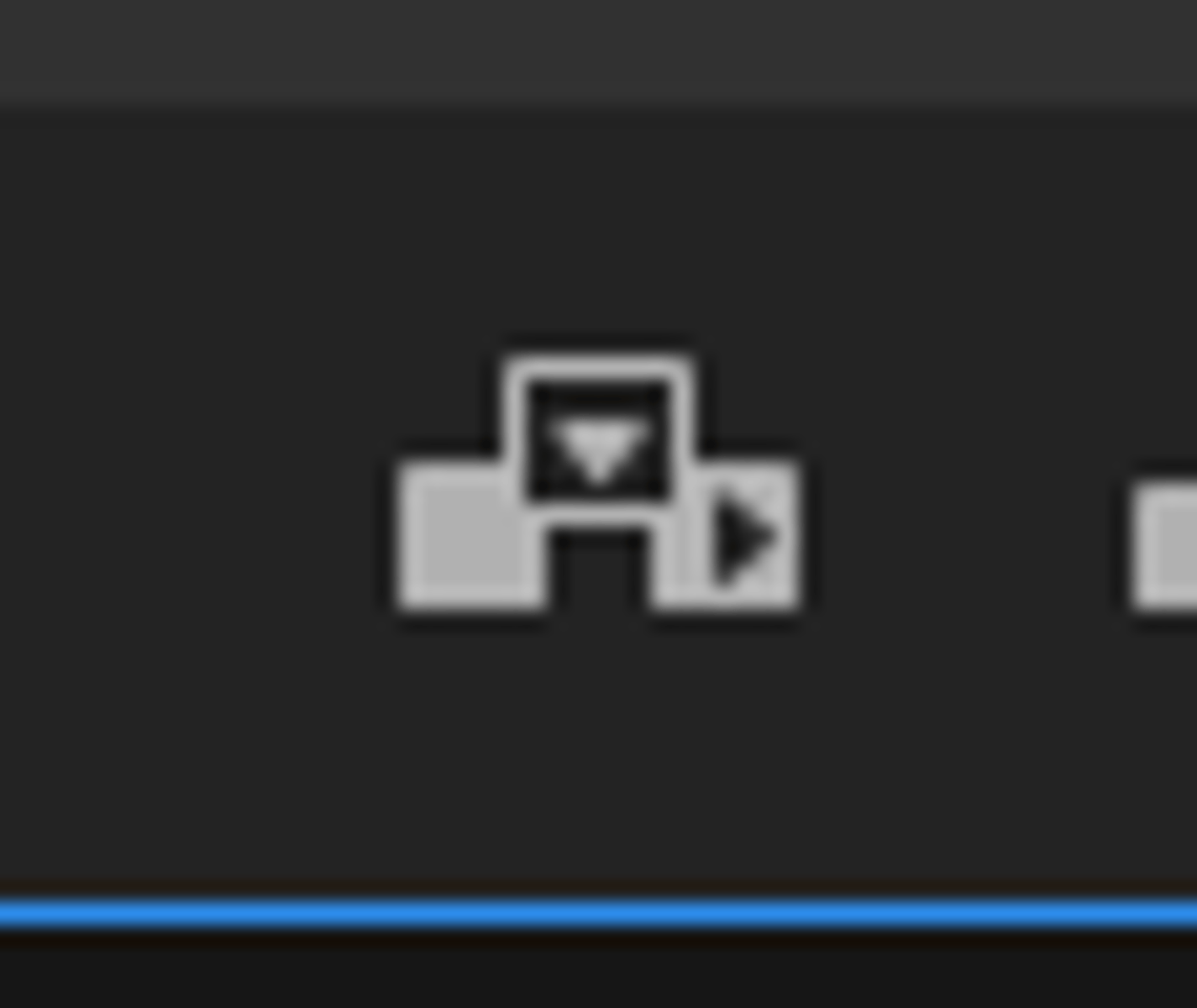
<p>Clicking this icon on the Source Monitor will insert the video or audo into the timeline sequence.</p>
14
New cards

Mark In & Mark Out icons

Clicking this icon either in your sets the inpoint and outpoint for your edit.
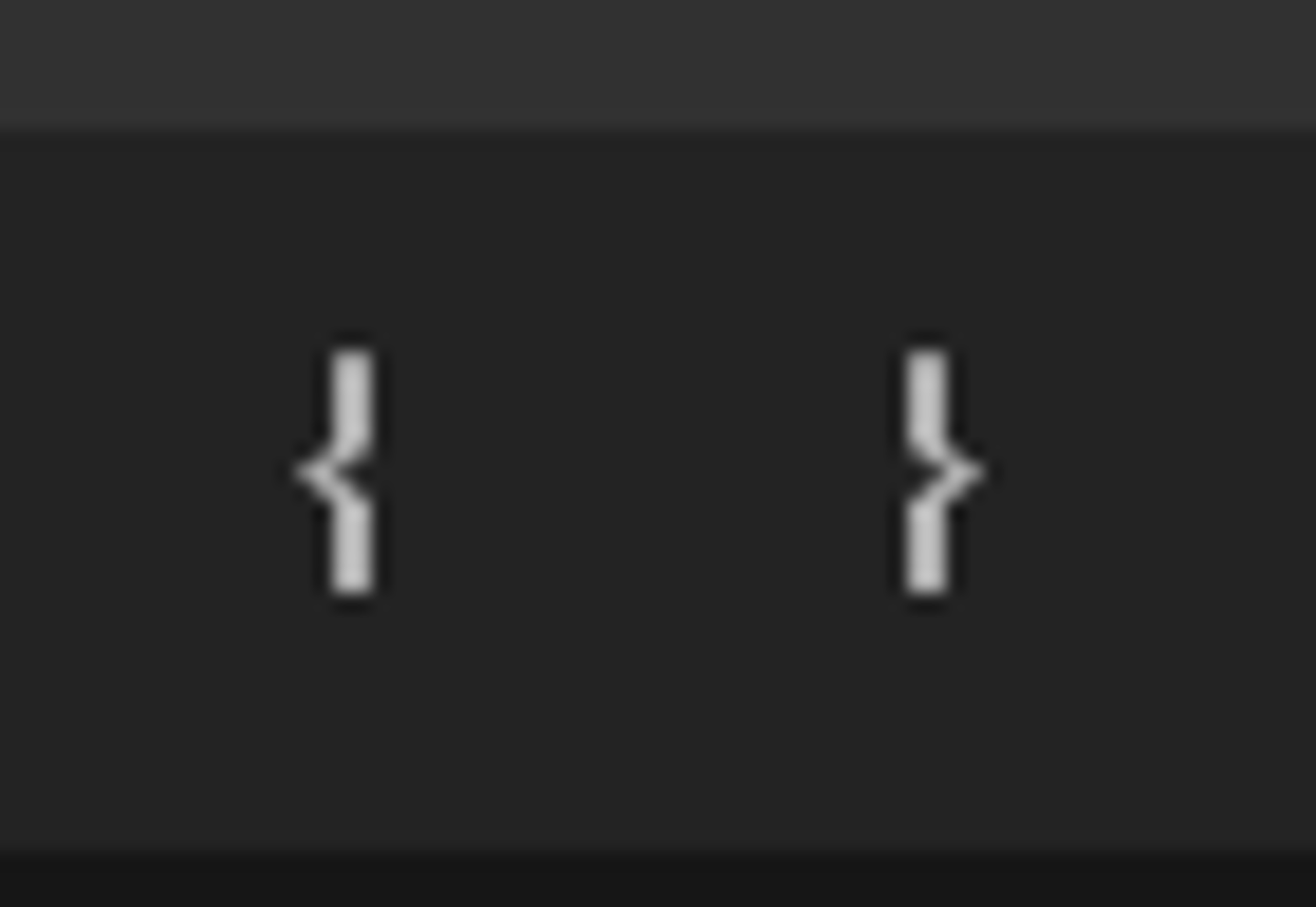
<p>Clicking this icon either in your sets the inpoint and outpoint for your edit.</p>
15
New cards

Keyframe

Marks the points on the audio timeline where you want to adjust your volume either up or down. You insert these points in pairs.
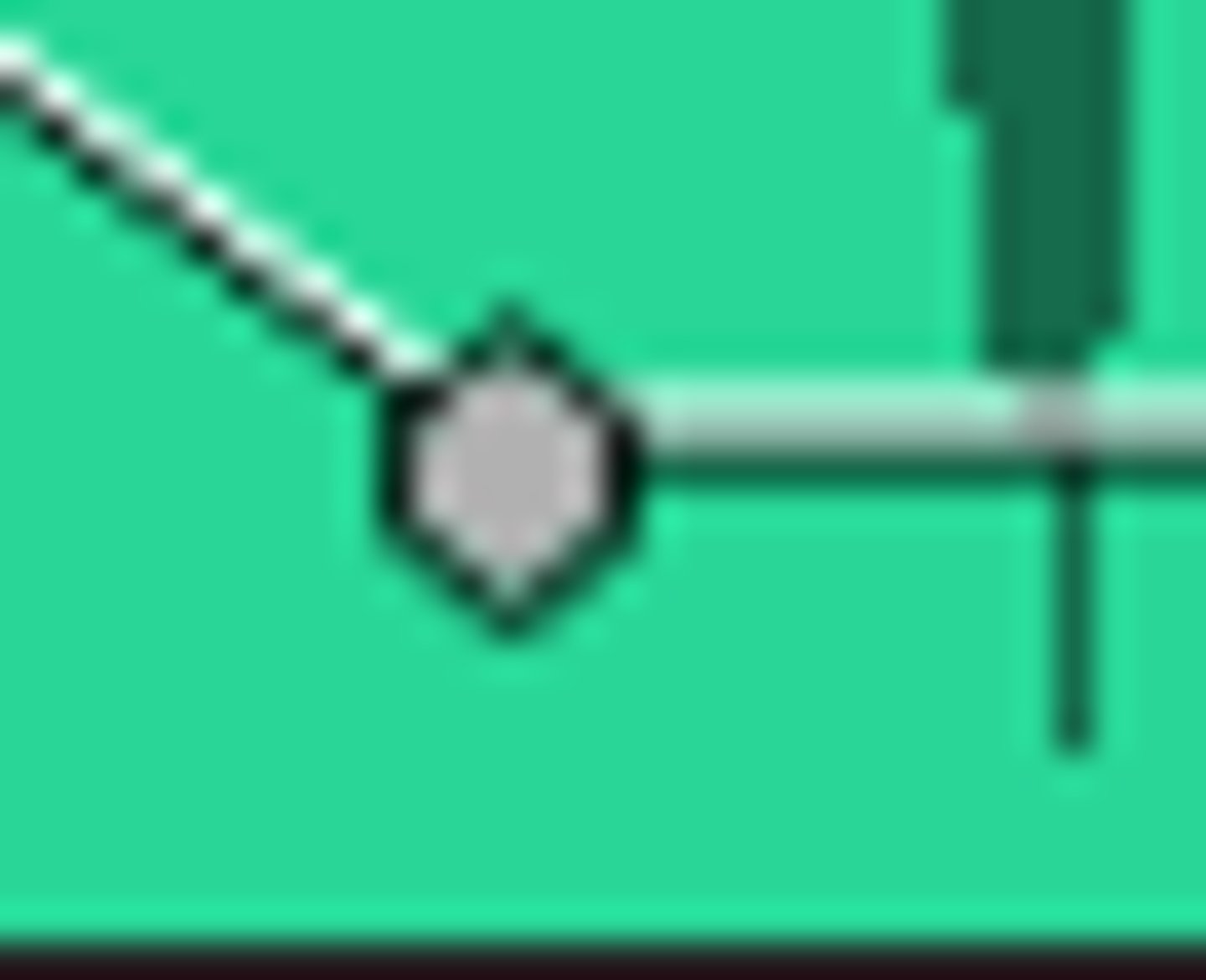
<p>Marks the points on the audio timeline where you want to adjust your volume either up or down. You insert these points in pairs.</p>
16
New cards

Current-Time Indicator (CTI)

Also known as the playhead, is an indicator which shows the user where they are on the timeline. It is used mainly in the Timeline panel but is also linked to the Program Monitor panel.
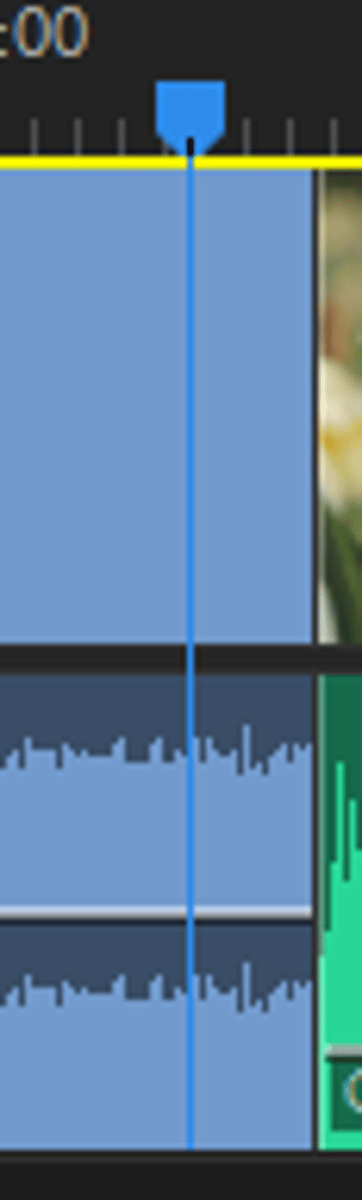
<p>Also known as the playhead, is an indicator which shows the user where they are on the timeline. It is used mainly in the Timeline panel but is also linked to the Program Monitor panel.</p>
17
New cards

mute

This button will mute or turn off the sound on individual audio tracks on the Timeline.
<p>This button will mute or turn off the sound on individual audio tracks on the Timeline.</p>
18
New cards

Time Ruler

This indicates the time location of the CTI (current time Indicator) along the top of the Timeline.

<p>This indicates the time location of the CTI (current time Indicator) along the top of the Timeline.</p>
19
New cards

Drag Audio Only

This button allows you to drag the audio only from the Source Monitor onto the Timeline.
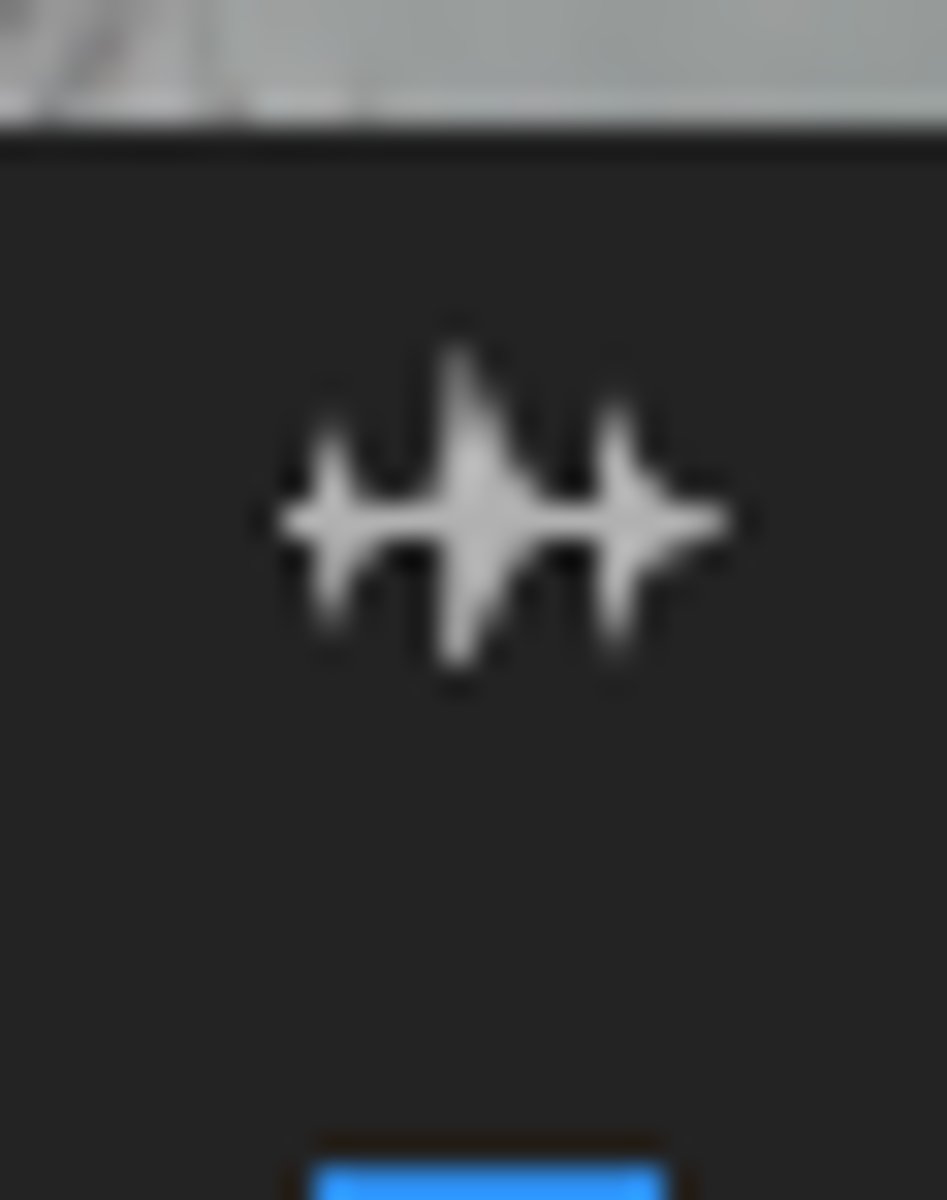
<p>This button allows you to drag the audio only from the Source Monitor onto the Timeline.</p>
20
New cards

Drag Video Only

This button allows you to drag the video only from the Source Monitor onto the Timeline.
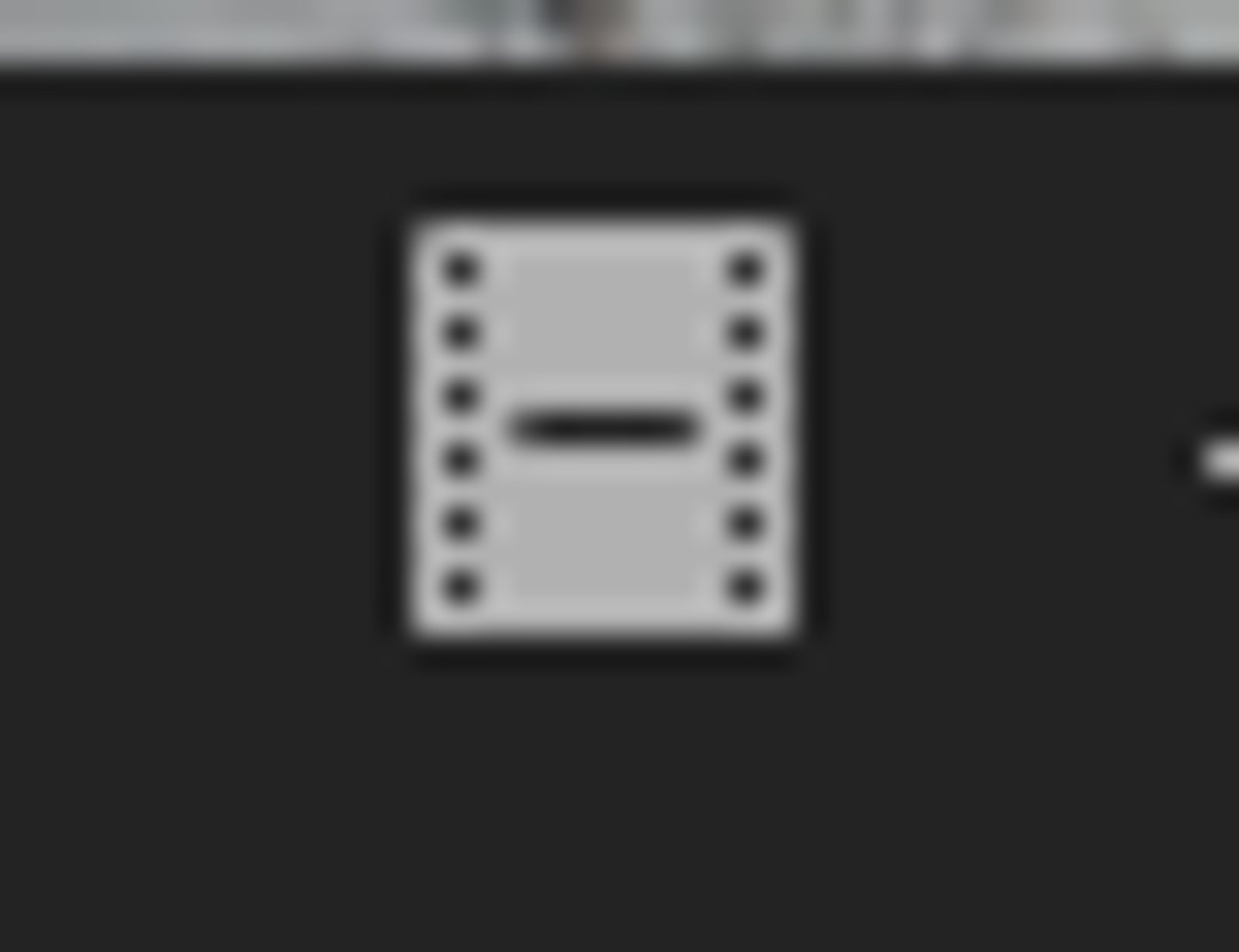
<p>This button allows you to drag the video only from the Source Monitor onto the Timeline.</p>
21
New cards

Audio Meter

This is used to visually monitor the audio level in your project.
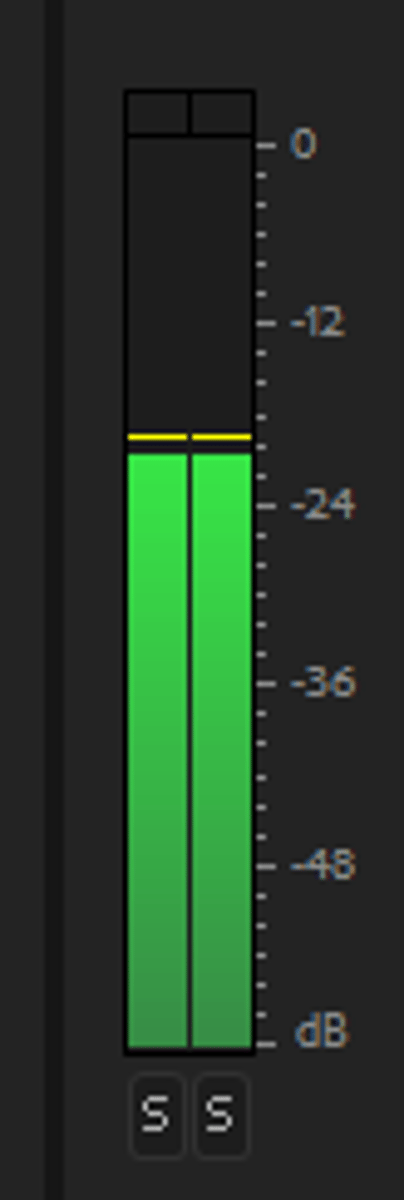
<p>This is used to visually monitor the audio level in your project.</p>
22
New cards

Tools Panel

This is where you access your editing tools on the Timeline.
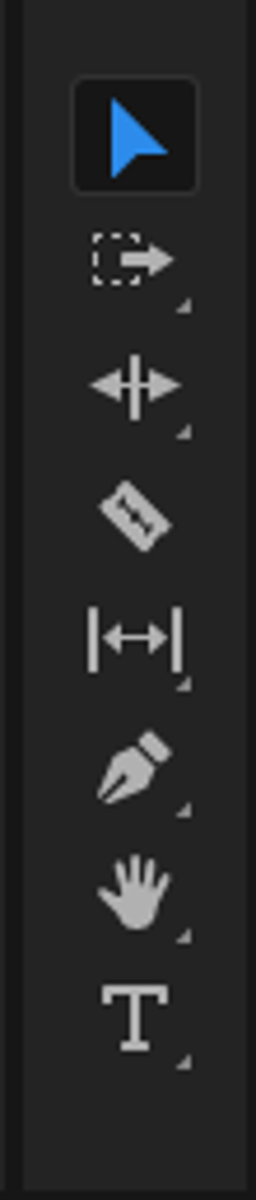
<p>This is where you access your editing tools on the Timeline.</p>
23
New cards

Step Back One Frame

This button allows you to move back one frame on the timeline.
<p>This button allows you to move back one frame on the timeline.</p>
24
New cards

Play

This button will play the video in the Program Monitor. You can also use the spacebar to play the video in the Program Monitor.

<p>This button will play the video in the Program Monitor. You can also use the spacebar to play the video in the Program Monitor.</p>
25
New cards

Settings

When you click on this icon, it allows you to control the settings for the panel.
<p>When you click on this icon, it allows you to control the settings for the panel.</p>

Explore top notes

note
Concentration Calculations
Updated 1222d ago
0.0(0)
note
Anatomical Terminology
Updated 770d ago
0.0(0)
note
Unit C: Light and Optics
Updated 660d ago
0.0(0)
note
Stress
Updated 1255d ago
0.0(0)
note
STUDY GUIDE: EXAM 3 NORMAL
Updated 478d ago
0.0(0)
note
C963 Practice Test
Updated 438d ago
0.0(0)
note
Concentration Calculations
Updated 1222d ago
0.0(0)
note
Anatomical Terminology
Updated 770d ago
0.0(0)
note
Unit C: Light and Optics
Updated 660d ago
0.0(0)
note
Stress
Updated 1255d ago
0.0(0)
note
STUDY GUIDE: EXAM 3 NORMAL
Updated 478d ago
0.0(0)
note
C963 Practice Test
Updated 438d ago
0.0(0)

Explore top flashcards

flashcards
Science - 7th Grade Finals
28
Updated 1031d ago
0.0(0)
flashcards
Civil Rights Study Guide Part 1
32
Updated 769d ago
0.0(0)
flashcards
Lecture 21a
36
Updated 115d ago
0.0(0)
flashcards
AP Gov Vocab - 1
20
Updated 708d ago
0.0(0)
flashcards
The Odyssey
56
Updated 873d ago
0.0(0)
flashcards
Special Pops Exam 1
59
Updated 914d ago
0.0(0)
flashcards
Gothic - Vocabulary (LLCE 1)
71
Updated 496d ago
0.0(0)
flashcards
Science - 7th Grade Finals
28
Updated 1031d ago
0.0(0)
flashcards
Civil Rights Study Guide Part 1
32
Updated 769d ago
0.0(0)
flashcards
Lecture 21a
36
Updated 115d ago
0.0(0)
flashcards
AP Gov Vocab - 1
20
Updated 708d ago
0.0(0)
flashcards
The Odyssey
56
Updated 873d ago
0.0(0)
flashcards
Special Pops Exam 1
59
Updated 914d ago
0.0(0)
flashcards
Gothic - Vocabulary (LLCE 1)
71
Updated 496d ago
0.0(0)



