CompTIA A+ 220-1201 (5.6 - Troubleshooting Printers)
 Studied by 0 people
 Call Kai
 Learn
Learn Practice Test
 Spaced Repetition
 Match
Match Flashcards
 Knowt Play
1/13

Earn XP
Description and Tags
Name | Mastery | Learn | Test | Matching | Spaced | Call with Kai |
|---|
No analytics yet
Send a link to your students to track their progress
14 Terms
Testing the printer
• Print or scan a test page
- Built into Windows, not the application
• Use diagnostic tools
- Web-based utilities built into the printer
- Vendor specific
- Generic utilities
Bad output
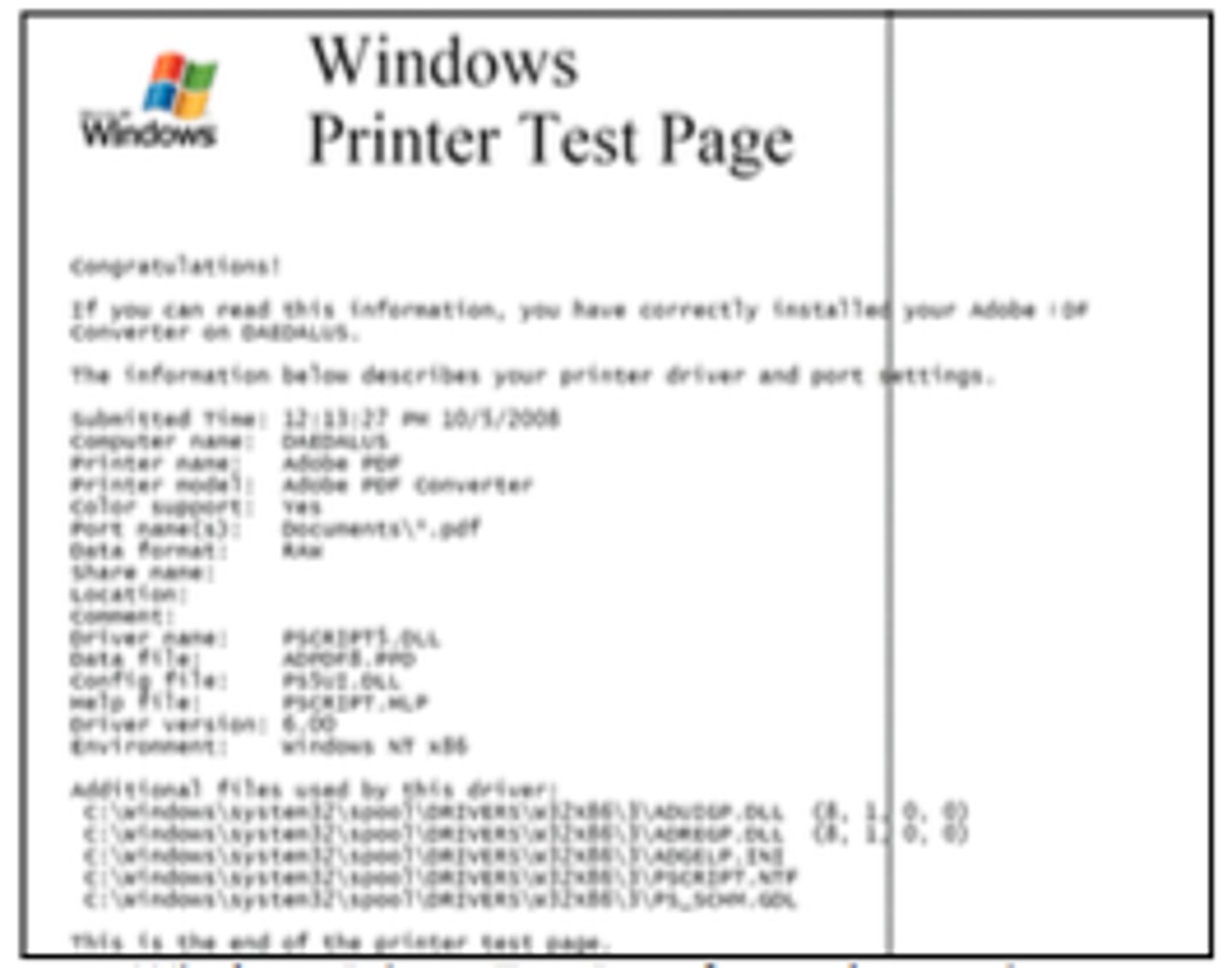
• Lines down the printed page
- Inkjet: Clean print heads
- Laser: Check for scratched photosensitive drum
• Faded prints, blank pages - Low toner or ink
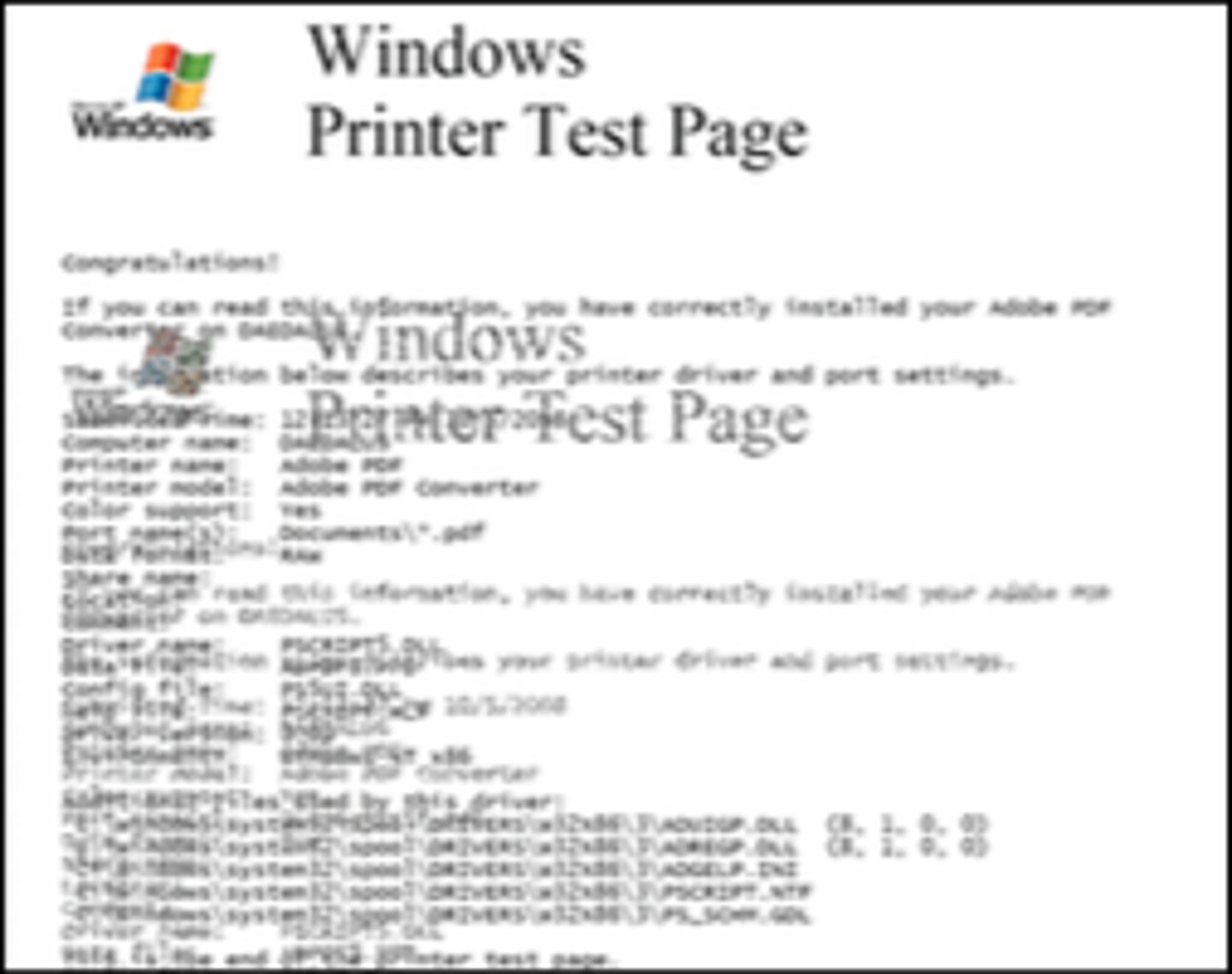
• Double/echo images or speckling
- Laser printer optical drum not cleaned properly
- Ghost or "shadow" from previous drum rotation
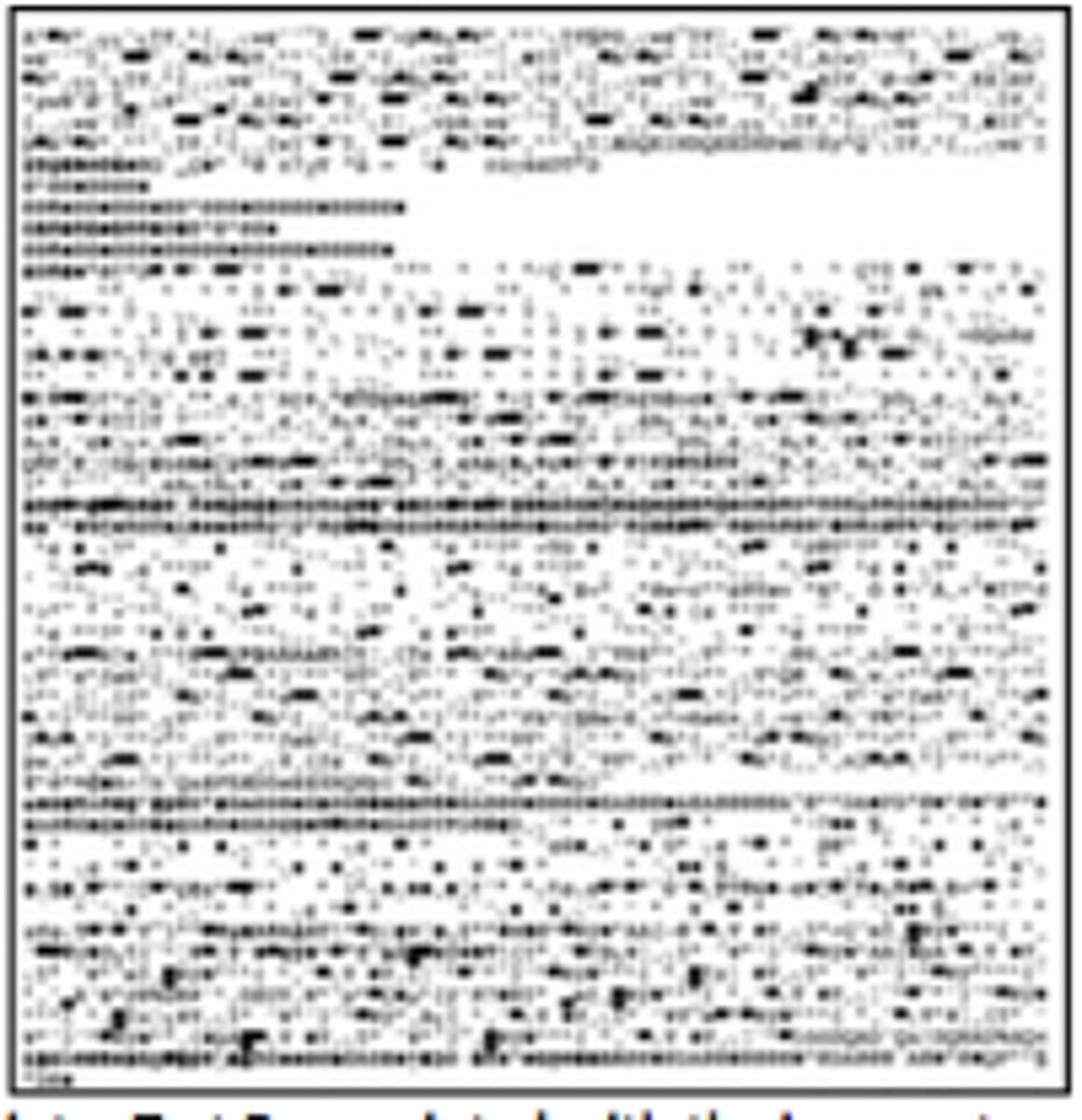
Garbled print
• Bad printer driver / wrong model
- Incorrect page description language
(PCL or PostScript?)
• Verify the printer functionality
- Check with a test page
• Bad application
- Check the output
- Upgrade the application
Paper jam
• Careful when removing
- Don't rip the paper
- Don't damage internal components
• Paper not feeding or misfeeds multiple pages
- Check the tray
- Pickup rollers are part of a laser printer maintenance kit
• Creased paper
- Problems in the paper path - Check the paper weight
Multiple prints pending in queue
• Corrupted print jobs
- Print spooler will crash
- Most spooler configuration will automatically restart
• Problems are logged
- Windows Event Viewer, Windows-PrintService
• One job may be causing the issue
- Monitor the queue for details
Grinding noises
• Never a good sound from your printer
- The ink is already manufactured
• Something is not operating properly
- Paper jam
- Carriage is stalled or jammed
• Each printer has a different process
- Check the manuals for removing paper jams
- Some inkjet printers have a particular process
• May require additional maintenance
- Or replace the printer
Finishing issues
• Finishing happens after the ink or
toner has been applied
- Collate, binding, etc.
• Staple jams
- Larger printers will collate and staple groups of papers
- Each manufacturer has a different removal process
• Incorrect hole punch location
- Verify with the printer driver
- May require a driver update
Incorrect page orientation
• Print a portrait page - Get a landscape print
• Check the settings when printing
- Controlled by the print driver
- May require a driver update
• The printer also has a default setting
- Check the settings on the printer console
Tray not recognized
• Office printers often have multiple paper trays
- Plain letter, plain legal, letterhead, paper colors, etc.
• The size of the printed page needs to match the size of the paper in the tray
- You can't print a 14" legal page to an 11" letter page
• The definition of the paper tray is part of the driver configuration
- Compare the user's configuration with the installed printer trays
Connectivity issues
• The printer is a network device
- Follows the same rules as any other device
• Confirm the connection type
- Wired, wireless, etc.
• Verify IP address configurations
- IP, subnet mask, default gateway, DNS, etc.
• Check the print server - May be part of the printer
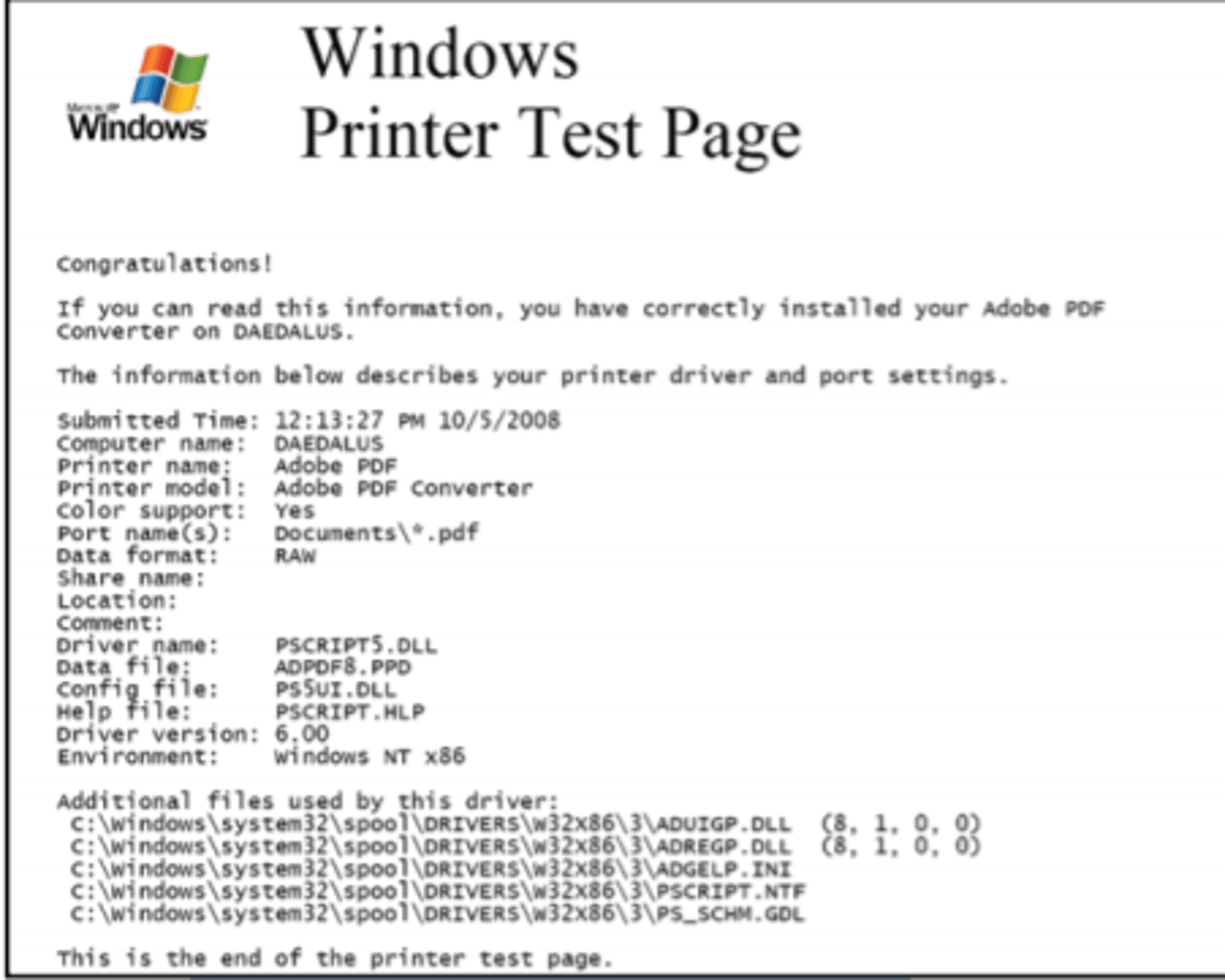
Normal Windows Printer Test Page
A "ghosting" Windows Printer Test Page from a
laser printer with a faulty cleaning subsystem
Windows Printer Test Page from a laser printer
with a scratched photosensitive drum
Printer Test Page printed with the incorrect page
description language or incorrect driver
 Note
Note  Flashcards (32)