CompTIA A+ Core 1(220-1201) Personal Study deck
 Call Kai
 Learn
Learn Practice Test
 Spaced Repetition
 Match
Match Flashcards
 Knowt Play
1/113

Earn XP
Name | Mastery | Learn | Test | Matching | Spaced | Call with Kai |
|---|
No analytics yet
Send a link to your students to track their progress
114 Terms
PC
Input, processing, storage, and output
Workstations
Typical desktop computer/PC with a tower based cased of all-in-one design
Servers
Powerful machines that can multitask simultaneously and host services. Only gets remoted into for configurations.
Tablets
Touchscreen interface, very portable. Runs OS (IOS, Android) without keyboard & mouse. Slimmed down laptops with specialized PS, mostly for consumption
Smart phone
Smaller tablets that also run OS( IOS, Android) with computing and communication abilities
Laptops
Portable workstations that run desktop OS (Mac OS, Windows, Linux). Operating with batteries that help with mobility
Smart Devices
Performs specific functions, usually lacking traditional input (mouse/keyboard), usually with voice recognition
Internet of Things (IOT)
Devices that connect to a network but doesn’t fit neatly into other categories
Key Types of Computers
Workstations
Servers
Laptops
Tablets
Smart phones
Smart Devices
Internet of Things (IOT)
4 Main Areas of Safety
Personal
Component
Electrical
Chemical
3 Main Computer Components
Hardware
Software
Firmware
Hardware
All physical parts of a computer, input and output
Input: Mouse, keyboard, central/graphics processing units (CPU/GPU)
Output: Speakers, monitors, printers
Software
Programs and OS that instruct hardware on what to do
OS (Windows, linux, etc)
Application Software (Microsoft word & Powerpoint)
Drivers (Help OS communicate with underlying hardware of a computer system
Firmware
Software embedded in hardware components. Often referred to as software on a chip and crucial for hardware functions. Usually updated by process known as flashing
Personal Safety
Preventing injuries while working
Avoid trip hazards
proper lifting techniques
Safety goggles, gloves and masks
Electrical Safety
Computers, servers, etc equipment— protection from electrocution
Always unplug computers before working inside one
Component Safety
Preventing damage to components
Electrostatic Discharge (ESD)
Prevention can include antistatic bags, ESH wriststrap, & ESD mat
Electrostatic Dischage (ESD)
Primary component threat, Occurs when electrons transfer from a statically charged boidy to an uncharged component which can damage it via electric shock
Chemical Safety
Hazardous materials that need protective hear & proper disposal methods
Material Safety Data Sheet: Provides details on ingredients, health risks, precautions, and first aid measures
Computer Parts
Motherboard
CPU
Power Supply
Memory
Storage
Cooling Fan
Troubleshooting Methology
Identify the problem
Establish theory of probable cause
Test the theory to find the cause
Establish a plan of action to resolve the problem and implement the solution
Verify full system functionality
Document findings, actions, & outcome
Bits/Bytes
How computers measure data transfer & storage
Bit
Binary digit; Can only store only 1 or 2 values (1 or 0)
Nibble
4 bits
Byte / Octet
8 Bits
Data Transfer measured in
Bits or magnitude of bits
Data Storage measured in
bytes
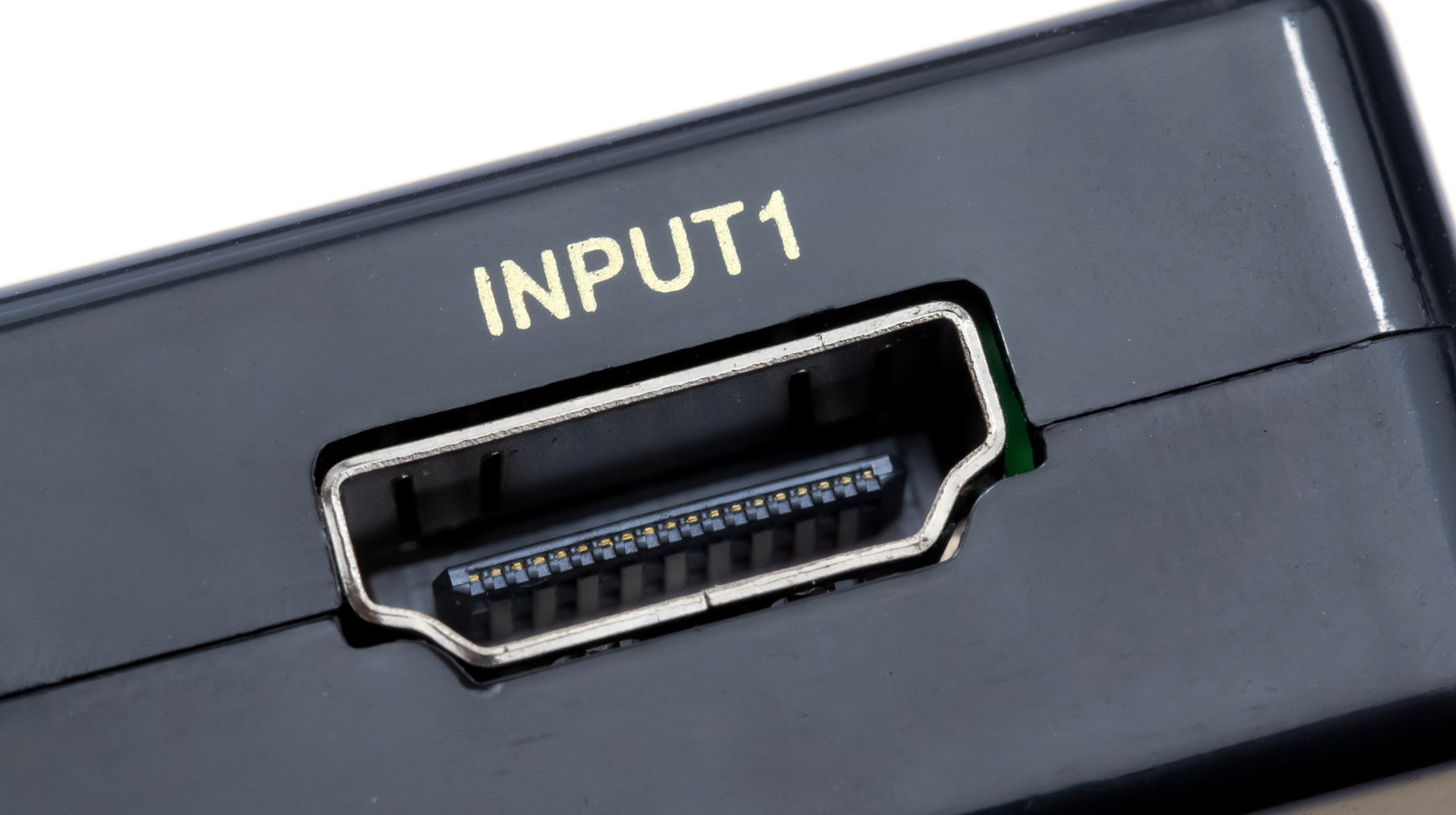
HDMI Port
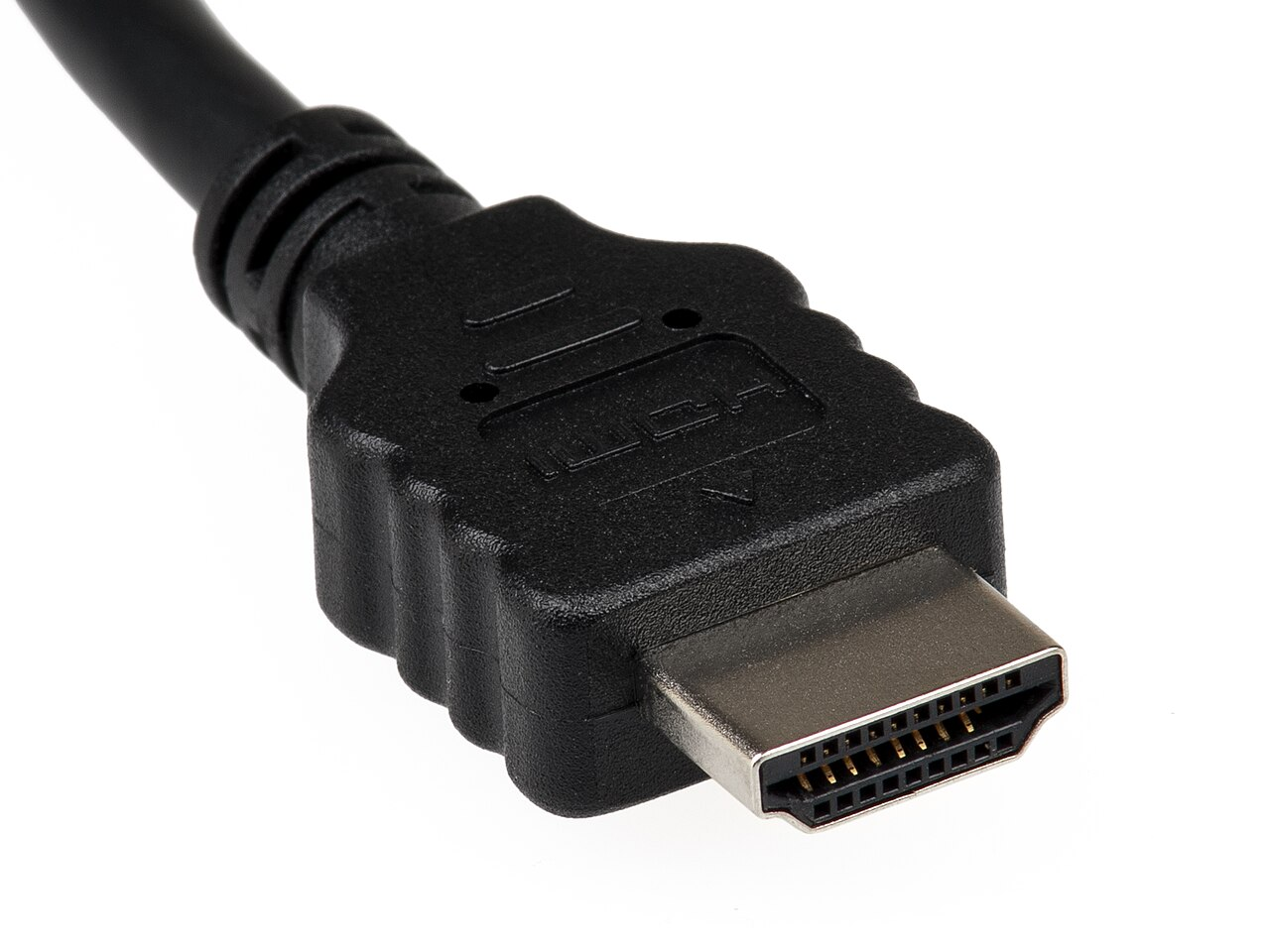
HDMI Plug
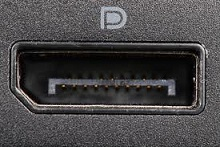
Displayport
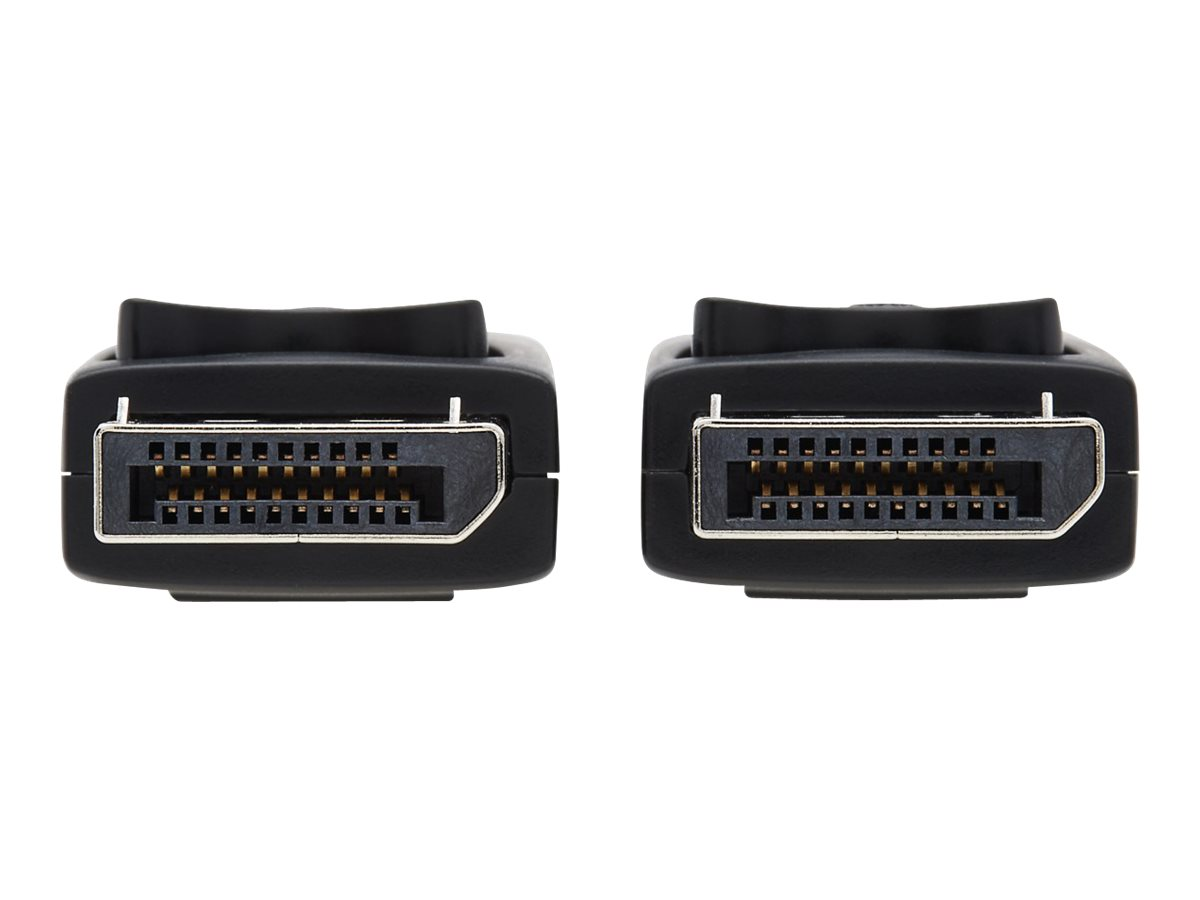
Displayport Cable
CD / DVD “Optical Device”
Allows to read/write info to system with optical device
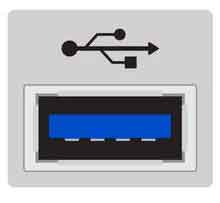
Blue USB Ports
For super speed which operate at speeds of 5 GBps for SuperSpeed USB 3.0
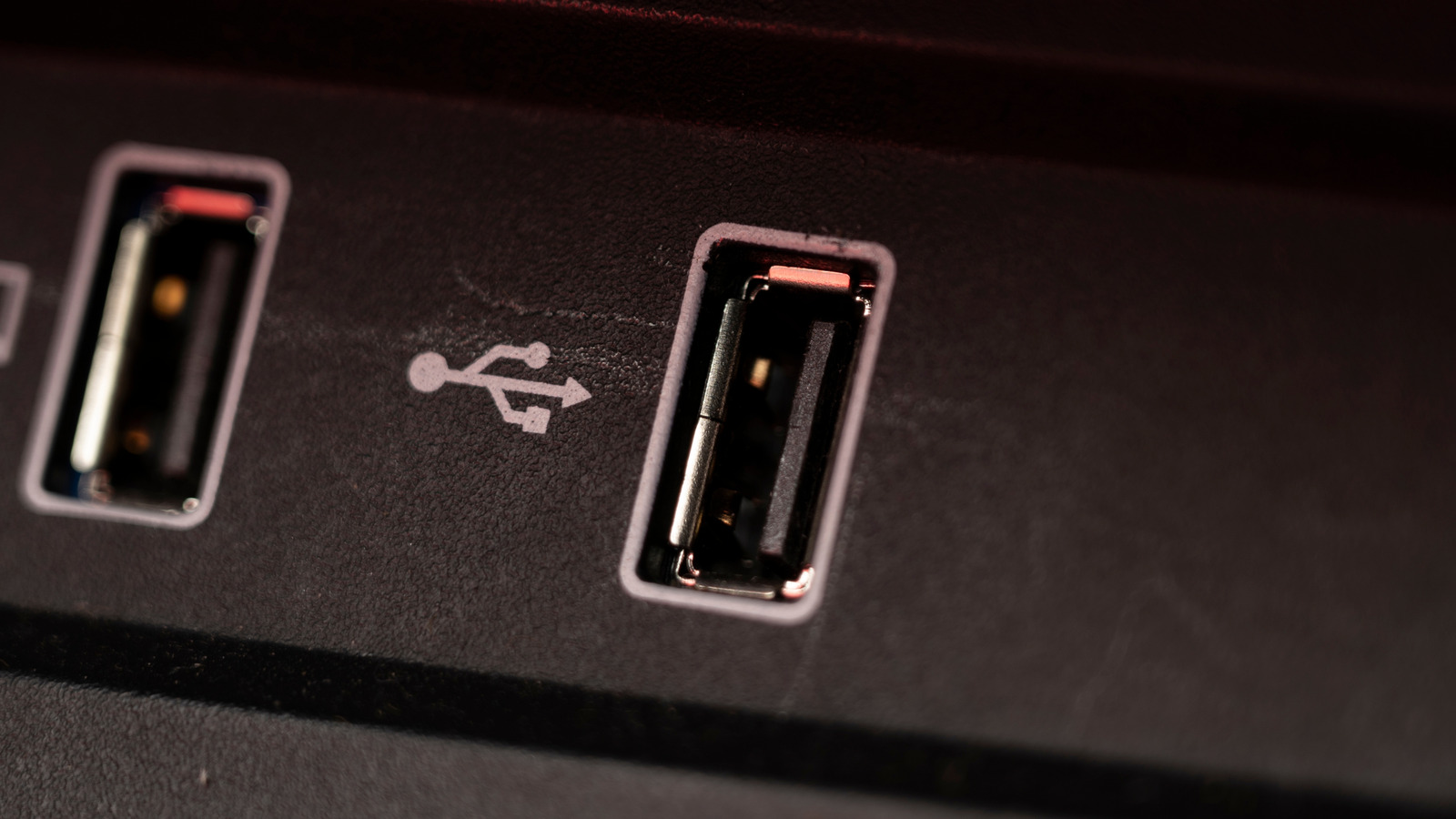
Black USB Ports
For USB 2.0 which are better for mics, headphones, keyboards, etc
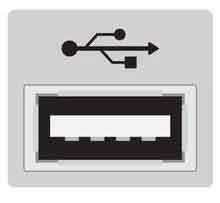
White USB Ports
For USB 1.0 types, up to 12 Mbps
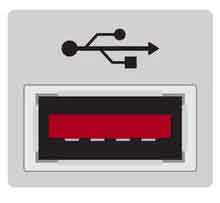
Red USB Ports
For USB 3.1/3.2 for Fast Charging, up to 10 Gbps+
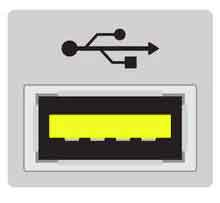
Yellow USB Ports
For sleeping and charging, “always-on power” with variable speeds so the port is always-on even if the computer is in sleep mode or turned off. Can be USB 2.0, or 3.0, must identify further with SS symbol
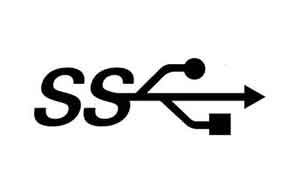
USB 3.0 ports have this symbol, 5 Gbps
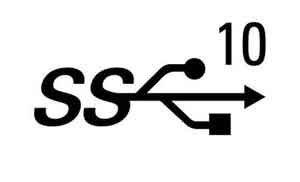
USB 3.0 port for 10 Gbit/s
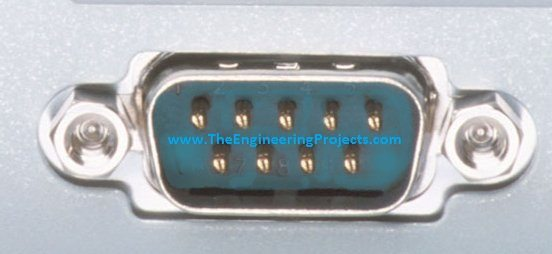
Serial Port
Serial Port
For PDAs (perosnal digital assistant aka old mobile handheld computers) and serial devices, transfers info one bit at a time
DVI (Digital Video Interface)
Older stle that’s largely replaced with HDMI & Displayports with modern machines
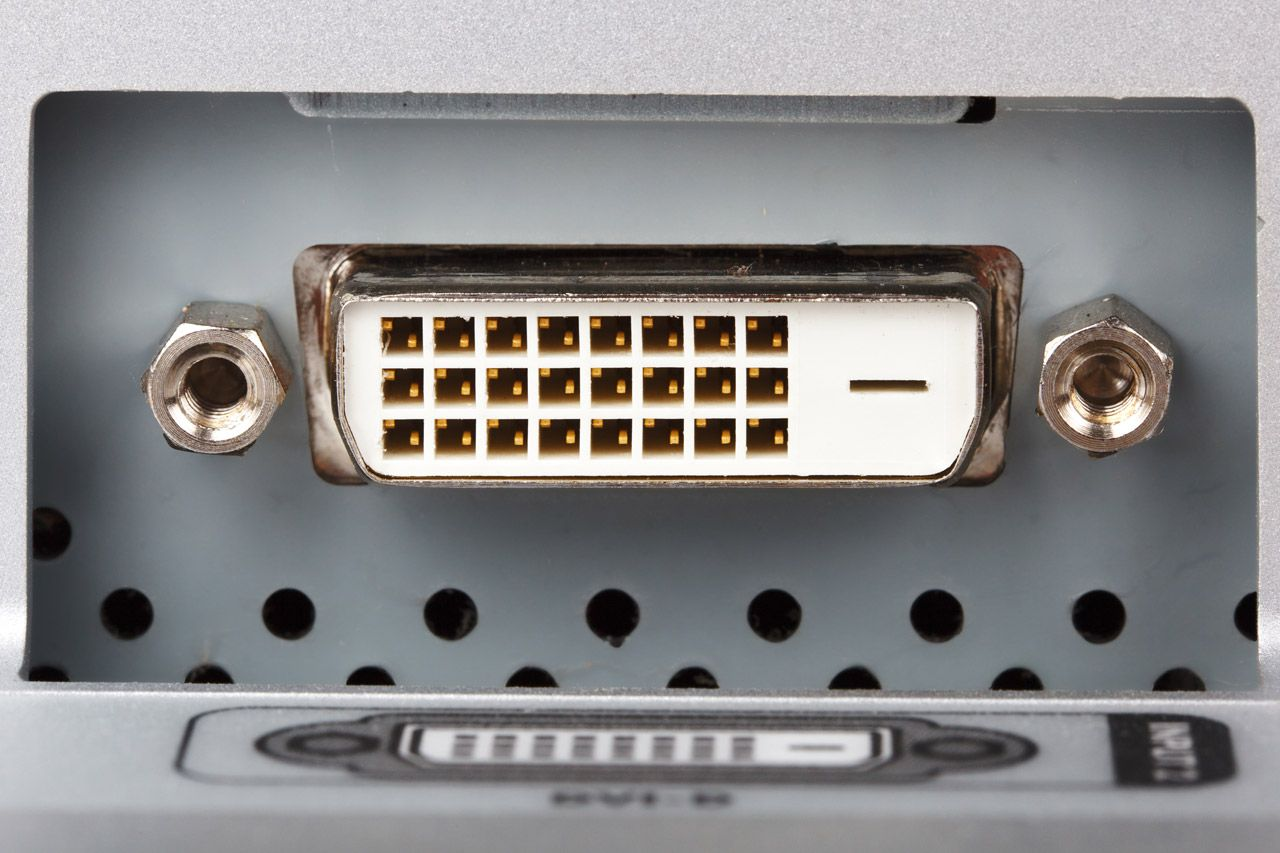
DVI Port
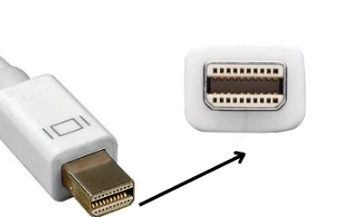
Mini displayport
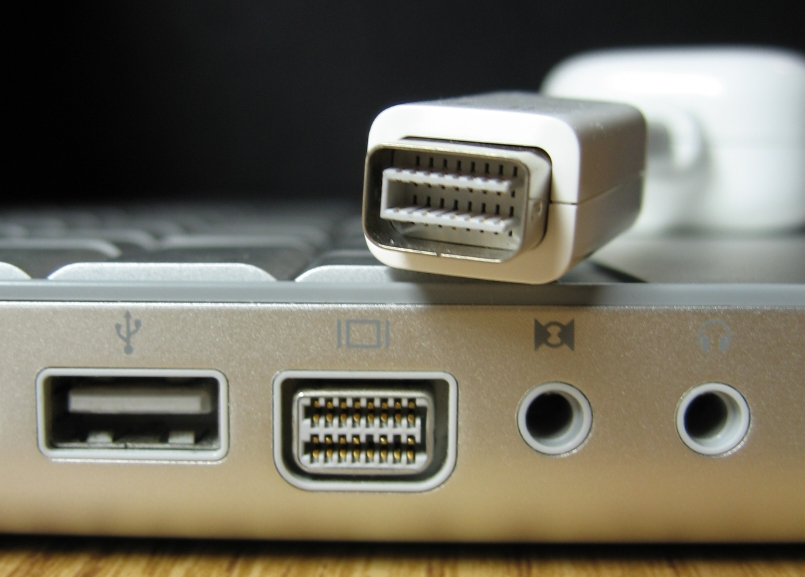
Mini DVI

Micro DVI
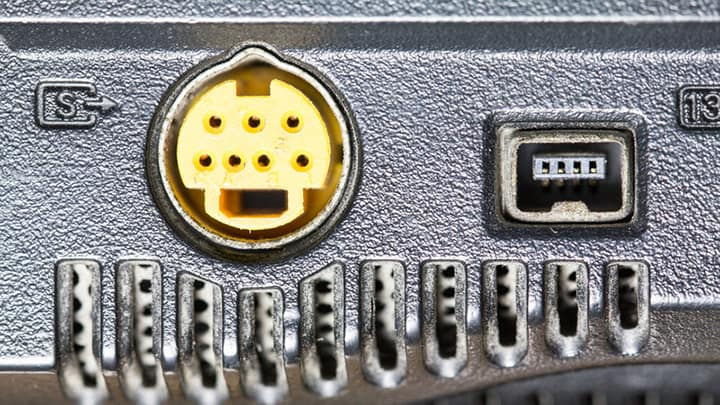
S-Video Port
S-Video Port
transmit standard-definition analog video signals between devices (typically for older gaming consoles, laptops/computers, or old video capture cards like VHS tapes
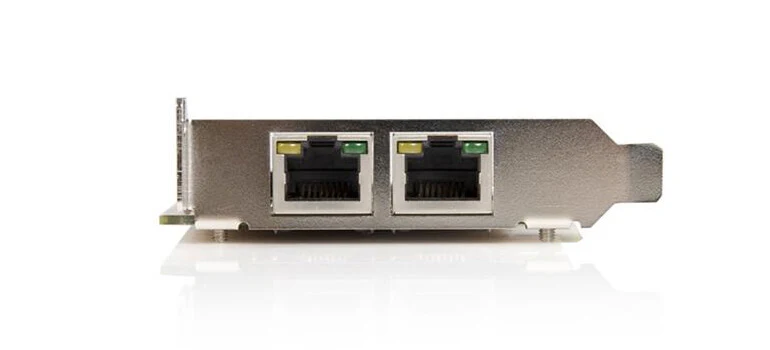
Ethernet Port/Network Jack/RJ45
For ethernet access to local area network over wired connection for high speed internet
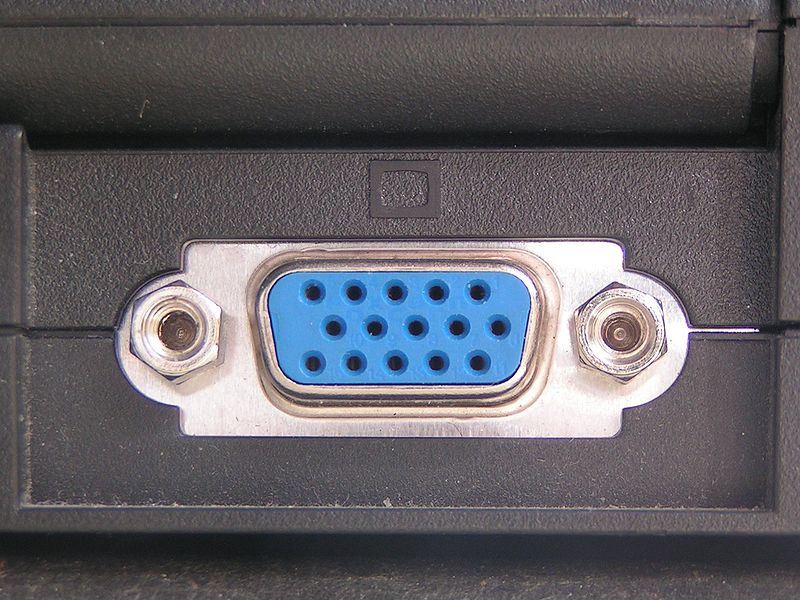
VGA Port
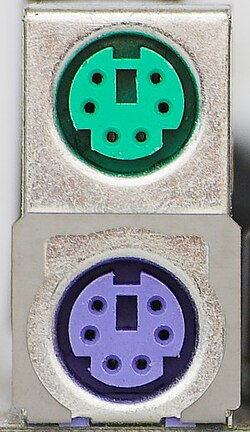
PS/2 Port for mouse (Green) /keyboard (purple)
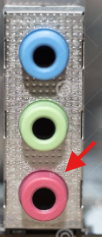
Microphone audio mini jack socket
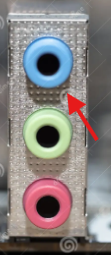
Stereo line-in audio jack socket to capture audio from external devices
ex. MP3 players, CD players, etc
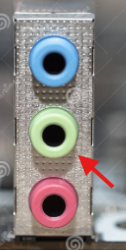
Stereo line-out audio jack socket, primary audio output for most computers/motherboards.
ex. earbuds, headphones, speakers
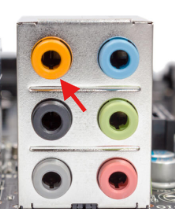
Subwoofer
Subwoofer
Surround sound: Only 1 needed for low frequency effects, whether it’s 5.1 or 7.1 surround sound
x rooms are better with 7.1 surround sound
Larger
x rooms are better with 5.1 surround sound
Smaller/ asymetric, or medium rooms sitting ~ 12 ft (4 meters) from the TV
S/PDIF Connector
(Optical Connector) that allows high quality audio to surround sound system, used instead of copper based 1/8th mini jacks

S/PDIF
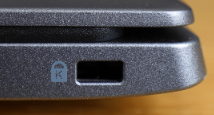
Kensington Lock
Allows you to place a metal cable from desk to computer tower to make sure it can’t be stolen from that location
Populat with laptops
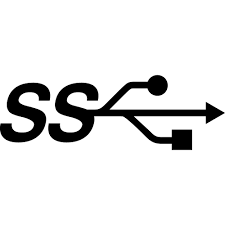
Superspeed USB 2.0 symbol

USB Superspeed Symbol for
USB 3.2 Gen 1×1
USB 3.1 Gen 1
USB 3.0

SuperSpeed+ symbol for
USB 3.2 Gen 2×1
USB 3.1 Gen 2
USB 3.1

USB Superspeed+ for USB 3.2 Gen 2×2

SuperSpeed+ for USB 4.0
USB Type A
Used with old 1.0, 1.1, & 2.0 standards and still supported in USB 3 and above.
Only allows insertion in 1 direction, letting pins align
commonly used on most desktops and laptops
Most common USB
USB Type B
Older USB 2.0 devices that can only be inserted in 1 direction. Comes with a mini and micro version
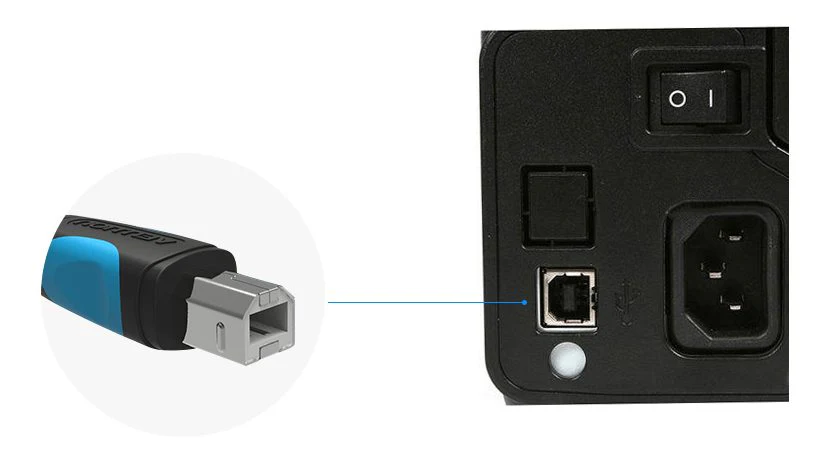
Standard USB Type B Port for 2.0/1.1, usually on large devices (ex. printers)
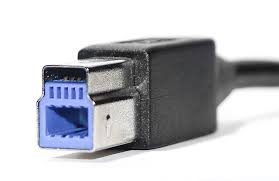
Standard USB Type B for 3.0, usually o large devices (ex. printer)

USB Type B Mini Connector, often found on earlier tablets and smartphones, 2.0/1.1

USB Type B 2.0/1.1 Micro Connector which is shorter and skinnier compared to the mini. Usually on small devices (ex. smart watches)

USB Type B 3.0 micro connector which is shorter and skinnier when compared to Type B mini. Often used for portable storage devices (ex. external hard drive)
3 USB Type B Connectors
Standard
Mini
Micro
USB Type C
Used with USB 3 and USB 4
Can be inserted either direction
Common in modern tablets, laptops, and smart phones bc it’s small form factor and speed
USB 3.0 Type B
Usually for printers and scanners. Doesn’t have equivalent type B mini connectors like USB 1.0 & 2.0. Instead it uses a type B micro connector which is different from USB 2 Type B micro connector
USB 3.0 Type B Micro Connector
Figure 8 shape, often for portable storage devices (ex. external hard drive). Can operate at fast speeds of 6 Gbps or more. Comon with older tablets and smart phones
USB 4
Inside tech that determines how fast data moves & how much power the cable can handle. Offers compatibility so older 3.x devices can be plugged in and vice versa BUT speed will default to slowest component in the chain
all use Type-C shapes but not all Type-C ports support this USB
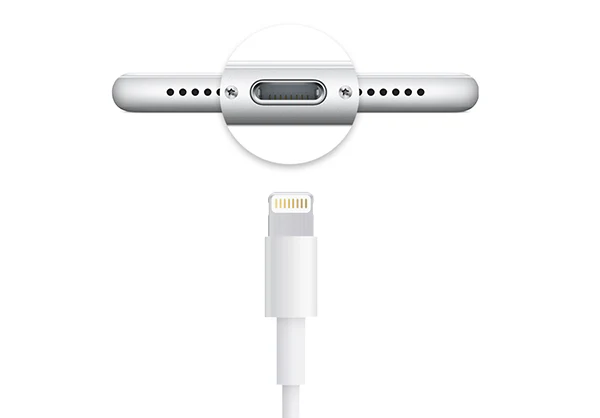
Lightning port
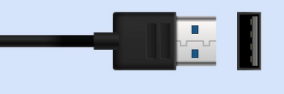
USB Type A pic
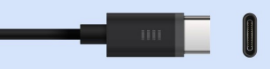
USB Type C pic
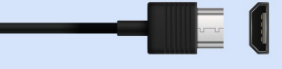
Micro-USB B pic
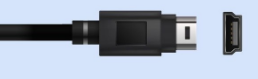
Mini USB B pic
USB (Universal Serial Bus)
Can provide power to smaller devices as long as you’re using the correct port and cable length. Can allow more than 1 device connection to a single USB port, up to 127 connected devices aka Daisy Chain
Daisy Chain
In multiple formats can turn 1 port to 4 and continously up to 127 devices. Ex. USB hub
Serial Cables
Older gen cables that originally connected to computers using DB9 or DB25 connectors. These connections can only have 1 device plugged into 1 port, making it limited as computers thend to have 1-3 of these ports.
Very slow data transmissions because it’s sent 1 bit at a time and measured in bits per second with max speed of 115 Kbps.
Largely replaced by faster USB connections but occasionally used in specific situations (ex. connecting to communication ports on routers or switches)
Serial cable Max Speed
115 Kbps
DB9 Serial Cable
Common D-shape and requires thumb screws to secure cable to PC port.
For slow speed connections, generally older mice, keyboards, and external modem
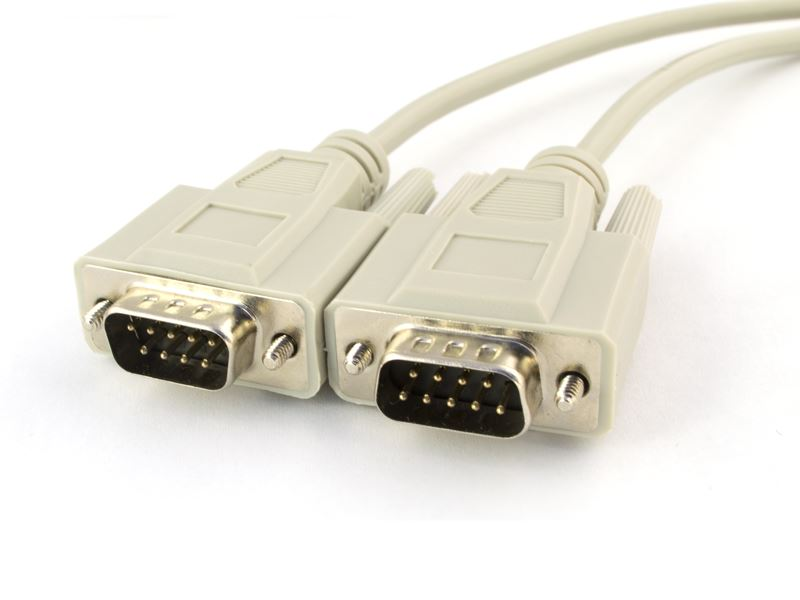
DB9 Serial Cable
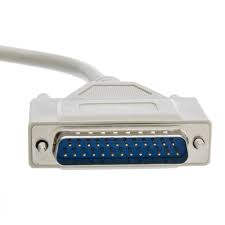
DB25 Serial Cable
USB Cable Types
1.0
1.1
2.0
3.0
3.1 Gen 1
3.1 Gen 2
3.1 Gen 3
4.0
USB 1.0
Slow in modern day but first replacing serial devices for speed making it 10-12x more faster
USB 1.0 Speed
Max speed of 1.5 Mbps
USB 1.1
Allowed devices to transfer data up to 12Mbps, 10-12x faster than 1.0
USB 1.1 Speed
Up to 12 Mbps
USB 1.0, 1.1, 2.0 limits
5 meters (~15 ft) of cable distance
USB 2.0
High Speed USB, transfering data up to 480 Mbps
USB 3.0
SuperSpeed USB
Has multiple generations (3)
Any time you see a port with SS
USB 3.0+ limits
Returns to 3 meters (~ 9 ft) of distance as otherwise speeds will drop quickly
Shorter cables of x ft or less have better signals
9