Human Computer Interaction - Test 1
 Call Kai
 Learn
Learn Practice Test
 Spaced Repetition
 Match
Match Flashcards
 Knowt Play
1/28

There's no tags or description
Looks like no tags are added yet.
Name | Mastery | Learn | Test | Matching | Spaced | Call with Kai | Chat |
|---|
No analytics yet
Send a link to your students to track their progress
29 Terms
What is ConstraintLayout and how does it benefit UI design?
Improved Performance through Flat View Hierarchies
It avoids nested layouts (placing a layout inside another layout)
Older managers like
LinearLayoutorRelativeLayout, increase the time the system needs to draw the UI
Responsive Design
ConstraintLayout is specifically designed to make UIs responsive to different screen sizes
Chains: This feature provides group-like behavior by creating bidirectional constraints between two or more views, allowing them to be laid out in unison across a single axis.
Constraint Bias: This is used to position a view dynamically. While views are centered by default (50% bias), you can adjust this bias from 0.0 to 1.0 to ensure the component sits exactly where intended on screens of varying dimensions
Precise Alignment and Flexibility
Baseline Constraints: You can align the text within different components regardless of their overall size by using baseline constraints
Bidirectional Positioning: Unlike simpler layouts, every view in a
ConstraintLayoutis typically anchored with at least one horizontal and one vertical constraint, ensuring it remains stable when the screen orientation or size changes
Visual Editing Efficiency
It is deeply integrated with the Android Studio Layout Editor, allowing designers to use the "Design" and "Blueprint" views to drag-and-drop components and visually "snap" constraints into place
What is Human-Computer Interaction (HCI)?
It is an inter-disciplinary field—drawing from engineering, computer science, psychology, graphic design, and ergonomics—concerned with the design, evaluation, and implementation of computing systems for human use.
What is HCI’s primary focus?
It is addressing people’s needs, capabilities, and limitations
What is interface?
An interface is what allows a user to access the functions of an item.
Interfaces are categorized into what types?
Physical and logical interfaces
What is Physical Interface?
The tangible components like buttons, screens, and menus.
What is Logical Interface?
The "model" a system presents to the user, including the set of available tasks and how they are organized (e.g., the sequence of inputting data, computing, and outputting results).
What is Interaction Design defined as?
It is defined as "designing interactive products to support the way people communicate and interact in their everyday and working lives".
What is Usability?
A usable product is one that is easy to learn, effective to use, and provides an enjoyable experience.
What is User-Centered Design (UCD)?
This approach focuses on understanding the users, their specific goals, and their physical or social environment throughout the entire development process.
What are Multidisciplinary Teams?
Professionals in this field come from various backgrounds (e.g., UX designers, usability engineers, and information architects). While these teams generate more ideas, they can face challenges in communication due to their different perspectives.
What are the four main activities in the Interaction Design process?
Identify needs and establish and establish requirements (through searching, reviewing, and interviewing)
Develop alternative designs
Build interactive prototypes that can be communicated and assessed
Evaluate what is being built throughout the entire process.
How do I create a horizontal chain in Android Studio?
Select the views: Click to select two or more views that you want to include in the chain
Open the Chain menu: Right-click on any of the selected views
Create the chain: Select Chain > Create Horizontal Chain from the context menu
What is a Horizontal Chain?
A chain is a bidirectional constraint between two or more views that allows them to be laid out in unison across a single axis. They provide "group-like behavior" while remaining responsive to different screen sizes
What is the Chain Head?
Horizontal chains are controlled by attributes set on the left-most view, which is considered the “head” of the chain.
You can customize how the views are distributed by changing the chain style. What common styles are included?
Spread Chain
Spread Inside Chain
Weighted Chain
Packed Chain
What is Chain Bias?
When views are chained, you can adjust the constraint bias (ranging from 0.0 to 1.0) to shift the entire group of views along the horizontal axis
What are the rules for horizontal and vertical constraints?
When creating constraints in Android Studio's ConstraintLayout, there are several fundamental rules you must follow to ensure your UI components are positioned correctly:
Minimum Constraints: Every view must have at least two constraints: one horizontal and one vertical.
Handle Usage: Each individual constraint handle (the circles on the sides of a view) can be used for just one constraint.
Anchor Points: While a handle can only have one constraint, you can create multiple constraints from different views to the same anchor point.
Default Centering and Bias: When a view is constrained on both opposite sides (e.g., both left and right), it is centered by default with a 0.5 (50%) constraint bias. This bias can be adjusted from 0.0 to 1.0 to position the view dynamically for different screen sizes.
Axis Independence: If a view lacks a constraint for an axis, it will not be fixed in that direction. For example, if a view has a horizontal constraint but no vertical one, it can still move up and down freely.
Chain Control: In a Chain (a bidirectional constraint between multiple views), behavior is controlled by attributes set on the chain head. The head is the left-most view for horizontal chains and the top-most view for vertical chains
What is the difference between a spread and packed chain?
Spread Chain: This is the default style for a chain. In a spread chain, the views are distributed evenly across the available space on the horizontal or vertical axis.
Packed Chain: In this style, the views are packed together closely. By default, a packed chain will be centered within the available space unless a constraint bias is applied to shift the entire group.
What is a chain?
A bidirectional constraint between two or more views that allows them to be laid out in unison across a single axis
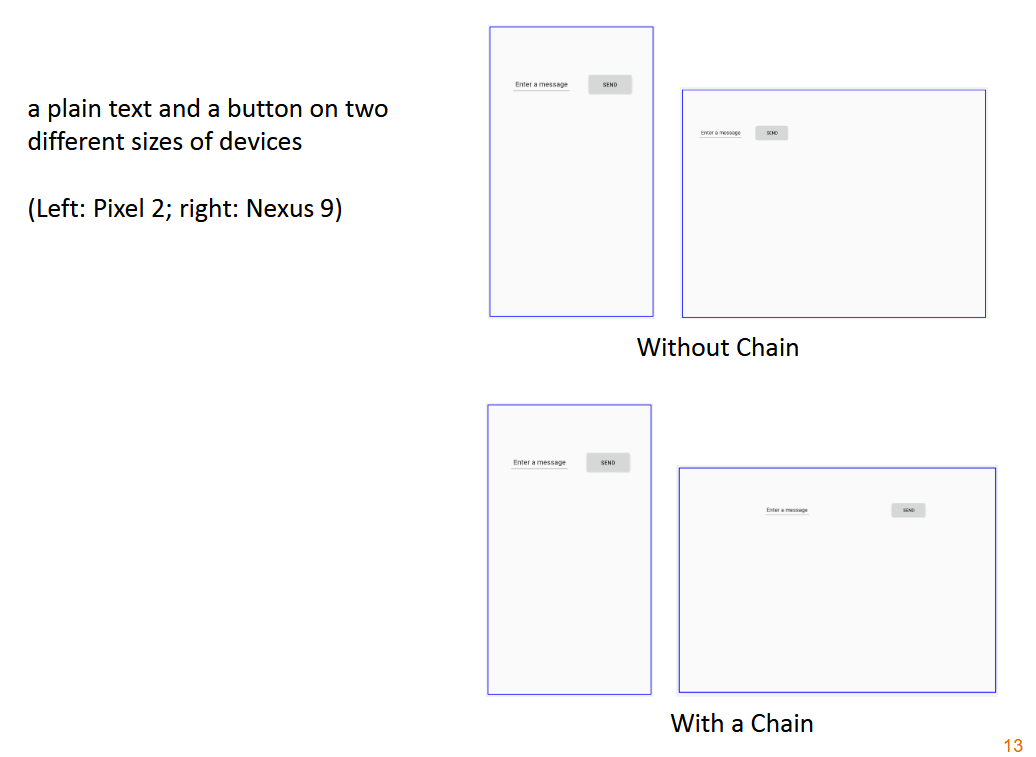
How do you add a chain?
Add Chain: select both views, and then right-click either
view and select Chain > Create Horizontal Chain
What is a constraint bias?
It is useful for positioning a view
dynamically for different screen sizes.
❖ When a view is constrained on both sides horizontally or
vertically, either to parent or other views, by default it has
0.5 or 50% constraint bias (i.e., the view stays in the
center).
❖ Constraint bias ranges from 0.0 (0%) to 1.0 (100%)
What are the outlines of The Process of Interaction Design?
Double Diamond of Design
Software Development Life Cycle
Interaction Design Lifecycle Model
How do we achieve more usable systems?
– Goals we want to achieve
– Principles on how to achieve these
– Lists of do’s and don’ts
– Theories that underlie principles and lists
– Methods for measuring and evaluating
What are Usability Goals?
1. Effective to use
2. Efficient to use
3. Safe to use
4. Have good utility
5. Easy to learn
6. Easy to remember how to use
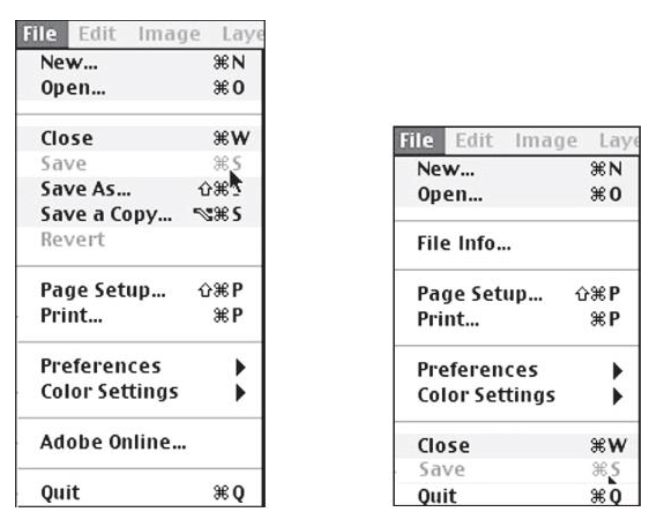
Which of the following menus is safe and which is
unsafe?
The one on the right is unsafe, because the Close, Save, and Quit buttons are too close to each other. Users can accidentally quit a program instead of saving a program.
Making interactive SW products safer can involve what?
– preventing the user from making serious errors by reducing the
risk of wrong keys/buttons being mistakenly activated
• E.g. not placing the quit or delete-file command right next to the save
command on a menu
– providing users with various means of recovery should they
make errors
• E.g. an undo function.
– confirming dialog boxes that give users another chance to
consider their intentions