AWS Solutions Architect: EC2 Fundamentals
 Call Kai
 Learn
Learn Practice Test
 Spaced Repetition
 Match
Match Flashcards
 Knowt Play
1/73

There's no tags or description
Looks like no tags are added yet.
Name | Mastery | Learn | Test | Matching | Spaced | Call with Kai | Chat |
|---|
No analytics yet
Send a link to your students to track their progress
74 Terms
Video for Budget setup in AWS
AWS Budget Setup
EC2
Elastic compute cloud = Infrastructure as a service
Capability of EC2
Renting Virtual Machines (EC2)
Storing data on virtual drives (EBS)
Distribute load across machines (ELB: Elastic Load Balancer)
Scaling the services using an auto-scaling group (ASG)
EC2 sizing and configuration options
Operating System: Linux (most popular), Windows and Mac OS
How much compute power and cores (CPU)
How much Random Access Memory (RAM)
How much Storage Space: Network attached (EBS and EFS), Hardware attached (EC2 Instance store)
Network card: Speed of the card, Public IP Address
Firewall rules: security group
Bootstrap script (configured at first launch): EC2 User data
Bootstrapping
Launching commands when a machine starts
EC2 User data
We can bootstrap our instances using an EC2 User Data script.
That script is only run once at the instance first start.
Boot tasks EC2 user data can automate
Installing updates
Installing software
Downloading common files from the internet
Anything you can think of
Which user does the EC2 data script run with
Root user
Video for launching first EC2 instance running Amazon Linux
Create an EC2 instance with EC2 User Data to have a Website Hands On
Link for all EC2 instance types
https://aws.amazon.com/ec2/instance-types/
Naming conventions in AWS
example: m5.2xlarge
m: instance class
5: generation (AWS improves them over time)
2xlarge: size within the instance class
EC2 instance types: General purpose
Great for diversity of workloads such as web servers or code repositories
Balance between: compute, memory, networking
In this course we use t2.micro which is a general purpose EC2 instance
EC2 instance types: Computer Optimized
Great for compute-intensive tasks that require high performance processors
high level processor uses examples:
batch processing workloads
media transcoding
high performance web servers
high performance computing (HPC)
scientific modeling and machine learning
dedicated gaming servers
EC2 instance types: Memory Optimized
Fast performance for workloads that process large data sets in memory (RAM)
Use cases:
High performance, relational/non-relational databases
Distributed web scale cache stores
In-memory databases optimized for BI (business intelligence)
Applications performing real time processing of big unstructured data
EC2 instance types: Storage Optimized
Great for storage-intensive tasks that require high, sequential read and write access to large data sets on local storage
Use cases:
High frequency online transaction processing (OLTP) systems
Relational and NoSQL databases
Cache for in-memory databases (example Redis)
Data warehousing applications
Distributed file systems
Lists all the instances available in AWS
instances.vantage.sh
Security Groups
The fundamental network security in AWS
Control how traffic is allowed into or out of our EC2 instances
Only contain allow rules
Rules can reference by IP or by security group
For example, an EC2 instance will have a security group around it and the rules in it will decide whether or not some inbound traffic (from the outside) is allowed or not into the EC2.
Also decides if stuff from the EC2 is allowed to where it is into the internet
Security groups deeper dive
Security groups are acting as a '“firewall” on EC2 instances
They regulate:
Access to ports
Authorized IP ranges (IPv4 and 6)
Control of inbound network (from outside to the instance)
control of outbound network (from instance to outside)
Security groups good to know
Can be attached to multiple instances
Locked down to a region/VPC combination
Lives “outside” the EC2 - if traffic is blocked the EC2 instance won’t see it
It’s good to maintain one security group for SSH access
If your application is not accessible (time out), then it is a security group issue
If your application gives a “connection refused” error, then it is an application error or it is not launched
All inbound traffic is blocked by default
All outbound traffic is authorized by default
Useful security group info
No matter what the IP is of an Ec2 instance, as long as they have the right security group attached to them they are able to communicate straight through to other instances
SSH port number
22, SSH is to log into a linux instance
FTP (File transfer protocol) port number
21, FTP is to upload files into a file share
SFTP (Secure file transfer protocol) port number
22, SFTP is to upload files using SSH
HTTP port number
80, HTTP is to access unsecured websites
HTTPS port number
443, HTTPS is to access secured websites
RDP port number
3389, RDP is to log into a windows instance
Video for Security Groups in AWS
Security Group Hands On
SSH Troubleshooting: connection timeout
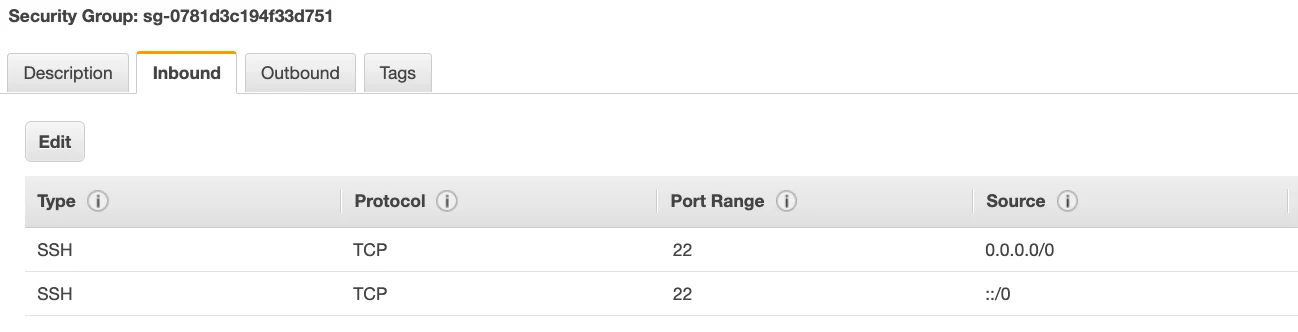
This is a security group issue. Any timeout (not just for SSH) is related to security groups or a firewall. Ensure your security group looks like this and correctly assigned to your EC2 instance.
If your security group is properly configured as above, and you still have connection timeout issues, then that means a corporate firewall or a personal firewall is blocking the connection. Please use EC2 Instance Connect
SSH Troubleshooting: SSH does not work on Windows
If it says ssh command not found, that means you need to use Putty
If things don't work, please use EC2 Instance Connect
SSH troubleshooting: There's a connection refused
This means the instance is reachable, but no SSH utility is running on the instance
Try to restart the instance
If it doesn't work, terminate the instance and create a new one. Make sure you're using Amazon Linux 2
SSH troubleshooting: Permission denied (publickey,gssapi-keyex,gssapi-with-mic)
This means either two things:
You are using the wrong security key or not using a security key. Please look at your EC2 instance configuration to make sure you have assigned the correct key to it.
You are using the wrong user. Make sure you have started an Amazon Linux 2 EC2 instance, and make sure you're using the user ec2-user. This is something you specify when doing
ec2-user@<public-ip>(ex:ec2-user@35.180.242.162) in your SSH command or your Putty configuration
SSH troubleshooting: Nothing is working
Don't panic. Use EC2 Instance Connect. Make sure you started an Amazon Linux 2
SSH troubleshooting: I was able to connect yesterday, but today I can't
This is probably because you have stopped your EC2 instance and then started it again today. When you do so, the public IP of your EC2 instance will change. Therefore, in your command, or Putty configuration, please make sure to edit and save the new public IP.
AWS configure in instance connect is a terrible idea
If we enter personal details into an EC2 instance, then anyone else in our accounts can connect to our EC2 instance and retrieve the value of these credentials in our instance. Also never enter the Access Key ID and/or the Secret Access Key into an EC2 instance.
Video to attach an IAM role into an EC2 instance:
EC2 instance Roles Demo
How to provide AWS credentials to our EC2 instances
Only through IAM Roles
EC2 instances purchasing options: On-Demand instances
short workload, predictable pricing, pay by second
EC2 instances purchasing options: Reserved (1 - 3 years)
Reserved instances - long workloads
Convertible Reserved Instances - long workloads with flexible instances
EC2 instances purchasing options: Saving plans (1 - 3 years)
Commitment to an amount of usage, long workloads
EC2 instances purchasing options: Spot instances
short workloads, cheap, can lose instances (less reliable)
EC2 instances purchasing options: Dedicated hosts
book an entire physical server, control instance placement
EC2 instances purchasing options: Dedicated instances
no other customers will share your hardware
EC2 instances purchasing options: Capacity reservations
Reserve capacity in a specific AZ for any duration
EC2 on demand
Pay for what you use:
Linux/windows: billing per second - after the first minute
All other operating systems - billing per hour
Has the highest cost but no upfront payment
No long term commitment
Recommended for short term and un-interrupted workloads, where you can’t predict how the application will behave
EC2 reserved instances
72% discount compared to on-demand
You reserve specific instance attributes (Instance Type, Region, Tenancy, OS)
Reservation Period - 1 year (discount) or 3 years (bigger discount)
Payment options - No upfront, partial upfront (discount), all upfront (bigger discount)
Reserved Instance’s scope - regional or zonal (reserve capacity in an AZ)
Recommended for steady state usage applications (like a database)
You can buy and sell in the reserved instance marketplace
Convertible Reserved instance
Can change the EC2 instance type, instance family, OS, scope, and tenancy
Up to 66% discount
EC2 savings plan
Get a discount based on long term usage (up to 72% same as reserved instances)
Commit to a certain type of usage (10$ an hour for 1 or 3 years)
Usage beyond EC2 savings plan is billed at the On-Demand price
Locked to a specific instance family & AWS region (example M5 in us-east-1)
Flexible across: instance size (e.g.. m5.xlarge, m5.2xlarge), OS (e.g. Linux windows), Tenancy (Host, Dedicated, Default)
EC2 Spot instances
Can get a discount of up to 90% compared to on-demand
Instances that you can “lose” at any point of time if your max price is less than the current spot price
Most cost efficient in AWS
Useful for workloads that are resilient to failure: batch jobs, data analysis, image processing, any distributed workloads, workloads with a flexible start and end time
Not suitable for critical jobs or databases
EC2 dedicated hosts
A physical server with EC2 instance capacity fully dedicated to your use
Allows you to address compliance requirements and use your existing sever bound software licenses (per-socket, per-core, per-VM software licenses)
The most expensive option
Useful for software that have complicated licensing model (BYOL - bring your own license)
Or for companies that have strong regulatory or compliance needs
Purchasing options for EC2 dedicated hosts
On-Demand - pay per second for active dedicated hosts
Reserved - 1 or 3 years (no upfront, partial upfront, all upfront)
Dedicated instances vs Dedicated hosts
Dedicated instances: you have your own instance on your own hardware
Dedicated hosts: You get access to the physical server itself and it gives you visibility into the lower level hardware
EC2 dedicated instances
Instances run on hardware that is dedicated to you
May share hardware with other instances in same account
No control over instance placement (can move hardware after stop/start)
EC2 capacity reservations
Reserve on-demand instances capacity in a specific AZ for any duration
You always have access to EC2 capacity when you need it
No time commitment (create/cancel anytime), no billing dicsounts
Combine with regional reserved instances and savings plan to benefit from billing discounts
You’re charged at On-Demand rate whether you run instances or not
Suitable for short-term, uninterrupted work loads that need to be in a specific AZ
On demand analogy
coming and staying in a resort whenever we like, we pay the full price
Reserved analogy
like planning ahead and if we plan to stay for a long time, we may get a good discount
Savings plan analogy
pay a certain amount per hour for certain period and stay in any room type (e.g. King, Suite, Sea View…)
Spot instances analogy
the hotel allows people to bid for the empty rooms and the highest bidder keeps the room. You can get kicked out at any time
Dedicated hosts analogy
We book an entire building of the resort
Capacity reservations
You book a room for a period with full price even if you don’t stay in it
EC2 spot instance requests
Can get a discount of 90% compared to On-Demand
Used for batch jobs, data analysis, or workloads that are resilient to failures
Not great for critical jobs or databases
How does it work to get a spot instance
You define a max spot price you’re willing to pay and you will get the EC2 instance (the spot instance) as long as the current spot price is below the max you are willing to spend.
Hourly spot price will vary based on offer and capacity
If the current spot price > max price you can choose to stop or terminate your instance with a 2 minute grace period