5.1 Troubleshooting Computer Hardware
 Call Kai
 Learn
Learn Practice Test
 Spaced Repetition
 Match
Match Flashcards
 Knowt Play
1/15

There's no tags or description
Looks like no tags are added yet.
Name | Mastery | Learn | Test | Matching | Spaced | Call with Kai | Chat |
|---|
No analytics yet
Send a link to your students to track their progress
16 Terms
POST Beeps (Power-on self test)
POST is a built in diagnostic program in the BIOS or UEFI to test core system components are installed and operational before booting the OS. When an error in POST occurs, the computer will perform a series of beeps or lights, called the beep code. To identify the issue, compare the code against vendor documentation. Cause of the beep may be BIOS configuration or hardware.
POST and boot - Blank screen on boot
Listen for beeps. May be bad video, bad RAM, or bad CPU. May be BIOS configuration issue
POST and boot - BIOS time and setting
Maintained with the motherboard battery, fix by replacing the battery.
POST and boot - Attempts to boot to incorrect device
Set boot order in BIOS configuration, confirm that the startup device has a valid OS, and check for media in a startup device.
Proprietary Crash Screens
System-specific error messages that occur when there is a potentially fatal error in the system. They contain important info like “stop codes” and are written to the event log. Most common are the Windows BSOD (Blue Screen of Death) and the macOS rotating pinwheel. Common cause is memory issues, which may cause application crashes or error messages. Startup and shutdown BSODs are related to bad hardware, bad drivers, and bad applications.
BSOD fixes
Can use Last Known Good, System Restore, Rollback Driver, or try starting the computer in Safe Mode. Can try to reseat or remove the hardware. Run hardware diagnostics provided by the manufacturer. Keep as many detailed notes and screenshots on crash that you can.
Blank Monitor screen fixes
Check if the monitor is connected for both power and signal cable. Check the input selection on the monitor. If image is dim, check the brightness controls on monitor. Try swapping the monitor or cable, or try using the monitor with another computer. Possibly a problem with the video card. If there is no video after Windows loads it may be an OS problem, use VGA mode by pressing F8 during booting to boot Windows using basic 640×480 video drivers.
No Computer Power fixes
Usually a faulty power outlet or power supply, test with different outlets and power supplies, you may also use a multimeter. Case fans have lower voltage requirements, if fans spin but no power to other components, check motherboard and power supply output.
Sluggish Performance computer fixes
Common causes include low memory, low storage space, failing components, bad applications, too many applications, or malware, hard to troubleshoot. Use task manager to check for high CPU, RAM, storage, and network usage. Check if laptop is in power-saving mode. Can try clearing space or defragging the hard drive. Use anti-virus and anti-malware to check for malware.
Overheating computer fixes
Overheating can be caused by problems with the fan or heat sink, dust accumulation, or air circulation blockages. Can verify temperature readings with monitoring software in the BIOS. Look for circulation blockages or buildup and use compressed air to blow away.
Smoke and Burning Smell fixes
Remove device from power to limit damage and examine for source, looking for melted plastic or burn marks on the circuit board. Replace damaged components and monitor for repeated failure. If repeated failure, may be indicator of a power supply issue.
Random Shutdown fixes
Random or intermittent shutdown is usually from components overheating and failing, sensors detect overheating and power down to prevent damage, check fans, heat sinks, and BIOS temps. May also be caused by bad hardware installation or a bad motherboard connection. Sometimes you can find details on the shutdown in Event Viewer.
Application Crash fixes
Not guaranteed that an application will give an error message when it crashes. Check the Event Viewer or logs, check the Reliability Monitor which records application problems, and reinstall the application (app version of ON/OFF again). Often an indicator of memory issues, may be failing memory or not enough memory for application. May also be a sign of failing motherboard or an overheating CPU or GPU.
Unusual Noise fixes
Computers should only hum, other noises depend on affected component. Grinding noises can only come from moving components, such as HDDs, fans, and optical drives. Whirring or clicking usually comes from fans, while clicking, squealing, or scraping is usually the HDD. Rattling may be loose components. A sudden pop and smoke may be a blown capacitor.
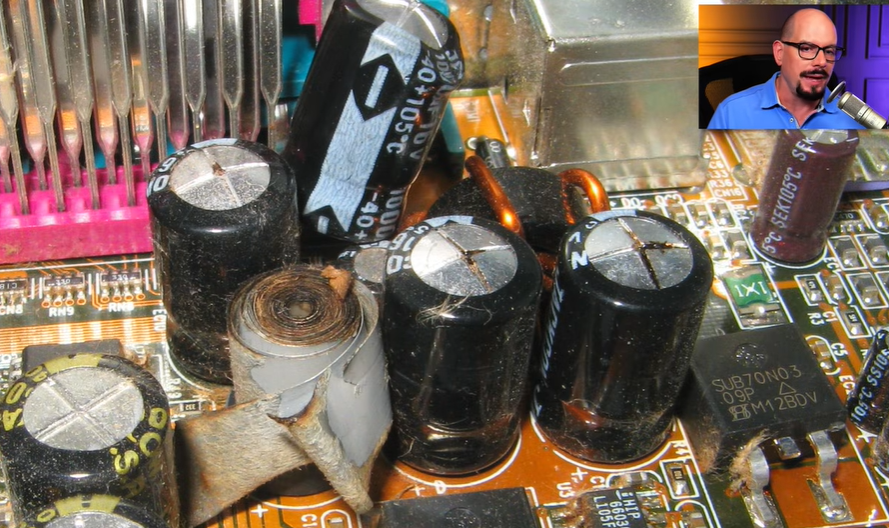
Capacitor Swelling fixes
Capacitor swelling is caused by a failed capacitor, where the capacitor swells and produces a brownish-red residue. Can either replace the motherboard or the capacitor, but need special training.
Inaccurate System Date/Time fixes
Usually because of bad motherboard CMOS battery, usually a coin battery. Bad batteries will require BIOS date/time configuration on every boot. For older systems, reset configuration by removing the battery, newer systems use a jumper to reset.