CompTIA Networking + Domain 5 - Network Troubleshooting and Tools (PFM)
 Call Kai
 Learn
Learn Practice Test
 Spaced Repetition
 Match
Match Flashcards
 Knowt Play
1/80

Earn XP
Description and Tags
5.1 - Network Troubleshooting Methodology 5.2 - Cable Connectivity 5.2 - Wired Network Troubleshooting 5.2 - Hardware Tools 5.3 - Software Tools 5.3 - Command Line Tools 5.4 - Wireless Troubleshooting 5.4 - Common Wireless Issues 5.5 - General Network Troubleshooting 5.5 - Common Network Issues
Name | Mastery | Learn | Test | Matching | Spaced | Call with Kai | Chat |
|---|
No analytics yet
Send a link to your students to track their progress
81 Terms
Network Troubleshooting Methodology
Identify the problem
Information gathering, identify symptoms, question users
Establish a theory of probable cause
Test the theory to determine cause
Establish a plan of action to resolve the problem and identify potential effects
Implement the solution or escalate as necessary
Verify full system functionality and, if applicable, implement preventative measures
Document findings, actions and outcomes
Using the right cable
Speed/bandwidth
Theoretical maximum data rate
Usually measured in bits per second
The size of the pipe
Throughput
Amount of data transferred in a given timeframe
Usually measured in bits per second
How much water is flowing through the pipe
Distance
Know the maximum distance
Varies based on copper, fiber, repeaters, etc.
Unshielded and shielded cable
Abbreviations
U = Unshielded, S = Braided shielding, F = Foil shielding
(Overall cable) / (individual pairs)TP
Braided shielding around the entire cable and foil around the pairs is S/FTP
Foil around the cable and no shielding around the pairs is F/UTP
Plenum
Plenum space
Building air circulation
Heating and air conditioning system
Concerns in the case of a fire
Smoke and toxic fumes
Worst-case planning
Important concerns for any structure
Plenum-rated cable
Traditional cable jacket
Polyvinyl chloride (PVC)
Fire-rated cable jacket
Fluorinated ethylene polymer (FEP) or low-smoke polyvinyl chloride (PVC)
Plenum-rated cable may not be as flexible
May not have the same bend radius
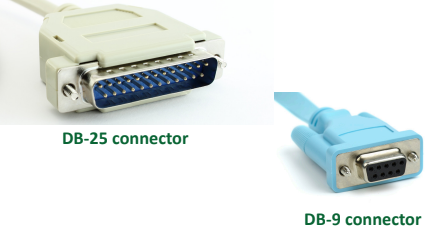
Serial console cables
D-subminiature or D-sub
The letter refers to the connector size
Commonly used for RS-232
Recommended Standard 232
An industry standard since 1969
Serial communications standard
Built for modem communication
Used for modems, printers, mice, networking
Now used as a configuration port
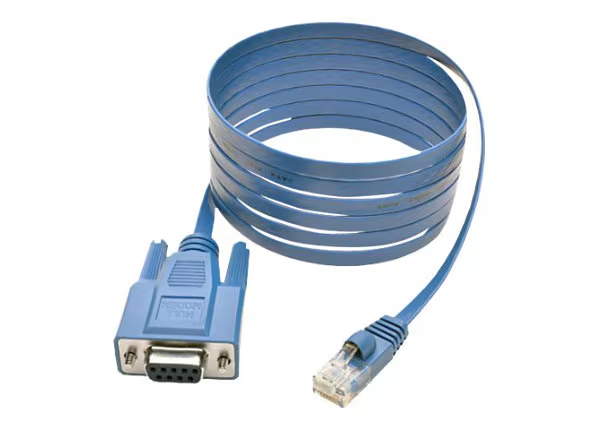
“Rollover” cable
Rolled cable, Cisco console cable,
Yost cable
Serial cable “standard” proposed by Dave Yost
A standard for RJ-45 to serial communications
Used in conjunction with serial port connectors
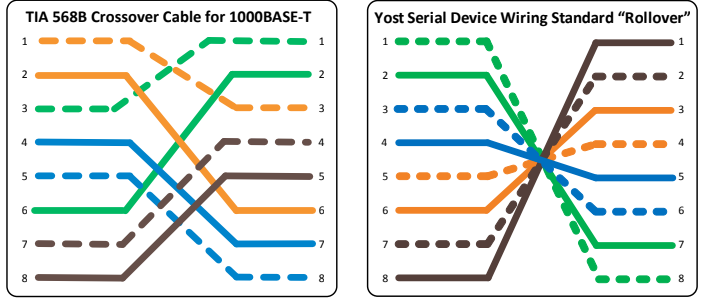
Ethernet cross-over cables
Connect to Ethernet devices without using a switch
Use your crossover cable
Can be a good alternative to a console connection
You may not always have the right serial cable or connector
Always carry a crossover cable
Or an adapter with the crossover
Power over Ethernet (PoE)
Power provided on an Ethernet cable
One wire for both network and electricity
Phones, cameras, wireless access points
Useful in difficult-to-power areas
Power provided at the switch
Built-in power - Endspans
In-line power injector - Midspans
Power modes
Mode A - Common-mode data pair power
Mode B - Power on the spare pair
4-pair - Power on all four data pair
PoE, PoE+, PoE++
PoE: IEEE 802.3af-2003
The original PoE specification
Now part of the 802.3 standard
15.4 watts DC power, 350 mA max current
PoE+: IEEE 802.3at-2009
Now also part of the 802.3 standard
25.5 watts DC power, 600 mA max current
PoE++: IEEE 802.3bt-2018
51 W (Type 3), 600 mA max current
71.3 W (Type 4), 960 mA max current
PoE with 10GBASE-T
Attenuation
Usually gradual
Signal strength diminishes over distance
Loss of intensity as signal moves through a medium
Electrical signals through copper, light through fiber
Radio waves through the air
Decibels (dB)
Signal strength ratio measurements
One-tenth of a bel
Capital B for Alexander Graham Bell
Logarithmic scale
Add and subtract losses and gains
3 dB = 2x the signal
10 dB = 10x the signal
20 dB = 100x the signal
30 db = 1000x the signal
dB loss symptoms
No connectivity
No signal!
Intermittent connectivity
Just enough signal to sync the link
Poor performance
Signal too weak
CRC errors, data corruption
Test each connection
Test distance and signal loss
Avoiding EMI and interference
Electromagnetic interference
Cable handling
No twisting - don’t pull or stretch
Watch your bend radius
Don’t use staples, watch your cable ties
EMI and interference with copper cables
Avoid power cords, fluorescent lights, electrical systems, and fire prevention components
Test after installation
You can find most of your problems before use
Troubleshooting pin-outs
Cables can foul up a perfectly good plan
Test your cables prior to implementation
Many connectors look alike
Do you have a good cable mapping device?
Get a good cable person - It’s an art
Incorrect pin-out
Near and far pins in cables aren’t where they are supposed to be
Pin 1 goes to pin 1, pin 2 to pin 2, etc.
Performance or connectivity issues
May drop from 1 gbit/sec to 100 mbit/sec
May not connect at all
Bad ports
Interface errors
May indicate bad cable or hardware problem
Verify configurations
Speed, duplex, VLAN, etc.
Verify two-way traffic
End-to-end connectivity
Interface configuration problems
Poor throughput - Very consistent, easily reproducible
No connectivity - No link light
No connectivity - Link light and activity light
Interface configuration
Auto vs. Manual configuration
Personal preference
Light status - No light, no connection
Speed - Must be identical on both sides
Duplex
If mismatched, speed will suffer
Increase in late collisions
Duplex/speed mismatch
Speed and duplex
Speed: 10 / 100 /1,000 / Auto
Duplex: Half / Full / Auto
Incorrect speed
Many switch configurations will auto-negotiate speed
Less than expected throughput
Incorrect duplex
Again, the switch may auto-negotiate
Needs to match on both sides
A mismatch will cause significant slowdowns
Increase in Late Collisions may indicate a duplex mismatch
Opens and shorts
A short circuit
Two connections are touching
Wires inside of a cable or connection
An open circuit
A break in the connection
Complete interruption
Can be intermittent
Troubleshooting opens and shorts
May be difficult to find
The wire has to be moved just the right way
Wiggle it here and there
Replace the cable with the short or open
Difficult or impossible to repair
Advanced troubleshooting with a TDR
Time Domain Reflectometer
Incorrect transceivers
Transceivers have to match the fiber
Single mode transceiver connects to single mode fiber
Transceiver needs to match the wavelength
850nm, 1310nm, etc.
Use the correct transceivers and optical fiber
Check the entire link
Signal loss - Dropped frames, missing frames
Reversing transmit and receive
Wiring mistake
Cable ends
Punchdowns
Easy to find with a wire map
1-3, 2-6, 3-1, 6-2
Simple to identify
Some network interfaces will automatically correct(Auto-MDIX)
TX/RX reversal troubleshooting
No connectivity
Auto-MDIX might connect
Try turning it on
Locate reversal location
Often at a punchdown
Check your patch panel
Dirty optical cables
Light needs to be seen
Fiber connectors must be clean
Always use your dust caps
Dirty connectors will inhibit or prevent communication
Attenuation can prevent data transfer
Clean thoroughly before using
Just before installation
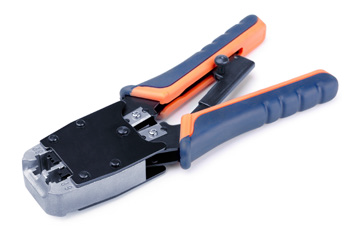
Cable crimper
”Pinch” the connector onto the wire
The final step of a cable installation
Metal prongs push through insulation
Punch-down Tool
Forces wire into a wiring block
Trims the wires and breaks the insulation
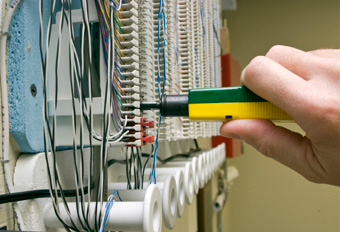
Tone generator
Puts an analog sound on the wire
Inductive probe doesn’t need to touch the copper
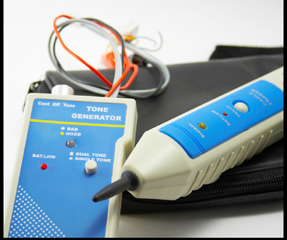
Loopback plug
Useful for testing physical ports
Serial, Ethernet, T1, fiber
These are not crossover cables
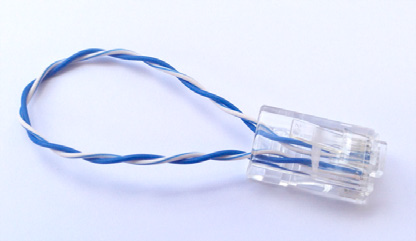
TDR / OTDR
(Optical) Time Domain Reflectometer
Estimate fiber lengths, measure signal loss, determine light reflection, create wire maps
May require additional training
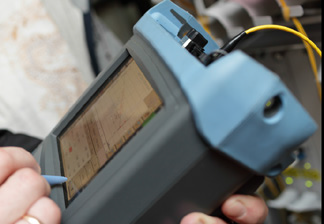
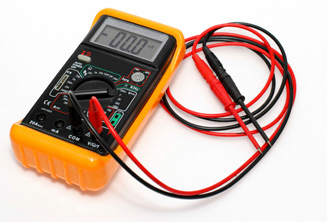
Multimeter
AC/DC voltages
Continuity, wire mapping
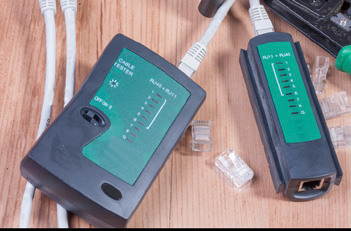
Cable tester
Continuity testing
Identify missing pins, crossed wires
Not used for advanced testing
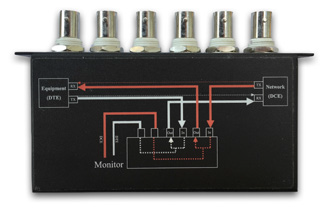
Taps and port mirrors
Intercept network traffic
Physical active or passive taps
Port mirror from a switch
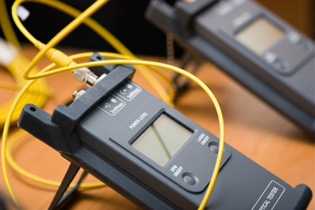
Light meter
Send a light from one side
Measure the light power on the other
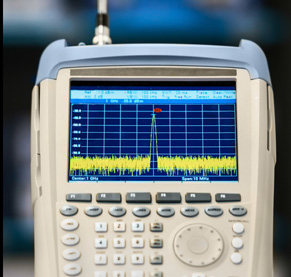
Spectrum analyzer
View the frequency spectrum
Identify frequency conflicts
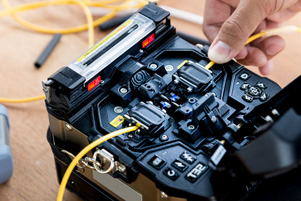
Fusion splicer
Join two fiber ends together
Add connectors
Repair fiber using heat
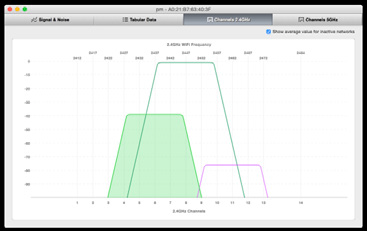
Wireless packet analysis
View wireless information
Signal-to-noise ratio, channel information, etc.
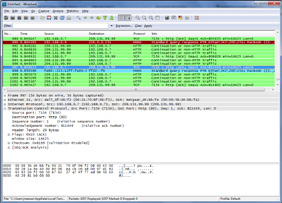
Protocol analyzer
Capture and display network traffic
Use a physical tap or redirect on the switch
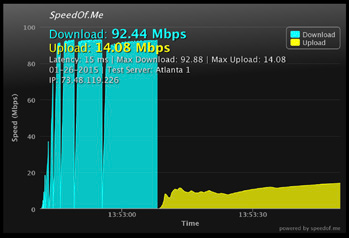
Speed test sites
Bandwidth testing
Pre- and post-change analysis
Not all sites are the same
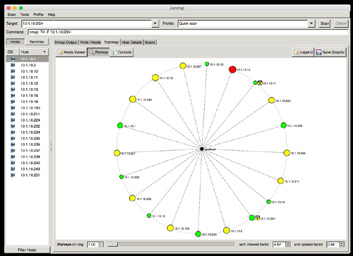
IP and port scanners
Scan for open ports and IP addresses
Visually map the network
Rogue system detection
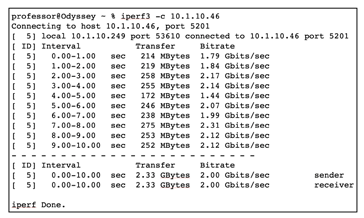
iPerf
Performance monitoring
Speed testing
Run tests across different OSes
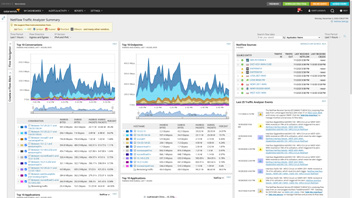
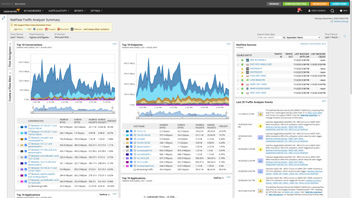
NetFlow
Gather traffic statistics
Standard collection method
Probes and collectors
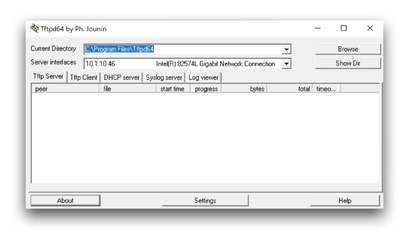
TFTP server
Trivial File Transfer Protocol
File transfers, firmware upgrades
Your device is the TFTP server
Terminal emulator
SSH (Secure Shell)
Encrypted communication
Support across many OSes
ping - Test reachability
ping <ip address> - Test reachability to a TCP/IP address
ping -t <ip address> - Ping until stopped with Ctrl-c
ping -a <ip address> - Resolve address to a hostname
ping -n <count> <ip address> - Send # of echo requests
ping -f <ip address> - Send with Don’t Fragment flag set
ipconfig, ifconfig, ip - View and manage IP configuration
ipconfig - Windows TCP/IP config
ipconfig /all - Display all IP configuration details
ipconfig /release - Release the DHCP lease
ipconfig /renew - Renew the DHCP lease
ipconfig /flushdns - Flush the DNS resolver cache
ifconfig - Linux interface configuration
ip address - The latest Linux utility
nslookup and dig - Lookup information from DNS servers
nslookup <ip address>
dig <ip address>
traceroute - Determine the route a packet takes to a destination
Takes advantage of ICMP Time to Live Exceeded error message
Not all devices will reply with ICMP Time Exceeded messages
traceroute <ip address>
arp - Address resolution protocol information
arp -a - View the local ARP table
netstat - Display network statistics
netstat -a - Show all active connections
netstat -b - Show binaries
netstat -n - Do not resolve names
hostname
View the FQDN and IP address of the device
Windows, Linux, macOS, and others
hostname
route
View the device’s routing table
Find out which way the packets will go
Windows: route print
Linux and macOS: netstat -r
Telnet
Login to devices remotely
In-the-clear communication
Useful for checking a port or application
telnet <ip address> <port number>
tcpdump
Capture packets from the command line
Available in most Unix/Linux operating systems
Included with Mac OS X, available for Windows (WinDump)
Apply filters, view in real-time
Written in standard pcap format
Nmap
Network mapper - find network devices
Port scan - Find devices and identify open ports
Operating system scan
Discover the OS without logging in to a device
Service scan
Additional scripts
Nmap Scripting Engine (NSE)
Basic platform commands
show interface
View the interfaces on a device
View detailed interface information
show config
View the device configuration
show route
View the routing table
Wireless performance
Performance can vary
The wireless spectrum is unforgiving
Many more variables in play
Throughput
The amount of data successfully transferred through the wireless network
Speed
The maximum bandwidth available
Is generally faster as you get closer to the antennas
Distance
The user needs to be relatively close to the access points
Wireless signals
RSSI (Received signal strength indication)
The strength of a received radio signal
Measured in decibel-milliwatts (dBm)
The number of decibels (dB) with reference to one milliwatt (mW)
Shown as a negative number on a log scale
Closer to zero is better
-50 dBm is excellent
-70 dBm is good
-80 dBm and smaller is low
Wireless survey tools
Signal coverage
Potential interference
Built-in tools
3rd-party tools
Spectrum analyzer
Wireless signals
EIRP (Effective isotropic radiated power)
The radiated signal strength
Transmit strength + antenna gain - cable loss
In the United States, transmission power is regulated by the FCC (Federal Communications Commission)
For 2.4 GHz, maximum EIRP is +36 dBm or 4W
Varies based on connections and frequencies used
Sometimes configurable on the access point
Equipment owner is responsible for managing EIRP
Omnidirectional antennas
One of the most common
Included on most access points
Signal is evenly distributed on all sides
Place the antennas in the middle
Good choice for most environments
You need coverage in all directions
No ability to focus the signal
A different antenna will be required
Directional antennas
Focus the signal
Increased distances
Send and receive in a single direction
Focused transmission and listening
Antenna performance is measured in dB
Double power every 3dB of gain
Yagi antenna
Very directional and high gain
Parabolic antenna
Focus the signal to a single point
Often used to bridge a gap
Point to point
Antennas are placed at both ends
Antenna configuration
Polarization
The orientation of an antenna
Relative to the surface of the Earth
Transmitting and receiving polarization should be the same
If polarization is offset, only part of the signal will be received
AP association time
Devices must associate with an access point
This can occur multiple times as a device roams
Signal strength
Association is delayed or blocked due to low signal
Wired network controller issue
Latency and firmware issues can affect association time
Track association metrics
Gather from the management console or via SNMP
Channel utilization
There’s a limited amount of frequency
Everyone can’t talk at one time
Similar to a wired network
An increasing number of wireless devices
They all want to talk
Most access points can monitor utilization
A percentage of available air-time
When you hit 100%, you’ve used up all of your available wireless space
Managing channel utilization
Disable legacy, low speed support
Use the fastest possible speeds and configurations
Check your channels
Avoid overlap between access points
Adjust the output power
Avoid conflicts with other access points
Interference can steal valuable network time
Split the network
You might need additional frequencies and access points
Site surveys
Determine existing wireless landscape
Sample the existing wireless spectrum
Identify existing access points
You may not control all of them
Work around existing frequencies
Layout and plan for interference
Plan for ongoing site surveys
Things will certainly change
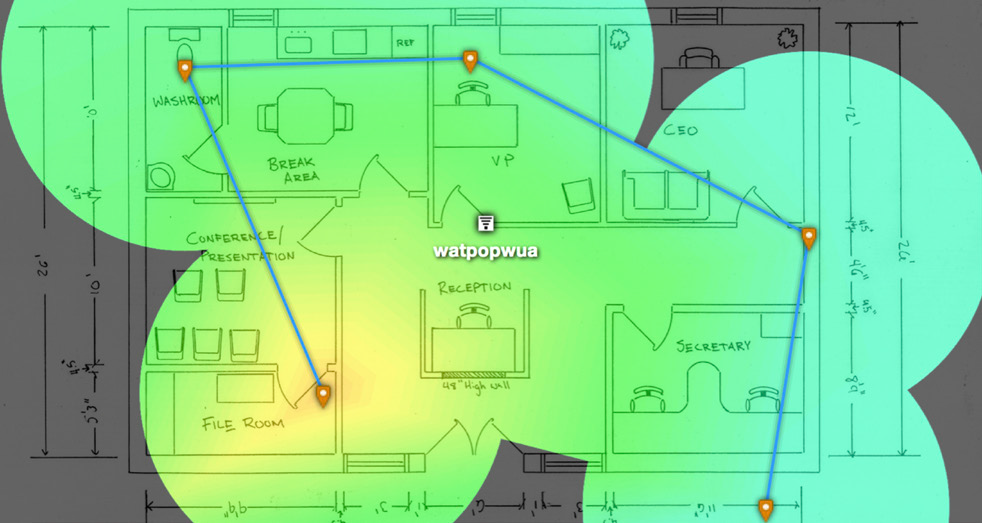
Heat maps - Identify wireless signal strengths
Overlapping channels
Avoid interference from other access points
Use a wireless analyzer
Attenuation
Wireless signals get weaker as you move farther from the antenna
The attenuation can be measured with a Wi-Fi analyzer
Control the power output on the access point
Not always an option
Use a receive antenna with a higher gain
Capture more of the signal
Some power is lost in the antenna cable coax
Most applicable at higher frequencies
Also check for damaged cables, especially outside
Wrong SSID
Every access point has at least one
Service Set Identifier (SSID)
But did you connect to the right one?
This can be more confusing than you might think
Public Wi-Fi Internet, Guest Internet, Internet
Confirm the correct SSID settings
Should be listed in the current connection status
Wrong passphrase
Wireless authentication
Many different methods
Required to connect to the wireless network
If not connected, check the authentication
Shared passphrase
Common in a SOHO, not in the enterprise
802.1X
Used for the enterprise
Make sure the client is configured to use 802.1X
Security type mismatch
Encryption on wireless is important
Make sure the client matches the access point
This is much easier these days
Almost everything is at the level of WPA2/3
Some legacy equipment may not be able to keep up
If you change the access point, you may not be able to support it
Migrate all of your WEP to WPA2/3
Incorrect antenna placement
Interference - Overlapping channels
Slow throughput
Data fighting to be heard through the interference
Check access point locations and channel settings
A challenge for 2.4 GHz, much easier for 5 GHz
Captive portal
Authentication to a network
Common on wireless networks
Access table recognizes a lack of authentication
Redirects your web access to a captive portal page
Use a username/password to authenticate
Authentication timeout
May require re-authentication after an interval
Portal is probably authenticating to an external database
Check the back-end RADIUS/LDAP/TACACS process
Client disassociation
A denial of service attack
Takes advantage of older 802.11 management frame transmission
Device keeps dropping from the wireless network
Or never connects
Frames can be clearly seen in a packet capture
Grab the 802.11 frame information with Wireshark
Remove the device performing the disassociation
Or upgrade to a new 802.11 standard
Device configuration review
Don’t start blindly troubleshooting
Know what you’re getting into
View the configuration
Native desktop or web-based console
SSH/terminal console
Try getting the configuration ahead of time - Prepare early
Routing tables
The digital version of asking for directions
Know how to get from point A to point B
This can answer a lot of questions
Default gateway, manually configured static routes
Know which way data will flow
A network map might help
Refer to every router
Routing loops and missing routes are common
Interface status
Know the details of the important interfaces
Easy to view on the console
You’ll rarely be physically next to the device
Check the easy stuff first
Verify the physical connectivity
Nothing works properly if the interface is misconfigured
You will often solve the problem here
Check for errors and mismatches
It’s a quick and easy fix
VLAN assignment
Network link is active and
IP address is assigned
No access to resources or limited functionality
Every switch interface is configured as an access port or a trunk port
Each access port is assigned to a VLAN
Confirm the specific switch interface
Check the VLAN assignment
This is also a common issue
Another quick fix
Network performance baseline
Troubleshooting starts with a blank slate
A baseline can add context
Intermittent or all-day issues
Check utilization, individual device performance, etc.
Some organizations already collect this data
Check the SIEM or management console
Look for patterns and correlation
The baseline might also tell you what’s NOT happening