5.3 Troubleshooting Display Issues
 Call Kai
 Learn
Learn Practice Test
 Spaced Repetition
 Match
Match Flashcards
 Knowt Play
1/26

There's no tags or description
Looks like no tags are added yet.
Name | Mastery | Learn | Test | Matching | Spaced | Call with Kai | Chat |
|---|
No analytics yet
Send a link to your students to track their progress
27 Terms
Q: What should you check first for no display?
A: Verify power and signal cables and ensure the monitor input (HDMI/DP/VGA) is selected.
Q: How do you isolate a monitor vs PC issue?
A: Swap the monitor or connect it to another computer.
Q: What mode helps if there's no video after Windows loads?
A: Use low-resolution/VGA mode (safe mode or Enable low-resolution video) to fix drivers/settings.
Q: What to check if the image is dim?
A: Monitor brightness/contrast, OS power/dimming settings, and try connecting to mains power for laptops.
Q: Why do LCD projectors need strong cooling?
A: Metal-halide bulbs run extremely hot and require constant fan cooling; projectors may shut down if overheated.
Q: What to do when replacing a projector bulb?
A: Replace the bulb and clean dust from air filters and I/O while servicing.
Q: What indicates a backlight failure?
Very dim image or sections of the screen dark
often requires panel/repair replacement.
Q: Why does a display look fuzzy at the wrong resolution?
LCDs have a fixed native resolution
non-native resolutions are scaled and can appear distorted.
Q: How to avoid distortion when not using native resolution?
A: Use a resolution with the same aspect ratio or a precise multiple of the native resolution.
Q: How do you fix blurry UI elements?
A: Adjust OS resolution and scaling settings to match the display’s native specs.
Q: What causes flickering or artifacting?
A: Loose/bad cables, incorrect refresh rate, bad video driver, or failing GPU/monitor.
Q: What to check for color tint problems?
A: Monitor color/tint presets, OS color settings (night light), and video driver color profiles.
Q: How to mitigate image sticking on modern displays?
A: Enable pixel-shift features or run a full-screen white/scrolling image to try to remove sticking.
Q: What are dead pixels and the fix?
A: Permanently black pixels due to manufacturing defect; usually requires monitor replacement.
Q: Why might a monitor produce no sound?
A: Check monitor volume/mute, verify HDMI/DP audio output in OS, and check analog audio jacks if present.
Q: What does a visible faint image with no backlight indicate?
A: Backlight or inverter failure (LCD panels) — repair or replace the display.
Q: How does a bad video cable present?
A: Intermittent signal, flicker, missing colors (analog), or distorted geometry.
Q: What to check for missing colors on analog displays?
A: Inspect analog cable pins, ensure secure connection, and test with a different cable.
Q: What's the difference between display scaling and resolution?
A: Resolution changes pixel count; scaling enlarges UI elements without changing native pixel count.
Q: What causes black borders or improperly sized image?
A: Mismatch between output resolution and monitor scaling—adjust monitor scaling or output resolution.
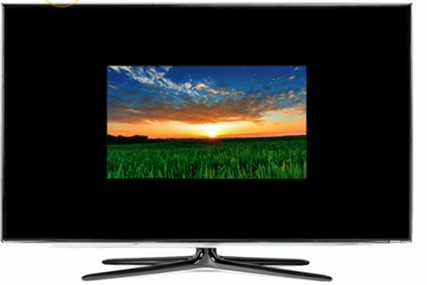
Q: What can cause lines, blocks, or extreme distortion?
A: Physical panel damage, bad cable, failing GPU, or corrupt drivers.
Q: Why use test patterns when troubleshooting displays?
A: To identify whether distortion is hardware (panel/GPU/cable) or software/driver related.
Q: When is a display replacement necessary?
A: Physical damage, persistent panel artifacts, or backlight failures that can’t be economically repaired.
Q: Quick troubleshooting steps for a flashing screen?
A: Reseat/replace video cable, try a different monitor, and confirm OS display settings and drivers.
Q: Why might laptop displays dim on battery?
A: Power-saving profile reduces brightness; change power settings or connect to AC for full brightness.
Q: How to address geometry/distortion on analog CRT or some displays?
A: Adjust display geometry controls, ensure correct resolution/refresh rate, or replace faulty hardware.
Q: How do you rule out GPU driver issues?
A: Boot into safe mode/low-resolution mode, update or roll back drivers, and test with integrated graphics if available.