TWorks Dion Training A+ 220-1201 Full Course
 Call Kai
 Learn
Learn Practice Test
 Spaced Repetition
 Match
Match Flashcards
 Knowt Play
1/43

There's no tags or description
Looks like no tags are added yet.
Name | Mastery | Learn | Test | Matching | Spaced | Call with Kai | Chat |
|---|
No analytics yet
Send a link to your students to track their progress
44 Terms
Section 01-01 Introduction
0001 What is a CompTIA A+ Certification?
An entry-level certification for technical professionals who configure, operate and troubleshoot desktops, laptops, tablets, mobile devices, wearables, smart devices, networking equipment, virtualization, and cloud computing services.
Section 01-01 Introduction
0002 What does a CompTIA A+ Certification validate?
Validates your entry-level competency as a problem solver with the ability to think on your feet and perform critical IT operations and support tasks in today’s modern digital enterprise and workplace environments.
Section 01-01 Introduction
0003 What is the level of knowledge expected after completion of the CompTIA A+ Exam?
Somebody who’s been working on the field as a help desk support technician, a field service technician, or another type of IT support professional with about 9 to 12 months of hands-on workplace experience.
Section 01-01 Introduction
0004 How many exams are needed to be passed to obtain certification and how long are they valid for?
Two exams: 220-1201 referred to as Core 1 Exam and 220-1202 referred to as Core 2 exam, series 1201/1202 officially released in 2025 will retire in 3 years and the next series 1301/1302 will be released in 2028
Section 01-03 About the Exam
0005 What are the five domains covered in Core 1 Exam?
Domain 1 - Mobile Devices (13%) installing and configuration of various devices and ensure connectivity.
Domain 2 - Networking (23%) understanding internal/external networks in connections available in workplace TCP/IP, Wi-Fi
Domain 3 - Hardware (25%) identify, use and connect hardware components, printers, motherboards, processors, memory, storage and expansion.
Domain 4 - Virtualization/Cloud Computing (11%) migrating servers, systems and data centers into a cloud-based environment.
Domain 5 - Hardware and Network Troubleshooting (28%) troubleshoot real world devices and network issues, using the CompTIA troubleshooting methodology.
Section 01-03 About the Exam
0006 How many are types of questions and how long is the exam?
You’re going to have 90 minutes to answer up to 90 questions (varies from 70 to 90 depending on number of PBQs). If you have more simulation questions, you will have less multiple choice questions. The same holds true in reverse, if you have more multiple-choice questions, you’ll get less simulations or PBQs.
Most of the questions will be multiple-choice but the first 3 to 5 questions are Performance-Based Questions or PBQs which are like simulations, requiring you to perform some kind of job function inside a simulated environment.
Section 01-03 About the Exam
0007 How are passing scores calculated?
Passing is 675 out of 900. Not all questions are going to count for the same number of points. Each question is weighted based on its difficulty and complexity.
Section 01-05 Personal Computers
0008 What are the four main functions that qualify a device as a computer?
Input
Processing
Storage
Output
(Known as I.P.O.S)
Section 01-05 Personal Computers
0009 What are some types of computers that has the four functions to qualify it as a computer?
Workstations (desktop with a tower case or an all-in-one design)
Servers (provides services to clients aka workstations)
Laptops (portable versions of desktops)
Tablets (highly portable touchscreen devices with iOS or Android)
Smartphones (smaller version of tablets that includes phone capability)
Smart Devices (specific task devices like smart speakers or displays)
Internet of Things (IoT) devices (Smart appliances or light bulbs)
Section 01-05 Personal Computers
0010 What are the three main components that computers rely on?
Hardware (includes all the internal physical parts and external input and output devices)
Software (operating system and other applications a user needs to interact with the computer)
Firmware (software that is embedded on a chip and is crucial for controlling hardware functions, updated through a process known as flashing)
Section 01-05 Personal Computers
0011 What are the three types of softwares?
Operating System - like Windows or Mac OS
Application Software - like Microsoft Word or PowerPoint
Drivers - helps the operating system communicate with the underlying hardware of a computer system
Section 01-06 Safety Procedures (Personal Safety)
0012 How do you avoid trip hazards (cables placed across walkways)
Always route your cables through drop ceilings, under raised floors, or use cable runways that cover the distance of the floor for the entire cable length.
Additionally, when working on equipment, keep it out of the pathways and always clean up after yourself to prevent any kid of tripping accidents.
Section 01-06 Safety Procedures (Personal Safety)
0013 How to avoid improper lifting of heavy or bulky objects (leads to back injuries or muscle strains)
Always lift with your lefts and and not with your back, by bending your knees to lower yourself down, rather than bending over at the waist.
If the object is too heavy, or awkward, ask a coworker for assistance or use a push cart and do this as a two-person lift. Generally items over 40 or 50 pounds should use a two-person lift.
Section 01-06 Safety Procedures (Personal Safety)
0014 How can you protect your eyes, breathing and hands?
When you’re handling certain components such as applying thermal paste or using compressed air, protect yourself by using safety goggles, gloves and masks. This ensures you don’t accidentally expose your eyes, skin, or lungs to harmful chemicals or dust that could irritate them.
Section 01-06 Safety Procedures (Components)
0015 How do you prevent ESD or Electrostatic Discharge? (primary threat to components)
ESD occurs when electrons transfer from a statically charged body like a human body, to an uncharged component like a processor, giving it a large electric shock.
Always carry components inside an antistatic bag which has a conductive coating to protect from ESD. Additionally, whenever you’re handling components, use an ESD wrist strap to discharge electricity safely to the ground and you should always be working on an ESD mat which protects components from electrostatic discharge.
Section 01-06 Safety Procedures (Electrical)
0016 How do you protect yourself from electrocution?
Computers, servers, and other equipment all rely on electricity. Always fully shutdown and unplug a computer before you work inside of its case, for example when installing memory or replacing an expansion card.
Always ensure that the equipment is properly grounded plugged into a surge protector to safeguard against electrical voltage spikes.
Section 01-06 Safety Procedures (Chemical)
0017 How do you protect from hazardous materials like lithium batteries, tones from laser printers, and substances like lead, mercury and arsenic inside some of the components?
Always consult the MSDS or Material Safety Data Sheet, which provides details about the ingredients, health risks, precautions, first aid measures and proper disposal.
Section 01-07 Troubleshooting Methodology
0018 Why is it important to have a method in troubleshooting?
It is important to follow a systematic and repeatable methodology so that any other technician can take over for you during the troubleshooting process and know exactly what you’ve done so far and what they should be trying next.
Section 01-07 Troubleshooting Methodology
0019 What is CompTIA’s Six-Step Troubleshooting Methodology?
Identify the Problem (gathering information from the user, any user changes if applicable, ask if any environmental or infrastructure changes recently)
Establish a theory of probable cause (questioning the obvious, for example unit won’t power on - check the unit is plugged correctly into a working outlet, conduct external and internal research based on symptoms.
Test the theory to determine the cause (same scenario on step 2 unit not powering on, plug another unit or your own device to see if it powers on, if not then its potentially a wall power outlet problem but verify if other wall outlets work in the house, there could be a power outage)
Establish a Plan of Action (only after confirming the theory, if not then back to step 2, wall outlet scenario, replacing the power outlet by putting in a work order for a professional electrician, if your working on a computer, refer to manufacturer or vendor’s instructions for repairing or replacing components properly.
Verify full system functionality if applicable (determine if the issue could have been prevented and develop preventive measures)
Document the findings (document the problem, what was the solution, and final outcome)
Section 01-z Quiz
0020 Question 1 of 4
How many minutes do you have to complete the certification exam?
60
90
120
165
90
Section 01-z Quiz
0021 Question 2 of 4
At most, how many questions will you receive on the exam?
60
75
90
120
90
Section 01-z Quiz
0022 Question 3 of 4
What is the score minimum you must attain in order to pass the CompTIA A+ Core 1 (220-1201) exam?
650
675
700
725
675
Section 01-z Quiz
0023 Question 4 of 4
Which is true regarding achieving the CompTIA A+ certification?
You must pass both Core 1 and Core 2 certification exams; however, the versions do not matter as long as you pass one of each.
You must pass both Core 1 and core 2 exams; both must be of the same version.
You only need to pass one of the exams, depending on the area you are intending to work.
You only need to pass one of the exams; passing both just means you are able to get a better starting salary.
You must pass both Core 1 and core 2 exams; both must be of the same version.
Section 02-09 Cable Types
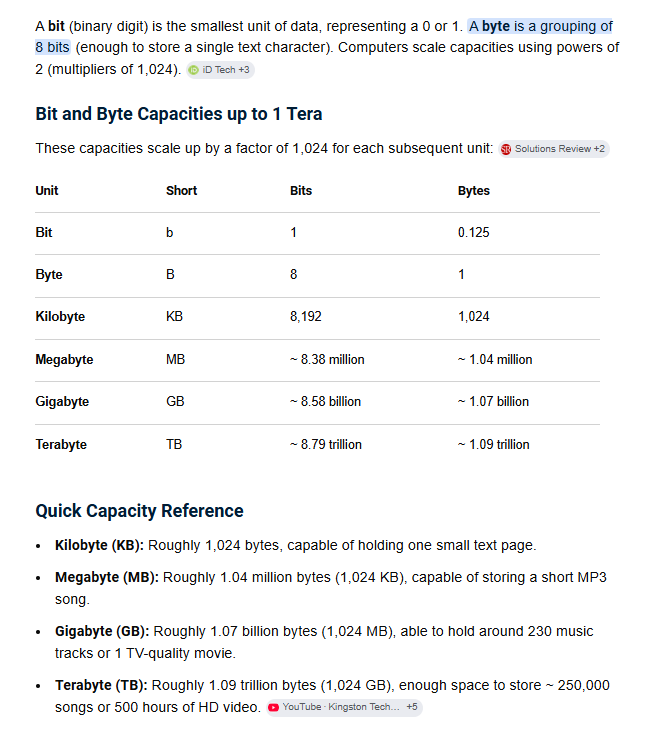
0024 How are bit and bytes used in computers?
Bit refers to a binary digit, a single bit can only store one of two values - either a one or a zero. Combining four bits together, we get what’s called a nibble.
Combining eight bits together, we then get a byte.
Section 02-09 Cable Types
0025 How do computers measure data transfer speeds using bits? For example transferring 50 bits of data.
50 bits is written as 50b with a lowercase “b’. If it took two seconds to send, then the data transfer rate was 25 bits per second or 25bps.
Section 02-09 Cable types
0026 How are larger amounts of data bits written?
1000 bits would be “Kb” or one kilobit and written with a capital “K” for the thousand and lowercase “b” indicates bits. The uppercase “B” indicates bytes.
1000 bits per second written as 1Kbps. Each time we go up a size, we increase our factor by a matte of 1000.
Bit = 1
Kilobit = 1000 bits
Megabit = 1 million bits
Gigabit = 1 billion bits
Terabit = 1 trillion bits
Section 02-09 Cable Types
0027 How do computers measure data storage capacity using bytes?
Remember that a byte is eight bits, if we save one kilobit of data to a file, it is equivalent to 125 bytes because 1000 bits divided by 8 bits gives us 125 bytes of data.
1 Million bits written as 1Mb
because lowercase “b” is for bits so 1Mb is known as 1 Megabit
1 Million bytes written as 1MB
because uppercase “B” is for bytes so 1MB is known as 1 Megabyte
Section 02-09 Cable Types
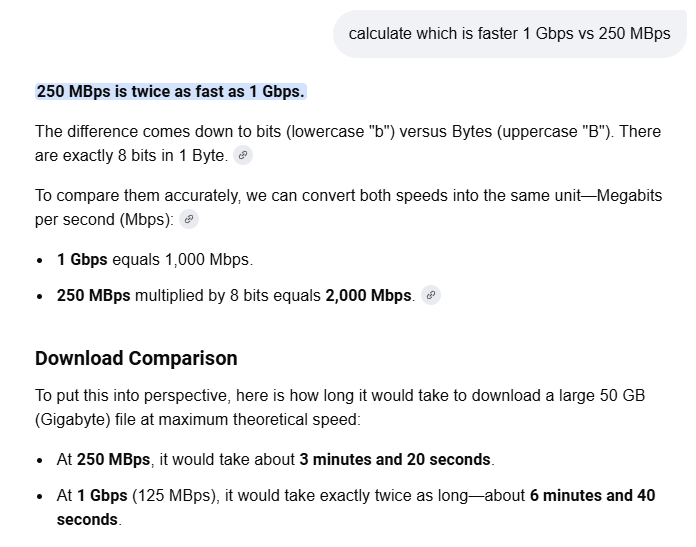
0028 Distinguish which is cheaper between these two Internet Service Providers (ISPs)
$99 per month for 1 gigabit per second connection (1Gbps)
$99 per month for 250 Megabyte per second connection (250MBps)
each one is measuring transfers differently, Mega vs Giga and Bits vs Bytes
You should be choosing 250MBps even though initially it may look smaller (Mega vs Giga) but when calculating in bits you get:
250MBps = 2000 megabits per second or 2 gigabits per second because bytes to bits
250 × 8 = 2000 or 2000 divide by 8 = 250
Section 02-09 Cable Types
0029 When to determine proper usage of bit or bytes when discussing cables
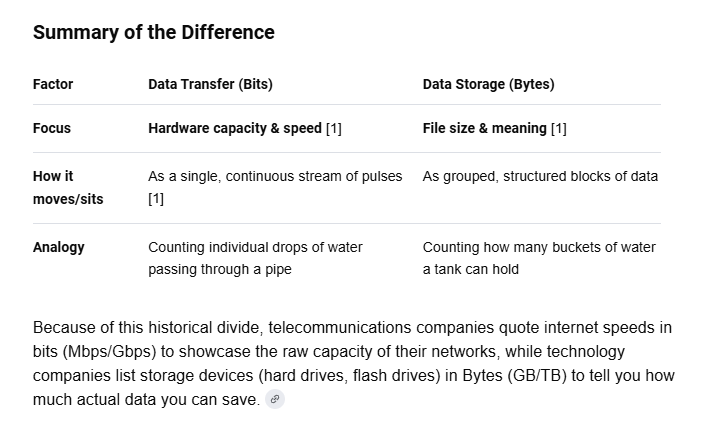
When discussing cables, use “bits” for data transfer and use “bytes” for data storage
Section 02-10 Exterior of a PC
3 examples of computer cases
Tower Style
Gaming Style
All-in-one Style
Section 02-10 Exterior of a PC
Tower Style also known as standard workplace computer
Front View:
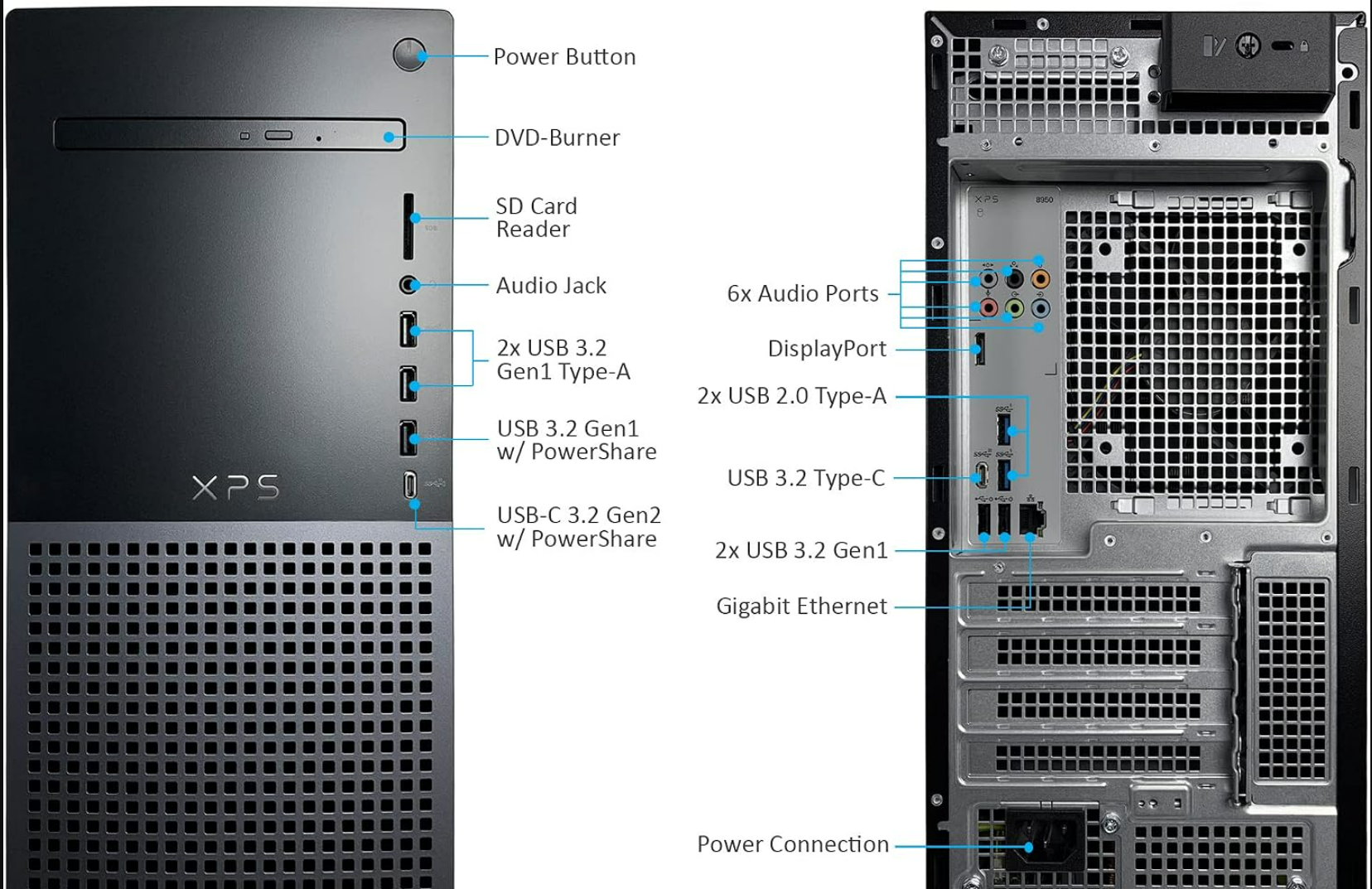
May or may not have have a CD/DVD drive or burners, on the right side a physical power button that sends an electrical signal to the motherboard to turn on the computer, a memory card reader, audio jack capable with input and output capability (for headphones with microphones), 3 Superspeed Gen1 USB-A standard size connectors and below that a Superspeed Gen2 USB-C size connector with PowerShare.
BackView:
Multiple Audio jacks 3 for standard stereo and 6 for surround sound capability, below that a DisplayPort or it may also have an HDMI or DVI type connectors for output to a monitor, Older Generation USB 2.0 Type-A, Superspeed Type-C and Gen1 Type A, a Gigabit RJ-45 style Ethernet connector that can operate 10, 100, or 1000 megabits per second depending on the computer style, to the right is a cooling fan that blows hot air out the back of the case. Finally, at the bottom is the power supply connector.