V Series User Interface
 Call Kai
 Learn
Learn Practice Test
 Spaced Repetition
 Match
Match Flashcards
 Knowt Play
1/5

There's no tags or description
Looks like no tags are added yet.
Name | Mastery | Learn | Test | Matching | Spaced | Call with Kai | Chat |
|---|
No analytics yet
Send a link to your students to track their progress
6 Terms
What are the V series user interface features?
Simple hand gesture navigation
Flat user interface
Customization of layout
Different viewing screens
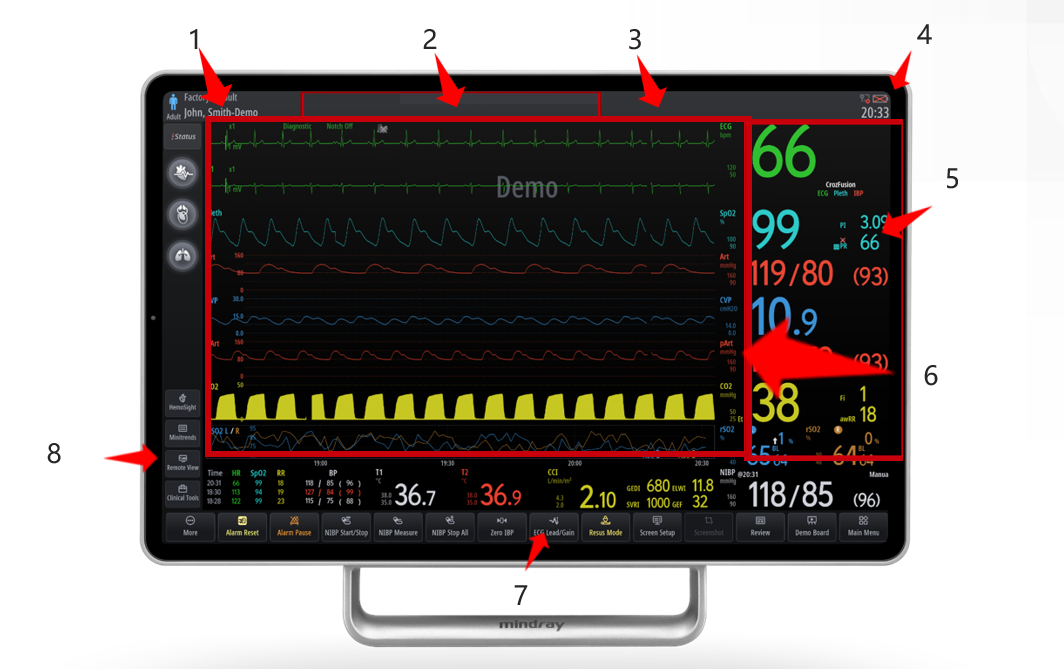
Name the user interface sections?
1 - Patient information area
2 - Technical alarm tab
3 - Physiological alarm tab
4- System status information
5- Parameter numeric area
6- Waveform area
7- quick key tab
8 clinical tools tab
What is the V Series hand-gesture navigation feature?
The V Series uses familiar touchscreen gestures such as tap, press, drag, swipe and pinch-to-zoom.
This makes navigation more intuitive and can support faster user uptake, because the gestures are similar to those clinicians already use on smartphones and tablets.
What is the V Series flat menu interface?
The V Series uses a flat menu design that keeps key functions easy to access with fewer layers and fewer steps.
This makes the monitor simpler to learn, quicker to navigate and easier to operate, helping clinicians reach the settings and tools they need faster.
What does layout customisation allow on the V Series?
The V Series lets clinicians customise the screen layout to suit the patient and clinical area.
Users can adjust waveforms, numerics, parameter tiles, function keys and screen views, helping keep the most relevant information visible and reducing unnecessary clutter.
As a department you are able to streamline and simplify how you interpret information and have the freedom to customise your monitors and not be bounded by the structure vendors set.
What are the different viewing screens and how many can you select?
On the V Series, you can configure 4 screens for quick switching — Screen 1, Screen 2, Screen 3 and Screen 4 — and swipe between them using a multi-finger gesture.
Normal / Primary Screen – standard waveforms + numerics
Big Numerics – enlarged parameter values for visibility at a distance
Minitrends – shows recent trends alongside current monitoring
Targeted Goal Screen – displays selected parameters against target ranges
Different ways to interpret information with a simple swipe