COMPT TIA+
 Call Kai
 Learn
Learn Practice Test
 Spaced Repetition
 Match
Match Flashcards
 Knowt Play
1/36

There's no tags or description
Looks like no tags are added yet.
Name | Mastery | Learn | Test | Matching | Spaced | Call with Kai |
|---|
No analytics yet
Send a link to your students to track their progress
37 Terms
USB (universal serial Bus)
Connects various devices, providing both data transfer and power delivery capabilities while supporting multiple devices via daisy-chaining.
Serial connections (predecessor to USB)
Serial cables used DB9 and DB25 connectors with a D-shaped design and thumbscrews for secure attachment. Transmit data slowly 115 Kbps-sending 1 bit at a time. Limited to one device per port
USB-advantages
USB allows up to 127 devices to be connected to a single port through daisy-chaining.USB provides power delivery, enabling devices to be powered directly through the cable
USB 1.0
Operates at 1.5Mbps and was an improvement over serial connections
USB1.1
Known as full-speed USB, increased speeds to 12 Mbps
USB 2.0
Known as High-speed USB supports up to 480Mbps
USB 3.0
Referred to as Superspeed USB, offers speeds of up to 5Gbps
USB 3.1 Gen 2
Called Super speed+ USB, reaches speeds of 10 Gbps
USB 3.2 Gen 2×2
Provides up to 20 Gbps
USB 4.0
The fastest version, capable of speeds up to 40 Gbps
USB 1.0
Cable length limit of 3 meter (9feet)
USB 1.1 and USB 2.0
Increased the maximum cable length to 5 meters (15 feet)
USB 3.0/ later versions
reduced the limit back to 3 meters to maintain high-speed performance
Troubleshooting Methodology
identify the problem, Establish theory of probable cause, Test the theory to determine the cause, Establish a Plan of Action to Resolve the Problem and Implement, Verify Full System Functionality and Implement Preventative Measures, Document Findings, Actions, and Outcomes.
Motherboard
● The central circuit board connecting all components
■ Central Processing Unit (CPU)
● The primary processing unit for executing instructions
■ Memory (RAM)
● Temporary storage for active processes and tasks
■ Storage Devices
● Long-term data storage (e.g., SSDs, HDDs)
■ Cooling Fans
● Manage the temperature of components to prevent overheating
■ Power Supply Unit (PSU)
● Supplies power to all components
USB 1.0 and USB 2.0 ports
maximum power output of 500 mA
USB 3.0 ports deliver
up to 900 mA (0.9A), which equates to 4.5 watts of power
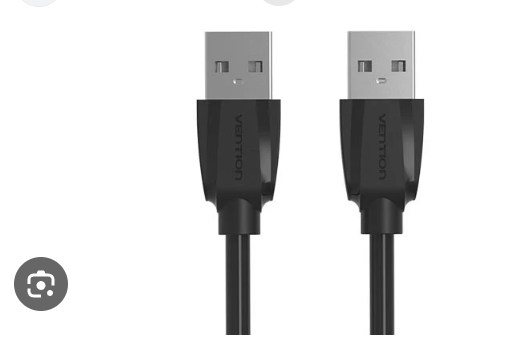
○ USB Type A
■ Flat rectangular connector used in USB 1.0, 1.1, 2.0, 3.0, and above ■ Connects only in one direction due to a blocking piece inside the port ■ Commonly found on desktops and laptops
○ USB Type B
■ Used for larger devices like printers ■ Includes three variations ● Type B Connector ○ Square with rounded corners on top ● Type B Mini Connector ○ Trapezoid shape; found on early tablets and smartphones ● Type B Micro Connector
USB 3 Type B connectors
have a square shape with an additional rectangular section on top,
USB 3 Type B micro connectors
resemble a figure eight, differing from the trapezoid-like USB 2 Type B micro connectors
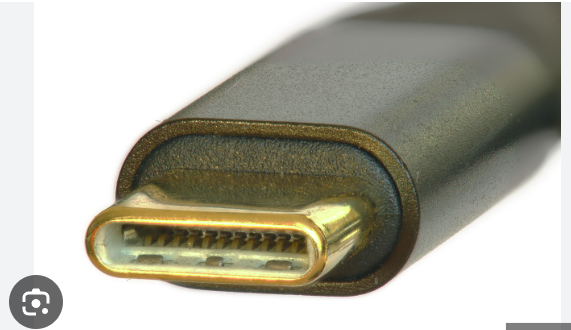
○ USB Type C
■ Small oval-shaped connector ■ Compatible with USB 3 and USB 4 ■ Reversible design allows insertion in either direction ■ Commonly used in modern laptops, tablets, and smartphones
○ DisplayPort (DP)
Description ● Open-standard video interface developed by VESA to compete with HDMI, offering high-speed video and audio transmission
DVI (Digital Visual Interface
■ Description ● An older standard that supports both analog and digital video signals ■ Common Uses ● Older monitors and legacy systems ■ Connector Types ● DVI-A ○ Supports analog signals only. DVI-D: Supports digital signals only ● DVI-I ○ Supports both analog and digital signals ■ Features ● Limited to 1080p resolution ● No native support for audio
○ VGA (Video Graphics Array)
■ Description ● An analog video connection standard, widely used before digital connections became dominant ■ Common Uses ● Older computers, projectors, and government or industrial legacy systems ■ Connector Characteristics ● 15-pin D-sub connector in a trapezoidal shape ● Carries analog signals for red, green, and blue colors separately ■ Limitations ● Maximum resolution of 640x480 pixels ● Susceptible to signal degradation and interference over long distances
● Form Factors
■ Describes the shape, layout, and type of case and power supply compatible with a motherboard ■ It determines the number and type of components that can be installed and is the foundation for building a custom PC
○ Role of Form Factor
■ Determines compatibility with cases and power supplies ■ Defines the number and type of adapter cards, memory modules, and storage connectors ■ Influences the size and functionality of the computer
Type of form factor-ATX (Advanced Technology eXtended)
● Features ○ Full-size motherboard for large towers and cases. Expansion slots parallel to the shorter side ○ Rear port cluster for integrated audio, video, networking, etc ● Use Case ○ Larger systems with ample space for expansion
■ Mini-ATX
● Features ○ Similar to ATX but slightly smaller ○ Includes rear port cluster and expansion slots ● Use Case ○ Rarely used due to minimal size difference from ATX
■ microATX (mATX)
● Features ○ Smaller square board ○ Fewer expansion slots (up to four compared to ATX’s seven) ● Use Case ○ Compact computers needing reduced space but retaining core features
variant of ITX-○ Mini-ITX
● One expansion slot ● Rear port cluster ● Compatible with ATX cases using standard mounting holes ■ Use Case ● Small form factor PCs and compact systems
○ Nano-ITX, Pico-ITX, Mobile-ITX
■ Custom-built for embedded systems and portable devices (e.g., smart TVs, speakers) ■ Sizes vary depending on the application