Sections 3.1 , 3.2, 3.3, and 3.4 CompTIA A+ Professor Messer
 Call Kai
 Learn
Learn Practice Test
 Spaced Repetition
 Match
Match Flashcards
 Knowt Play
1/41

There's no tags or description
Looks like no tags are added yet.
Name | Mastery | Learn | Test | Matching | Spaced | Call with Kai |
|---|
No analytics yet
Send a link to your students to track their progress
42 Terms
What is an LCD display and what are its main advantages and disadvantages?
Liquid Crystal Display — uses a backlight that shines through a layer of liquid crystals to produce an image.
Advantages:
• Lightweight
• Relatively low power consumption
• Relatively inexpensive
Disadvantages:
• Challenging to achieve true black (the backlight always bleeds through slightly)
• Requires a separate backlight (fluorescent or LED)
• Lights are difficult to replace when they fail
🧠 LCD is the baseline to understand — all the sub-types (TN, IPS, VA) are different LCD technologies, each with tradeoffs.
What is a TN (Twisted Nematic) LCD panel?
The original LCD technology, and still common in budget and gaming monitors.
Key characteristics:
• Fastest response times of the three LCD types — great for gaming
• Poor viewing angles — colors shift noticeably when viewed from the side or above
• Lower color accuracy compared to IPS
Best for: competitive gaming where speed matters more than color quality
🧠 TN = "Twisted, Narrow viewing angles." Fast but you have to sit directly in front of it.
What is an IPS (In-Plane Switching) LCD panel?
A premium LCD technology that solved TN's biggest problem — viewing angles.
Key characteristics:
• Excellent color representation and accuracy
• Wide viewing angles — colors look consistent from the side
• Can be more expensive to manufacture than TN
• Slightly slower response times than TN (though modern IPS has improved significantly)
Best for: photo/video editing, design work, general use where color accuracy matters
🧠 IPS = "In-Plane = In-Person color." It looks good no matter where you're sitting.
What is a VA (Vertical Alignment) LCD panel?
A middle-ground LCD technology between TN and IPS.
Key characteristics:
• Good color representation — better than TN, close to IPS
• Better contrast ratios than both TN and IPS (deeper blacks)
• Often slower response times than TN
• Viewing angles better than TN but not quite as wide as IPS
Best for: general use, movie watching — good all-rounder
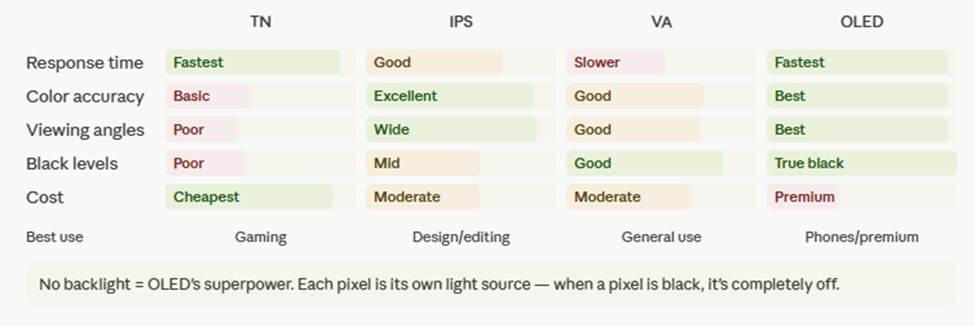
🧠 Quick comparison:
• Speed: TN > IPS > VA
• Color: IPS > VA > TN
• Contrast: VA > IPS > TN
Here's a visual to lock in the TN vs IPS vs VA vs OLED tradeoffs — this comes up in scenario questions about which display to choose:
What is an OLED display and what makes it fundamentally different from LCD?
Organic Light Emitting Diode — each pixel generates its own light using an organic compound. There is no backlight at all.
Why this matters:
• True black: when a pixel is "off," it produces zero light — not possible with LCD
• Infinite contrast ratio
• Thinner and lighter than LCD (no backlight layer needed)
• Flexible — no rigid glass required, enabling curved and foldable displays
• Very accurate color representation
Downsides:
• Higher cost than LCD
• Susceptible to burn-in over long periods
Common uses: high-end smartphones, smartwatches, tablets, premium laptops
What is Mini LED and how does it differ from standard LED-backlit LCD?
Mini LED uses the same LED-backlit LCD technology as a standard display, but with many more, much smaller LED zones.
Key advantage: local dimming — each small zone of LEDs can be individually dimmed or brightened. This gives:
• Much deeper blacks in dark areas of the image
• Better contrast and color representation than standard LED LCD
• Performance approaching OLED at a lower cost
Think of it as: standard LED LCD with far more precise control over the backlight.
What is a touchscreen digitizer and how does it relate to the display?
The digitizer is a transparent input layer that sits on top of the display and detects touch, converting physical touch into digital coordinates the device can process.
Key points:
• The digitizer and display are two separate components that work together
• A touchscreen that shows a perfect image but won't register touch = digitizer failure
• A touchscreen that shows no image but responds to touch = display/backlight failure
• Hybrid laptops and tablets use digitizers that can also respond to a stylus
⚠️ Exam tip: separating digitizer symptoms from display symptoms is a common troubleshooting question.
What is a backlight inverter and when does it matter?
Some older LCD laptops use a fluorescent backlight instead of LED. These require an inverter to convert DC power from the laptop to the AC power the fluorescent lamp needs.
Symptoms of inverter failure:
• Display image is present but very dim (visible with a flashlight)
• Screen works normally for a few seconds then goes dark
Modern LED-backlit laptops do NOT use an inverter — LEDs run on DC directly. If you see "inverter" on the exam, it means an older laptop with a fluorescent backlight.
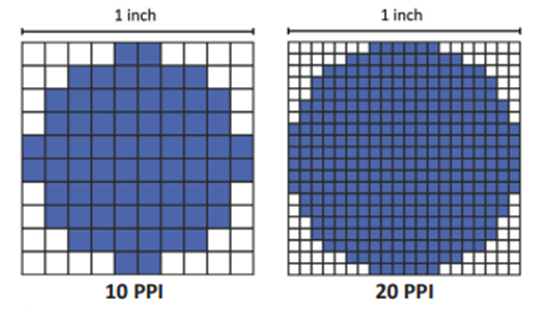
What is pixel density (PPI) and why does it matter?
Pixels Per Inch — measures how many pixels are packed into each inch of the display.
Formula: total horizontal pixels ÷ horizontal inches of display = PPI
Higher PPI = sharper, clearer image. Lower PPI = visible individual pixels ("pixelation").
Real-world examples from the notes:
• 27" 4K monitor: ~160 PPI (sharp)
• 65" 4K TV: ~67 PPI (less sharp because the pixels are spread over more physical space)
🧠 A 4K resolution on a phone looks stunning. The same 4K on a huge TV looks softer — same pixel count, much larger area to cover.
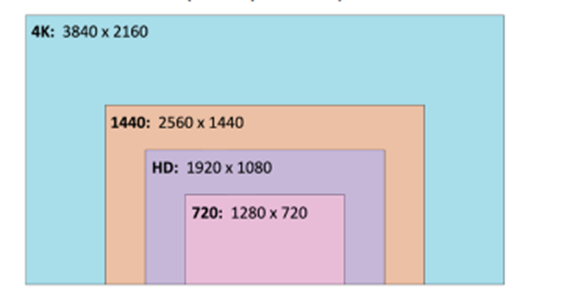
What is screen resolution and what is the 16:9 aspect ratio?
Screen resolution is the total number of pixels expressed as width × height.
Common resolutions:
• 720p = 1280 × 720
• HD (1080p) = 1920 × 1080
• 1440p = 2560 × 1440
• 4K = 3840 × 2160
16:9 is the most common aspect ratio — for every 9 pixels tall, the display is 16 pixels wide. Most monitors, TVs, and laptop screens use this ratio.
More pixels = more detail and sharper output. The native resolution is the resolution that matches the display's actual pixel count exactly — running at native resolution always looks best.
What are refresh rates and why do they matter?
Refresh rate is how many times per second the display updates its image, measured in Hz (hertz).
Common rates:
• 24 fps — film/cinema standard
• 30 fps — standard television
• 60 fps — standard gaming, general use
• 144 Hz+ — competitive gaming, fast motion
Higher refresh rates = smoother motion, especially for fast-moving content. For gaming, 144 Hz feels dramatically smoother than 60 Hz.
Important: the maximum refresh rate is limited by both the display AND the GPU/video adapter — the cable connecting them matters too (HDMI 2.1 supports 4K at 144 Hz
What is color gamut?
Color gamut is the range of colors a display can reproduce — measured as a percentage of a reference color standard.
Common standards:
• sRGB — standard for most consumer content and web
• Adobe RGB — wider gamut, used in professional photography
• ITU HDTV standards — broadcast video
Key point: a display showing 100% sRGB covers the entire standard color space used by most digital content. Professional photo/video work benefits from wider gamuts (Adobe RGB or DCI-P3). OLED displays provide best-in-class color gamut.
What is twisted pair copper cabling and why does the twist matter?
The most common network cable type — pairs of copper wires twisted together to reduce interference.
How it works:
• Two wires carry equal and opposite signals (transmit+/transmit−, receive+/receive−)
• The twist constantly moves each wire relative to external interference sources
• At the receiving end, the opposite signals are compared — any interference that affected both wires equally gets canceled out
• Pairs within the same cable have different twist rates to minimize interference between pairs
This is called balanced pair operation — the twist is the entire reason twisted pair works so reliably without shielding.
What is the difference between UTP and STP cabling?
Both are twisted pair, but differ in whether shielding is added:
UTP (Unshielded Twisted Pair):
• No additional shielding
• Most common cabling type
• Cheaper and easier to terminate
• Fine for most office environments
STP (Shielded Twisted Pair):
• Additional metallic shielding around individual pairs and/or the overall cable
• Protects against electromagnetic interference (EMI) in electrically noisy environments
• Requires the cable to be grounded properly
• Used in industrial environments, near motors, heavy electrical equipment
Shielding notation: U = unshielded, S = braided shielding, F = foil shielding. Format is (overall)/(pairs). Example: S/FTP = braided shielding around the whole cable + foil around individual pairs.
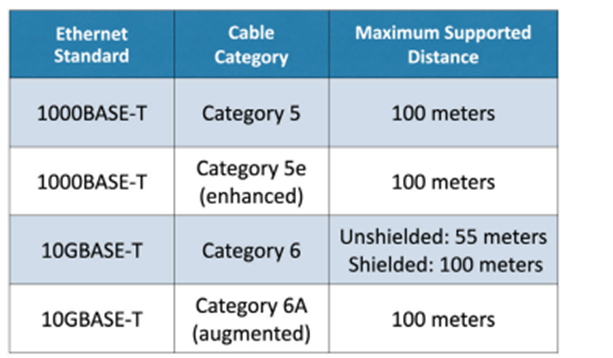
What are the Ethernet cable categories and their key specs?
Cable categories define the performance level of twisted pair cabling — specifically the maximum speed and distance supported.
Four categories to know:
• Cat 5 — 1000BASE-T, 100 meters, minimum for Gigabit Ethernet
• Cat 5e (enhanced) — 1000BASE-T, 100 meters, better noise rejection than Cat 5
• Cat 6 — 10GBASE-T, 55 meters unshielded / 100 meters shielded
• Cat 6A (augmented) — 10GBASE-T, 100 meters — full 10 Gbps at full distance
⚠️ Exam trap: Cat 6 supports 10 Gbps but only to 55 meters unshielded. For full 100-meter runs at 10 Gbps, you need Cat 6A.
What is plenum-rated cable and when is it required?
Plenum spaces are the areas above drop ceilings and below raised floors used for HVAC airflow. Standard PVC cable jackets release toxic fumes when burned — dangerous in spaces that circulate air throughout a building.
Plenum-rated cable:
• Uses a fire-rated jacket: FEP (Fluorinated Ethylene Polymer) or low-smoke PVC
• Produces significantly less toxic smoke when burned
• Required by building codes when cable runs through plenum spaces
• May be less flexible and have a larger bend radius than standard cable
💡 Exam tip: any scenario involving cable runs through ceilings or air-handling spaces = plenum-rated required.
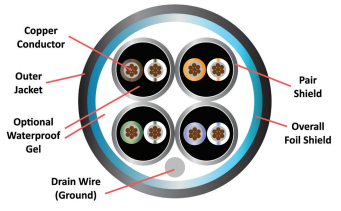
What is direct burial STP cable?
A specialized cable designed to be installed underground without conduit.
Features:
• Waterproof jacket
• Often gel-filled to repel water and moisture
• Shielded twisted pair for grounding, added strength, and interference protection
• Can be run directly through soil
Used when overhead cable isn't practical and digging a conduit trench would be excessive — parking lots, campus buildings, outdoor camera runs.
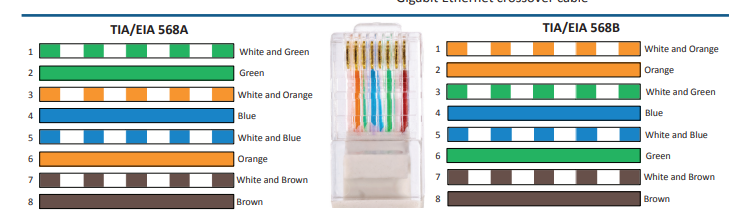
What is the difference between T568A and T568B wiring standards?
Both are wiring standards that define the pin order for RJ-45 connectors on twisted pair Ethernet cables. They differ only in which pairs go on which pins.
T568A pin order: white/green, green, white/orange, blue, white/blue, orange, white/brown, brown
T568B pin order: white/orange, orange, white/green, blue, white/blue, green, white/brown, brown
Key rules:
• Both ends of a cable must use the same standard — mixing A on one end and B on the other does NOT make a crossover cable
• Many organizations historically standardize on 568B
• Either standard works fine — consistency matters more than which one you choose
🧠 Memory trick for 568B (most common): "Orange before Green." In 568A it's the reverse.
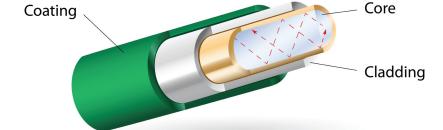
What is optical fiber and what are its key properties?
Optical fiber transmits data as pulses of light rather than electrical signals.
Key properties:
• Immune to radio frequency interference (RF) — there's no electrical signal to interfere with
• Very difficult to monitor or tap without physically disturbing the cable
• Signal degrades very slowly — long distance transmission without repeaters
• No electrical hazards, no grounding required
• Higher installation cost and more difficult to repair than copper
Structure: glass or plastic core → cladding (reflects light back into core) → protective coating jacket
What is the difference between single-mode and multimode fiber?
Two fundamental fiber types that differ in core diameter, light source, distance, and cost:
Multimode fiber:
• Larger core — allows light to travel multiple paths (modes)
• Uses LED light source (inexpensive)
• Shorter range: up to 2 km
• Used for: building backbones, data center interconnects, short campus runs
Single-mode fiber:
• Smaller core — light travels in a single path (one mode)
• Uses laser light source (expensive)
• Very long range: up to 100 km without signal processing
• Used for: long-haul WAN connections, inter-campus, ISP infrastructure
🧠 Memory: Single-mode = Single long path = Long distance. Multimode = Multiple paths = Medium distance.
What are the USB versions and their speeds?
USB speed has improved dramatically across versions — these numbers appear frequently on exams:
• USB 1.1 Low Speed — 1.5 Mbps, 3 meters
• USB 1.1 Full Speed — 12 Mbps, 5 meters
• USB 2.0 — 480 Mbps, 5 meters ("Hi-Speed")
• USB 3.0 — 5 Gbps ("SuperSpeed") — ~3 meters
• USB 3.1 — 10 Gbps maximum
• USB 3.2 — 20 Gbps maximum
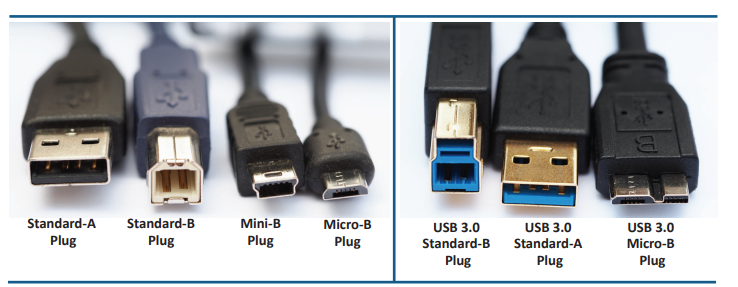
The physical connector type (USB-A, USB-C, etc.) is separate from the version — USB-C can carry USB 2.0 or USB 3.2 depending on the cable and port.
🧠 The jump from 2.0 to 3.0 is the most dramatic: 480 Mbps → 5 Gbps. That's 10x faster.
What is Thunderbolt and what are the key differences between versions?
A high-speed serial interface developed by Intel that carries both data and power on the same cable.
Version history:
• Thunderbolt 1 — 10 Gbps per channel (20 Gbps total), Mini DisplayPort connector
• Thunderbolt 2 — 20 Gbps aggregated, Mini DisplayPort connector
• Thunderbolt 3 — 40 Gbps aggregated, USB-C connector — supports dual 4K displays, daisy-chain up to 6 devices, 3 meters copper / 60 meters optical
• Thunderbolt 4 — still 40 Gbps, USB-C connector, supports dual 4K displays, increased PCIe bandwidth
Key exam point: Thunderbolt 3 and 4 use the same USB-C physical connector as USB-C — the connector looks identical but Thunderbolt delivers much higher performance. Not all USB-C ports support Thunderbolt.
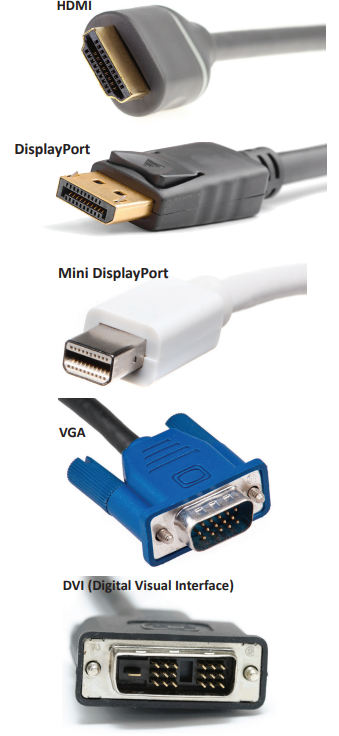
What are the four main video cable types and their key characteristics?
Four types you need to know cold:
HDMI:
• Carries video AND audio digitally in one cable
• 19-pin Type A connector — proprietary
• Reliable to ~20 meters before signal loss
• All digital — no analog signal
DisplayPort:
• Carries video AND audio digitally (packetized, like Ethernet)
• Compatible with HDMI and DVI via passive adapters
• Full-size connector may have a locking mechanism
• Common on PCs and monitors
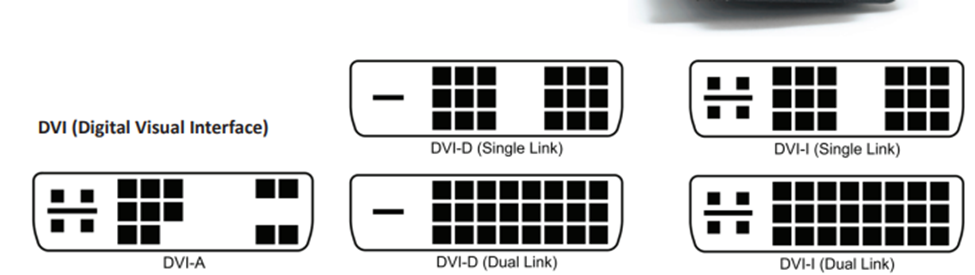
DVI (Digital Visual Interface):
• Three variants: DVI-A (analog only), DVI-D (digital only), DVI-I (both)
• Single link: 3.7 Gbps. Dual link: 7.4 Gbps
• No audio support — video only
• DVI-D and HDMI are electrically compatible (passive adapter works)
VGA (Video Graphics Array):
• DE-15 (DB-15) connector — blue color
• Analog signal only — no digital
• No audio — video only
• Image degrades after 5–10 meters
• Legacy standard, still found on older equipment
What is SATA and what are its revision speeds?
Serial AT Attachment — the dominant storage interface for HDDs and SSDs in desktop and laptop systems.
Key facts:
• One data cable + one power cable per device (one-to-one connection)
• All revisions use the same physical connector
• Max cable length: 1 meter (eSATA: 2 meters)
Speed by revision:
• SATA 1 — 1.5 Gbps
• SATA 2 — 3.0 Gbps
• SATA 3 — 6.0 Gbps (most common today)
• SATA 3.2 — 16 Gbps (rarely seen)
What are the key copper connectors you need to identify?
Six connectors to recognize by name and purpose:
RJ11: 6-position, 2-conductor (6P2C) — telephone and DSL connections. Smaller than RJ45.
RJ45: 8-position, 8-conductor (8P8C) — Ethernet. The standard network cable connector.
F-connector: Cable TV, cable modem, DOCSIS. Threaded screw-on design on RG-6 coaxial cable.
Molex: 4-pin power connector providing +12V and +5V — powers storage devices, optical drives, fans inside a PC case.
DB-9 (RS-232): D-shaped 9-pin serial connector — legacy standard for modems, mice, serial configuration ports. Now used mainly as a console/management port on network equipment.
Punchdown block (110 block): Wire-to-wire patch panel — wires are "punched" down into the block for permanent termination without a modular connector.
What are the three fiber optic connector types?
Three fiber connectors to identify by name and how they lock:
ST (Straight Tip):
• Bayonet-style — push on, then twist to lock (like a BNC)
• "Stick and Twist"
• Round ferrule
SC (Subscriber Connector):
• Push-pull — push in to lock, pull the connector to release
• Square profile — easy to identify
• Very popular in data centers
• Also called "Square Connector" or "Standard Connector"
LC (Lucent Connector):
• Smaller and more compact than SC
• Clips in place (like an RJ45) — press the clip to release
• Most common in modern data centers due to small size
• Also called "Local Connector" or "Little Connector"
🧠 Size order: LC (smallest) < SC < ST. LC is the most common modern data center fiber connector.
What is the difference between a DIMM and a SO-DIMM?
Both are RAM module form factors — the same function, different physical sizes:
DIMM (Dual Inline Memory Module):
• Full-size module used in desktop computers
• Electrical contacts are different on each side of the module
• 64-bit data width
SO-DIMM (Small Outline DIMM):
• About half the width of a DIMM
• Used in laptops and mobile devices
• Same function, just smaller footprint
They are NOT interchangeable — a SO-DIMM won't fit in a desktop DIMM slot and vice versa.
What is DRAM and what does "dynamic" mean?
Dynamic Random Access Memory — the type of RAM used in DIMM and SO-DIMM modules inside computers.
"Dynamic" means:
• The memory cells need to be constantly refreshed with electricity
• Without continuous refreshing, the data disappears almost instantly
• This is why RAM is volatile — power loss = data loss
"Random Access" means:
• Any storage location can be read or written directly
• Unlike sequential media (tape), there's no need to scan through data to reach a location
What is SDRAM and why was it an improvement?
Synchronous DRAM — RAM that synchronizes its operations with the system clock.
Why it mattered:
• Classic DRAM didn't wait for a clock signal — timing was inconsistent
• SDRAM queues one operation while waiting for the previous one to complete
• Predictable timing = more efficient memory controller design
• All modern RAM (DDR3/4/5) is a form of SDRAM
What is the difference between SDR and DDR memory?
SDR (Single Data Rate): transfers data once per clock cycle — on the rising edge.
DDR (Double Data Rate): transfers data twice per clock cycle — on both the rising AND falling edge.
Result: DDR achieves twice the data throughput of SDR at the same clock speed, without requiring a faster clock. Every current consumer RAM standard (DDR3, DDR4, DDR5) uses double data rate.
What are the key differences between DDR3, DDR4, and DDR5?
Three generations of DDR SDRAM — important to know they are physically incompatible:
DDR3:
• Maximum 16 GB per DIMM
• Older standard, still found in some systems
• Key notch in a different position than DDR4/DDR5
DDR4:
• Faster frequencies than DDR3
• Maximum 64 GB per DIMM
• No backward compatibility with DDR3
DDR5:
• Faster data transfers between module and motherboard
• Maximum 64 GB per DIMM (current)
• Key has moved again — physically incompatible with DDR4
⚠️ Critical exam point: DDR generations are NEVER backward compatible. You cannot put DDR4 in a DDR3 slot. The notch position physically prevents it.
What is ECC memory and what problem does it solve?
Error Correcting Code memory — detects AND corrects single-bit memory errors on the fly, without crashing the system.
Used in:
• Servers
• Workstations running virtual machines or databases
• Any system where data integrity is critical
How it differs from regular RAM:
• Adds extra bits per data word for error detection and correction
• Silently fixes errors as they occur
• Looks physically similar to non-ECC RAM — hard to tell apart visually
• Requires both ECC RAM and a motherboard/CPU that supports ECC
Comparison with parity memory:
• Parity memory — adds one extra bit to detect errors, but cannot correct them
• ECC — detects AND corrects single-bit errors
What is multi-channel memory and why does it improve performance?
Multi-channel memory installs RAM modules in pairs (or groups of 3 or 4) to create multiple independent memory buses operating simultaneously.
How it works:
• Single channel: data flows through one 64-bit bus between CPU and RAM
• Dual channel: two buses running simultaneously = 128-bit effective bandwidth = double throughput
• Triple and quad channel: used in high-end workstations and servers
Requirements:
• Motherboard must support it
• RAM modules should be matched (same capacity, speed, and ideally same brand)
• Slots are often color-coded — check the manual for correct slot pairing
🧠 Two sticks of 8 GB (dual channel) will outperform one stick of 16 GB even though both total 16 GB — because two buses beat one.
What is a hard disk drive (HDD) and what are its key characteristics?
A non-volatile magnetic storage device using spinning platters and a moving actuator arm.
Components:
Platters — spinning magnetic disks that store data
Actuator arm — moves the read/write head across the platter surface
Head — reads and writes magnetic data on the platter
Spindle — the motor that spins the platters
Key facts:
Non-volatile — retains data without power
Random access — can read any location directly
Moving parts = mechanical wear, failure risk, noise, and vibration sensitivity
Laptop HDDs use 2.5" form factor; desktops use 3.5"
Common speeds: 5,400 RPM (lower power, quieter) and 7,200 RPM (faster)
⚠ Clicking or grinding sounds from an HDD = the drive is failing. Back up immediately.
What is a solid-state drive (SSD) and how does it compare to an HDD?
A non-volatile flash memory storage device with no moving parts.
Key advantages over HDD:
Much faster read/write speeds
Silent — no spinning or clicking
More durable — no moving parts to break from drops or vibration
Lower power consumption
Faster boot times and application launches
Available in:
2.5" SATA form factor — direct drop-in replacement for a laptop or desktop HDD
M.2 form factor — compact, connects directly to the motherboard
Downside: more expensive per gigabyte than HDD (though the gap has narrowed significantly).
What is NVMe and why is it faster than SATA?
Non-Volatile Memory Express — a storage interface protocol designed specifically for SSD speeds, using the PCIe bus.
Why SATA is the bottleneck:
SATA was designed for spinning HDDs
Uses AHCI (Advanced Host Controller Interface) protocol
SATA 3 maximum: 600 MB/s
Why NVMe is faster:
Uses PCIe bus — designed for high-speed data transfer
Lower latency at every level of the protocol
NVMe via PCIe x4 can achieve 4+ GB/s (over 6x faster than SATA)
NVMe typically connects via M.2 interface, but not all M.2 drives are NVMe — some M.2 drives still use the SATA protocol. Always check the spec.
What is the M.2 interface and what are B-key and M-key?
M.2 is a compact form factor for storage drives (and other devices) that connects directly to the motherboard — no cables needed.
Key facts:
Much smaller than 2.5" drives
Secured with a single screw
Can use SATA or NVMe (PCIe) interface depending on drive and slot
B-key: notch on the left side of the connector — supports SATA and some PCIe M-key: notch on the right side — supports SATA and PCIe (NVMe) B+M key: two notches — works in both B-key and M-key slots
⚠ Critical exam point: M.2 does NOT automatically mean NVMe. The slot might use AHCI/SATA protocol even though it looks identical. Always check the motherboard documentation to know which type of M.2 is supported.
What was mSATA and why is it rarely seen today?
Mini-SATA — a shrunken SATA drive form factor designed for compact devices before M.2 was standardized.
Key facts:
Same SATA data interface, just a smaller physical form factor
Smaller than 2.5" SATA drives
Solid-state only (no spinning drive in this size)
Used briefly in laptops and embedded systems around 2009–2014
Quickly replaced by M.2, which is even smaller and supports faster interfaces
If you see mSATA on the exam, think "legacy compact SSD — now replaced by M.2."
What is flash memory and what are its key limitations?
EEPROM (Electrically Erasable Programmable Read-Only Memory) — the non-volatile flash memory used in USB drives, SD cards, and SSDs.
Key characteristics:
Non-volatile — retains data without power
No moving parts
Fast read speeds, moderate write speeds
Important limitations:
Limited write cycles — each cell can only be written/erased a finite number of times before it degrades
You can still read a worn cell even if writing becomes unreliable
Not designed for archival storage — easy to lose or damage physically
Always have a backup — flash drives especially are unreliable for long-term sole storage
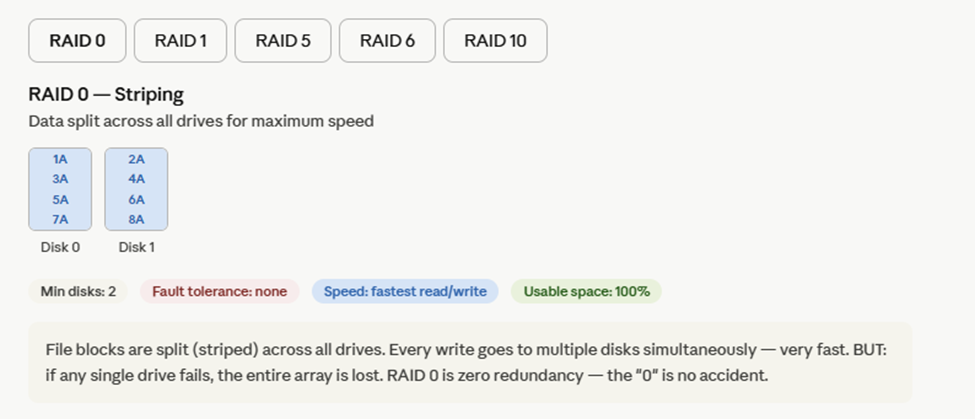
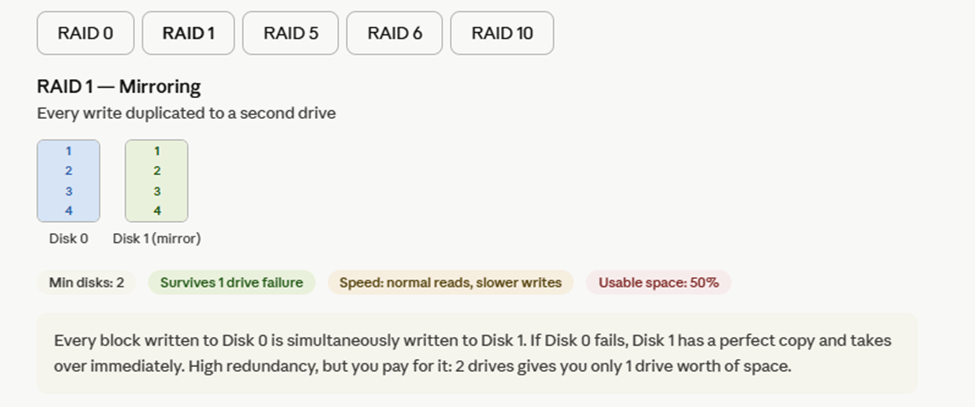
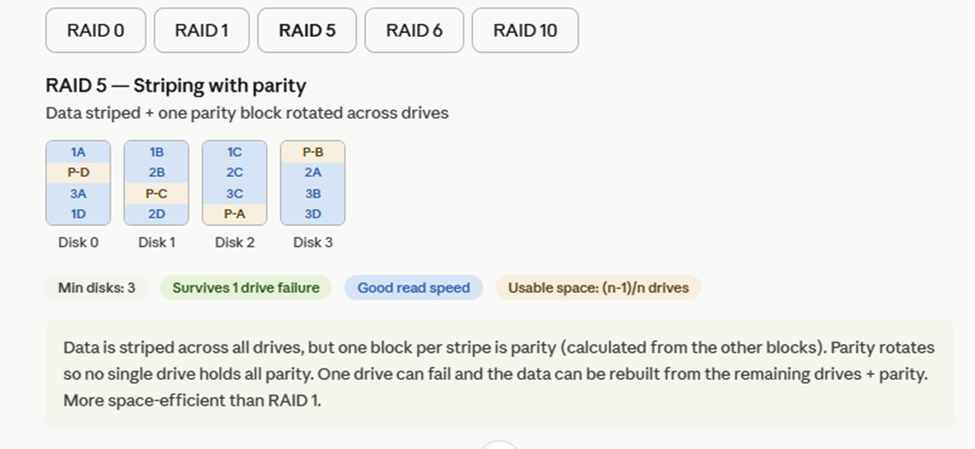
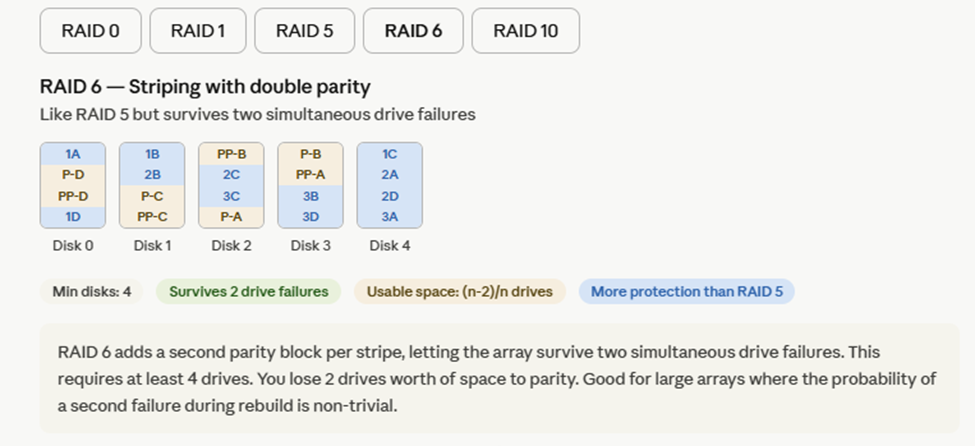
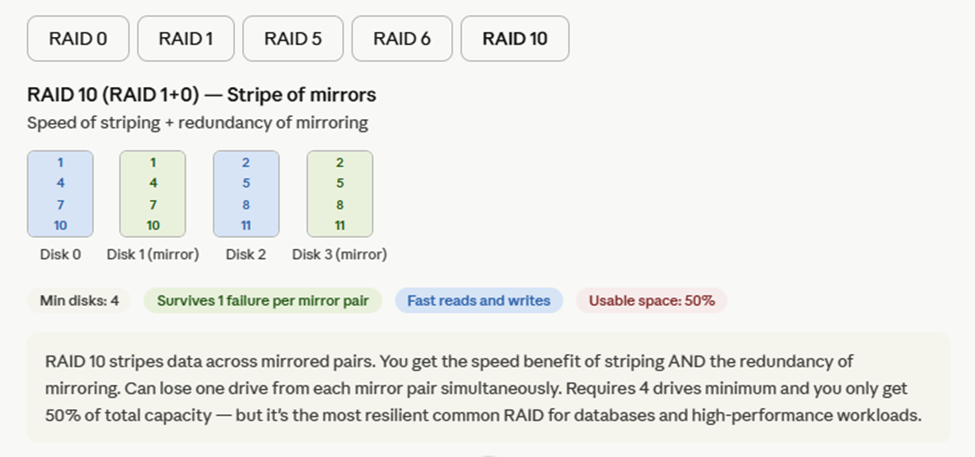
Now here's the interactive RAID visual — click through each level to see how the disks are organized and what the failure tolerance is:
What is RAID and what is the most important thing to know about it?
Redundant Array of Independent Disks — combines multiple physical drives to achieve performance, redundancy, or both.
The single most important fact: RAID is NOT a backup.
RAID protects against drive hardware failure
It does NOT protect against accidental deletion, ransomware, fire, theft, or corruption
A virus that corrupts files will corrupt them on ALL drives in a mirror simultaneously
Always maintain a separate, offsite backup regardless of RAID configuration
The five RAID levels on the exam in brief:
RAID 0 — striping only, no redundancy, fastest
RAID 1 — mirroring, 1 drive can fail, 50% usable space
RAID 5 — stripe + 1 parity, 1 drive can fail, needs 3+ drives
RAID 6 — stripe + 2 parity, 2 drives can fail, needs 4+ drives
RAID 10 — stripe of mirrors, best performance + redundancy, 50% usable space, needs 4+ drives