Viewing and Managing Files
 Call Kai
 Learn
Learn Practice Test
 Spaced Repetition
 Match
Match Flashcards
 Knowt Play
1/28

There's no tags or description
Looks like no tags are added yet.
Name | Mastery | Learn | Test | Matching | Spaced | Call with Kai |
|---|
No analytics yet
Send a link to your students to track their progress
29 Terms
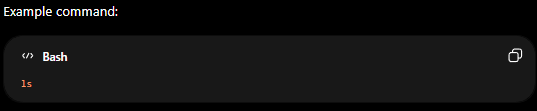
Stands for list. It is a Linux command used to display the contents of a directory. By default, it lists files and directories in the current directory.
ls
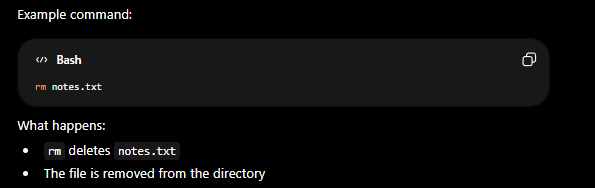
Stands for remove. It is a Linux command used to delete files and directories.
By default, ___ removes files permanently from the filesystem.
rm
Stands for concatenate. It is a Linux command used to display file contents and combine multiple files together. The ___ command reads data from files and sends the contents to STDOUT, usually displaying the text on the terminal.
cat

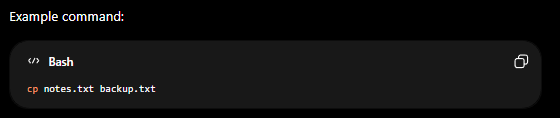
Stands for copy. It is a Linux command used to copy files and directories from one location to another. The ___ command creates a duplicate of the original file or directory while leaving the original unchanged.
cp
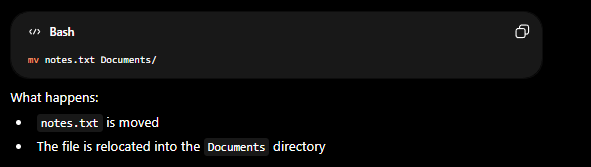
Stands for move. It is a Linux command used to move or rename files and directories. The ___ command changes the location or name of a file or directory without creating a duplicate copy.
mv
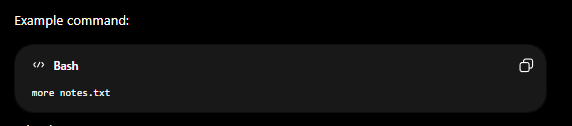
Linux command used to view the contents of a text file one screen at a time. It is a pager program that allows users to read long files without displaying the entire file at once. The ___ command primarily moves forward through the text and has limited backward navigation capabilities.
more
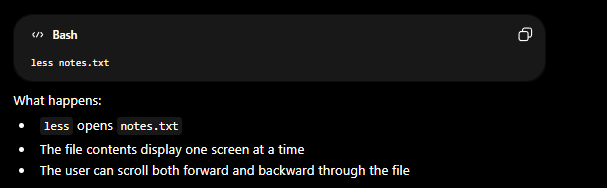
Linux command used to view text files and command output one screen at a time. It is a pager program similar to more, but it provides more advanced navigation features, including both forward and backward movement through text.
less
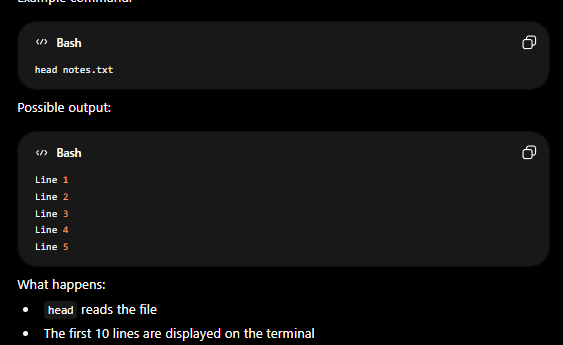
Linux command used to display the beginning portion of a file or command output. By default, ___ shows the first 10 lines. It is commonly used to quickly preview files without opening the entire contents.
head
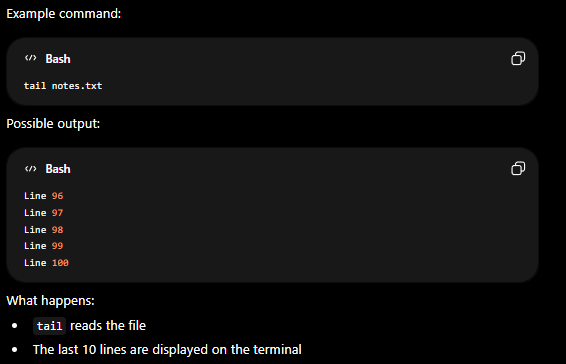
Linux command used to display the ending portion of a file or command output. By default, ___ shows the last 10 lines. It is commonly used to monitor logs and inspect the most recent entries in a file.
tail
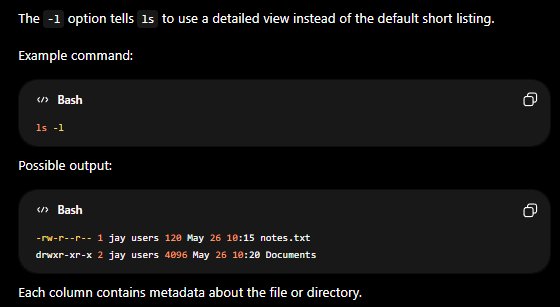
Displays files and directories in long listing format, showing detailed permissions and metadata information.
ls -l
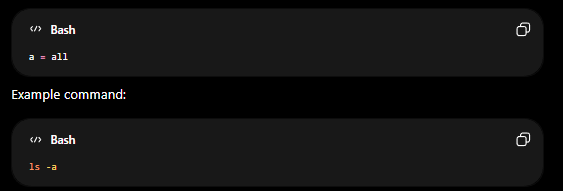
Displays all files and directories, including hidden files. In Linux, hidden files and directories usually begin with a period (.). By default, the regular ls command does not display these hidden entries.
ls -a
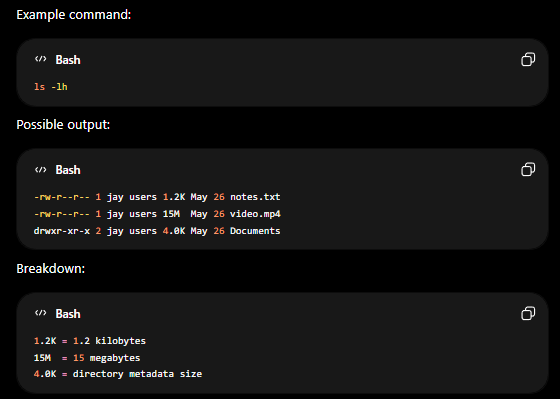
Displays files and directories in long listing format with human-readable file sizes.
ls -lh
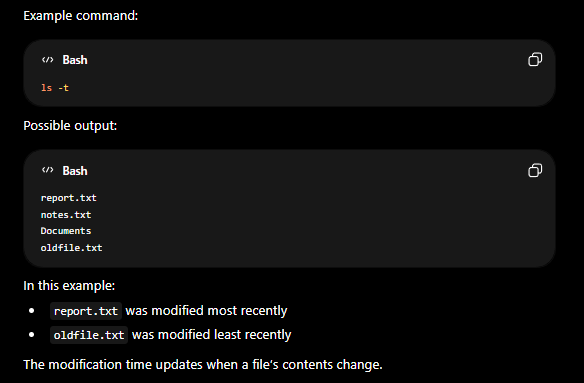
Sorts files and directories by modification time, showing the most recently modified items first.
ls -t
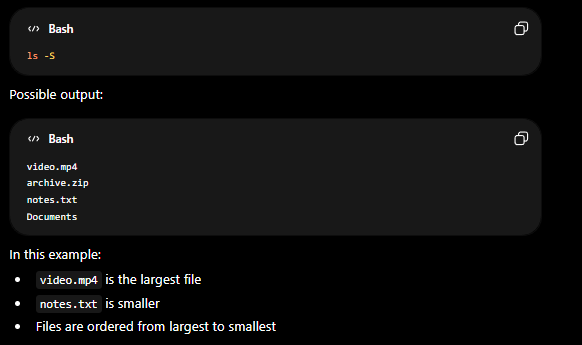
Sorts files and directories by file size, displaying the largest items first.
ls -S
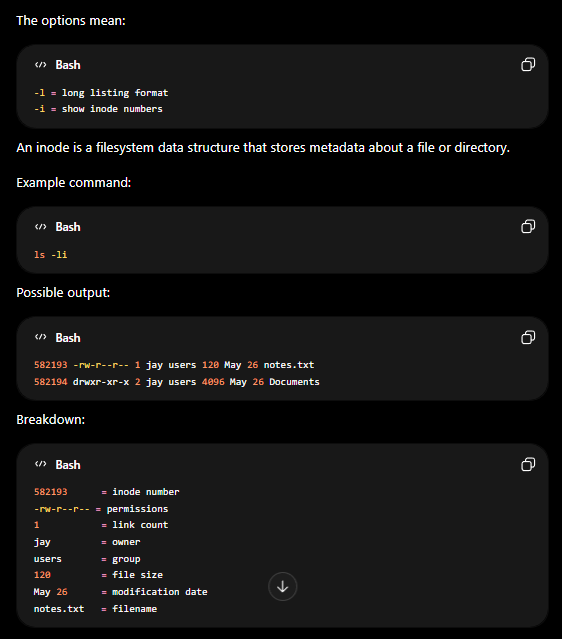
Displays files and directories in long listing format while also showing inode numbers.
ls -li
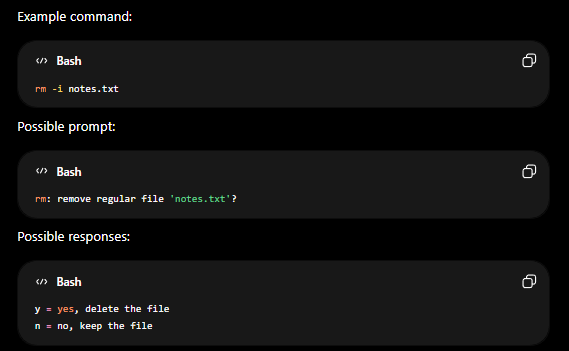
Prompts the user for confirmation before deleting files.
rm -i
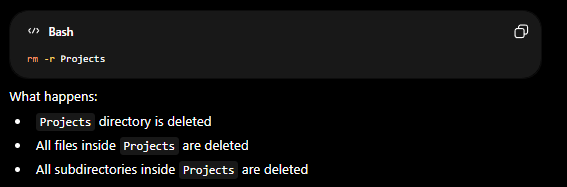
Recursively removes directories and their contents.
rm -r
Recursively removes files and directories without prompting for confirmation.
rm -rf
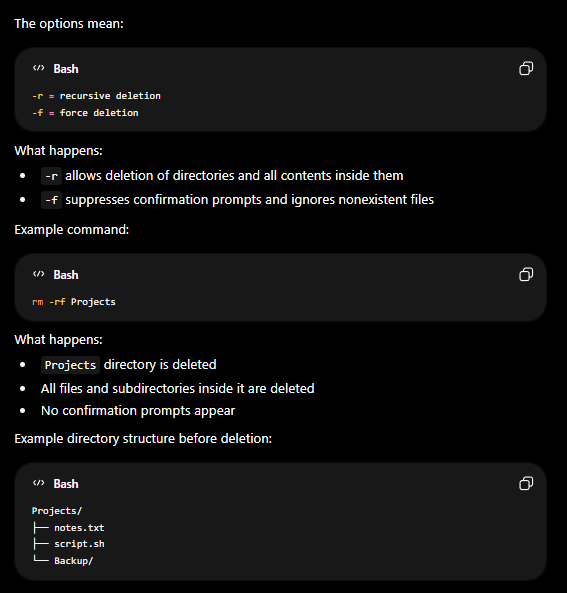
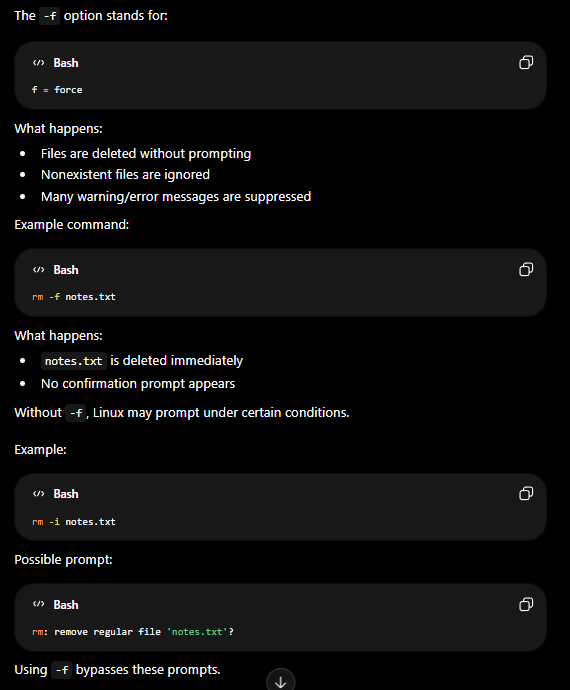
Forces deletion and suppresses many errors.
rm -f
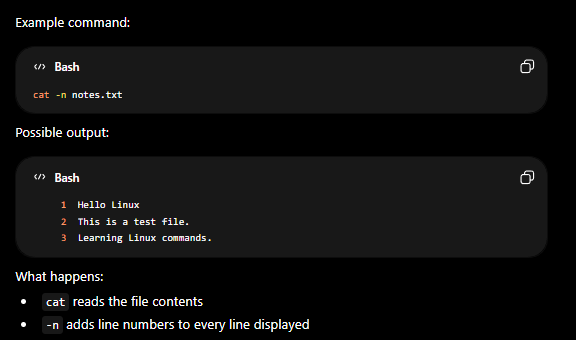
Displays file contents with line numbers.
cat -n
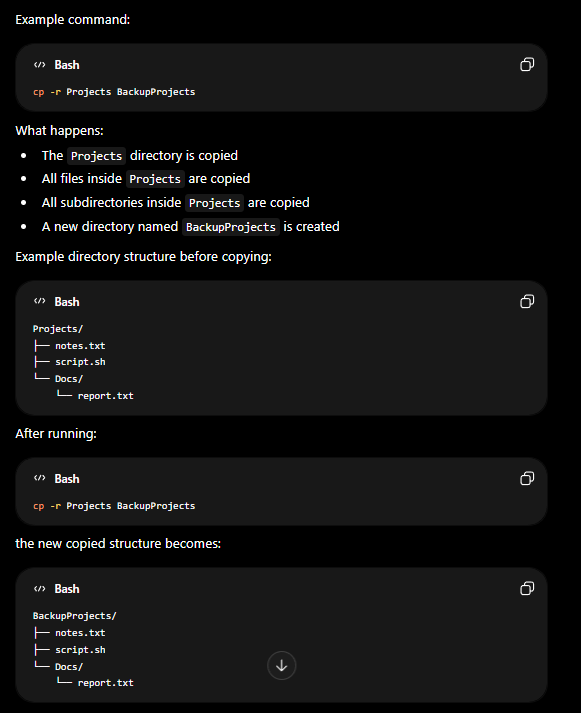
Recursively copies directories and their contents.
cp -r
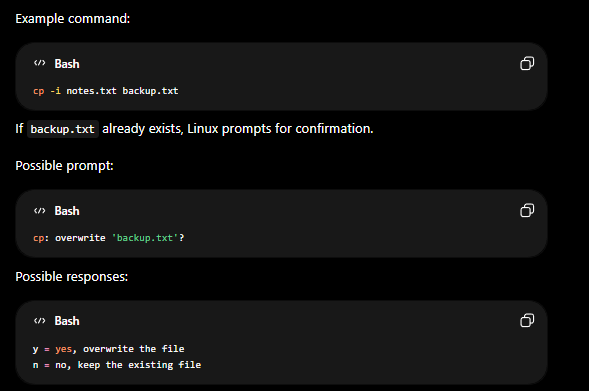
Prompts the user for confirmation before overwriting existing files during a copy operation. This safety feature helps prevent accidental overwriting of files.
cp -i
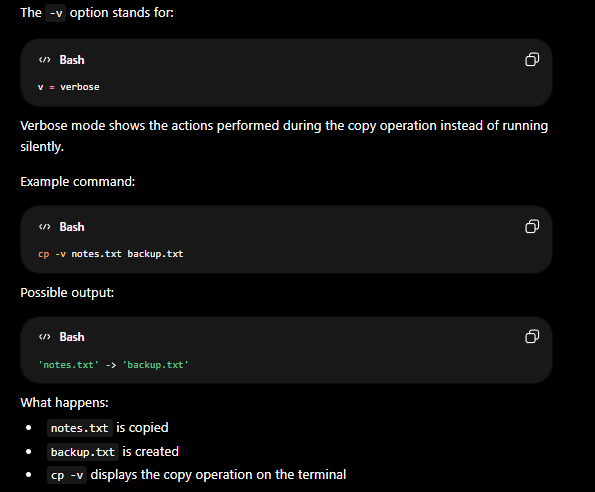
Displays detailed information about files and directories being copied.
cp -v
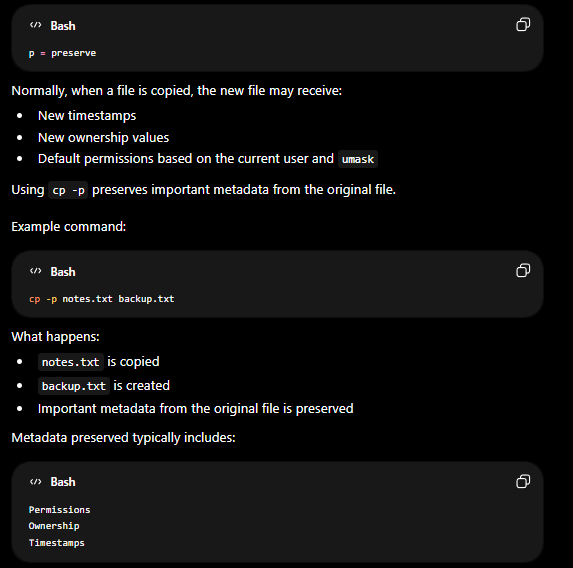
Copies files while preserving metadata such as timestamps, permissions, and ownership information.
cp -p
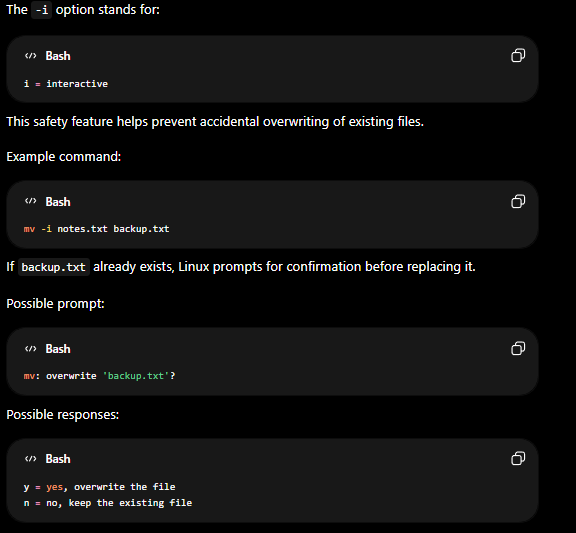
Prompts the user for confirmation before overwriting files during move or rename operations.
mv -i
Replacing the contents of an existing file.
Overwrite
Adding data to the end of an existing file without deleting current contents.
Append
Operation applied through all nested files and directories.
Recursive Operation
File sizes displayed using KB, MB, GB instead of raw bytes.
Human-Readable Sizes