CHAPTER 5 — MICROSOFT EXCEL DATA PROCESSING & FUNCTIONS
 Call Kai
 Learn
Learn Practice Test
 Spaced Repetition
 Match
Match Flashcards
 Knowt Play
1/47

There's no tags or description
Looks like no tags are added yet.
48 Terms
In Microsoft Excel, how do you hide a Sheet tab?
A. Select Sheet -> Click select button -> Hide
B. Select Sheet -> Press Ctrl+A -> Right-click -> Hide
C. Right-click the Sheet tab -> Select Hide
D. Left-click the Sheet tab -> Select Hide
C — Right-clicking a sheet tab reveals the context menu containing Hide.
In Microsoft Excel, how do you insert a new Sheet into a workbook file?
A. Right-click any Sheet tab -> Insert -> Worksheet -> OK
B. Right-click any Sheet tab -> Insert -> MS Excel -> OK
C. Left-click any Sheet tab -> Insert -> MS Excel -> OK
D. All of the above options are incorrect
A — Insert -> Worksheet creates a blank worksheet.
In Microsoft Excel, what does the '###' display in a column mean?
A. Data in the column has an error
B. Column data formatting error
C. Calculation result error
D. The column width is insufficient to display the numeric value
D — Widening the column resolves '###' display issues.
In Microsoft Excel, what does the '#VALUE!' error in a cell indicate?
A. Column width is insufficient
B. Data used in the formula has an incorrect data type (e.g. adding text to number)
C. No result
D. Function name typed wrong
B — #VALUE! occurs when a mathematical formula receives a text string or mismatched type.
In Microsoft Excel, what does the '#NAME?' error in a cell indicate?
A. The function name is misspelled or unassigned
B. Input data is incorrect
C. Row height insufficient
D. Row height and data format mismatch
A — #NAME? indicates Excel does not recognize typed text as a valid function/range name.
In Microsoft Excel, which shortcut key combination moves the cursor immediately to cell A1?
A. Ctrl + Shift + Home
B. Ctrl + Shift + Page Up
C. Shift + Home
D. Ctrl + Home
D — Ctrl + Home navigates directly to cell A1.
In Microsoft Excel, cell A1 contains 'Nguyễn Lan' and B1 contains 'Anh'. Entering '= A1 +B1' in C1 yields:
A. Nguyễn Lan Anh
B. Nguyễn LanAnh
C. #VALUE!
D. No result
C — The '+' operator is for numeric addition. Text concatenation requires '&' or CONCAT.
Nếu bạn muốn kết quả trả về là chuỗi văn bản (như phương án A hoặc B), bạn phải dùng các cách sau:
Dùng toán tử
&:=A1 & " " & B1(cho ra kết quả Nguyễn Lan Anh) hoặc=A1 & B1(cho ra kết quả Nguyễn LanAnh).Dùng hàm CONCAT hoặc CONCATENATE:
=CONCAT(A1, " ", B1).
In Microsoft Excel, cell A1 contains 9.78 (right-aligned numeric format). Entering '= INT(A1)' in B1 yields:
A. 9.5
B. #VALUE!
C. 10
D. 9
D — INT rounds down to the nearest integer (9.78 -> 9).
In Microsoft Excel, cell A1 contains '9,78' (left-aligned text format). Entering '= INT(A1)' in B1 yields:
A. 9.5
B. #VALUE!
C. 10
D. 9
B — INT on a text string formatted with invalid comma delimiter returns #VALUE!.
INT(number)nhận một giá trị số và làm tròn xuống đến số nguyên gần nhất.9.78được lưu dưới dạng số →=INT(A1)trả về 9.'9,78'được lưu dưới dạng text → Excel có thể không xử lý được bằngINT()và trả về#VALUE!
*GHI NHỚ TRONG EXCEL
+) Text (văn bản) → mặc định căn trái (left-aligned).
+) Number (số) → mặc định căn phải (right-aligned).
In Microsoft Excel, cell A1 contains '13/01/2020' (left-aligned text format). Entering '=DAY(A1)' in B1 yields:
A. #VALUE!
B. 13
C. 01
D. 2020
A — Date functions require serial date numbers, not raw left-aligned text strings.
In Microsoft Excel, cell A1 contains 13/01/2020 (right-aligned date format). Entering '= MONTH(A1)' in B1 yields:
A. #VALUE!
B. 1
C. 13
D. 2020
B — MONTH extracts the month component (January -> 1).
In Microsoft Excel, cell A1 contains 13/01/2020 (right-aligned date format). Entering '=YEAR(A1)' in B1 yields:
A. #VALUE!
B. 20
C. 1920
D. 2020
D — YEAR extracts the 4-digit year component.
In Microsoft Excel, cell A1 = 20 and B1 = 7. Which formula entered in C1 yields a result of 6?
A. = MOD(A1, B1)
B. = MOD(A1/B1)
C. = MOD(B1, A1)
D. = MOD(B1/A1)
A — MOD(20, 7) calculates the remainder of 20 divided by 7, which is 6.
=MOD(number, divisor)In Microsoft Excel, range A2:A10 contains test scores. To rank students from highest to lowest (highest = rank 1) in B2:
A. = RANK(A2, $A$2:$A$10, 1)
B. = RANK(A2, $A$2:$A$10, 0)
C. = RANK(A2, A2:A10, 1)
D. = RANK(A2, A2:A10, 0)
B — Order parameter 0 (or omitted) ranks descending (highest = 1) with absolute range reference.
=RANK(number, ref, [order])Đối số | Ý nghĩa |
|---|---|
| Giá trị cần xếp hạng |
| Vùng dữ liệu dùng để xếp hạng |
| Cách xếp hạng: tăng dần hay giảm dần |
Xếp hạng giảm dần (0)
=>Điểm cao nhất = hạng 1. Đây là yêu cầu của đề bài.
Xếp hạng tăng dần(1)
=> Điểm thấp nhất = hạng 1.
In Microsoft Excel, cell A1 = 0 and B1 = 7. Entering '= B1/A1' in cell C1 yields:
A. ERROR
B. DIV/0
C. #DIV/0!
D. #VALUE!
C — #DIV/0! occurs when dividing a number by zero.
In Microsoft Excel, which operator represents 'Not Equal To'?
A. &
B. #
C. ><
D. <>
D — <> is the logical comparison operator for 'not equal to'.
In Microsoft Excel, string concatenation uses which operator?
A. &
B. and
C. link
D. +
A — The ampersand '&' joins text strings together.
String = chuỗi ký tự (văn bản).
Concatenation = nối các chuỗi lại với nhau.
Công thức | Kết quả |
|---|---|
|
|
|
|
In Microsoft Excel, entering '= AND(5>4, 9<5)' in cell A1 yields:
A. TRUE
B. Đúng
C. Sai
D. FALSE
D — AND requires all arguments to be TRUE. Since 9<5 is FALSE, AND returns FALSE.
In Microsoft Excel, given score range C4:D8 (containing scores up to 10), entering '=MAX(C4:D8)' in C10 yields:
A. 8
B. 9
C. 10
D. 7
C — MAX returns the highest numerical value in the range.
In Microsoft Excel, entering '= OR(10>4, 20<=5)' in cell A1 yields:
A. Đúng
B. TRUE
C. Sai
D. FALSE
B — OR returns TRUE if at least one condition is TRUE (10>4 is TRUE).
In Microsoft Excel, entering '= ROUND(15/2, -1)' in cell A1 yields:
A. 7
B. 0
C. 10
D. None of the above
C — 15/2 = 7.5. ROUND(7.5, -1) rounds to the nearest multiple of 10, yielding 10.
1. Hiểu hàm ROUND(number, num_digits)
Hàm ROUND() dùng để làm tròn số.
number: số cần làm tròn.num_digits: vị trí cần làm tròn.
| Ý nghĩa | Ví dụ |
|---|---|---|
| Làm tròn đến hàng phần trăm |
|
| Làm tròn đến 1 chữ số thập phân |
|
| Làm tròn đến hàng đơn vị |
|
| Làm tròn đến hàng chục |
|
To count total students graded 'Xuất sắc' listed in H6:H15 matching grade label in J6, enter in K6:
A. = COUNT(G6:G15, J6)
B. = COUNT($G$6:$G$15, J6)
C. = COUNTIF($H$6:$H$15, J6)
D. = COUNTIF(G6:G15, I6)
C — COUNTIF counts cells in range $H$6:$H$15 matching condition in J6.
COUNT() đếm ô chứa số, không đếm văn bản theo điều kiện.
Given database range A2:C7 and criteria B9:B10 ('Gạo nếp'), to find maximum quantity sold, enter in C10:
A. = DMAX($A$2:$C$7, 3, $B$9:$B$10)
B. = DMAX($A$3:$C$7, 3, $B$9:$B$10)
C. = DMAX($A$3:$C$7, 3, $B$10)
D. = DMAX($A$2:$C$7, 3, $B$10)
A — DMAX requires full database table with headers ($A$2:$C$7), field index 3, and criteria range ($B$9:$B$10)
=DMAX(database, field, criteria)Thành phần | Ý nghĩa |
|---|---|
| Vùng cơ sở dữ liệu, bao gồm cả hàng tiêu đề (headers). |
| Cột cần tính. Số |
| Vùng điều kiện, bao gồm cả tiêu đề cột và điều kiện. |
With Theory score 8.75 in C4 and Practical 9.00 in D4, entering '= INT(ROUND((C4+D4),0))/2' in E4 yields:
A. 8
B. 9
C. 8.5
D. 8.25
B — 8.75 + 9.00 = 17.75 -> ROUND(17.75, 0) = 18 -> INT(18)/2 = 9.
In Microsoft Excel, cell A1 contains 'Thành phố Hà Nội'. Entering '= LEFT(A1, 3)' in B1 yields:
A. Thà
B. Th
C. Tha
D. Nội
A — LEFT extracts the first 3 characters ('Thà').
text: Chuỗi văn bản cần lấy.num_chars: Số ký tự muốn lấy, tính từ trái sang phải.
In Microsoft Excel, cell A1 contains 'Thành phố Hà Nội'. Entering '= RIGHT(A1, 3)' in B1
yields:
A. Nôi
B. Nội
C. Tha
D. Thà
B — RIGHT extracts the last 3 characters ('Nội').
In Microsoft Excel, to edit data or a formula in a cell directly without retyping:
A. Click cell and press F4
B. Click cell and press F3
C. Click cell and press F5
D. Double-click the cell (or press F2)
D — Double-clicking or pressing F2 enters cell edit mode.

In Microsoft Excel, what type of cell references are $A1, B$5, C6, $L9, $D$7 together?
A. Relative references
B. Absolute references
C. Mixed references
D. Includes all three types of references above
D — Relative (C6), Absolute ($D$7), and Mixed ($A1, B$5) references are represented.

In Microsoft Excel, to sort a payroll list in ascending order by 'Total Income':
A. Data -> Sort -> Sort by: 'Total Income' -> Descending -> OK
B. Table -> Sort -> Sort by: 'Total Income' -> Ascending -> OK
C. Select 'Salary' -> Table -> Sort -> Sort by: 'Total Income' -> Ascending -> OK
D. Select 'Salary' table -> Data -> Sort -> Sort by: 'Total Income' -> Ascending -> OK
D — Data -> Sort menu is used to sort table ranges
In Microsoft Excel, to calculate average score = (Theory + Practical)/2 for student 1 in row 4, enter in E4:
A. = AVERAGE(C4:C8)
B. = AVERAGE(C4:D4)
C. = AVERAGE($C$4:$D$4)
D. = AVERAGE($C4:D$4)
B — AVERAGE(C4:D4) averages cells C4 and D4.
In Microsoft Excel, assuming system date is 01/01/2020, entering '= YEAR(TODAY()) -1990' in A1 yields:
A. 30
B. #VALUE!
C. #NAME?
D. 31
A — YEAR(TODAY()) = 2020 -> 2020 - 1990 = 30.
In Microsoft Excel, before executing the Subtotals command:
A. Data does not need sorting
B. Copy data to another area without sorting
C. Data MUST be sorted by the group key field first (Sort)
D. Filter data to another area
C — Subtotals requires pre-sorting data by the grouping column to calculate group subtotals accurately.
Subtotal (tổng phụ) là chức năng trong Excel dùng để tính toán theo từng nhóm dữ liệu, chẳng hạn tính tổng doanh thu của từng thành phố hoặc tính trung bình điểm của từng lớp.
Ví dụ, bảng dữ liệu ban đầu:
Thành phố | Doanh thu |
|---|---|
Hà Nội | 100 |
TP.HCM | 200 |
Hà Nội | 150 |
TP.HCM | 300 |
Trước khi dùng Subtotal, bạn cần sắp xếp theo cột Thành phố:
Thành phố | Doanh thu |
|---|---|
Hà Nội | 100 |
Hà Nội | 150 |
Subtotal Hà Nội | 250 |
TP.HCM | 200 |
TP.HCM | 300 |
Subtotal TP.HCM | 500 |
In Microsoft Excel, given database A2:E7 and criteria in A9:A10, to extract a single record field 3 with DGET:
A. = DGET($A$3:$E$7, 3, $A$9:$A$10)
B. = DGET($A$2:$E$7, 2, $A$10)
C. = DGET($A$2:$E$7, 3, $A$9:$A$10)
D. = DGET($A$3:$E$7, 3, $A$10)
C — DGET database parameter must include column headers ($A$2:$E$7).
In Microsoft Excel, given score range C4:D8 (lowest score is 3), entering '=MIN($C$4:$D$8)' in C10 yields:
A. 6
B. 5.25
C. 3
D. 5
C — MIN finds the minimum value in the range.
Given item price table A1:C4 (Col A: Item Code, Col C: Price) and sales row 7, to calculate
Total = Quantity * Unit Price in D7:
A. = C7 * VLOOKUP(B7, A1:C4, 3, 0)
B. = C7 * VLOOKUP(B7, $A$1:$C$4, 3, 0)
C. = C7 * VLOOKUP(B7, $A$1:$C$4, 3, 0)
D. = C7 * VLOOKUP(B7, $B$1:$C$4, 2, 0)
D — Lookup code is in column B ($B$1:$C$4), so index column is 2.
Given horizontal price table A1:D3 (Row 2: Item Code, Row 3: Price) and sales row 6, to calculate Total = Quantity * Unit Price in D6:
A. = C6 * HLOOKUP(B6, A1:D3, 3, 0)
B. = C6 * HLOOKUP(B6, $A$1:$D$3, 3, 0)
C. = C6 * HLOOKUP(B6, $A$2:$D$3, 2, 0)
D. = C6 * HLOOKUP(B6, $A$1:$D$3, 3, 0)
C — Lookup row is Row 2 ($A$2:$D$3), price is in row index 2.
Given salary table C4:E8 and department code in A13 ('XN1'), to calculate total salary for XN1 in B13, enter:
A. = SUMIF($C$4:$C$8, C5, $E$4:$E$8)
B. = SUMIF($C$4:$E$8, A11:A13, $E$4:$E$8)
C. = SUMIF($C$4:$C$8, A11:A13, E5:E8)
D. = SUMIF($C$4:$C$8, A13, $E$4:$E$8)
D — SUMIF(range, criteria, sum_range) = SUMIF($C$4:$C$8, A13, $E$4:$E$8).
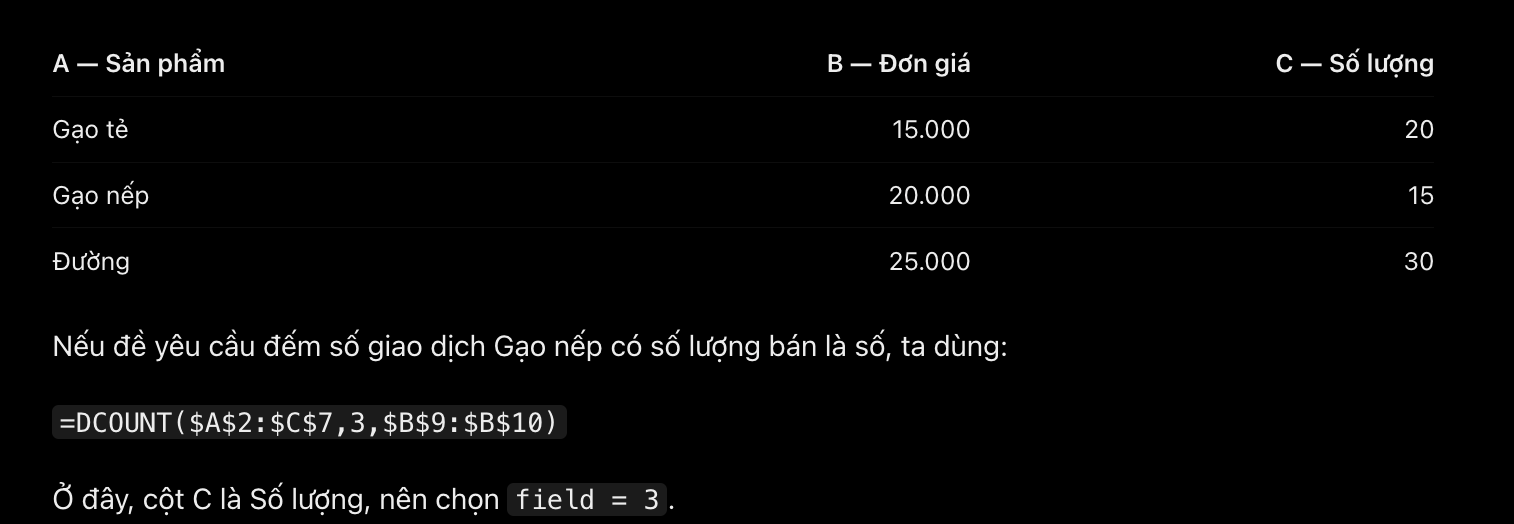
In MS Excel, to count sales transactions for sticky rice ('Gạo nếp') in range A2:C7 with
criteria B9:B10, enter in C10:
A. = DCOUNT($A$2:$C$7, 3, $B$9:$B$10)
B. = DCOUNT($A$2:$C$7, 2, $B$9:$B$10)
C. = DCOUNT($A$3:$C$7, 3, $B$9:$B$10)
A — DCOUNT operates on numeric field 3 in database $A$2:$C$7.
In Microsoft Excel, to prepare Subtotals of quantity and revenue per item, group by which key field?
A. Item Code (Mã hàng)
B. Quantity and Revenue
C. Quantity
D. Revenue
A — Subtotals groups data by the primary categorical key field (Item Code).
Vì sao chọn A?
Khi dùng Subtotal (tổng phụ), ta cần chọn group key field — cột dùng để phân nhóm dữ liệu.
Đề yêu cầu chuẩn bị Subtotals của Quantity (số lượng) và Revenue (doanh thu) theo từng mặt hàng.
Ví dụ:
Item Code (Mã hàng) | Quantity | Revenue |
|---|---|---|
SP01 | 10 | 100 |
SP02 | 5 | 50 |
SP01 | 20 | 200 |
SP02 | 15 | 150 |
Trước tiên, sắp xếp theo Item Code:
Item Code | Quantity | Revenue |
|---|---|---|
SP01 | 10 | 100 |
SP01 | 20 | 200 |
Subtotal SP01 | 30 | 300 |
SP02 | 5 | 50 |
SP02 | 15 | 150 |
Subtotal SP02 | 20 | 200 |
In Microsoft Excel, to copy data for Subtotals of quantity and revenue per item, copy which columns?
A. Item Code and Revenue
B. Quantity and Revenue
C. Item Code and Quantity
D. Item Code, Quantity, and Revenue
D — Key column and target aggregation numeric columns must all be included.
What do error messages '#REF!', '#VALUE!', and '#N/A' mean respectively?
A. Function name not found, invalid reference, value non-existent
B. Invalid cell reference, wrong data type or value error, data/value not available
C. Value non-existent, function name not found, invalid reference
D. Empty set
B — #REF! = invalid reference; #VALUE! = wrong type; #N/A = value not available.
To calculate the percentage ratio of Male count in B4 against Total count in B6, use formula:
A. = B4/B6
B. = $B$4/B6
C. = B4/$B$6
D. = $B$4/$B$6
C — B4/$B$6 allows copying the formula down while keeping the total denominator fixed.
Cell A1102 contains 'BM00900F'. Entering '= VALUE(MID(A1102, 3, 5))' and '= MID(A1102,3, 5)' in B1102 and C1102 yields:
A. 900 and '00900'
B. '00900' and '00900'
C. 0900 and 900
A — MID extracts string '00900'; VALUE converts string '00900' into number 900.'
Ô B1102: =VALUE(MID(A1102,3,5))
MID(A1102,3,5): Lấy 5 ký tự, bắt đầu từ ký tự thứ 3 →"00900".VALUE("00900"): Chuyển chuỗi văn bản thành số →900.
Kết quả B1102: 900.
Ô C1102: =MID(A1102,3,5)
Bắt đầu từ ký tự thứ 3.
Lấy 5 ký tự →
"00900".MIDtrả về kết quả dạng văn bản (text), giữ nguyên các số 0 ở đầu.
Given array A1:D3 (numeric values in cols A,B,C; text labels in col D), evaluating COUNT(A1:D3), COUNTIF(A1:D3, '<5'), and SUMIF(A1:A3, '<5', C1:C3) yields:
A. 9, 4, 9
B. 5, 9, 9
C. 9, 5, 7
D. 9, 9, 7
A — COUNT ignores text (9 numbers); COUNTIF counts numbers < 5 (4 cells); SUMIF sums C cells where A < 5 (9).
Evaluate statements about AutoFilter and Subtotal in Excel:
A. All 4 statements correct
B. Statement III incorrect
C. Statements II and IV incorrect
D. Statements I, II, and IV incorrect
D — Official answer key option D.
To calculate Allowance: 150 USD if Position is 'GĐ', 100 USD if 'TP' or 'PGĐ', 50 USD otherwise, enter in E5:
A. = IF(C5="GĐ", 150, IF(OR(C5="TP", C5="PGĐ"), 100, 50))
B. = IF(C5="GĐ", 150, IF(C5="TP", 100, IF(B5="PGĐ", 100, 50)))
A — Nested IF combined with OR correctly checks multiple position conditions.
In Microsoft Excel, which statement is INCORRECT?
A. Cannot change the width of multiple columns simultaneously
B. Can change the width of multiple columns simultaneously
C. Can auto-fit column widths
D. Can write multiple text lines in one cell
A — Multiple columns CAN be selected and resized simultaneously in Excel.
Given birthdate in B2 (e.g. 01/01/1990), to calculate current age in C2, enter:
A. = YEAR(TODAY) - B2
B. = YEAR(TODAY()) - YEAR(B2)
C. = YEAR(TODAY()) - B2
D. = YEAR(TODAY) - YEAR(B2)
B — YEAR(TODAY()) extracts current year; YEAR(B2) extracts birth year.