CS100 File Management Flashcards
 Call Kai
 Learn
 Practice Test
 Spaced Repetition
 Match
 Flashcards
 Knowt Play
1/79

Earn XP
Description and Tags
MassBay Community College Fall 2026 Semester Professor Snechal Nikalje CS100 File Management Flashcards
80 Terms
How does the operating system organize computer contents?
Windows organizes the contents of your computer in a hierarchical directory structure composed of drives, libraries, folders, subfolders, and files
Where do you permanently store most of your files?
In the hard drive, represented as the C: drive
How are additional hard drives such as an optical drive, flash drive, or external hard drive labeled?
They are given a unique letter such as D, E, F, ect. It would look like E: drive
What is the root directory?
It is the C:\ directory, which is the top of the filing structure of your computer.
All other folders and files are organized within the root directory
Within the root directory, what is in the reserved areas?
Folders and files that hold special operating system files that help run the computer.
They generally shouldn’t be accessed
What else will the manufacturer store in the reserved areas of the root directory?
Files used to reinstate your computer back to the original factory state
Those files should not be accessed unless necessary
What is a file in an operating system?
A collection of program instructions or data that is stored and treated as a single unit
How can files be generated?
From an application such as a Word document or an Excel workbook
What can files be represented by?
An entire application, a web page, a set of sounds, an image or a video
Where can files be stored?
On the hard drive, a flash drive, online, or on any other permanent storage medium
What is a folder?
A collection of files
Why do we use folders?
As the number of files you save increases, it becomes more important to keep them organized in folders
What is File Explorer in Windows?
The main tool for finding, viewing, and managing the contents of your computer
What does File Explorer show?
The location and contents of every drive, folder and file
What is the Navigation pane in File Explorer?
Located on the left, it shows the contents of your computer.
It displays commonly accessed files and folders in the Quick Access area, files stored online in OneDrive, and other storage areas in This PC such as Documents, Music, Pictures and Videos
What happens when you select a folder, drive or library from the Navigation pane?
The contents of that particular area are displayed in the File list on the right
The File list can be viewed in different ways; icons, tiles, or a detailed list
What other panes can you view?
A third pane can be added from the View menu, by clicking the Show option you can add either a Details pane or a Preview pane
What does the Details pane display?
A file or folder’s properties
What does the Preview pane display?
A small image of the selected document.
You can navigate through the selected file in the Preview pane, but you must open the file to make any edits
How does the File Explorer show the contents of your computer?

How can you tell if a folder has been shared with others by using an online storage system such as OneDrive or Dropbox?
Windows displays a shared icon instead of the traditional yellow folder icon
What happens when you save a file for the first time?
You must give the file a name and designate where you want to save it
What is a feature that Windows has that is useful when you first save a file?
Includes libraries where files are saved unless you specify otherwise
What are the default libraries in Windows?
Documents for document files
Music for audio files
Pictures for graphics files
Videos for video files
These are all in the This PC section of File Explorer
How can you determine the location of a file?
By its file path
Where does the file path start?
It starts with the drive in which the file is located and includes all folders, subfolders (if any), the file name, and the extension
What is an example of a file path?
When saving a picture of Susan B. Anthony for a term paper for a U.S. History course, the file path might be C:\Documents\HIS182\Term Paper\Illustrations\SBAnthony.jpg
**Understanding File Paths

**How does the file path work?
C:\Documents\HIS182\Term Paper\Illustrations\SBAnthony.jpg
Using this example, “C:” is the drive on which the file is stored (in this case, the hard drive),
“Documents” is the file’s primary folder.
“HIS182”, “Term Paper”, and “Illustrations” are successive subfolders within the Documents main folder
The file’s name, “SBAnthony” is separated from the file extension (in this case, “jpg”) by a period
Are there different ways I can view and sort my files and folders?
The View menu in File Explorer offers you different ways to view and sort the folders and files

What is the Detail view in File Explorer?
The most interactive view
Files and folders are displayed in list form, and the additional file information is displayed in columns alongside the name of the file
What are some features of the Detail view?
You can sort and display the contents of the folder by selecting any of the column headings, so you can sort the contents alphabetically by name, by type or hierarchically by date last modified or file size
Right-click the column heading area to modify the display of columns
How does the Icons view work in File Explorer?
A number of icon views display files and folders in sizes ranging from small to extra-large
What are Live Icons?
Allow you to preview the actual contents of a specific folder without opening the folder. Usually used by most icon views
Why are Large Icons view so useful?
It is the best view to use if your folder contains picture files, because you can see a bit of the actual images peeking out of the folder
What is the file name?
The first part of a file that is generally the name you assign to the file when you save it
What is an extension (or file type) in a Windows application?
The extension (or file type) follows the file name and a period or dot (.)
Like a last name, this extension identifies what kind of family of files the file belongs to, or which application should be used to read the file
What is an example of an extension?
If “bioreport” is a spreadsheet created in Microsoft Excel, it has an .xlsx extension and its name is bioreport.xlsx
How can you chose to display file extensions?
Checking or clearing the File name extensions by selecting Show in the View menu in File Explorer
**Common File Name Extensions

**What are some common file name extensions? (Written out)
.docx (Word processing document, Microsoft Word)
.xlsx (Workbook, Microsoft Excel)
.accdb (Database, Microsoft Access)
.pptx (Presentation, Microsoft PowerPoint)
.pdf (Portable Document Format, Adobe Acrobat/Adobe Reader)
.rtf (Text (Rich Text Format), Any program that can read text documents)
.txt (Text, any program that can read text documents)
.htm or .html (hypertext markup language (HTML) for a webpage)
.jpg (Joint Photographic Experts Group (JPEG) image, most programs capable of displaying images)
.zip (Compressed file, various file compression programs)
Why is it important to know the file extension?
When you save a file created in most applications running under the Windows Operating System, you don’t need to add the extension to the file name; it is added automatically for you
Which operating systems don’t require file extensions?
Mac and Linux
Why don’t Mac and Linus require file extensions?
Because the information about the type of application the computer should use to open the file is stored inside the file itself
Why do you need to add a extension to your file name when sending a file from macOS or Linux OS to Windows?
So Windows can more easily open your files
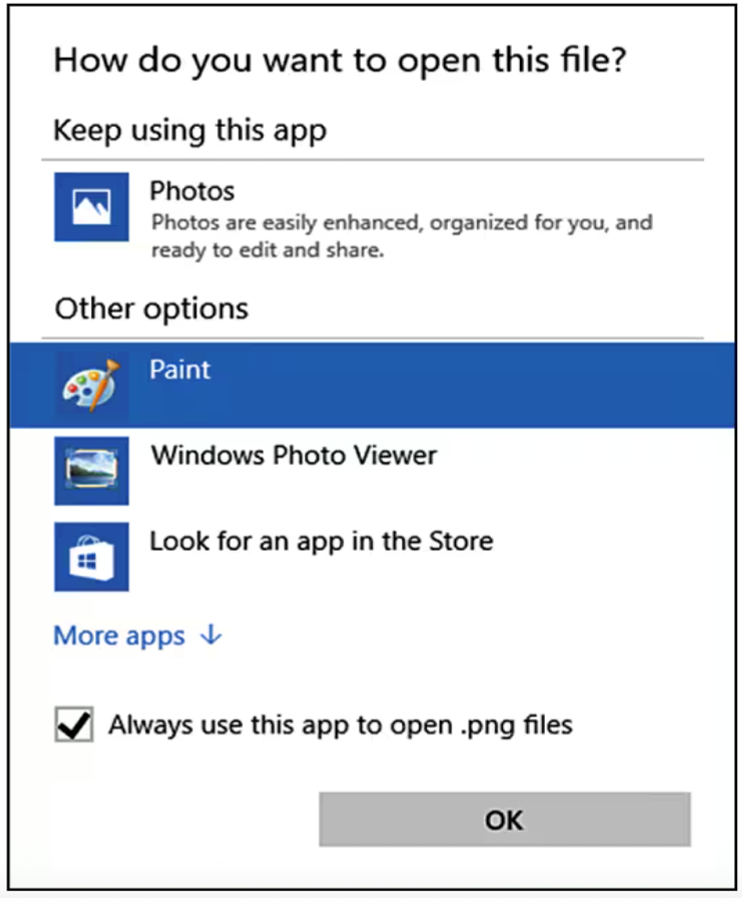
What happens when Windows tries to open a file with an unknown extension?
Windows displays a dialog box that offers several suggested programs that can be used (Figure 4)
Figure 4: How do you want to open this file?
Figure 4: Open a file with an unknown file type, choose the app you want to use
Why is it important to name your files?
So you can easily identify them; all files must be uniquely identified, unless you save them in different folders or different locations
How many characters can file names have up to?
255 characters
Can files share names and extensions?
Two files shared in the same folder can share both the file name (such as “bioreport.docx” or “bioreport.xlsx”) and the same file extension (“bioreport.xlsx” or “budget.xlsx”)
HOWEVER, no two files stored in the same folder can share both the same file name and the same file extension (like “budgetreport.docx” and “budgetreport.docx”)
**What characters can’t be used in a file name?
Some special characters, such as a quotation mark, will not allow the file to be saved until the file name is modified to exclude them
How can I move and copy files and folders to another location?
By using the Cut or Copy commands, respectively, on the ribbon or by right-clicking the file and selecting an option from the shortcut menu
After selecting Cut or Copy, select the new location and then select Paste from the ribbon or right-click the new location folder and select paste
What is an alternate way to move a file or folder to another location?
Drag and drop a file or folder to a new location by opening two File Explorer windows side-by-side and dragging a file or folder from one window to the other
What is another method to move a file or folder to another location?
Drag a file or folder from the File list to a new location displayed in the Navigation pane
What is the default action to move a file or folder?
Dragging it to a new location
If you’d rather make a copy, press Ctrl while you drag the file or folder to its new location
**Where do deleted files go?
The Recycle Bin
**What is the Recycle Bin?
A folder on the desktop, represented by an icon that looks like a recycling bin, where files deleted from the hard drive reside until you permanently purge them from your system
**What happens to files deleted from other storage locations or files stored in the cloud?
They do NOT go to the Recycle Bin on the computer you are working on, but are rather deleted from the system immediately
**What kind of file deletion do Mac systems have?
A folder on the desktop called Trash, which is represented by a wastebasket icon
**How do you delete files on a Mac?
Drag the files to the Trash icon
**How long do files stay in the Recycle Bin or Trash?
Files placed in the Recycle Bin or the Trash remain in the system until they’re permanently deleted?
**How do I permanently delete files from the Recycle Bin or Trash?
On Windows, select “Empty Recycle Bin” after right-clicking the desktop icon
On Macs, select “Empty Trash” from the Finder menu
Is it possible to recover a deleted file after the Recycle Bin has been emptied?
Yes, it may be possible to get a file back after the Recycle Bin has been emptied
How can I try to get a deleted file back after the Recycle Bin has been emptied?
You can use File History in Windows utility, which automatically backs up files and saves previous versions of files to a designated drive (such as an external hard drive)
If you are using File History, you can restore deleted files or even previous versions of files you’ve changed
Can I try to recover a deleted file from cloud-based storage systems?
Cloud-based storage systems such as OneDrive, Dropbox and Google Drive maintain histories of file changes, and you can recover a deleted file and role back files edit by edit
**Why would I use a compressed file?
File compression (or “zipping a file”) makes a large file more compact, making it easier and faster to send large attachments by e-mail, to upload them to the web, or to save them onto a flash drive or other storage medium
**How can you compress a file?
Windows has a built-in file compression utility that you can access through File Explorer
**How do you create your own zipped file?
By selecting a group of files and then compressing them from inside File Explorer
**What are some stand-alone freeware and shareware programs for compression?
WinZip for Windows
Stuff It for Windows or Mac
**What is an example of compressed files?
Compressed zip files can be expanded using tools built into File Explorer
To uncompress (extract) a zipped file, select the file, select Extract All, choose a destination for the extracted files, and then select Extract

**How do you uncompress (extract) a zipped file?
Select the file, select Extract All, choose a destination for the extracted files, and then select Extract
How does file compression work?
Compression takes out redundancies in a file to reduce the file size
Most compression programs look for repeated patterns of letters and replace these patterns with a shorter placeholder
What is the dictionary in relation to file compression?
Repeated patterns and the associated placeholder are cataloged and stored temporarily in a separate file called the dictionary
What is an example of a written sentence that can be compressed?
The rain in Spain falls mainly on the plain
There are repeated patterns of letters (ain and the)
The compression program’s algorithm (a set of instructions designed to complete a solution in a step-by-step manner) runs through the file several times to determine the optimal repeated patterns needed to obtain the greatest compression
What is a compression program algorithm?
A set of instructions designed to complete a solution in a step-by-step manner
How effective are file compression programs?
Current compression programs can reduce text files by 50% or more, depending on the file
What files already contain a form of compression and therefore cannot be compressed further?
PDF files
What is unique about image files such as JPEG, GIF and PNG?
They discard small variations in color that the human eye might not pick up
What is unique about MP3 files?
They permanently discard sounds that the human ear can’t hear
Do image files (like JPEG, GIF, PNG) or audio files (MP3) need further compression?
No