IS390 Chapter 8: Designing the User Interface
 Call Kai
 Learn
 Practice Test
 Spaced Repetition
 Match
 Flashcards
 Knowt Play
1/28

There's no tags or description
Looks like no tags are added yet.
29 Terms
User Interface
inputs and outputs that directly involve a human user/actor
A dialog goes on between actor and system
user interface design must focus on____
the entire user experience (HCI)
User-centered design
Focus early on users and their work
Evaluate designs to ensure usability
Use iterative development
Usability is the objective
components of the user interface
equipment
screen elements
application
mobile equipment
equipment
screen, keyboard, mouse, keypad, printer forms, docs, reports, webcam, desk, chair, light
screen elements
windows, screens, menus, buttons, pictures, animations, fonts, sounds, colors
application
functions, organization, screen content, advertisements, distractions, links, views, complexities
mobile equipment
touch screen, screen size, brightness, resolution, hotspots, connections, response times
metaphors of HCI - direct manipulation metaphor
metaphor in which objects on a display are manipulated to look like
physical objects (pictures) or graphic symbols that represent them
(icons)
metaphors of HCI - desktop metaphor
metaphor in which the visual display is organized into distinct regions,
with a large empty workspace in the middle and a collection of tool
icons around the perimeter
metaphors of HCI - document metaphor
metaphor in which data is visually represented as paper pages or
forms
metaphors of HCI - dialog metaphor
metaphor in which user and computer accomplish a task by engaging
in a conversation or dialog via text, voice, or tools such as labeled
buttons
metaphor details

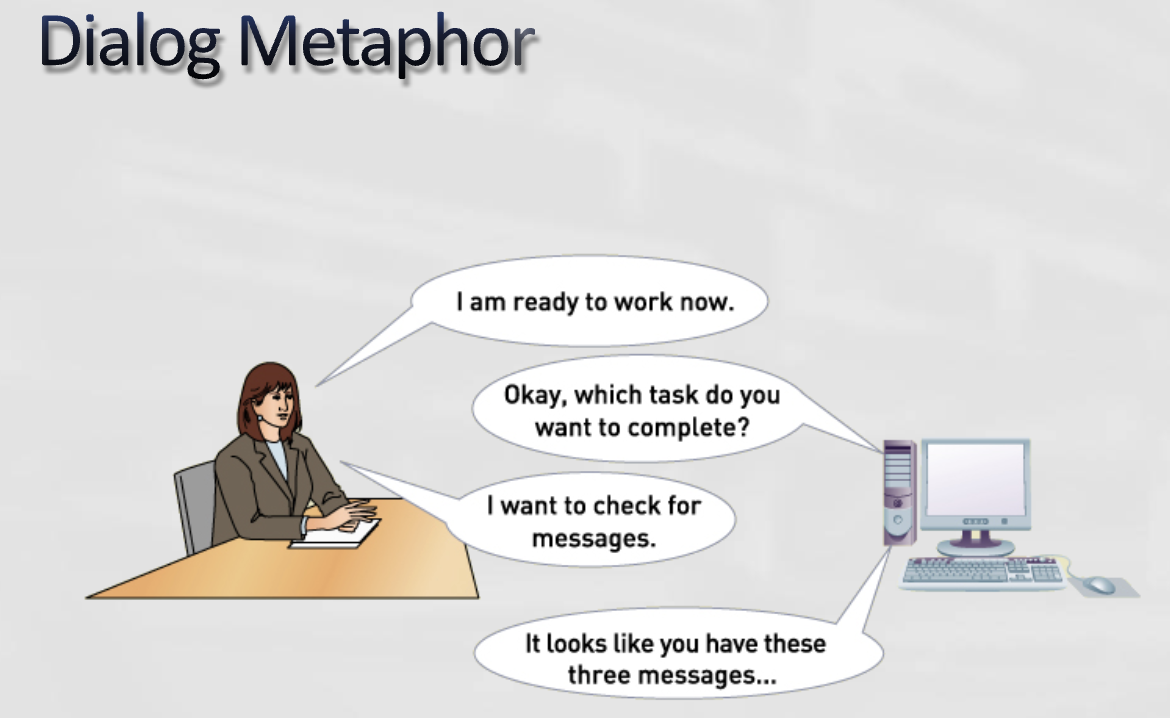

human-interface objects & affordance
Affordance – the appearance of the object suggests its function
Visible with Feedback
Both visible on the display and provides a response to a user action. (feedback)
Good examples – radio buttons and check boxes
consistency
consistency of design and use
Across platforms
Within a suite of applications
Within a particular application
continuity
Consistency across releases over time
discoverability
active discovery
To help users discover “hidden” features or objects
Active discovery – mouse hovers, pop-ups, tool tips
Visual Diagrams to guide users
closure
Closure on Dialogues – End of a series of actions
Protect user’s work – at end and for partially complete work
Provide undo to reverse actions
readability and navigation
Readable text for all users (type, size, color)
Clear navigation
Reverse navigation – a way out – breadcrumbs navigation
usability and efficiency
Shortcut keys for experienced users
Meaningful error messages
Simplicity – KISS
Transitioning from analysis to UI design
use cases and the menu hierarchy
We design use case by use case
Menus are a typical way to organize access to use case functionality
Different types of users might have different menus
Useful to design an overall menu hierarchy and then subsets for different users
Once the hierarchy is established, menus can be implemented in a variety of ways
making dialogs and storyboards
For each use case, think of the natural flow of a dialog between user and computer
Based on the flow of activities in use case description and/or the system sequence diagram
Use natural language to emphasize feedback to user
Create a storyboard of the dialog, showing the sequence of sketches of the screen each step of the dialog. (storyboarding)
Review the storyboard with users


there is a part two to this on slides 32 and 33 of chapter 8 slides
Desktop and Laptop UIs
Layout and Formatting
Purposeful designs, location and grouping, no sloppiness or errors
Poorly designed form:
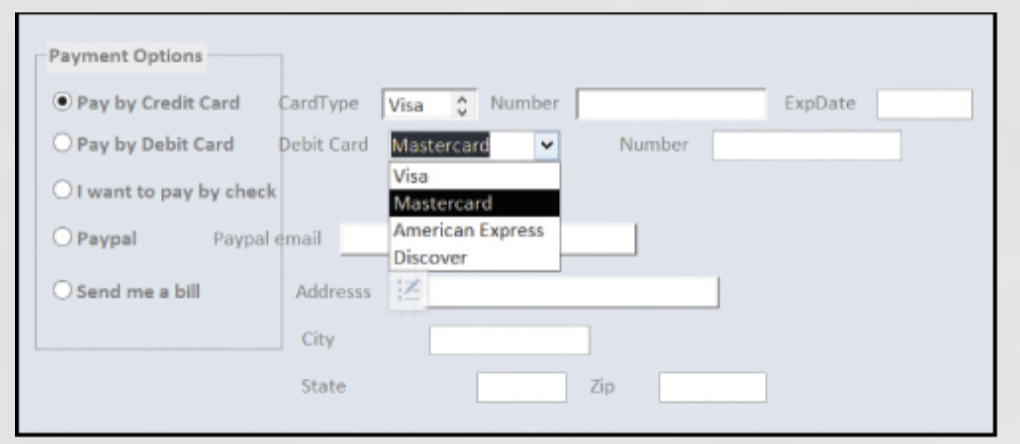
data entry methods and what to include
navigation and visibility features to include
Data Entry
Text box, list box, combo box, radio buttons, check boxes
Include online editing to minimize errors
Navigation and Visibility
Minimize, maximize, close, scroll bars, resize
3 considerations for web-based applications
Layout and formatting
Various browser default settings
Impact of online advertising
Data entry and user actions – client side programming
Navigation and visibility – complete yet simple
challenges of smartphones and small mobile devices
Small screen size,
small keyboards and
touch screens, limited
network capacity, app
design guidelines and
toolkits
layout and formatting considerations for small/phone devices
Rotating view, resizing, visible navigation, scrolling
data entry and user actions considerations for small/phone devices
Fat finger and accidental touches
navigation and visibility considerations for small/phone devices
Show site map
Use action bar
Visual clues
Back button
UI design for tablets
Similar to smartphones, except more real estate to display
report types
detailed reports
summary reports
exception reports
executive reports
Detailed reports -- reports that contain specific information on business transactions
Summary reports -- reports that summarize detail or recap periodic activity
Exception reports -- reports that provide details or summary information about transactions or operating results that fall outside a predefined normal range of values
Executive reports -- reports used by high level managers to assess overall organizational health and performance
electronic reports and drill down
Drill down – to view additional detail related to an item
Linking reports to other reports
View data grouped various categories
graphical and multimedia reports
Charting and graphing of data
(like pie charts, bar graphs etc)