Chapter 12, 13, 14 - Escaping Flickering UI with useLayoutEffect, Painting and Browsers & React portals and why do we need them & Data fetching on the client and performance
 Call Kai
 Learn
 Practice Test
 Spaced Repetition
 Match
 Flashcards
 Knowt Play
1/13

There's no tags or description
Looks like no tags are added yet.
14 Terms
Browser rendering (Painting)
Browsers update the screen in frames rather than continuously, similar to presenting slides rather than drawing in real-time. They aim for 60 FPS (frames per second), meaning each frame updates approximately every 13ms—a process called "painting" in React.
Updates are managed as tasks in a queue. The browser picks and executes tasks until it runs out of time within the 13ms window, then refreshes the screen. This cycle repeats endlessly, enabling smooth experiences like scrolling and animations.
What is a Task in Painting
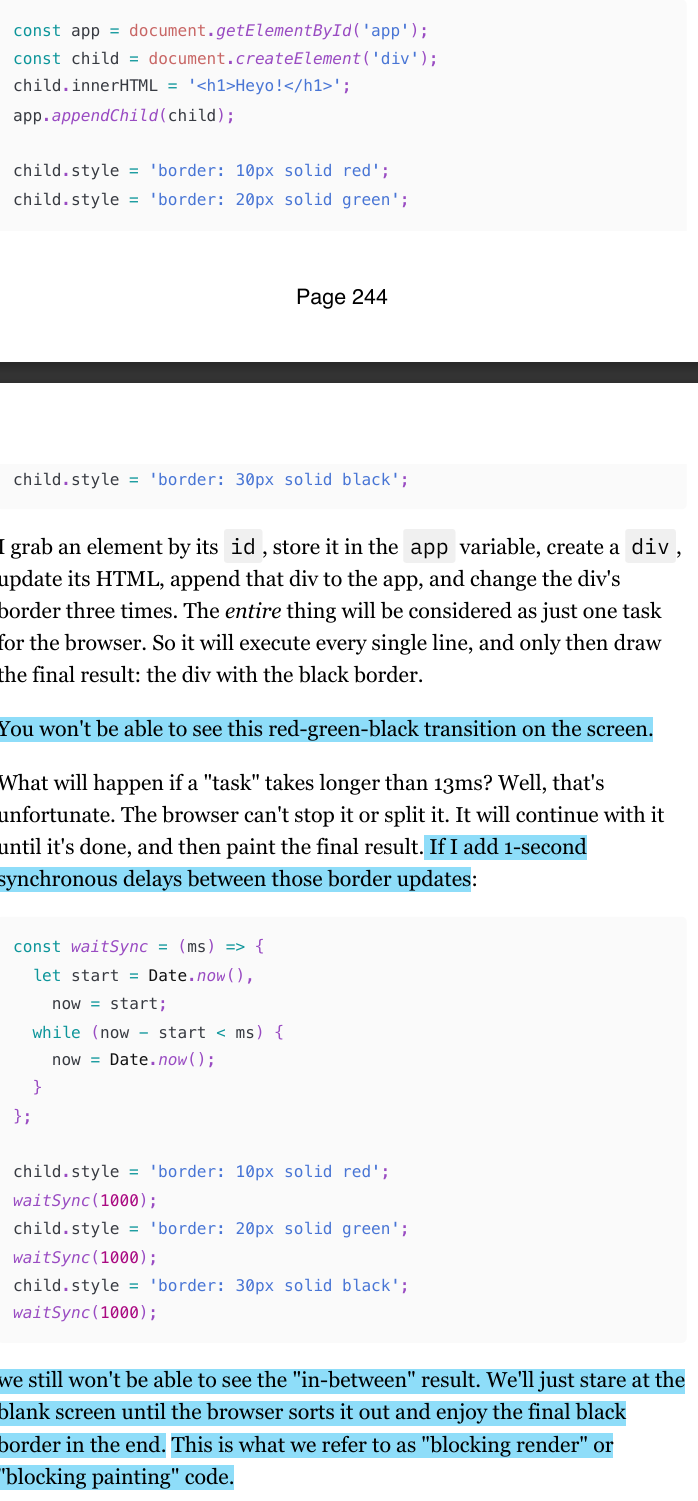
When it comes to normal JavaScript, it's everything that we put in the script tag and execute synchronously. (check img)
The main idea here is how the browser batches DOM updates and how synchronous tasks can block rendering.
DOM updates within a single task are processed together: Even though the border is updated three times (
red → green → black), the browser only paints the final state (black). Intermediate states (red, green) are never shown.Long-running tasks block rendering: If a task takes longer than 13ms (e.g., using
waitSync(1000)to delay updates), the browser freezes, showing nothing until the task finishes.This results in "blocking render" or "blocking painting", where the UI doesn’t update until the entire task completes.
What React does to Browser rendering (Browser Painting)
Now, although React is just JavaScript, it's not executed as one single task, of course. The internet would be unbearable if it was. The way to "break" a giant task like rendering an entire app into smaller ones is by using various "asynchronous" methods: callbacks, event handlers, promises, and so on.
React optimizes rendering by batching updates, prioritizing tasks, and rendering in chunks rather than blocking the browser.
useEffect vs useLayoutEffect
Execution Timing:
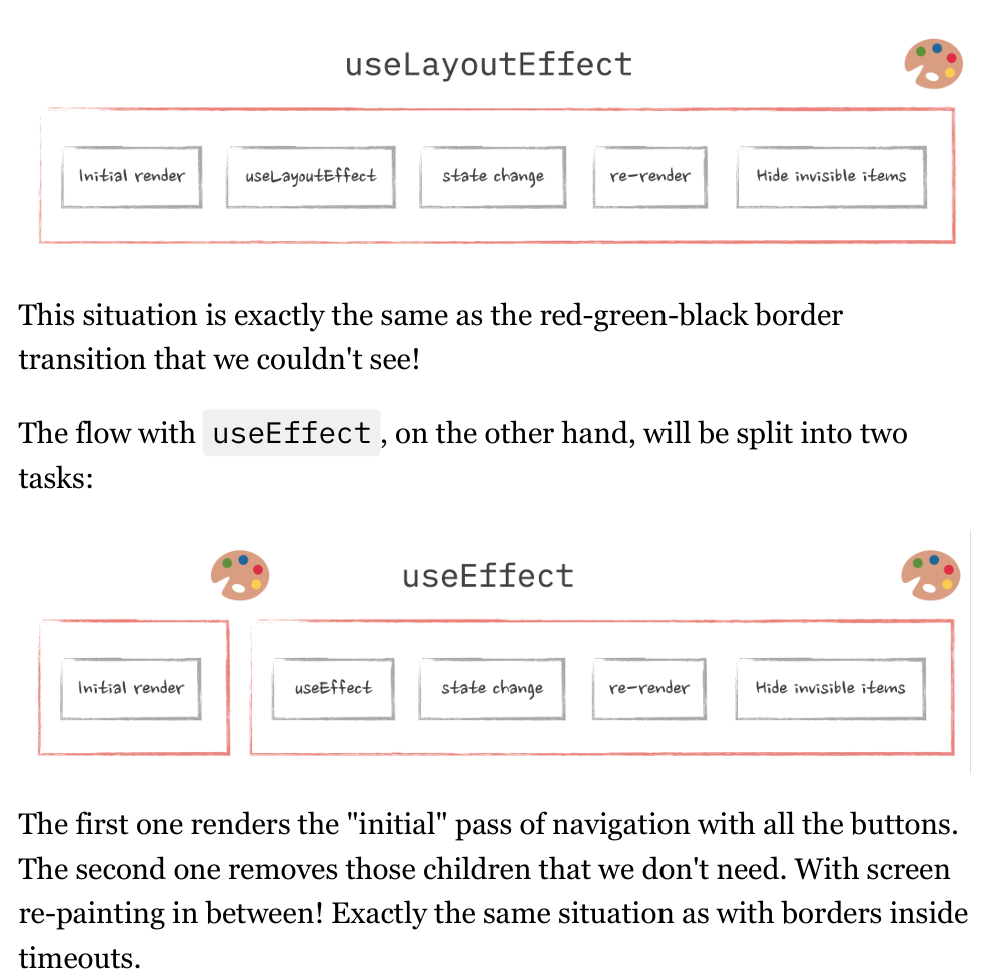
useLayoutEffectruns synchronously after all DOM mutations but before the browser paints. ButuseEffectruns after the render is committed to the screen.Use Case: It is used when you need to read layout and/or perform synchronous re-rendering before the browser updates the screen. This is useful for measurements or changing the DOM in a way that needs to be immediately visible.
Behavior: It blocks the browser from painting until the effect is complete, which caen potentially impact performance if overused.
How SSR works?
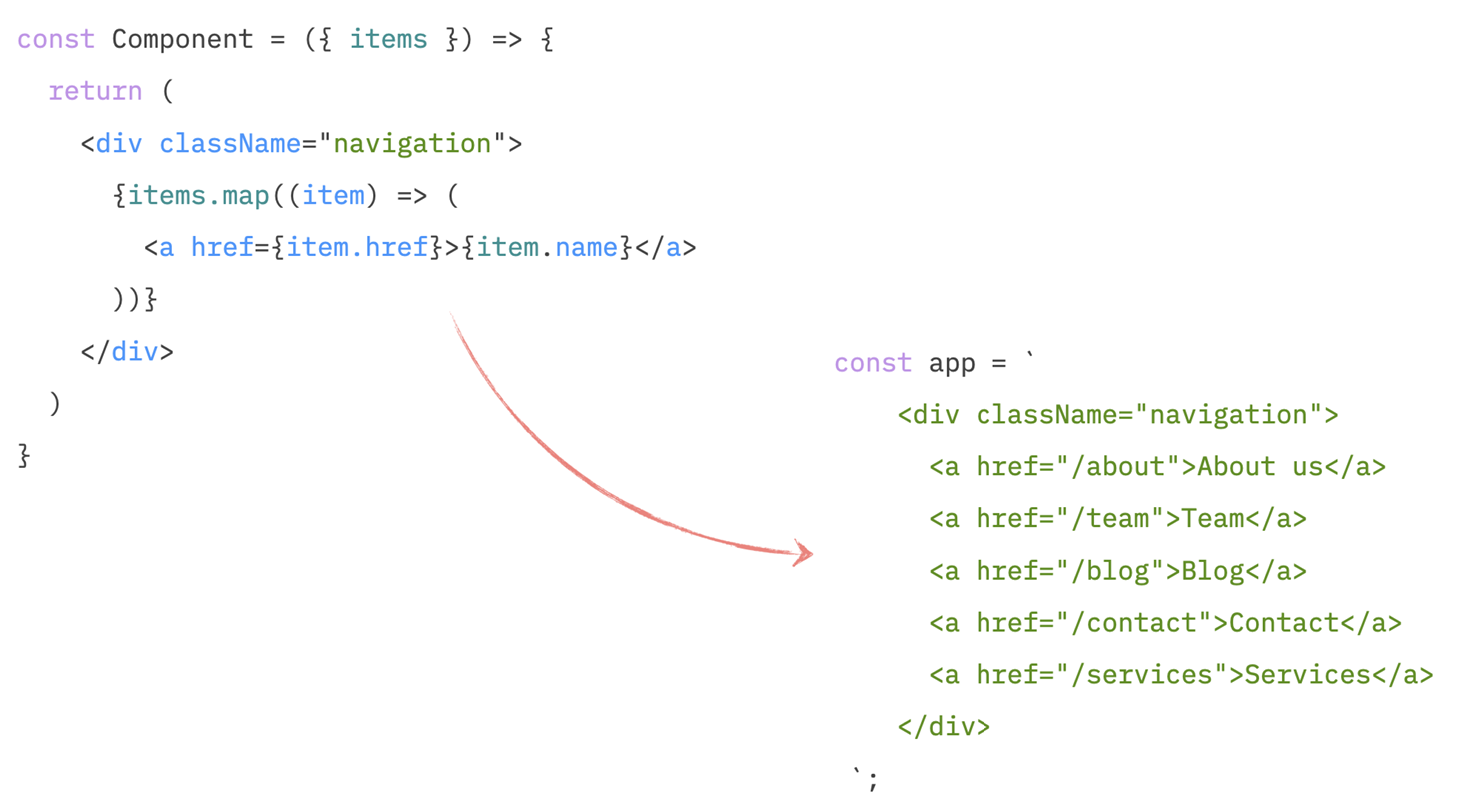
when we have SSR enabled, the very first pass at rendering React components and calling all the lifecycle events is done on the server before the code reaches the browser. On the backend, some method calls something like React.renderToString(). React then goes through all the components in the app, "renders" them (i.e., just calls their functions), and produces the HTML that these components represent.
Then, this HTML is injected into the page that is going to be sent to the browser.
After that, the browser downloads the page, shows it to us, downloads all the scripts (including React), runs them (including React again), React goes through that pre-generated HTML, sprinkles some interactivity on it, and our page is now alive again.
The problem here is: there is no browser yet (HTML generation happens on the server, not on the user's browser.) when we generate that initial HTML. Anything that would involve calculating actual sizes of elements (like we do in our useLayoutEffect ) will simply not work on the server. (because react is ran on the server). There are no elements with dimensions yet, just strings. And since the whole purpose of useLayoutEffect is to get access to the element's sizes, there is not much point in running it on the server. And React doesn't.
As a result, what we see during the very first load when the browser shows us the page that is not interactive yet is what we rendered during the "first pass" stage in our component: the row of all the buttons, including the "more" button.
How to fix some SSR problem that stop user interactivity in the browser?
How to fix it is a user experience problem and depends entirely on what you're willing to show to your users "by default."
We could show them some "loading" state instead of the menu. Or show one or two of the most important menu items. Or even hide the items completely and only render them on the client. It's up to you.
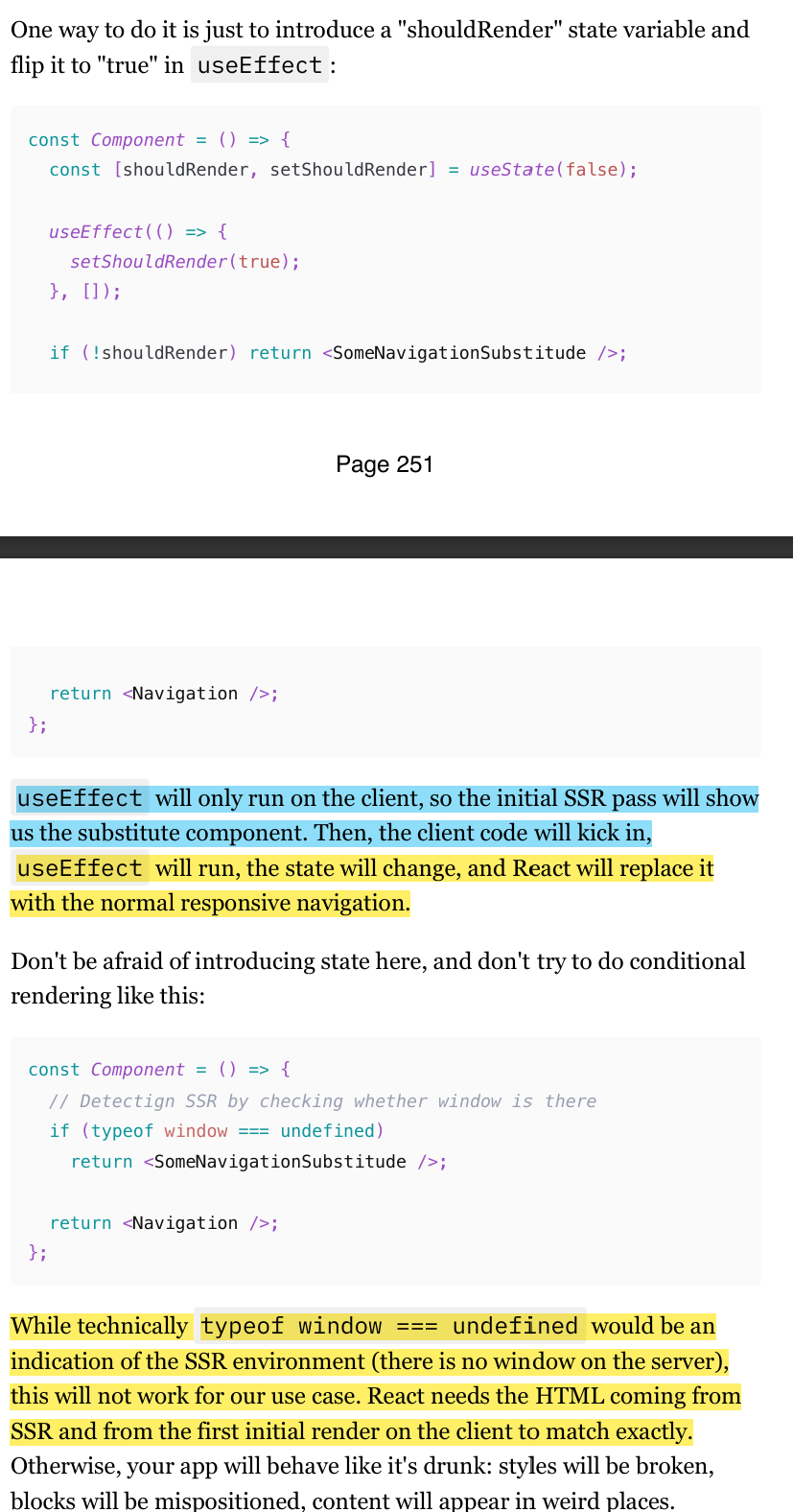
One way to do it is just to introduce a "shouldRender" state variable and flip it to "true" in useEffect. (check img), because useEffect will only run on the client, so the initial SSR pass will show us the substitute component. Then, the client code will kick in.
Absolute is not that absolute (in CSS)
First of all, the absolute position is not exactly… absolute. It's actually relative: relative to the closest element with the position set to any value. In our case, it just works by accident: because I don't have any positioned elements between my modal dialog and the root of the app.
If the dialog happens to be rendered inside a div with relative (or sticky or position: absolute ) and this div is not in the middle of the page, then it all falls apart. The modal will be positioned in the middle of that div, not in the middle of the screen.
Understanding Stacking Context
Stacking Context is a concept in web design that helps determine the order in which elements are rendered on a web page along the Z-axis (the depth). Think of it like layers in a 3D space.
Elements are generally stacked according to their order in the DOM.
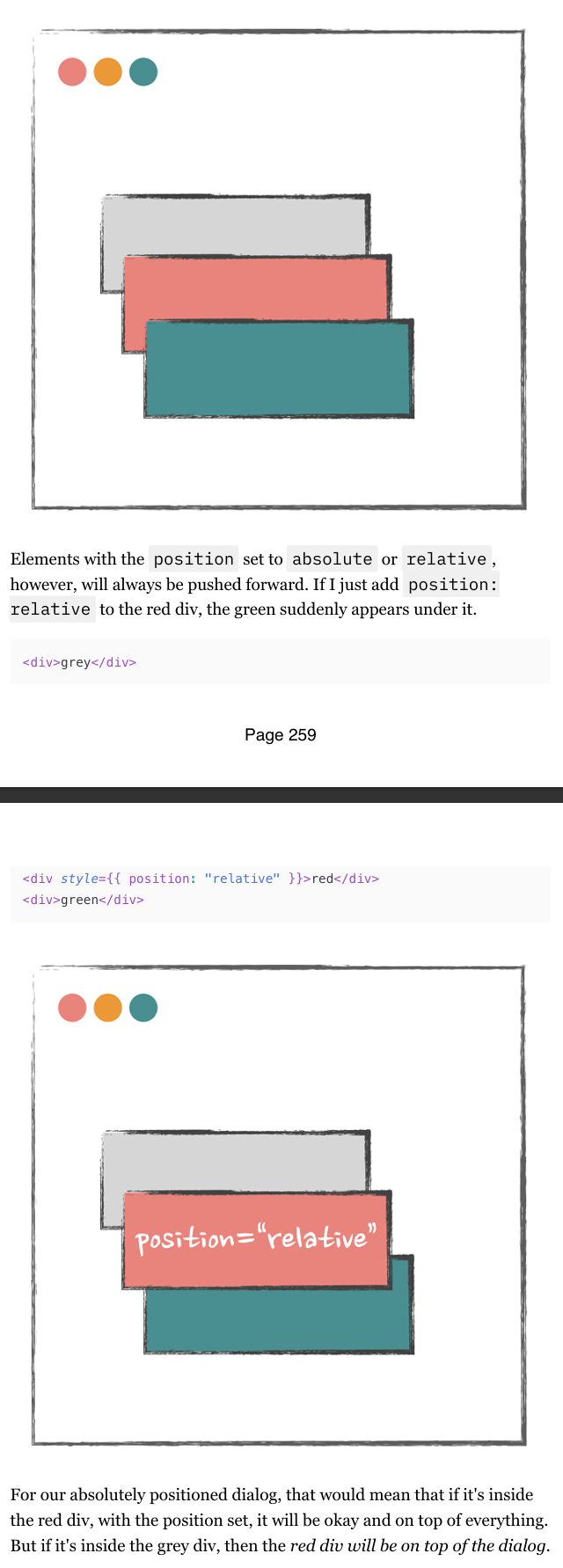
Example: If you have
<div>grey</div>,<div>red</div>, and<div>green</div>, the green div will be in front of the red one, and the red one in front of the grey.Elements with
position: relativeorposition: absoluteare always pushed forward.
Using Portals in Reacct
Portals allow you to easily render some elements, like modal dialogs, outside of their current DOM position so that the Stacking Context doesn't trap them.
When using Portals, the rules are:
What happens in React stays within the React hierarchy.
What happens outside of React follows DOM structure rules.
Types of data fetching
in the modern frontend world, we can loosely separate the concept of "data fetching" into two categories: initial data fetching and data fetching on demand.
Data on demand is something that you fetch after a user interacts with a page in order to update their experience. All the various autocompletes, dynamic forms, and search experiences fall under this category. In React, the fetch of this data is usually triggered in callbacks.
Initial data is the data you'd expect to see on a page right away when you open it. It's the data we need to fetch before a component ends up on the screen. It's something that we need to be able to show users some meaningful experience as soon as possible. In React, if no SSR is involved, fetching data like this usually happens in useEffect (or in componentDidMount for class components).
Interestingly enough, although these concepts seem totally different, the core principles and fundamental patterns of data fetching are exactly the same for both.
React Lifecycle and Data Fetching on render.
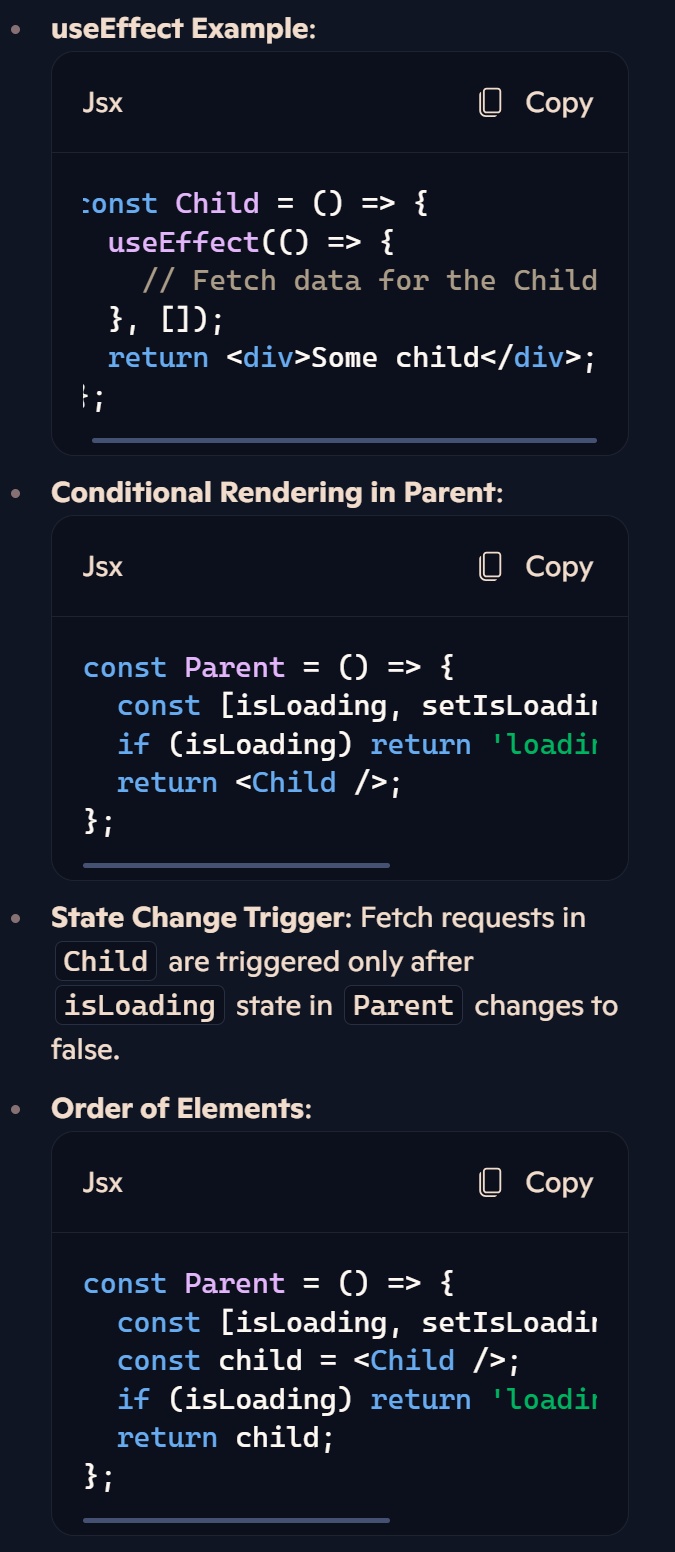
Lifecycle Importance: Plan fetch requests based on when the React component's lifecycle is triggered.
Conditional Rendering: Only trigger fetch requests when certain state changes occur.
Advanced Lifecycle Topics: Knowledge of triggers before/after painting, useLayoutEffect, and performance optimization becomes crucial in large apps.
Browser Limitations and Data Fetching
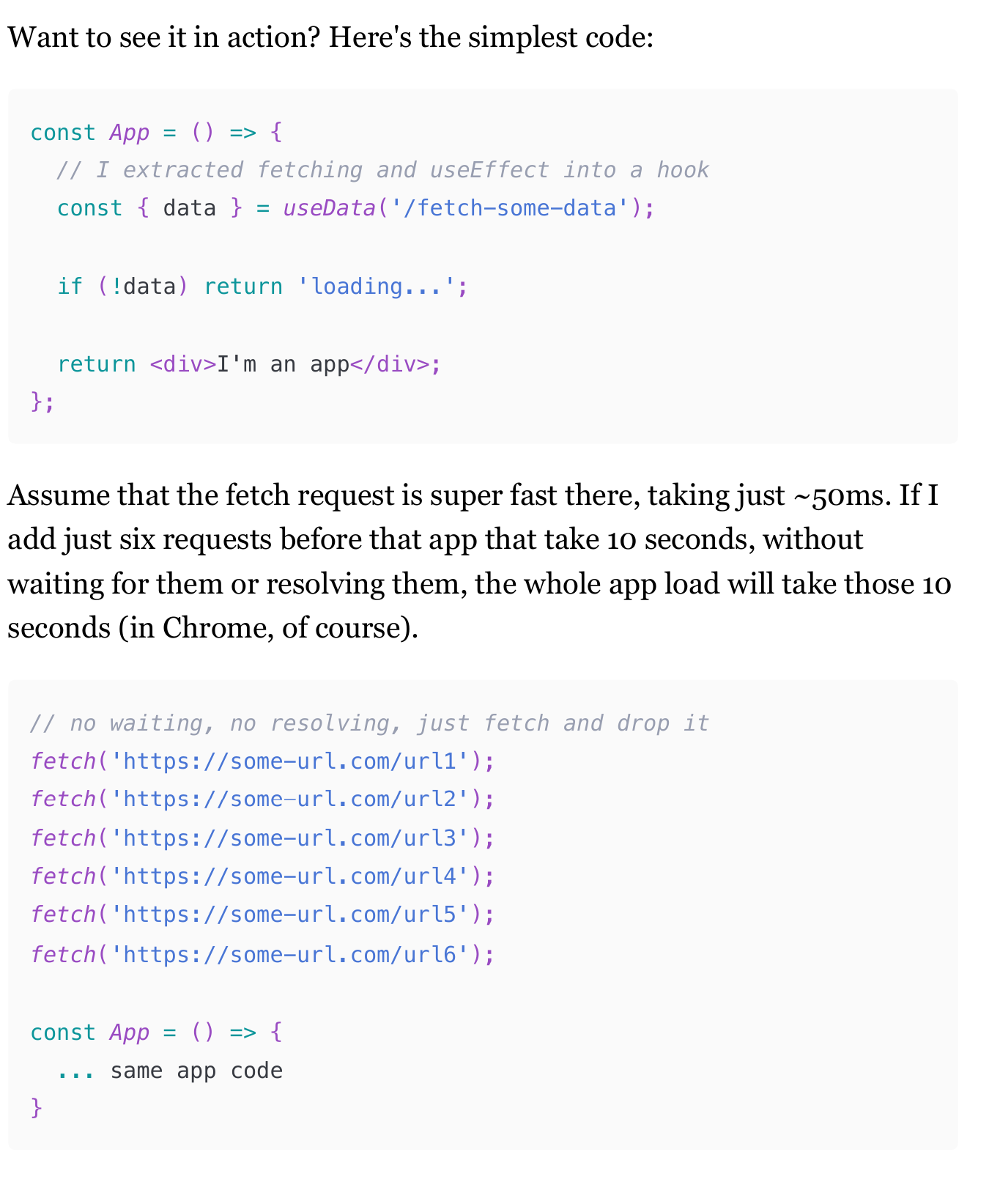
Complexity in Data Fetching: In large apps with many data fetching requests, firing all requests simultaneously and storing data in a global store can cause issues.
Browser Limitations: Browsers have a limit on the number of parallel requests to the same host (6 requests in Chrome for HTTP1). Exceeding this limit causes additional requests to queue.
Impact on Large Apps: For apps with numerous initial data fetching requests, this limitation can significantly slow down the user experience.
Requests Waterfalls: How They Appear
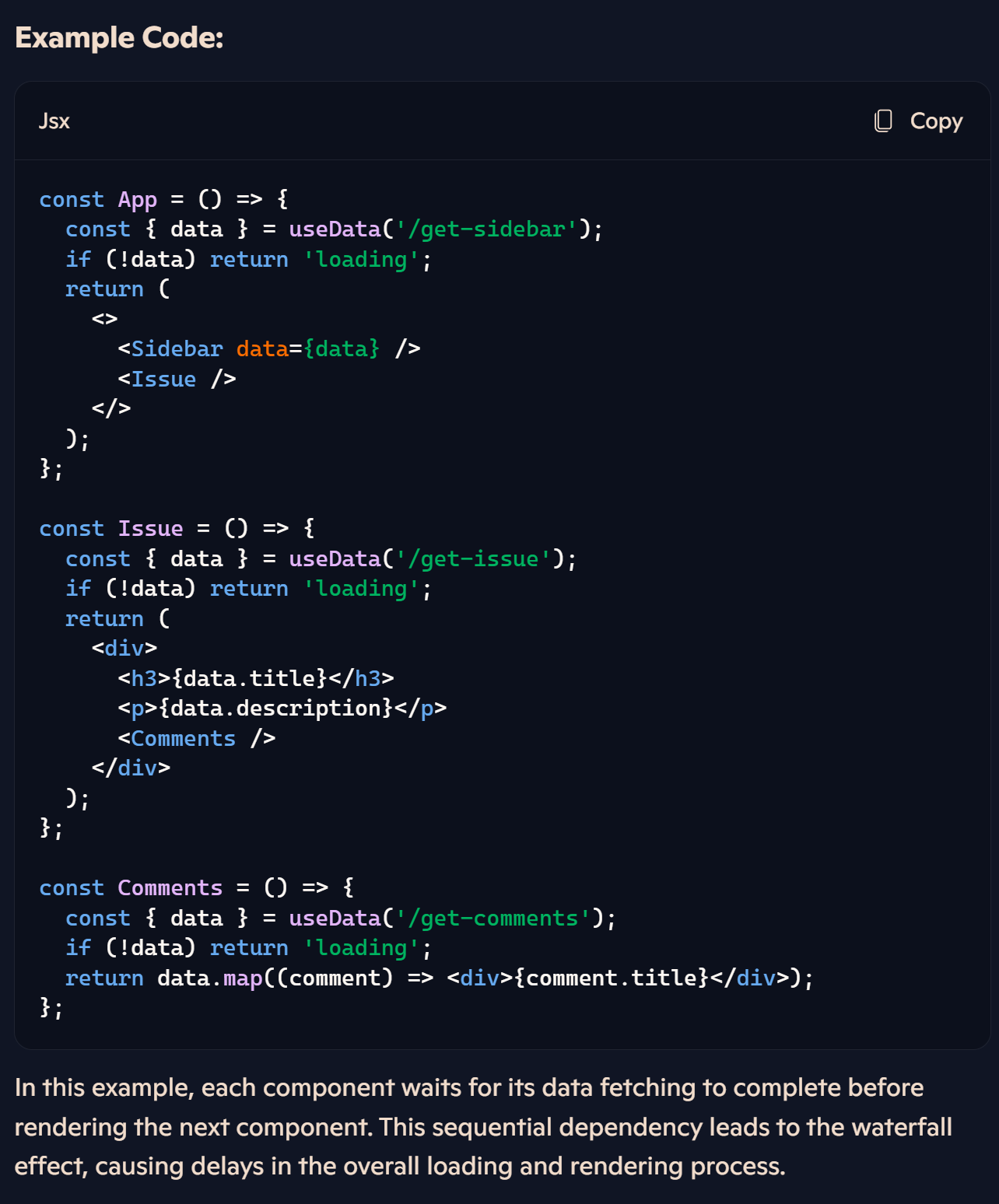
The waterfall effect in data fetching occurs when multiple dependent requests are made sequentially, one after the other. Each subsequent request waits for the previous one to complete before starting. This can lead to significant delays in loading data and rendering components, especially in large applications with numerous data fetching operations.
Solution:
To mitigate the waterfall effect, consider optimizing your data fetching strategy:
Parallel Requests: Initiate multiple requests simultaneously rather than sequentially.
State Management: Use state management libraries to manage and share data across components efficiently.
Batch Requests: Combine multiple requests into a single batch request when possible.
(285-294)
Race conditions
Race conditions occur due to asynchronous operations (Promises) and React's lifecycle. They can cause flickering content and data inconsistency when multiple fetch requests overlap.