Adobe Illustrator Tools
 Call Kai
 Learn
 Practice Test
 Spaced Repetition
 Match
 Flashcards
 Knowt Play
1/89

Earn XP
Description and Tags
90 vocabulary flashcards covering Illustrator tools, shortcuts, and key concepts.
90 Terms
Selection Tool
Used to select entire objects, groups and clipping masks; can move, scale, rotate; shortcut V.
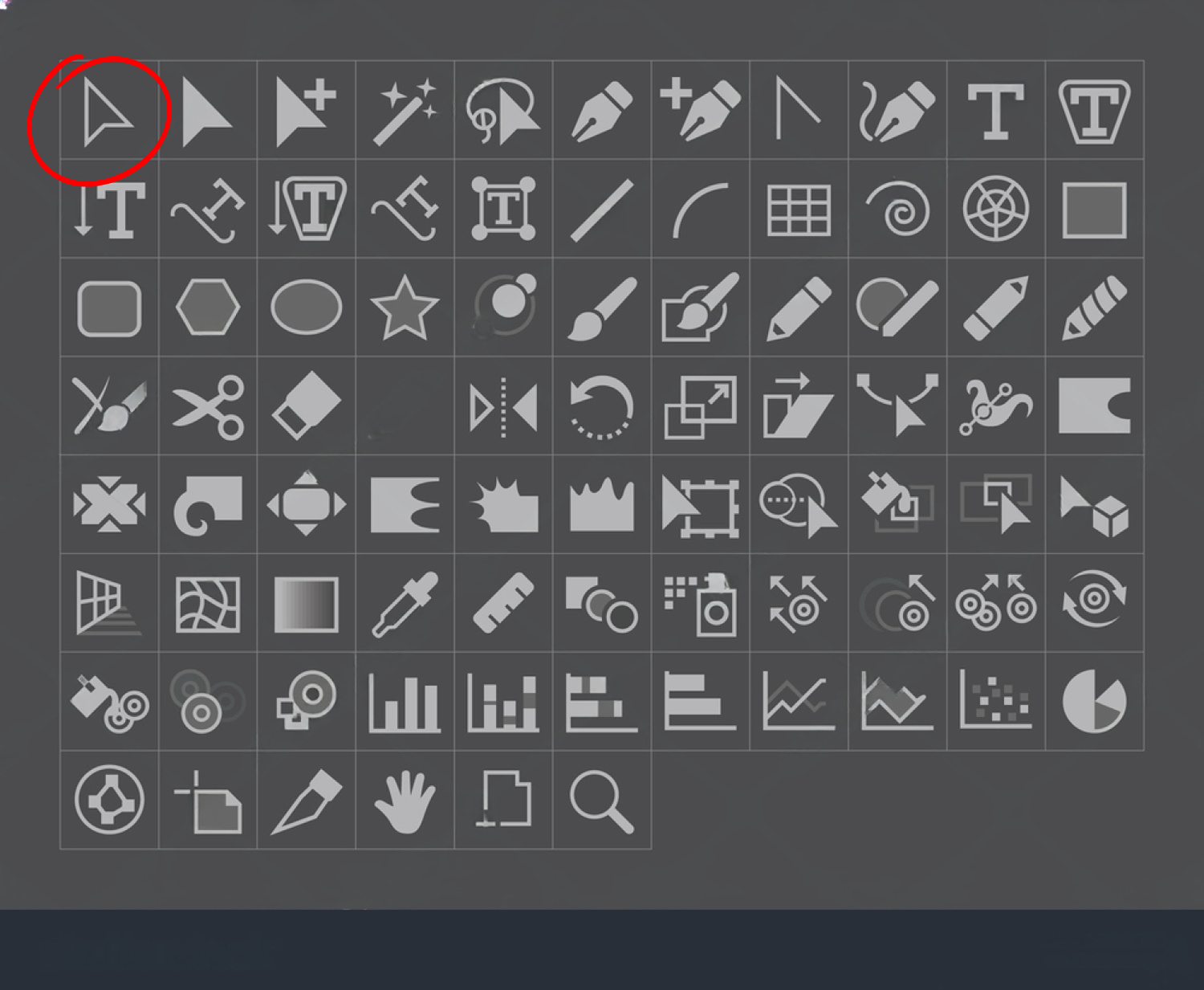
Direct Selection Tool
Selects and moves individual paths, anchor points and handles; can select objects inside groups and clipping masks; rounding corners possible; shortcut A.
Group Selection Tool
Selects objects inside a group without ungrouping; no default shortcut.
Magic Wand Tool
Selects objects with similar properties (color, stroke); options adjustable in the Magic Wand panel; shortcut Y.
Lasso Tool
Selects any anchor points inside the drawn path (including in groups and clipping masks); shortcut Q.
Pen Tool
Draws paths; adds anchor points with each click; dragging creates handles for curvature; close path by clicking the first anchor; shortcut P.
Add Anchor Point Tool
Adds a new anchor point to a path; shortcut +.
Delete Anchor Point Tool
Removes an anchor point; shortcut -; Shift while deleting recalculates the path to stay the same.
Anchor Point Tool
Adds, removes or edits handles on an anchor point; shortcut Shift C; curved anchor handles can be removed or added by clicking or dragging.
Independent Handles
Dragging a handle can move it independently of the other handle when editing a curved anchor point.
Curvature Tool
Similar to the Pen Tool but automatically creates curved paths; shortcut Shift tilde (~).
Type Tool
Adds text; shortcut T; click to add text, drag to create a text box; click existing text to edit.
Area Type Tool
Adds text within a defined area; no default shortcut.
Type on a Path Tool
Creates text that follows a path; no default shortcut.
Vertical Type Tool
Creates vertical text; no default shortcut.
Vertical Area Type Tool
Creates vertical text within an area; no default shortcut.
Vertical Type on a Path Tool
Creates vertical text that follows a path; no default shortcut.
Touch Type Tool
Works like the selection tool but applies to individual characters; shortcut Shift T.
Line Segment Tool
Draws a straight line by clicking and dragging; shortcut backslash.
Arc Tool
Creates an arc by clicking and dragging; no default shortcut.
Spiral Tool
Creates a spiral by clicking and dragging; up/down arrows change the number of cycles; no default shortcut.
Rectangular Grid Tool
Creates a rectangular grid by clicking and dragging; arrow keys adjust columns and lines; no default shortcut.
Polar Grid Tool
Creates a polar grid by clicking and dragging; arrow keys adjust subdivisions; no default shortcut.
Rectangle Tool
Creates a rectangle; shortcut M; Shift creates a perfect square.
Rounded Rectangle Tool
Creates a rounded rectangle; no default shortcut; Shift creates a perfect square; Up/Down adjusts roundness.
Ellipse Tool
Creates an ellipse; shortcut L; Shift creates a perfect circle.
Polygon Tool
Creates a polygon with equal sides; no default shortcut; Up/Down changes the number of sides.
Star Tool
Creates a star; no default shortcut; Up/Down changes points; Cmd/Ctrl while dragging scales arm length.
Flare Tool
Creates light rays and halo; click in a direction to add light rings; blending mode ready-made for layering.
Paintbrush Tool
Draws a smooth, hand-drawn path; Alt after start closes path; square brackets change brush size; shortcut B.
Blob Brush Tool
Draws a filled compound path; new paths merge with existing ones if they touch; square brackets adjust brush size; shortcut Shift B.
Shaper Tool
Draws a rough shape that Illustrator converts into a crisp geometric form; works for straight lines, rectangles, ellipses and polygons; shortcut Shift N.
Pencil Tool
Draws freehand paths; similar to Paintbrush; path closes when close to start; shortcut N.
Smooth Tool
No shortcut; smooths a selected path and reduces anchor points when dragged.
Path Eraser Tool
Erases parts of a path when dragged; not highly recommended.
Join Tool
Joins two open paths by dragging from one to the other; no shortcut.
Eraser Tool
Erases parts of a selected object; shortcut Shift E; bracket keys adjust eraser size.
Scissors Tool
Splits a path at a point; shortcut C.
Knife Tool
Cuts through an object by dragging; no shortcut.
Rotate Tool
Rotates the selected object; shortcut R; change the rotation reference point; Shift locks rotation to 45° increments.
Reflect Tool
Reflects the selected object by dragging; shortcut O; hold Shift for clean reflections.
Scale Tool
Scales the selected object; shortcut S; Shift locks scaling axes or proportions; click to change reference point.
Shear Tool
Skews a selected object; no shortcut; change reference point; Shift locks horizontal/vertical distortions.
Reshape Tool
Reshapes a path by dragging; can create many anchor points; not the preferred method.
Width Tool
Adjusts stroke width at a point; shortcut Shift W; width handles can be moved to redefine stroke shape.
Warp Tool
Deforms a path in the direction you drag; shortcut Shift R.
Twirl Tool
Twists the object around the brush center; no shortcut.
Pucker Tool
Deforms path toward the center of the brush; no shortcut.
Blow Tool
Deforms path away from the center (opposite of Pucker); no shortcut.
Scallop Tool
Scallops the path toward the center; no shortcut.
Crystallize Tool
Deforms outward to create spikes; opposite of Scallop; no shortcut.
Wrinkle Tool
Warps the path in a random manner to create wrinkles; no shortcut.
Free Transform Tool
Provides scale, rotate, shear and perspective; shortcut E; menu includes free transform, perspective distort and free distort.
Puppet Warp Tool
Applies a mesh to distort an object; control points can be dragged, rotated or deleted; no new anchor points are added.
Shape Builder Tool
Unites multiple paths into a single shape by dragging; Alt deletes paths; behaves similarly to Pathfinder; shortcut Shift N.
Live Paint Bucket Tool
Paints inside enclosed areas of a Live Paint group; shortcut M; use the swatches palette to switch colors.
Live Paint Selection Tool
Selects fills and strokes inside a Live Paint group; shortcut Shift L; click to select a fill or stroke; Shift selects multiple.
Perspective Grid Tool
Displays a perspective grid on the artboard; grid angles adjustable; sides set to 1-4; X closes the grid; shortcut Shift P.
Perspective Selection Tool
Moves objects within perspective; shortcut Shift V; use 1, 2, or 3 to switch the perspective side.
Mesh Tool
Creates a color mesh on a selected object; each click adds a new mesh point that can be colored.
Gradient Tool
Adjusts the angle, position and color distribution of a gradient on an object; shortcut G.
Eyedropper Tool
Copies colors from another object; shortcut I; Shift applies only to fill or stroke; also copies transparency and text properties.
Measure Tool
Measures distance on the artboard; shows a panel with start point, width/height, straight distance and angle.
Blend Tool
Blends shapes and colors between objects; resulting blend is grouped but still selectable.
Symbol Sprayer Tool
Sprays instances of a symbol across the artboard; shortcut Shift S; create a new symbol by dragging into the Symbols panel.
Symbol Shifter Tool
Shifts symbols within a symbol set by dragging; no default shortcut.
Symbol Scruncher Tool
Brings symbols closer together in a symbol set; holding Alt before clicking pushes them apart.
Symbol Sizer Tool
Scales symbols inside a symbol set; proximity to center increases scale; Alt scales down.
Symbol Spinner Tool
Spins a symbol near the center of a symbol set; click-and-drag to rotate.
Symbol Stainer Tool
Paints symbols with a selected color; proximity and hold time affect color intensity.
Symbol Screener Tool
Makes symbols transparent by clicking; proximity and hold affect transparency.
Symbol Styler Tool
Applies a graphic style to symbols; proximity and hold affect strength.
Graph Tool (Column Graph Tool)
First graph tool; shortcut J; click to create graph and input data in a spreadsheet; data can be imported.
Artboard Tool
Shift O; create, move, copy and edit artboards in the document.
Slice Tool
Shift K; create a rectangular slice; artboard is split for export; use Save for Web to export slices.
Slice Selection Tool
Selects, moves and resizes slices; no default shortcut.
Hand Tool
Pans across the artboard; shortcut H; hold Space or scroll wheel to temporarily switch tools; returns to previous tool when released.
Rotate View Tool
Shortcut Shift H; rotates the view; Shift locks rotation in 15-degree increments.
Print Tilings Tool
Toggles visibility of printing tiles; tile options in the Print menu; tile full pages or tile imageable areas.
Zoom Tool
Shortcut Z; click to zoom in; Alt-click to zoom out; drag to zoom smoothly.
Clipping Mask
Mask that hides parts of artwork using a boundary shape; restores when released.
Fill
Interior color or pattern applied to a shape or path.
Stroke
Outline color and width of a path.
Bounding Box
The transform box that appears around a selected object for scaling and rotating.
Live Paint Group
A group created by Live Paint Bucket that enables painting inside enclosed paths.
Swatches Panel
Panel to pick and switch colors; in Live Paint, arrows switch between colors.
Symbol Set
A collection of symbol instances grouped together.
Bezier Handles
Control handles on anchor points that shape curves.
Anchor Point
A vertex on a path that can have handles to control curvature.
Perspective Side
One of the four sides (1–4) of the perspective grid, changeable with 1–4 or on-screen controls.