Excel functions
 Call Kai
 Learn
Learn Practice Test
 Spaced Repetition
 Match
Match Flashcards
 Knowt Play
1/76

Earn XP
Description and Tags
Part 1
77 Terms
Input : It takes a range of values or an array (columns or rows)
Output : turns them into a single text representation
=ARRAYTOTEXT(array,format)
=ARRAYTOTEXT(array,format)
Input : It takes a range of values or an array (columns or rows)
Output : turns them into a single text representation
=ARRAYTOTEXT(array) vs =TEXTJOIN()
arraytotext() - Produces a text representation of the array, including its array structure according to the selected format.
textojoin() - Joins the values using a comma and a space as your chosen delimiter.ARRAYTOTEXT() and TEXTJOIN() are not interchangeable: one represents an array as text , while the other joins values using your chosen separator.
Input : an array or range
Output : comma separated list of text
=textojoin(“separator”,TRUE,array) , here separator can be “,” or “-”
You have an expression that returns an array. You need to quickly inspect the array
=arraytotext(expression)
this outputs the array as a text in one cell for quick inspection
Scenario: You want to inspect a two-dimensional array/result
=arraytotext(array,strict)
Joins text and values without automatically inserting delimiters .
=concat() - modern function
=concatenate() - legacy option
=text1&text2&text3 - only works if the individuals values are text
Input : single value of any type
Output : single text value usually in some sort of format of your choosing
=TEXT(value,format)
You want to inspect the formula in a cell i.e you want to see the formula not its output
=formulatext()
You have an array and want to a single cell containing the array as a comma separated list . If the array contains blank/empty values/cells you want to ignore them.
=TEXTJOIN(", ",TRUE,array)
I want to format a date, number or % as text
=text(value,format)
You have a range of data i.e a table with multiple columns and rows. You want to process one column at a time and return the result for each column . In other words , You want to perform the same operation on each column , one at a time. For e.g calculating the sum of each column
option 1 : using regular sum()
option 2 : bycol(range,repeated_operation) where repeated_operation = lambda(col, action) for e.g action could be sum(col)
You have a range of data i.e a table with multiple columns and rows. You want to process one row at a time and return the result for each row . In other words , You want to perform the same operation on each row , one at a time. For e.g calculating the sum of each row
option 1 : using regular sum()
option 2 : byrow(range,repeated_operation) where repeated_operation = lambda(row, action) for e.g action could be sum(row)
Your worksheet contains ticket counts for 20 support agents. Each row is an agent, and each column is a month.
You want to calculate the total number of tickets handled by the entire team in each month, using one formula.
BYCOL() with sum()
=bycol(range,lambda(col,sum(col))
You have an array. You want to perform an operation or transformation to each element in the array and return the new array.
In other words, You want to perform a lambda() to each element in the array and return the new array.
=map()
You want to be able to create a new array by supplying row and column indexes.
In other words, you want to be able to create an array by specifying like logic for determining the value of each element in the array.
=makearray()
You have an array aka table. You want to swap the orientation of the data i.e turn the rows into columns and vice versa
=transpose()
You have an array . You need to perform the same operation on every element within the array and return the transformed/new array
=map(array,repeated_operation) where repeated_operation = lambda(e,some operation involving e)
Here e is simply a variable representing the current element in the array being processed.
What does bycol() / byrow() have in common with map()
both use lambda because both require repeatedly carrying out an operation on a collection of entities. In map, the entities are elements of an array. In bycol/byrow the entities are a column/row in a collection of columns/rows.
You need to create an array from scratch . You want to specify the size of the array and the logic for calculating the value of each element/cell of the array .
In other words, you need to build a grid using a formula.
=MAKEARRAY(rows,cols,logic_for_determining_each_cell) where logic_for_determining_each_cell is lambda(current_row,current_col, calculation)
You need to create an array from scratch such that the formula for the value of each element in the array involves its row and column numbers
=MAKEARRAY(rows,cols,logic_for_determining_each_cell) where logic_for_determining_each_cell is lambda(current_row,current_col, calculation)
Does =makearray() require the use of lambda() ? Explain
Yes. Makearray() involves creating a array from scratch by repeatedly performing the same operation for each element in the array. The only thing that changes is the row and column numbers of each element. Thus lambda is required because anytime we need to repeat the same operation for each element, we use lambda()
you want a 5-by-5 grid where:
Cells on the diagonal show
X.Cells above the diagonal show
Above.Cells below the diagonal show
Below.
=MAKEARRAY(5,5,LAMBDA(r,c,IF(r=c,"X",IF(r<c,"Above","Below"))))
You have two arrays. You need to perform matrix multiplication using the two arrays
=MMULT(array1,array2) where array1 is the array of quantity/scores and array2 is the array of unit value or weights
In real world applications, the order of the columns in array1 must match the order of the rows in array2 .
define matrix multiplication
Matrix multiplication involves two arrays such that the number of columns of the first array must match the number of rows in the second array
Process: Take a row from the first array, multiply its values by the corresponding values in a column from the second array, and add the results. Repeat for every row in the first array.
can we perform matrix multiplication involving a 2×3 array and 3×2 array? If yes, why and what is the shape of the result?
Yes because it fits the rule - the number of columns of the array1 is equal to the number of rows of array2 . Shape of the result is 2×2.
general rule - (mxn) (nxp) = mxp
You have an array containing scores for a number of categories . You have an array containing the weights/ importance/ priority of each category . The categories appear in the same order in both . How can you calculate the overall performance .
=MMULT(array_of_scores,array_of_weights)

Scenario : you need to combine many numbers using a consistent set of weights or relationships
that is a clue you need?
=MMULT(array_of_scores,array_of_weights)
Each row in array_of_scores represents activity . Multiplying each element in the row with a shared set of rates or weights - performance of that row.
Intuition: The first array contains activity; the second contains the value assigned to each activity. You need to calculate total revenue . What do you use
=MMULT(array1,array2)
where array1→array where each row represents activity of a certain entity across a set of categories e.g salesperson sales of a set of products.
where array2→ array representing rates/weights of each category for e.g product

how would you solve the problem in the picture
There are two arrays here. Array1 is specifies units sold across two products by each store(entity) . Array two defines the rates (cost and selling price) for each product .
Calculating the total cost and revenue for each store is essentially a MMULT() problem involving multiple outputs per row .
MMULT() does not always return one output per row. Prove this using an example
MMULT() doesn't always have to produce a single total. It can calculate multiple related measures for every entity in a dataset

You need to a row of quantities or scores to be multiplied by a column of values or weights. How to do you do it?
=MMULT(array_of_quantities,array_of_weights)
You need to know about the different properties of a cell - such as its address, number format, width , workbook and worksheet location etc .
What formula do you use?
=cell(info_type,reference)
where info_type can be : “address” or “type”
You need to know the row or column number of a cell .
=row(cell)
=column(cell)
A cell contains a number . You want to know how it is formatted - for e.g to 2 decimal places vs to %
=cell(“format”,cell_reference)
You need to check if a cell contains a number
=ISNUMBER(cell)
You need to check if a cell contains a formula
=ISFORMULA(cell)
You need to check if a cell is blank or not
=ISBLANK(cell)
CELL() should be avoided if possible in large workbooks. Explain why?
CELL() can be recalculated more often than you might expect, and using many such formulas in a large workbook can affect performance. Use it where its metadata is useful rather than as a replacement for ordinary cell references.
You have an array of numbers with an expected format. You need to check if they actually have the expected format. How?
=IF(cell(“format”,cell)=expected_format,"TRUE”,FALSE)
You want to create a numbered menu of options . Each option is defined by its position in the sequence. You give excel a number, and it will return you the option positioned at that number.
=CHOOSE(index_num, menu_of_options)
where menu = option1,option2,option3…..
e.g =CHOOSE(2,"Daily report","Weekly report","Monthly report") —> returns weekly report
CHOOSE() and IF() are alternatives in many situations. Explain with example.
=IF(A2=1,"Poor",
IF(A2=2,"Fair",
IF(A2=3,"Good",
IF(A2=4,"Excellent","Invalid"))))
vs
=CHOOSE(A2,"Poor","Fair","Good","Excellent")
You don't need multiple nested IF() statements when the categories are already numbered.
You want build a report such that the user can click on the metric for e.g monthly/weekly and the report will update dynamically
=CHOOSE(input_,metric1,metric2,metric3……)
conditions necessary to be able to use CHOOSE()
have a numbered list of options (values, calculations, references)
You want to be able to specify the number and get back the option at that position.
You are confident or can ensure the formula wont receive a number outside of the range.
The options rarely change
You have a list of key:value pairs where the keys are text. You want to be able to specify a key and if a match is found, you want the associated value to be returned.
=SWITCH(input,key1,value1,key2,value2….)
Explain choose() and match() being used together using an example.
You have a table. You want to select/extract certain columns in a specific order and only return them in that order
You have a table. You want to select/extract certain rows in a specific order and only return them in that order.
CHOOSECOLS(array,col_num1,[col_num2....])lets you select which columns you want to keep.CHOOSEROWS(array,row_num1,[row_num2.....])lets you select which rows you want to keep.
what does the formula below return:
=CHOOSEROWS(A1:E6,-1)
from the table A1:E6, returns the last row .
-2 would mean second last row.
In CHOOSECOLs() and CHOOSEROWS() you cannot specify the order in which the columns are returned. Evaluate this statement.
False.
=CHOOSECOLS(A1:E6,5,1,2)
this returns the 5th , 1st and 2nd column within the specified array.
You have transactional data stored in chronological order. You want to see the last 5 rows. How?
=CHOOSEROWS(A2:F1000,-5,-4,-3,-2,-1)
You have a table/array. You need the value of a specific cell and you know the row number of column number of the cell. How can you do it?
=index(array,r,c)
CHOOSEROWS() and CHOOSECOLS() vs TAKE()
CHOOSEROWS() is a more flexible . TAKE() only allows you to extract a contiguous block of cells either from the beginning or end.
Explain using an example SORT() and TAKE() in action together.
The situation: You receive a dataset with 20 columns, but your analysis only needs customer ID, order date, product ID, quantity, and revenue.
Suppose your source data occupies A1:T5000, and those fields are in columns 1, 3, 6, 9, and 15.
=CHOOSECOLS(A1:T5000,1,3,6,9,15)
You create a smaller analytical dataset without manually copying columns to a new worksheet.
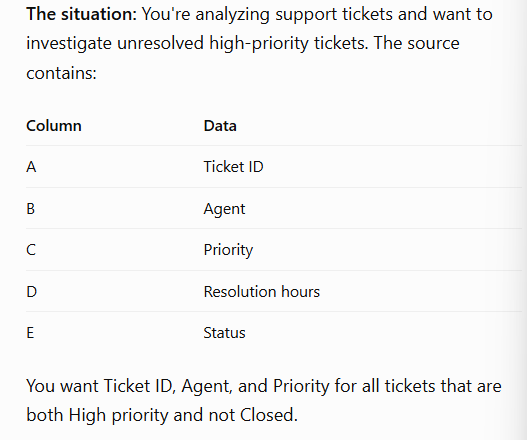
=CHOOSECOLS(
FILTER(A2:E1000,(C2:C1000="High")*(E2:E1000<>"Closed"),"No matches"),
1,2,3
)
Mental model: Use FILTER() to identify the right records, then CHOOSECOLS() to shape the output
Imagine a support manager asks:
Show me the five most recent high-priority tickets, but only display Ticket ID, Agent, and Status. But I only want to see the columns 1,2,5 of the table.
Assume the data is in A1:E1001, with headers in row 1.
=CHOOSECOLS(
TAKE(
SORT(
FILTER(A2:E1001,C2:C1001="High","No matches"),
1,-1
),
-5
),
1,2,5
)
You have a list of conditions. You want true to be returned if an odd number of the conditions are true.
=XOR(logical1, [logical2], ...)
OR() Vs AND() Vs XOR()
AND() = Both must be TRUE.
OR() = At least one must be TRUE.
XOR() = An odd number must be TRUE. With two conditions, exactly one must be TRUE.
Imagine A2 contains 80 and B2 contains 60. You want to know whether exactly one score exceeds 70.
=XOR(A2>70, B2>70)
=XOR(true, false)
=TRUE
You have two conditions. You don't want both to be true. You want only one of them to be true. If only one of them is true , you want the formula to return true.
=XOR(c1,c2)
You have a Boolean array . You need to count the number of times TRUE appears in the array.
=COUNTIF(array,TRUE)
You need two flags that are mutually exclusive . You need to validate that th current values of both flags are mutually exclusive. For e.g suppose you have resources and the “is morning shift" flag and “is night shift” flag.
A resource cannot be assigned to both shifts.
=if( XOR(c1,c2),”valid”,invalid)
Scenario
A project should be escalated if either:
Its budget variance exceeds 10% (B2)
Its schedule delay exceeds 7 days (C2)
You want to identify projects that trigger exactly one of these two escalation conditions.
=if(XOR(B2>10%,C2 >7), “meets exactly one condition”, “does not meet exactly one condition”)
Suppose a BA compares a customer record in two systems:
B2: CRM says the customer is active.
C2: Billing system says the customer is active.
How can we identify if there is a discrepancy between the two systems?
=XOR(B2=”Active”, C2=”Active”)
If you get back TRUE that means there is a discrepancy . You only get back TRUE if one of them is true and the other one is false.
want to know if a product that was available yesterday is unavailable today. There are two flags to monitor each.
B2: Available yesterday?C2: Available today?
In general: you want to detect changes in a binary indicator/KPI
=XOR(B2,C2)
XOR is useful whenever you want to know whether a binary state has changed between two observations.
You want to know the column number of a particular cell
=column([cell])
if no cell is provided, the column number of the cell where the formula is applied is returned.COLUMN() returns the numeric position of a column in the worksheet.
=COLUMN(B2:E10)
=COLUMN(B2:E2)
what do each of the formula return ?
The first onee returns 2, because the first column of that reference is column B. Formula one got a table array as input.
The second formula got a row array as input. So it will return the column number of every element in the range. The column numbers will spill out
You have a range/array . You need to know the width of the range/array aka the number of columns in the range/array.
=COLUMNS(array)
You have a report . You need each column to (automatically) get numbered.
=COLUMN()
=COLUMN(A1)-COLUMN($C$1)+1
what does this return and why?
When would we use this?
=1-3+1
=-2
This means the cell is two columns to the left of the column that is being considered the starting column (C) .
This formula would be used if we want to start numbering from column C.
You want to be able to count how many fields your report contains assuming that each field is a column.
=columns(report_array)
=columns(A1:E1)
B1 is blank
what will the formula return?
Columns does not care if the cell is blank or not. It still counts blank values which might be a problem and therefore should be remembered.
=INDEX($B$2:$D$2,1,COLUMN(A1))
explain this formula ? what does it return ? when would we use it?

You have a range of values that can grow i.e the number of values in the range can go up or down.
How do you calculate the average value of such a volatile range?
=SUM(range)/COLUMNS(range) such as
=SUM(B2:M2)/COLUMNS(B2:M2)
=SUM(B2:M2)/COLUMNS(B2:M2)
vs
=SUM(B2:M2)/COUNT(B2:M2)
What is the difference between the two?
Both can be used to calculate average . However the difference is how they treat blank values. Columns() still counts blanks while count() does not .
Use whichever one makes more sense for the context.
You have an array/range/table. You want to know the column number of the last column in hte array/range/table.
Assume the array is B2:G100.
=COLUMN(B2)+COLUMNS(B2:G100)-1
This can be useful when a formula needs to calculate the position of the last column relative to a known starting point.