#1 Types &Components of Computer Systems
hardware & software
hardware
the electronic and physical components that make up a typical computer system. may include input and output devices..
internal
CPU
processor
motherboard
internal memory (RAM and ROM)
graphics and sound cards
internal storage devices (HDD and SSD)
NIC
external
monitor
keyboard
mouse
printer
external storage devices
software
programs that control the computer system and process data, and there are two types, which are application and system software
Two types of software:
Application software:
Provides services that allow the user to do specific tasks.
It can be general-purpose software or custom-made software. (Specialist software)
E.g., Spreadsheets, databases, and word processors.
System Software:
The software is designed to provide a platform all other applications to run on. For example:
Compilers: The software translates the High-level language into Machine code (Language Processor).
Linkers: A Software that creates the links between Language processors into workable solutions (Data definition language).
Device drivers: A software that enables the device to work with another, externally connected device.
Utilities: A system software that provides the necessary facilities (Antivirus, Scan Disk, Disk Defragmentation, etc.)
Operating systems: To enable computer systems to function and allow users to communicate with computer systems, special software, known as operating systems (OS), have been developed.
Analogue and Digital Data
Computers can only understand data in the form of binary digits (0,1); this is commonly known as digital data. However, data in the real world is analogue, not limited to two specific values.
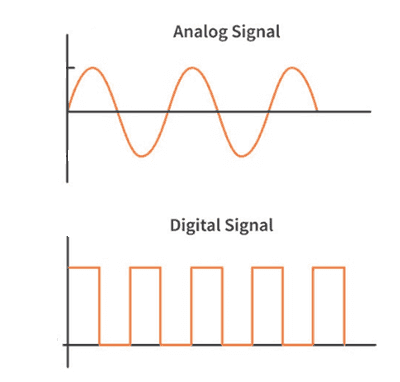
The figures show how data changes in analogue and digital forms; analogue data forms smooth curves, whereas digital data changes in discrete steps.
So, for a computer to process real-world data, it first needs to convert the received data into digital form. This is done by hardware known as ADC (analogue to digital converter), and its output is given back in analogue form using DAC (digital to analogue converter).
The Main Components of Computer Systems
Central Processing Unit (CPU)
The component of the computer that understands and executes hardware and software operations. Nowadays, it’s also known as a microprocessor. It is a single integrated circuit at the core of most PCs and is also present in many household gadgets and equipment where some control or monitoring is required.
It consists of a control unit (CU) that manages the input and output devices, an arithmetic and logic unit (ALU) that performs computations and makes logical judgments, and tiny memory regions known as registers.
It processes the input and produces the outcome of the processing in the form of output.
Internal Memory
Random access memory (RAM): temporary memory storage, lost after power is shut down, performs read and write functions, is used to store data that are currently in use, and can be increased in size to improve operational speed.
Read-only memory (ROM): permanent memory storage, non-volatile, can only be read from, used to store computer’s configuration data, such as BIOS.
N.B: The BIOS (basic input/output system) stores the date, time and system configuration on a non-volatile chip called a CMOS (complementary metal oxide semiconductor) – this is usually battery powered.
Differentiating between Internal memories:
RAM is a temporary memory device, whereas ROM is a permanent one.
RAM is volatile, ROM is non-volatile.
RAM can be written to and from, but ROM can only be read from.
RAM is used to store data, files, programs, and parts of OS that are currently in use. However, ROM is used in storing start-up data,
Input & Output Devices
Input devices | Output devices |
|---|---|
An input device is any hardware that enables data entry. | An output shows the result or solution of the input after it has been processed. |
An input device can only send data. | An output device can only receive data. |
Input devices are necessary for a computer to receive commands from the user for processing to be permitted. | Output devices are needed in order to display the outcome of the processing that took place to the user. |
Input devices are complex as they must ensure proper communication between the computer and the user. | Output devices are simpler as they only need to display the finale. |
Input devices are pieces of hardware that allow users to enter data into computers.
An output device displays the computer's output in a human-readable format. For example, words on a printer or moving graphics on a monitor.
Backing and Secondary Storage
Required to store significant amounts of data permanently.
Most commonly in the form of Hard disk drives and Solid-state drives.
Differentiating between internal memory and backing storage:
RAM contents are lost when power is lost, ROM is read-only, and backing storage is permanent even without power.
RAM and ROM are much smaller than backing storage.
RAM and ROM are significantly faster in accessing data than backing storage.
Backing storage is much cheaper than internal memory.
Internal memories are fixed, and backing storage can be fixed or portable.
Internal memories can be directly read by the CPU, while backing storage needs to be moved into the RAM before being read by the CPU.
Operating Systems
Controls operation of input, output & backing storage
Supervises loading, running & storage of application programs.
Deals with errors in application programs.
Maintains security of the whole computer system
Maintains a computer log.
Operating systems offer various types of user interfaces, for example:
Command line interface: user needs to type in commands to communicate with the computer. The user is in direct communication with the computer. Not restricted to pre-defined options. Possible to alter computer configuration settings. Needs to learn many commands for basic operations. All commands need to be typed in, which is time-consuming. Very error prone, as commands must have correct format, spelling etc.
N.B: Mainly used by programmers who need to have direct communication with the computer.
Graphical user interface: Uses WIMP (windows icons menu and pointing device). The user does not need to learn any commands. It is more user-friendly; icons are used to represent applications. A pointing device is used to click on an icon to launch the application, this is simpler than typing in commands. This type of interface uses up considerably more computer memory than a CLI interface. The user is limited to the icons provided on the screen. Needs a more complex operating system.
N.B: Mainly used by end-users who don’t have great knowledge of how the computer works.
Dialogue-based user interface: use the human voice to give commands to a computer system. no need for a driver to take their hands off the steering wheel. In a home, it is especially useful for people with disabilities because many tasks can be carried out by the spoken word only. Possible to use it as a security feature because voice recognition could be used to identify a person. Still unreliable, with many commands not being recognized or needing to be repeated several times (especially if there is background noise). Can be quite complex to setup. User needs to know which commands can be used.
Gesture-based user interface: relies on human interaction by the moving of hands, head or even feet. Replaces mechanical input devices. No physical contact is required. Very natural interface for a human operator. No training is needed to interface with the computer. It is possible for unintentional movement to be picked up. Only works near the camera or sensor (maximum of 1.5 meters). May only accept a limited number of movements (for example, it may take several attempts to determine exactly what finger movements are recognized).
Types of Computers
Desktop Computers
Desktop usually refers to a general-purpose computer that is made up of a separate monitor, keyboard, mouse, and processor unit. It is distinguished from, for example, a laptop computer by the fact that it is made up of several separate components, which makes it not very portable.
Uses:
office and business work
educational use
general entertainment
gaming device
Advantages:
They are easier and less costly to upgrade and expand.
Spare parts are standardized, which makes them cheaper.
They tend to have better specifications for a given price.
No critical power consumption because they plug into a wall socket.
Due to fixed positions, they are less likely to be damaged or stolen.
As they usually have wired connections, they have more stable internet access.
Disadvantages:
They are not particularly portable because they are made up of separate components.
More complicated because all the components need to be hooked up by wiring, which also clutters up the desk space.
Because they aren’t portable, files must be copied to another portable storage device to take work elsewhere.
Mobile Computers
1. Laptop computer:
(Or notebook) refers to a type of computer where the monitor, keyboard, pointing device and processor are all together in one unit. This makes them extremely portable. lightweight (to aid portability). Low power consumption (and also long battery life). Low heat output (cooling is very important).
Uses:
office and business work
educational use
used as a gaming device.
general entertainment
Advantages:
Portability: all components are in a single unit, so they can be taken anywhere.
Because of one single unit, there are no trailing wires and desk clutter.
take up much less room on a desk, so they can be easily used in public spaces.
portability allows them to take full advantage of Wi-Fi features.
Disadvantages:
portability makes it easier for them to be stolen.
limited battery life means the user needs to carry a charger at all times.
keyboards and pointing devices may be awkward to use.
not easy to upgrade, like adding more RAM.
2. Smartphones:
Allow normal phone calls to be made, but also have an operating system (such as iOS, Android, or Windows), allowing them to run a number of computer applications (known as apps or applets). Smartphones communicate with the internet either by using Wi-Fi hot spots or by using 3G/4G/5G mobile phone networks.
Uses:
They allow users to send/receive emails.
They allow users to use a number of apps.
They allow users to use a camera feature (to take photos or videos).
They allow users to use an MP3/4 player (for music and videos).
Advantages:
very small in size and lightweight, makes them portable.
connecting to the internet while on the move.
because they use Wi-Fi and mobile phone networks, they can be used almost anywhere.
they have apps which can tell instant location, which is a feature that isn’t available in either desktops or laptops.
they have reasonable battery life.
Disadvantages:
small screens and keyboards make pages difficult to read.
more difficult and slower when typing things in.
Web browsing and photography can quickly drain the battery.
Memory size in most phones is not very large when compared to laptops and desktops.
Not all website features are compatible with smartphone operating systems.
Because of their small size, it is much easier to lose a smartphone or for it to be stolen compared to laptops or desktops.
The data transfer rate using mobile phone networks can be slower than with Wi-Fi.
3. Tablets:
They work similarly to a smartphone. The only main difference is that they are somewhat bigger in size as compared to a smartphone.
Uses:
They allow users to send/receive emails.
They allow users to use a number of apps.
They allow users to use a camera feature (to take photos or videos).
They allow users to use an MP3/4 player (for music and videos).
Advantages of tablets compared to laptops:
very fast to switch on (no time delay waiting for the operating system to load up).
fully portable – they are so lightweight that they can be carried anywhere.
touch screen technology means they are simple to use and don’t need any other input devices.
not much heat, they use solid-state technology.
The battery life of a tablet is a lot longer.
when the power button is pressed, it goes into standby but remains connected to the internet so the user still hears alerts when emails or other ‘events’ are received.
Disadvantages of tablets compared to laptops:
tend to be rather expensive when compared to laptops.
they often have limited memory/storage when compared to a laptop.
typing on a touch screen can be slow and error-prone compared to a standard keyboard.
laptops tend to support more file formats than tablets.
4. Phablets:
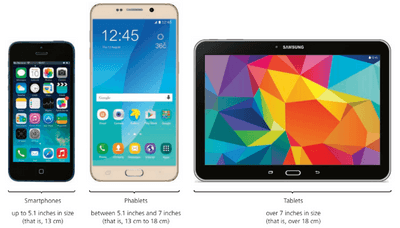
Some of the latest smartphones have been designed as a hybrid between a tablet and a smartphone, referred to as a phablet. They have much larger screens than a smartphone but are smaller than a tablet.
Uses:
Entertainment (streaming of music, videos, and television programs).
Gaming (including group games).
As a camera or video camera.
Internet use (online sales, social networks, using QR codes, and so on).
Sending/receiving emails.
Global positioning system (use of maps to navigate to a location).
Calendar functions.
Telephone banking (sending and receiving money using banking apps).
Voice over Internet Protocol: telephone network using the internet, which also allows video calling.
Instant access to social networks (social contact with friends no matter where you are in the world).
Instant messaging.
Office and business management (allows rapid voice and video communication).
Education use (using interactive software to teach or learn from).
Remotely control devices.
Laptops are the most expandable of these devices, while smartphones are the most portable. Tablets and phablets fall somewhere in between, offering a balance of portability and expandability. The choice of device will depend on your specific needs and use case.
Impact of Emerging Technologies
Artificial Intelligence (AI): There are many definitions of artificial intelligence (AI). Essentially, AI is a machine or application which carries out a task that requires some degree of intelligence.
The use of language
recognizing a person’s face, the ability to operate machinery, such as a car, aeroplane, train, and so on,
and analyzing data to predict the outcome of a future event, such as weather forecasting. Impact:
Whenever AI is mentioned, people usually think of science fiction fantasies and think of robots. The science fiction writer Isaac Asimov even went as far as producing his three laws of robotics: » Robots may not injure a human through action or inaction. » Robots must obey orders given by humans without question. » A robot must protect itself unless it conflicts with the two laws above. Everyday uses:
An autonomous (driverless) vehicle – we already have driverless trains and autopilots on aeroplanes, but future developments include driverless cars.
Robotic research is leading to improvements in technology to help amputees and people with disabilities.
Robots are used to help people carry out dangerous or unpleasant tasks – for example, bomb disposal.
Negative impacts of AI
Unemployment, robots are capable of doing tedious human tasks with much more efficiency and excellence than humans.
Dependency on technology could lead to problems in the future.
De-skilling: Tasks that used to be considered a talent are now part of general, tedious processes that are done on a regular basis by machines.
Extended Reality (XR) refers to combined real and virtual environments. The two most common examples at the moment are:
Augmented reality (AR) is a merger between the virtual and physical (real) world; it lays objects onto pre-existing objects. e.g., Pokémon GO! Impact: safety and rescue operations’ training, shopping and retail (getting a better look at a car before the purchase), healthcare (better understanding of a patient’s body)
Virtual reality (VR) enables an entirely new world to be created, unlike AR, which has no link to the actual surroundings of the user. It requires the user to be specially equipped with a VR headset, joystick, and headphones.
Impact: Military applications, educational purposes (looking at ancient buildings), healthcare, media (interactive special effects in a movie), scientific visualization (part of molecular structures/cells).