CIS 111 module 4 notes
Chapter Four: Programs and Apps Notes
Chapter Objectives:
- Identify the general categories of programs and apps
- Describe how an operating system interacts with applications and hardware
- Differentiate among the ways you can acquire programs and apps: retail, custom, web app, mobile app, mobile web app, shareware, freeware, open source, and public-domain
- Identify the key features of productivity applications: word processing, presentation, spreadsheet, database, note taking, text editor, calendar and contact management, project management, accounting, personal finance, legal, tax preparation, document conversion and readers, and enterprise computing
- Identify the key features of graphics and media applications: computer-aided design, desktop publishing, paint/image editing, photo editing and photo management, video and audio editing, multimedia and website authoring, media player, and augmented and virtual reality
- Identify the uses of personal interest applications: lifestyle, medical, entertainment, convenience, and education
- Identify the purpose of software used in communications
- Identify the key features of security tools: personal firewall, antivirus programs, malware removers, and Internet filters
- Identify the key features of file, disk, and system management tools: file manager, search, image viewer, uninstaller, disk cleanup, disk defragmenter, screen saver, file compression, PC maintenance, backup and restore, and power management
4.1 Programs and Apps
- programs/software enables user to accomplish a variety of tasks on computers and mobile devices
- Program/ Software: a series of related instructions, organized for a common purpose, that tells the computer what tasks to perform and how to perform them.
- App/Application Software: programs designed to make users more productive and/or assist them with personal tasks
- programs and apps examples include mapping, productivity, communications, and graphics/media
- Operating systems: a set of programs that coordinates all the activities among computer or mobile device hardware
- Tools/utilities: other programs that enable you to perform maintenance-type tasks usually related to managing devices, media, and programs used by computers and mobile devices
- Software System: the operating system and other tools that consist of the programs that control or maintain the operations of the computer and its devices
4.1 A Role of an Operating System
- An operating system enables users to use applications such as browser or word processing programs on their laptops
- Mobile devices must use an operating system to run applications like navigation or messaging
- Desktop operating systems include
- macOS, Windows, Linux, and Chrome OS. Mobile operating systems include Android, iOS, and Windows (Mobile Edition)
- user-> operating system->application
- The operating system serves as the interface between the user and application software
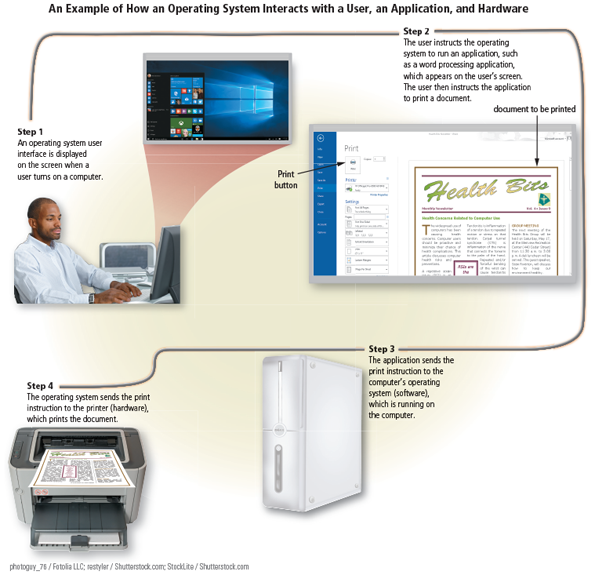
- When you start a computer, the operating system is loaded (copied) from the computer’s hard drive or mobile device’s storage media into memory
- operating system->cordinates computer/mobile device activities
- While the computer is running the operating system is in memory
4.1 B Interacting with Programs and Apps
- Developers create software for computers/mobile devices
- That software is distributed as native apps, cloud apps, or web apps
- Desktop App: runs on a desktop or laptop computer
- Mobile App: runs on a mobile device
- Typically installing web apps before use, you may need plug-ins like JAVA or FLASH
- Native App: app written for a specific platform and installed on a computer or mobile device
- Example: camera or contacts
- Marketplace: where you install native mobile or desktop apps by downloading them from an app store
- Native desktop apps can be purchased and installed by DVD or CD
- Cloud App: makes use of software and data that are not stored on your computer or mobile device
- Examples: online social networks, web-based email services, online calendars
- Web App: a special type of cloud app that is only accessed by visiting a website in a browser
- Examples: online social networks, web-based email services, online calendars
- Mobile Web App: web app that runs on a mobile device
- Often have a responsive web design
- App ootimized by browser display
- Examples: shopping apps, banking apps, online social networks
- Many cloud and web apps are free
- Free apps only allow basic features, fore more comprehensive features you have to pay
- Some one time fee, other subscription-based
4.1 C Distrubuting Programs and Apps
- Trial Versions: an application you can use at no charge for a limited time to see if it meets your needs. Some trial versions have limited functionality
- Programs and apps are distributed in a variety of forms:
- Retail Software : mass-produced, copyrighted software that meets the needs of a wide variety of users, not just a single user or company
- Sometimes preinstalled
- Can be purchased by local stores and web
- Online purchases may allow for immediate download
- Examples: Microsoft Excel
- Custom Software: performs functions specific to a business or industry
- performs functions specific to a business or industry
- If retail software is not enough to meet a company’s requirements-> hired developers create custom software
- Typical more expensive software than retail
- performs functions specific to a business or industry
- Shareware: copyrighted software that is distributed at no cost for a trial period
- Software may shut down is payment is not made
- Free but limited shareware software exists
- Examples: Skype
- Freeware: copyrighted software provided at no cost by an individual or a company that retains all rights to the software
- free
- Open source: software provided for use, modification, and redistribution
- May have restrictions due to copyright
- Promoters of open source software state two main advantages: a community of developers contribute enhancements to the software for all to use, and customers can personalize the software to meet their needs
- Public domain: donated for public use and has no copyright restrictions
- Anyone can copy and distribute software, no cost
- SaaS aka Software as a service: a model for distributing software in which a software provider hosts applications on a server and makes them available to users via the Internet
- Editing projects or photos, sending email messages, and managing finances are common consumer tasks with SaaS
- Downloaded apps/spftware will sync to the same subscription
- Downlaoading apps and software safely
- Choose apps from Google Play for Android devices or the App Store for Apple devices
- Be wary of apps that do not have many reviews or apps that were added recently, unless you can verify the developer or publisher. Search for reviews from reputable websites.
- Obtain the latest versions of shareware, freeware, and public-domain software and apps
- Retail Software : mass-produced, copyrighted software that meets the needs of a wide variety of users, not just a single user or company
4-1d Installing and Updating Programs and Apps
- Software Registration: typically is optional and usually involves submitting your name and other personal information to the software manufacturer or developer.
- Typically allows software support
- Product activation: a technique that some software manufacturers use to ensure that you do not install the software on more computers than legally licensed
- Product not fully activated until you fulfill product activation
- Maybe a required for certain programs
- registering/actovating entities you to free program updates
- Automatic update: many mobile/desktops have updates that can be be configured to download and install automatically
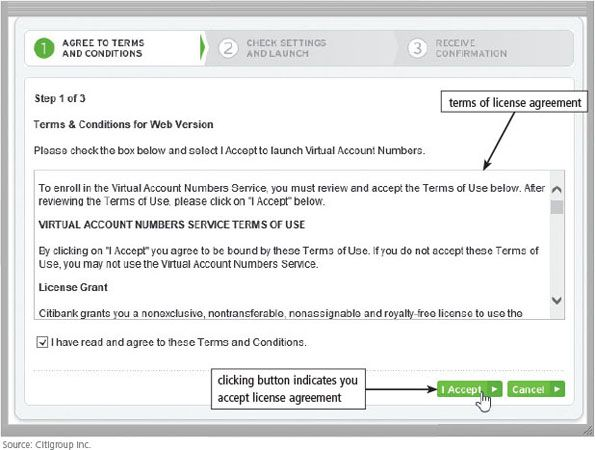
- License agreement: sometimes called an end-user license agreement (EULA), is the right to use a program or app
- Provides specific software conditions
- User must accept conditions to use the software
- Violating ^ is a copyright violation
- Provides specific software conditions
4-1e Categories of Programs and Apps
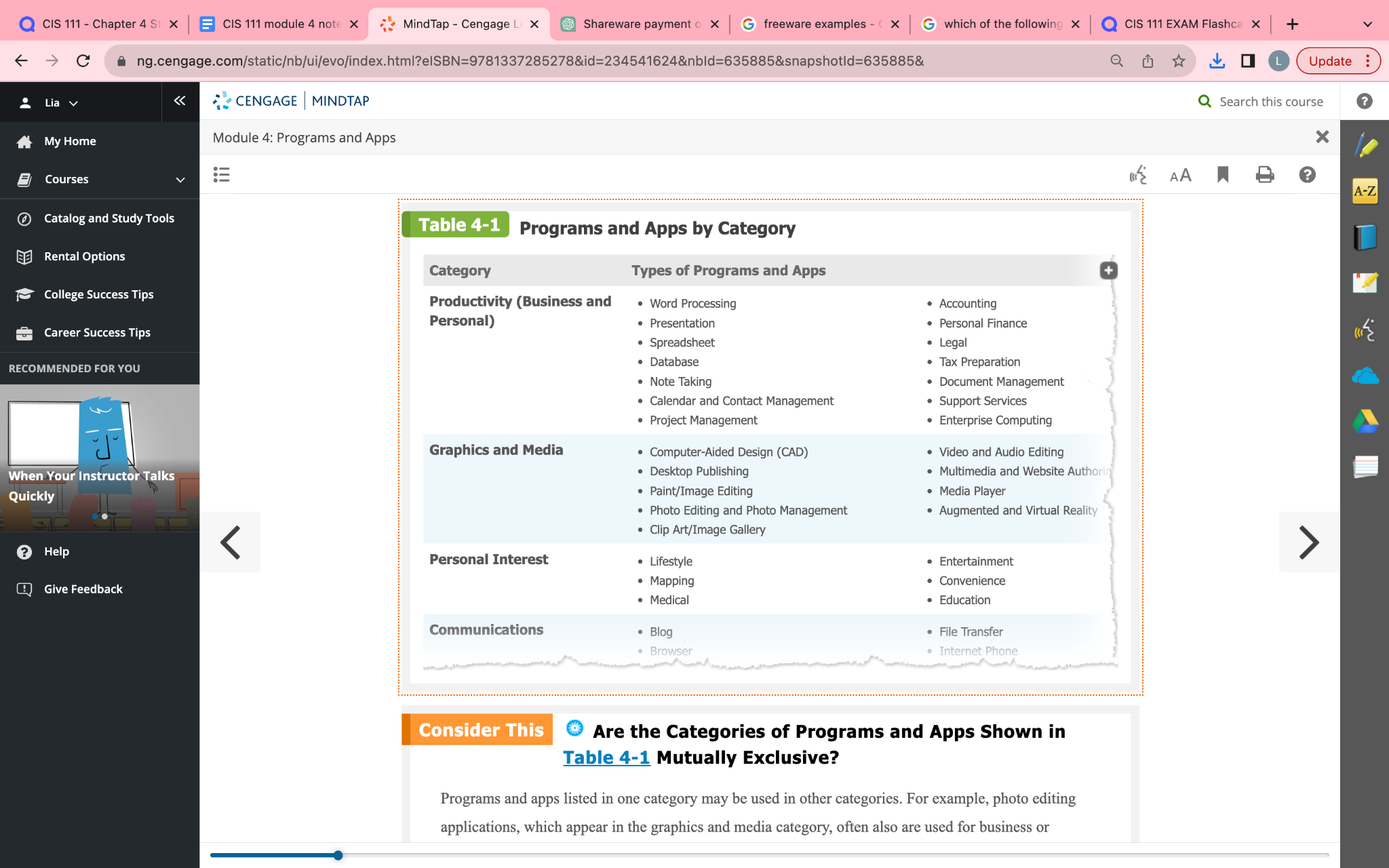
- Apps shown above are NOT mutually exclusive
- Ex. photo editing software can be used in business matters
4.2 Productivity Applications
- Productivity Applications : assist you in becoming more effective and efficient while performing daily activities at work, school, and home
- Examples: word processing, presentation, spreadsheet, database, note taking, calendar and contact management, project management, accounting, personal finance, legal, tax preparation, document management, and enterprise computing
- Desktop apps, mobile apps, -> cloud and web apps offer productivity apps
- Apatable versions available
4.2 A Developing Projects
- Productivity Applications develop projects
- Projects include : documents, presentations, spreadsheets, notes, calendars, contact lists, budgets, drawings, and more
- keyboard shortcuts
- Windows
- Cut: ctr+x
- Copy: ctrl +C
- Paste: Ctrl +v
- Mac OS
- Cut: ctr+x
- Copy: ctrl +C
- Paste: Ctrl +v
- Windows
- Devloping Projects Steps:
- Create: you enter text or numbers, insert images, add contacts, schedule appointments, and perform other tasks using a variety of input methods, such as a keyboard, a mouse, touch, or voice
- Edit: means to make changes to its existing content
- Examples: inserting, deleting, cutting, copying, and pasting
- clipboard:Cutting is the process of removing content and storing it in a temporary storage location
- Format: change its appearance
- Importance, overall looks communicates information of project
- Examples: changing the font, font size, and font style
- During the process of creating, editing, and formatting a project, the computer or mobile device holds it in memory
- Beyond the first 3 steps, you must SAVE a project
- Save: computer transfers the project from memory to a local storage medium, such as a USB flash drive or hard drive, or the cloud, so that you can retrieve it later
- Share: distribute a project as a hard copy or electronically
- Hard copy: information that exists on a physical medium, such as paper
- To generate hard copy you must print it
- Electronic distribution saves paper and printer supplies
- Hard copy: information that exists on a physical medium, such as paper
- Productibity Web Apps vs Productivity Desktop Apps
- Desktop apps are installed, web apps are online
- Web apps are on the cloud
- Desktop apps autosave and save in your computer
- Clip Art/Image Gallery: A collection of clip art and photos.
- Provide fonts, animations, sounds, video clips, and audio clips
4.2 B Word Processing Software
- Word Processing Software/ word processor: an application that allows users to create and manipulate documents containing text and sometimes graphics
- Used for develop documents such as letters, memos, reports, mailing labels, and newsletters
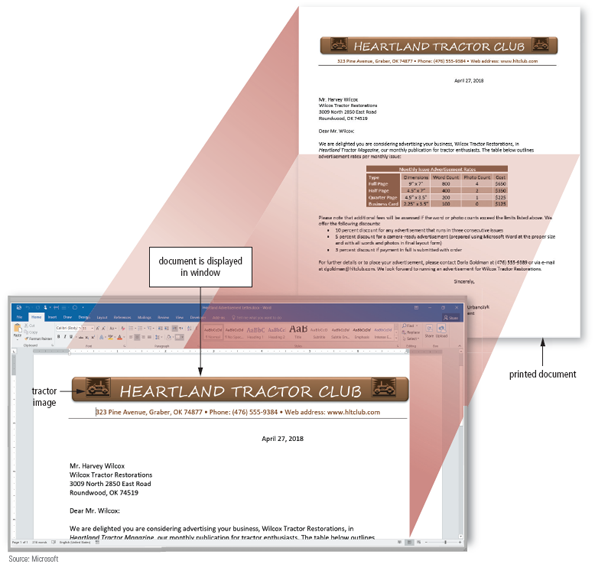
- Word processors enable users to
- create professional and visually appealing documents
- to incorporate graphics, such as digital photos and clip art, in documents
- The page setup feature of word processing software allows you to define the size of the paper on which to print and to specify the margins
- wordwrap, allows users to type words in a paragraph continually without pressing the enter key at the end of each line
- Word processing software typically includes tools to assist you with the writing process
- Spell check
- Grammar checck
- Format check
- Bibliography tools
4.2 C Presentation
- Presentattion software: an application that allows users to create visual aids for presentations to communicate ideas, messages, and other information to a group.
- Example is slide shows: displayed on a large monitor or on a projection screen from a computer or mobile device
- Presentation software typically provides a variety of predefined presentation formats that suggest complementary colors for backgrounds, text, and graphical accents on the slides
- Slides have timers and effects for transtions
- Presentation software typically includes images, photos, video clips, and audio clips to enhance presentations
- You can view or print a finished presentation in a variety of formats, including a hard copy outline of text from each slide and handouts that show completed slides
- Presentations have spell check, formatting, researching, and creating web pages from existing slide shows
4.2 D Spreedsheet
- Spreedsheet software: an application that allows users to organize data in columns and rows and perform calculations on the data
- Worksheet: Rows and columns used to organize data in a spreadsheet.
- Spreadsheet file aka workbook can contain thousands of worksheets
- -> column
- ^ row
|
- Cell: intersection of rows and columns
- Formulas begin with “=”
- Function: predefined formula that performs a calculation, such as adding the values in a group of cells or generating a value, such as the current time or date
- One of the more powerful features of spreadsheet software is its capability to recalculate the rest of the worksheet when data in a cell changes
- Another standard feature of spreadsheet software is charting, which depicts the data in graphical form, such as bar charts or pie charts
4.2 E Database
- Databases: a collection of data organized in a manner that allows access, retrieval, and use of that data
This database contains two tables: one for customers and one for book reps. The Customer table has 15 records and 10 fields; the Book Rep table has 4 records and 10 fields.
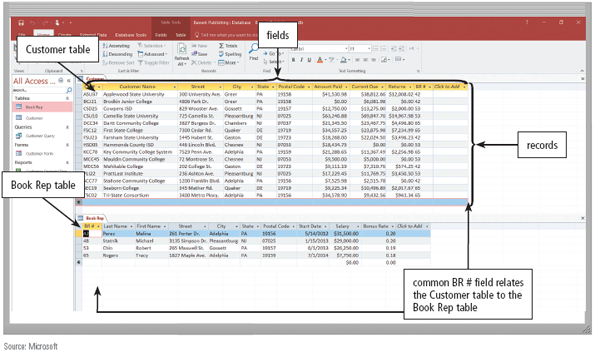
- Database Software: An application that allows users to create, access, and manage a database.
- To retrieve data users run an queries
- Queries: a request for specific data from the database
- Database vs Spreadsheet?
- Databases and spreadsheets serve distinct purposes: spreadsheets for calculations and charts, databases for collecting, reorganizing, filtering, and generating reports from data.
- To retrieve data users run an queries
4.2 F Note Taking
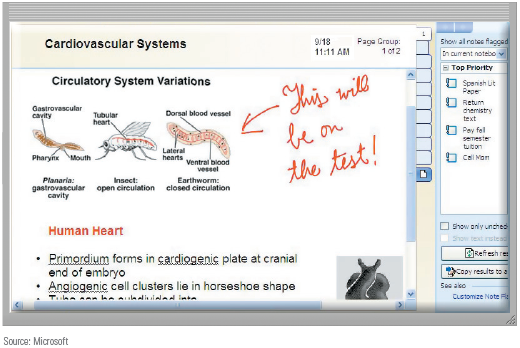
- Note taking software: an application that enables users to enter typed text, handwritten comments, drawings, sketches, photos, and links anywhere on a page and then save the page as part of a notebook
- Can include audio recordings
- Mobile users can include handwritten notes, sketches and insert photos/links
4.2 G Text Editor
- A text editor is used to type information when it does not need to be formatted with fonts, page numbers, or other styles
4.2 H Calendar and Contact Managment
- Calendar and contact management program : An application that helps you organize your calendar, keep track of contacts, and share this information with other devices or users.
- software provides a way for individuals and workgroups to organize, find, view, and share appointment and contact information easily
- Many email applications include both features
- Calendar and contact managment will automatically sync
4.2 I Software Suite
- Forms and Surverys
- Some online productivity suites support creating online forms for surveys, which store their results in online spreadsheets
- Software Suite: A collection of individual applications available together as a unit.
- Productivity software suites typically include, at a minimum, word processing, presentation, spreadsheet, and email applications
- Software suites offer three major advantages: ease of use, integration, and lower cost.
4.2 J Project Management
- Project Managment Software: an application that allows a user to plan, schedule, track, and analyze the events, resources, and costs of a project
- Helps user to manage project variables, such as the tasks required to complete a project and the allotted time and resources for each, allowing them to complete a project on time and within budget
- With project management software, you can plan and schedule the tasks and resources required in a project.
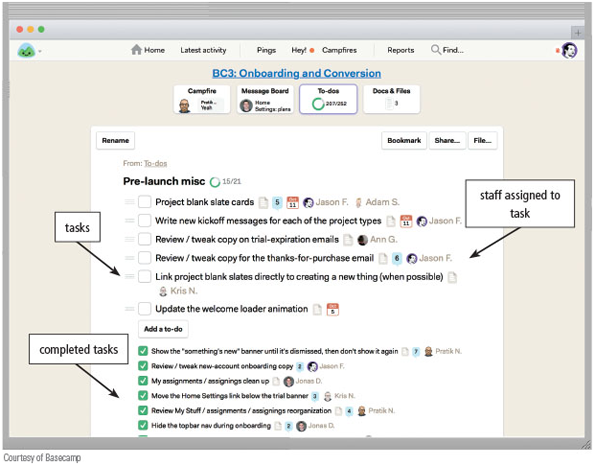
- In the technology field, the term "project" has two meanings: it can refer to a deliverable created with application software or describe the tasks and processes needed to solve a problem.
4.2 K Accouting Software
- Accounting software: an application that helps businesses of all sizes record and report their financial transactions
- With accounting software, business users perform accounting activities related to the general ledger, accounts receivable, accounts payable, purchasing, invoicing and payroll functions.
- Accounting software helps businesses record and report their financial transactions.
- Most accounting software supports online credit checks, bill payment, direct deposit, and payroll services.
- The cost of accounting software for small businesses ranges from less than one hundred to several thousand dollars. Accounting software for large businesses can cost several hundred thousand dollars.
4.2 I Personal Finance
- Personal Finance Software: a simplified accounting application that helps home users and small/home office users balance their checkbooks, pay bills, track personal income and expenses, verify account balances, transfer funds, track investments, and evaluate financial plans
- Determines : where, and for what purpose, you are spending money so that you can manage your finances
- Personal finance software assists home users with tracking personal accounts.
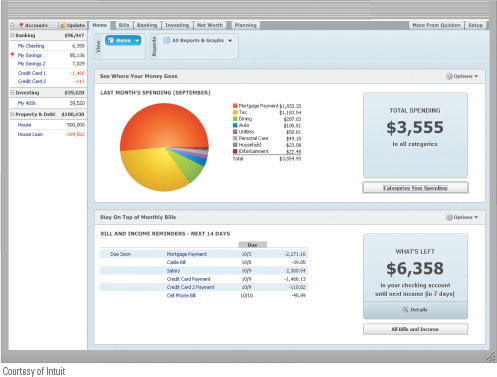
- Most personal finance software includes financial planning features, such as analyzing home and personal loans, preparing income taxes, and managing retirement savings
- Others include managing home inventory and setting up budgets
- Online services
- online banking and online investing
- Using personal finance safely
- Evaluate the apps
- Use strong passwords to access the apps
- Guard your smartphone
- Verify the transactions
4.2 M Legal Software
- Legal Software: assists in the preparation of legal documents and provides legal information to individuals, families, and small businesses
- Legal software provides standard contracts and documents associated with buying, selling, and renting property; estate planning; marriage and divorce; and preparing a will or living trust
- Legal software assists individuals, families, and small businesses in the preparation of legal documents.
- Guides users through questions
4.2 N Tax Preparation
- Tax Preperation Software: an application that can guide individuals, families, or small businesses through the process of filing federal and state taxes
- forecast tax liability and offer money-saving tax tips, designed to lower your tax bill.
- Tax preparation software guides individuals, families, or small businesses through the process of filing federal taxes.
- E-filing: Some tax preparation programs also allow you to file your tax forms electronically
4.2 0 Document Conversion and Readers
- Document Conveersion Software: An application that saves documents created in any application into a common format that has the same appearance as the original document.
- PDF: An electronic image file format by Adobe Systems that mirrors the appearance of an original document. Short for Portable Document Format.
- Users can edit content and add comments to a PDF document.
4.2 Enterprise Computing
- Large organizations/enterprises are so large it requires special computing
- Functional departments: A typical enterprise consists of a wide variety of departments, centers, and divisions
- Nearly every enterprise has the following functional units: human resources, accounting and finance, engineering or product development, manufacturing, marketing, sales, distribution, customer service, and information technology.
- Human resources software manages employee information, such as pay rate, benefits, personal information, performance evaluations, training, and vacation time.
- Accounting software manages everyday transactions, such as sales and payments to suppliers. Finance software helps managers budget, forecast, and analyze.
- Engineering or product development software allows engineers to develop plans for new products and test their product designs.
- Manufacturing software assists in the assembly process, as well as in scheduling and managing the inventory of parts and products.
- Marketing software allows marketing personnel to create marketing campaigns, target demographics, and track their effectiveness.
- Sales software enables the salesforce to manage contacts, schedule meetings, log customer interactions, manage product information, and take customer orders.
- Distribution software analyzes and tracks inventory and manages product shipping status.
- Customer service software manages the day-to-day interactions with customers, such as phone calls, email messages, web interactions, and messaging sessions.
- Information technology staff use a variety of programs and apps to maintain and secure the hardware and software in an enterprise.
4.2 Q Tech Feature 4-1: Web and Mobile Apps for Personal and Business Productivity
- A variety of applications provide a service intended to make business or personal tasks easier to accomplish.
- Examples
Calendar and Email
Travel
Financial
- Reference
- Retail
- Scanning
- Online social networking
4.3 Graphics and Media applications
- Many professionals in fields like engineering, desktop publishing, and graphic arts use specialized software for working with graphics and media, with user-friendly interfaces that are also accessible to home and small business users, encompassing applications like computer-aided design, desktop publishing, image editing, and more.
4.3 A Computer Aided Design
- CAD (computer aided design): A type of application that assists professionals and designers in creating engineering, architectural, and scientific designs and models. CAD for short.
- Examples
- engineers create design plans for vehicles and security systems
- Architects design building structures and floor plans
- Scientists design drawings of molecular structures.
Computer-aided design software is used to create three-dimensional models.
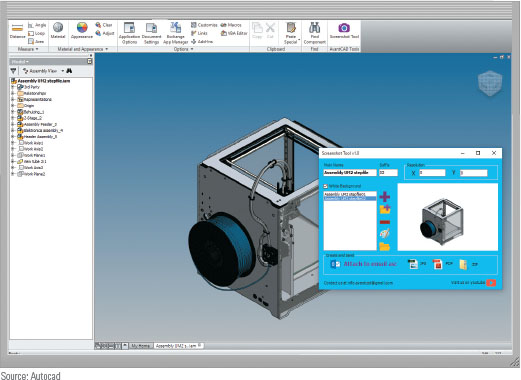
- Home design/landscaping software: an application that assists users with the design, remodeling, or improvement of a home, deck, or landscape
4.3 B Desktop Publishing
- DTP software: An application that enables designers to create sophisticated publications that contain text, graphics, and many colors. DTP for short.
- ideal for the production of high-quality color projects, such as textbooks, corporate newsletters, marketing literature, product catalogs, and annual reports
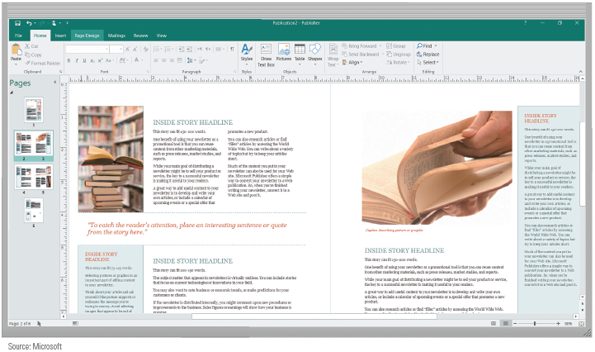
- Home and small business users create newsletters, brochures, flyers, advertisements, postcards, greeting cards, letterhead, business cards, banners, calendars, logos, and webpages using personal DTP software
- These programs typically guide you through the development of a project by asking a series of questions. Then, you can print a finished publication on a color printer or post it on the web.
With personal DTP software, such as Microsoft Publisher shown here, home users can create newsletters.
4.3 C Paint/Image Editing
- Word processing, presentation, and other productivity applications usually include basic image editing capabilities
- Paint software: An application that allows users to draw pictures, shapes, and other graphics with various on-screen tools such as a pen, brush, eyedropper, and paint bucket. See also illustration software
- Image editing software: An application that provides the capabilities of paint software and also includes the capability to enhance and modify existing photos and image.
Paint/image editing programs enable users to draw images.
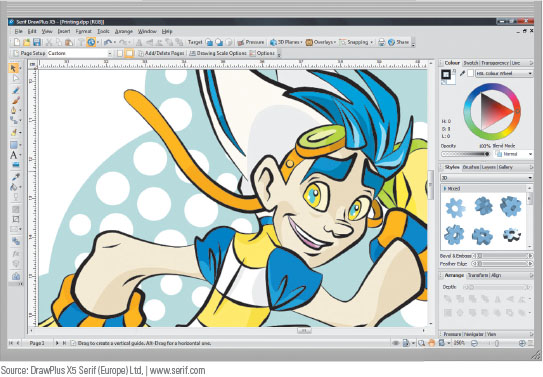
- Paint/image editing software for the home or small business user provides an easy-to-use interface; includes various simplified tools that allow you to draw pictures, shapes, and other images (Figure 4-19); and provides the capability of modifying existing graphics and photos
4.3 D Photo Editing/Photo Management
- Photo editing software: A type of image editing software that allows users to edit and customize digital photos.
- With photo editing programs and apps, users can enhance photos, add lighting filters, crop images, remove red-eye, create collages, crop and resize images, color-correct images, straighten images, remove or rearrange objects in a photo, and more
- Many applications also provide a means of organizatiom
- With photo editing software, users can edit digital photos, such as by adjusting the appearance of images as shown here.
- Can be shared
- via text or email messages, online social networks, or photo sharing websites.
4.3 E Video and Audio Editing
- Video Editing software: An application that allows professionals to modify a segment of a video, called a clip.
- Audio editing software: An application that enables users to modify audio clips, produce studio-quality soundtracks, and add audio to video clips.
4.3 F Multimedia and website Auditing
- Multimedia authoring software: Software that allows users to combine text, graphics, audio, video, and animation in an interactive application.
- With this software, users control the placement of text and images and the duration of sounds, video, and animation
- Website authoring software:Software that helps users of all skill levels create web pages that include graphics, video, audio, animation, and special effects with interactive content.
- Users can create pages by dragging and dropping content elements, such as images, videos, maps, blog posts, and other content
- Website authoring software allows you to create engaging personal and business websites by adding your text, images, and videos to existing website templates.
- Example: Wix
- Computer-based training (CBT) : a type of education in which students learn by using and completing exercises with instructional software
- Web-based training (WBT) : a type of CBT that uses Internet technology to deliver the training
- WBT is popular in business, industry, and schools for teaching new skills or enhancing existing skills of employees, teachers, and students.
- A massive open online course (MOOC): offers access to quality education anywhere the Internet is available through a combination of video instruction and interaction with an instructor and students in an online classroom
- Ex. Khan Academy
4.3 G Media Player
- media player: Software that enables you to listen to an audio file on a computer
- may enable you to organize media files by genre, artist, or other category; create playlists; convert files to different formats; connect to and purchase media from an online media store or marketplace; stream radio stations’ broadcasting over the Internet; download podcasts; burn audio CDs; and transfer media to portable media players
4.3 H Augmented and VR
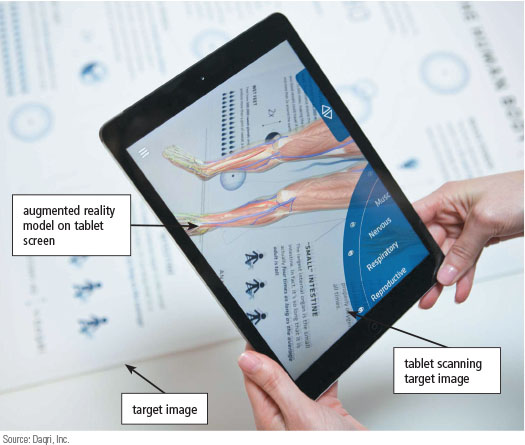
- Augmented reality app: An app that overlays information and digital content on top of physical objects or locations.
Scanning a target image with a tablet or smartphone displays an interactive model of the human body in this augmented reality app used for medical education.
- virtual reality app: An app that provides an immersive user experience, some via specialized viewer, which may have a built-in display, or via smartphone to display 360-degree images or video content.
- Used by military to simulate real world enviorments
4.4 Personal Interest Applications
- A wide range of apps for lifestyle, medical, entertainment, convenience, and education purposes are available across desktop, mobile, and web platforms, often offered at low costs, including many free or open-source options, with some apps offering single services while others provide multiple services within a single application.
- Lifestyle applications: Access the latest news or sports scores, check the weather forecast, compose music, research genealogy, find recipes, meet or chat with friends online near you, or locate nearby restaurants, gas stations, or points of interest.
- Medical applications: Research symptoms, establish a fitness or health program, track exercise activity, refill prescriptions, count calories, or monitor sleep patterns.
- Entertainment applications: Listen to music or the radio, view photos, watch videos or shows, read a book or other publication, organize and track fantasy sports teams, and play games individually or with others.
- Convenience applications: Obtain driving directions or your current location, convert speech to text instead of typing, set an alarm or timer, check the time, calculate a tip, use your phone as a flashlight, or use a personal assistant that acts on your voice commands (read How To 4-2 for instructions about using personal assistant apps).
- Education applications: Access how-to guides, learn or fine-tune a particular skill, follow a tutorial, run a simulation, assist children with reading and other elementary skills, or support academics.
4.4 A Tech Feature 4-2: Web and Mobile Apps for Media and Personal Interest
- A variety of applications provide a service intended to make media and personal interest tasks easier to accomplish
- Media Sharing
- Ex. Instagram
- Media Sharing
Streaming Audio and Video
- Streaming media is accessible through web and mobile apps, with options for both paid membership services and free, ad-supported platforms, allowing users to view and listen to content without downloading it, though data-conscious users often download content for offline use while on Wi-Fi networks.
Gaming
News, Sports, and Weather
Mapping
- Health and Fitness
- Academic
4.5 Communications Applications
- Blog
- Time-stamped articles, or posts, in diary or journal format, usually listed in reverse chronological order
- File Transder
- Method of uploading files to and downloading files from servers on the Internet
- Browser
- Allows user to access/view weboages in the Internet
- Internet Phone
- Allows ussr to speak to other users via the internet
Chat
- Real-time, online typed conversation with one or more users
- Online Discussions
- Online forums where users can have online discussions
4.6 Security Tools
- To safeguard your computers and mobile devices, you can utilize security tools like personal firewalls, antivirus software, malware removers, and Internet filters, either through bundled operating system options or standalone programs for enhanced protection.
4.6 A Personal Firewall
- personal firewall: A security tool that detects and protects a personal computer and its data from unauthorized intrusions.
- Personal firewalls provide continuous monitoring of inbound and outbound data transmissions, alerting users to potential intrusion attempts, protecting against cyberattacks, and preventing unauthorized access or malicious actions on connected computers or mobile devices.
- This personal firewall detected a threat to the computer and provided a means to remove the threat
- hardware firewall :a device intended to stop network intrusions before they attempt to affect your computer or network maliciously
- security suite: a collection of individual security tools available together as a unit. These programs often are called Internet security programs
4.6B Tech Feature 4-3: Viruses and Malware
- Virus: A potentially damaging computer program that affects, or infects, a computer negatively by altering the way the computer works without the user’s knowledge or permission.
- Once the virus is in a computer or device, it can spread and may damage your files, programs and apps, and operating system
- How a virus is activated
- First, a virus replicates by attaching itself to program files
- Viruses conceal themselves to avoid detection
- Finally, viruses watch for a certain condition or event and activate when that condition or event occurs
- Type of viruses
- A worm resides in active memory and replicates itself over a network to infect computers and devices, using up system resources and possibly shutting down the system.
- A trojan horse is a destructive program disguised as a real program, such as a screensaver. When a user runs a seemingly innocent program, a trojan horse hiding inside can capture information, such as usernames and passwords, from your computer or enable someone to control your computer remotely. Unlike viruses, trojan horses do not replicate themselves.
- A rootkit is a program that easily can hide and allow someone to take full control of your computer from a remote location, often for nefarious purposes. For example, a rootkit can hide in a folder on your computer. The folder appears empty because the rootkit has instructed your computer not to display the contents of the folder. Rootkits can be very dangerous and often require special software to detect and remove.
- Signs of Virus and Malware
- An unusual message or image is displayed on the computer screen.
- An unusual sound or music plays randomly.
- The available memory is less than what should be available.
- A program or file suddenly is missing, or an unknown program or file mysteriously appears.
- The computer’s security tools, such as antivirus software or firewall, become disabled.
- The size of a file changes without explanation.
- A file becomes corrupted.
- A program will not run.
- The computer operates much slower than usual.
- Your browser displays pop-ups that you cannot close or webpages you did not request when you are online.
- Type of viruses
4.6 C Antivirus Programs
- antivirus program: Software that protects a computer against viruses by identifying and removing any computer viruses found in memory, on storage media, or on incoming files.
- Antivirus programs scan for programs that attempt to modify a computer’s start-up files, the operating system, and other programs that normally are read from but not modified
An antivirus program scans memory, media, and incoming email messages and attachments for viruses and attempts to remove any viruses it finds.
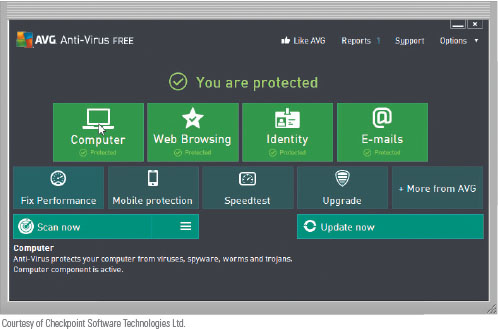
- Quarentine: a separate area of a hard drive that holds the infected file until the infection can be removed
- Most antivirus programs also include protection against other malware, such as worms, trojan horses, and spyware. When you purchase a new computer, it may include a trial version of antivirus software
- Virus hoaxes are rampant on the internet and take various forms.
- Some hoaxes warn of severe virus infections, even claiming the
- device will explode.
- They often reference well-known companies and offer solutions for a fee.
- In reality, these are scams preying on panicked individuals who provide personal and financial information.
- Never respond to such hoaxes, delete them, and avoid forwarding them to others.
- If received from someone you know, inform them separately about the hoax.
- Many antivirus programs identify viruses by looking for virus signatures
- virus signature: is a known specific pattern of virus code. Computer users should update their antivirus program’s signature files regularly
- Most antivirus programs contain an automatic update feature or regularly prompts users to download the updated virus signatures, usually at least once a week.
4.6 D Spyware, Adware, and other malware
- Spyware: a type of program placed on a computer or mobile device without the user’s knowledge that secretly collects information about the user and then communicates the information it collects to some outside source while the user is online.
- Adware is a type of program that displays an online advertisement in a banner or pop-up or pop-under window on webpages, email messages, or other Internet services
- spyware remover: A program that detects and deletes spyware and similar programs.
- adware remover: A program that detects and deletes adware.
- Malware removers detect and delete spyware, adware, and other malware
- A cookie is a small text file that a web server may place on your computer or mobile device when you view a webpage
- Cookies on websites store information like shopping cart items, usernames, and addresses.
- They may indicate if you're signed in and usually have a short lifespan.
- Website privacy policies often detail cookie usage.
- Cookies are not considered spyware and are not concealed by website developers.
Malware Risks to Mobile Devices
- Smartphones are susceptible to hacking due to their popularity and app sources.
- Malware in apps can grant unauthorized access to device capabilities and data.
- Some malicious apps have been reported for activities like accessing cameras or microphones.
- Precautions against malware threats include reading app reviews, using malware protection, limiting app permissions, removing unused apps, keeping software updated, securing with a strong password, and resetting devices before selling or trading them.
4.6 E Internet Filters
- Filters are programs that remove or block certain items from being displayed.
- Four widely used Internet filters are anti-spam programs, web filters, phishing filters, and pop-up and pop-under blockers.
- Anti-Spam Programs
- Spam: An unsolicited email message or posting sent to many recipients or forums at once.
- May contain links or attachments
- anti-spam program: A filtering program that attempts to remove spam before it reaches your inbox or forum.
- Free, ISPs often filter spam as a service for their subscribers.
- anti-spam program: A filtering program that attempts to remove spam before it reaches your inbox or forum.
- Web Filters
- Web filtering software: A program that restricts access to certain material on the web.
- Many businesses use web filtering software to limit employees’ web access. Some schools, libraries, and parents use this software to restrict access to websites that are not educational.
- Phishing Filters
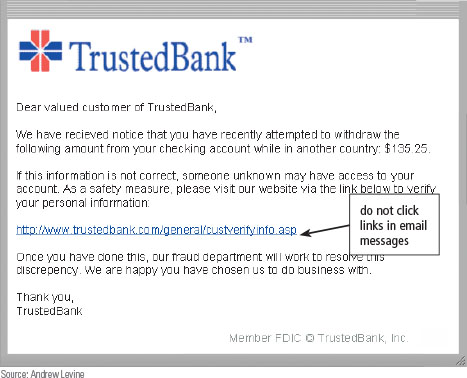
- Phishing: A scam in which a perpetrator sends an official looking email message that attempts to obtain your personal and/or financial information.
- Some phishing messages ask you to reply with your information; others direct you to a phony website or a pop-up or pop-under window that looks like a legitimate website, which then collects your information.
- Anti-Spam Programs
An example of a phishing email message.
- phishing filter: A program that warns or blocks you from potentially fraudulent or suspicious websites.
- Pop-up and Pop-up Blockers
- A pop-up ad is an Internet advertisement that suddenly appears in a new window on top of a webpage.
- a pop-under ad is an Internet advertisement that is hidden behind the browser window so that it will be viewed when users close their browser windows
- pop-under blocker
- A filtering program that stops pop-up or pop-under ads from displaying on webpages.
4.7 File, Disk, and System Managament Tools
- File, disk, and system management tools assist in computer maintenance.
- Functions include managing files, searching, uninstalling software, cleaning disks, defragmenting, setting up screen savers, compressing files, and backing up data.
- Some tools come with the operating system, while standalone programs offer added features and improvements.
- Functions include managing files, searching, uninstalling software, cleaning disks, defragmenting, setting up screen savers, compressing files, and backing up data.
4.7 A File Manager
- file manager: A tool that performs functions related to file management.
- Functions: displaying a list of files on a storage medium, organizing files in folders; and copying, renaming, deleting, moving, and sorting files
- Folder: A specific named location on a storage medium that contains related documents.
4.7 B Search
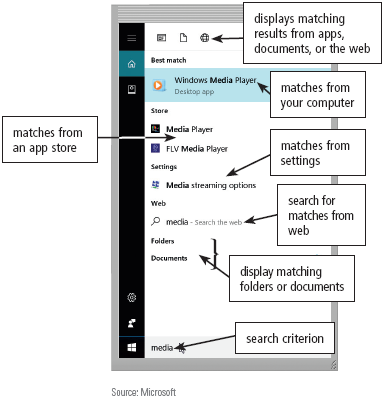
- search tool: A program, usually included with an operating system, that attempts to locate a file on your computer or mobile device based on criteria you specify.
- Search tools can look through documents, photos, music, calendars, contacts, and other items on your computer or mobile device and/or on the Internet, combining search results in a single location.
Search tools locate apps, folders, files, settings, and other items on your device or the web that match a search criteria
- Index: x stores a variety of information about a file, including its name, date created, date modified, author name, and so on
- Allows search tool to locate things quickly
4.7 C Image Viewer
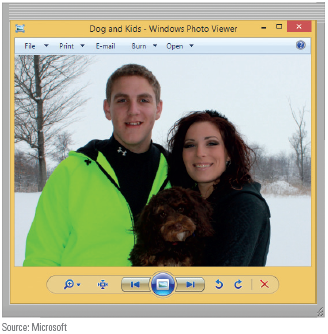
- image viewer: A tool that allows users to display, copy, and print the contents of a graphics file, such as a photo.
- users can see images without having to open them in a paint or image editing program
- An image viewer allows users to see the contents of a photo file.
4.7 D Unistaller
- Uninstaller: A tool that removes a program, as well as any associated entries in the system files.
- Program installation stores information in system files.
- The uninstaller removes files, folders, and program entries from the system files.
Uninstall a Program or Remove an App
Uninstalling unwanted programs and apps will save storage space on your computer or mobile device and maximize its performance. The following steps describe how to uninstall a program or remove an app.
Windows
- Open the Control Panel.
- Click the option to uninstall a program.
- Click to select the program to uninstall.
- Click the Uninstall button and then follow the prompts on the screen.
Mac
- Open the Finder.
- Click Applications in the left pane.
- Locate the app you wish to uninstall.
- Drag the app’s icon to the Trash.
iOS
- Press and hold the icon for the app you wish to delete until the app icons begin to animate.
- Tap the X on the icon for the app you wish to uninstall from your device.
Android
- Display the Settings menu.
- Locate the Application manager to display a list of installed applications.
- Tap the application to uninstall.
- Tap the Uninstall button.
- Tap the OK button.
- You cannot use a file manager as an unistaller, it wont update
4.7 E Disk Cleanup
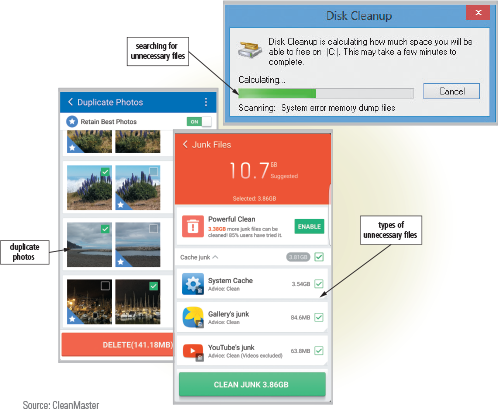
- disk cleanup: Tool that searches for and removes unnecessary files.
- Unnecessary files encompass downloaded program files, temporary Internet files, deleted files, and unused program files.
- Operating systems typically provide disk cleanup tools.
- Mobile device cleanup tools can identify duplicates, large files, and other deletable items.
- A disk cleanup tool searches for and removes unnecessary files on a computer or mobile device.
4.7 Disk Fragmentater
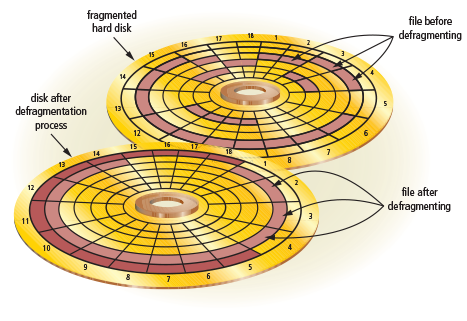
- disk defragmenter: A tool that reorganizes the files and unused space on a computer’s hard disk so that the operating system accesses data more quickly and programs and apps run faster.
- Operating systems store data in available sectors on a hard disk.
- They aim for contiguous (adjacent) sectors but may not always succeed.
- When file data is spread across noncontiguous sectors, it's considered fragmented.
A fragmented hard disk has many files stored in noncontiguous sectors. Defragmenting reorganizes the files so that they are located in contiguous sectors, which speeds access time.
- SSD do not need to be defragmented, they use a diff process
4.7 G Screen Saver
- screen saver: A tool that causes a display device’s screen to show a moving image or blank screen if no keyboard or mouse activity occurs for a specified time.
4.7 H File Compression
- File compression reduces the size of one or more files.
- Compressed files occupy less storage space, useful for smaller media like USB drives.
- When multiple files or folders are compressed, they become one compressed file.
- Sending a single compressed file in an email is often more convenient than individual attachments.
- Compressed files are commonly referred to as zipped files.
- To access compressed files, they must be uncompressed, which restores the content to its original form.
- Most operating systems include built-in file compression and decompression tools.
4.7 I PC Maitence
- PC maintenance tool: A program that identifies and fixes operating system problems, detects and repairs disk problems, and includes the capability of improving a computer’s performance.
4.7 J Baclup and Restore
- backup tool: A program that allows users to copy, or back up, selected files or the contents of an entire storage medium to another storage location, such as another hard disk, optical disc, USB flash drive, or cloud storage.
- restore tool: Program that reverses the backup process and returns backed up files to their original form.
- You should back up files and storage devices regularly in the event your originals are lost, damaged, or destroyed.
Cloud Backup Service:
- Automatically backs up all user files, servers, applications, and settings.
- Users specify locations to back up and set backup schedules.
- Compresses and securely transfers files to the cloud.
- Retains prior versions for recovery.
- Provides access to saved files from various devices.
Cloud Storage Service:
- Doesn't automatically back up all files.
- Makes select files available across multiple devices.
- Allows users to specify one folder for saving on the cloud.
- Overwrites previous versions with the most recent one.
- Often used for personal file storage, while professionals use cloud backup services for comprehensive data protection.
4.7 K Power Management
- power management tool: A tool that monitors a laptop or mobile device’s battery usage, showing apps that consume the most battery power, displaying battery usage data since the device was last charged, and estimating usage time remaining.
- Power management apps activate power saving mode when the battery is low.
- Power saving mode often disables internet connectivity and reduces display brightness.
- This extends the battery life until the device is charged.