Explore Inputs and Outputs
Inputs and outputs are mapped between different steps in your flow and carry out key functions.
What are inputs and outputs?
Inputs- Inputs are the empty spaces you see in app action and function cards. These are the fields on a card that accept data during the execution of a flow. For the card user, this is done by manually entering information into the fields or mapping outputs by dragging and dropping them from other cards in the flow.
Outputs- Outputs fields are the draggable tiles you see on action cards that return data from a service to a flow. A user will drag these outputs from the connector into the inputs of other cards within a flow to exchange data. This is how you define data mappings and share data between applications within a workflow.
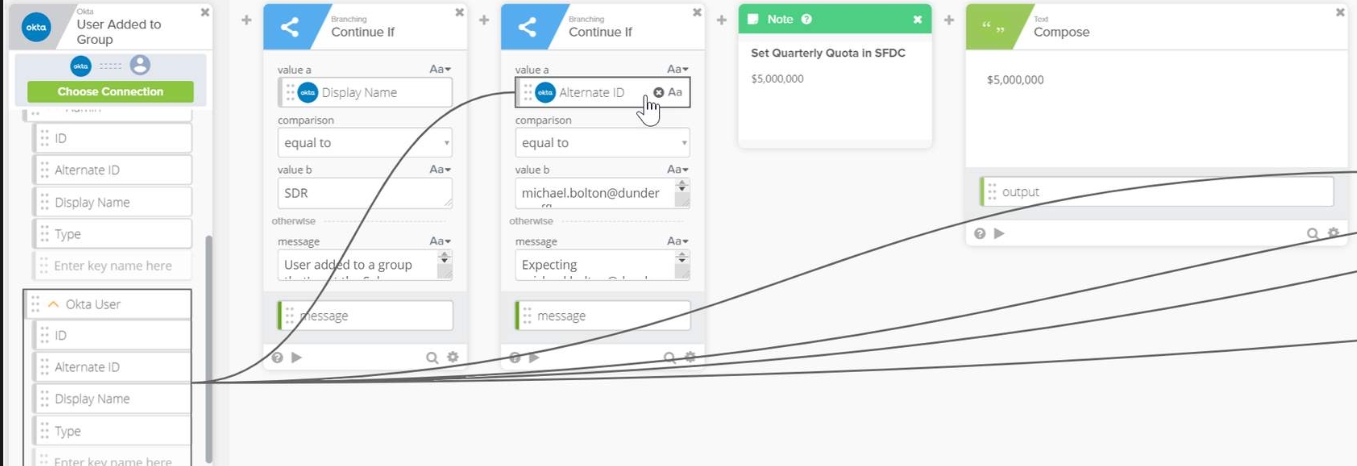
A series of flows that show various inputs and outputs.
Remember, every app action or function you interact with inside of the Workflows Console has inputs and/or outputs. However, events only have outputs. An output can be mapped to many inputs but an input will only accept a single output.
What are the different data types of inputs and outputs?
All inputs and outputs have a data type. Hover over the input or output in your flow to see the data type.
Types include:
Text
File
True/False
Object
Number
Date & Time
Flow
Folder
List
Some key tips on data types within a flow
The type of input/output dictates what type of output/input it can be associated with.
It is easy to drag and drop fields between cards with mismatching field types. However, there are built-in rules that will let you know if your types don’t match up, most likely in the flow's Execution History.
If you are seeing errors in your flow, one of the first things to check is the data types of your fields. For example, numbers will sort differently if they are set to type Text instead of type Number. For an input field, the card will try to automatically convert any incoming value to the input field's type.
Gotcha!
Many first-time users of Workflows will incorrectly drag and drop the Display Name output when trying to identify an Okta user in their org.
If your flow is using only Okta-related actions, then the ID is usually the correct output.