5th Set of Videos
Authentication and Access - CompTIA A+ 220-1202 - 2.1
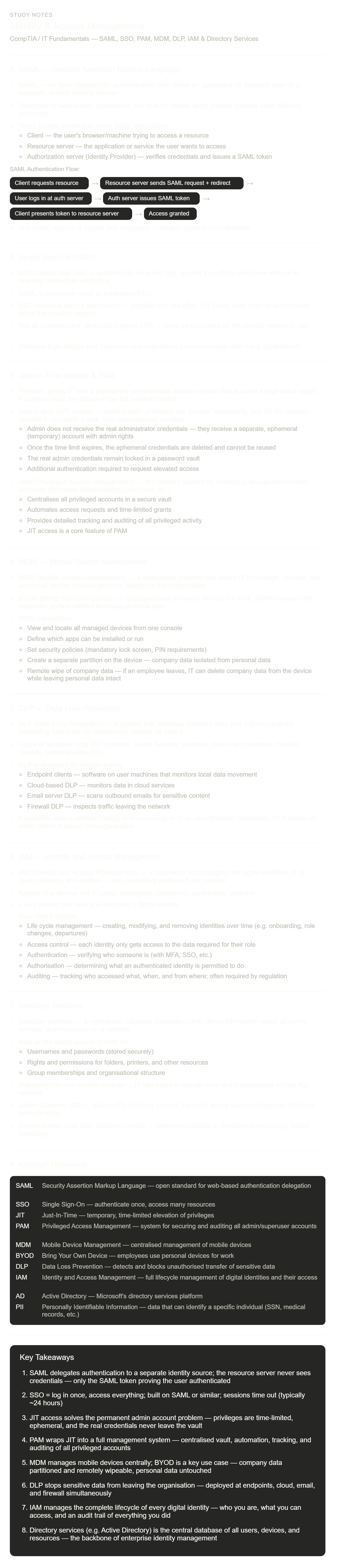
This video is very acronym-heavy — here are the ones worth understanding deeply rather than just memorising:
SAML vs SSO — they're not the same thing: SAML is the protocol (the technical method). SSO is the outcome (the experience of logging in once). SAML is one of the most common protocols used to implement SSO, but SSO can also be achieved with other protocols like OAuth and OpenID Connect.
The "password vault" concept in PAM: Think of it like a bank vault — the real admin credentials go in, and nobody takes them out directly. Instead, the vault dispenses a temporary copy with a time limit. Even the IT admin performing the task never sees the real credentials. This is sometimes called "vaulting" credentials and is a core feature of enterprise PAM tools like CyberArk or HashiCorp Vault.
Authentication vs Authorisation — a critical distinction:
Authentication = proving who you are ("I am Alice")
Authorisation = determining what you're allowed to do ("Alice can read files in /reports but not /payroll") Both are part of IAM, but they're separate steps. You can be authenticated (proven to be Alice) but not authorised (not allowed into that specific folder). This distinction appears constantly in security topics.
DLP in practice: DLP systems use pattern matching — they look for things that look like credit card numbers (16 digits in a specific format), Social Security numbers (XXX-XX-XXXX format), or keywords. When a user tries to email a file containing 50 credit card numbers, DLP intercepts it before it sends. This is why some corporate email systems flag or block certain attachments.
Active Directory and why it matters for help desks: AD is the first place a help desk technician goes for almost any user issue — reset passwords, unlock accounts, add users to groups, enable/disable accounts. Understanding AD's role as the central directory is fundamental to IT support work.
Defender Antivirus - CompTIA A+ 220-1202 - 2.2
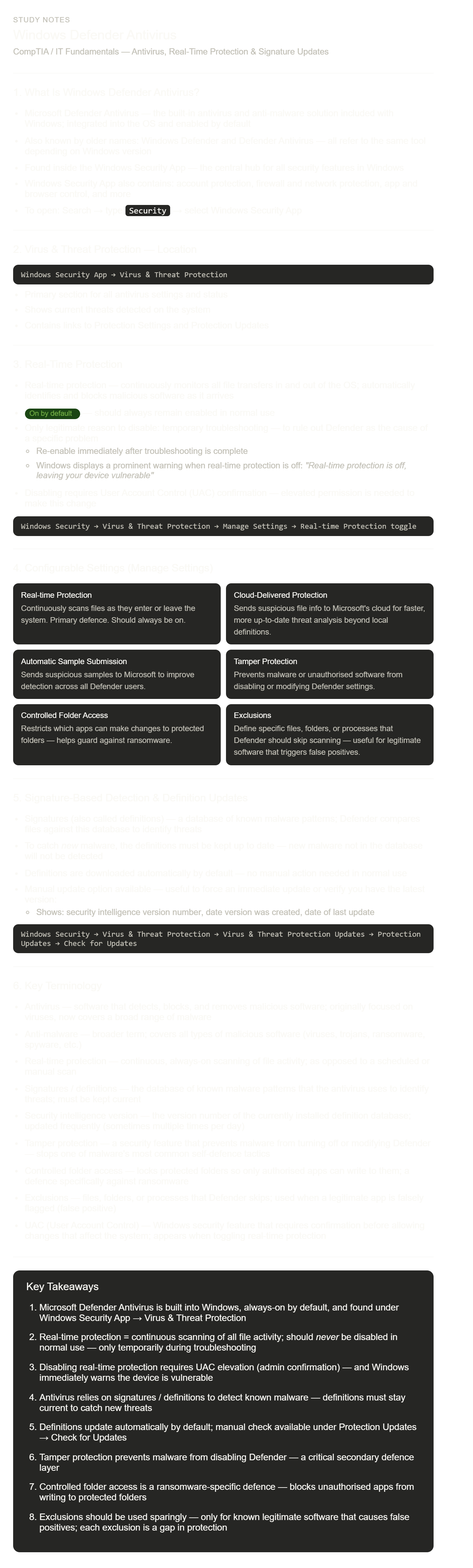
A few deeper explanations for this one:
Signature-based detection and its fundamental limitation: Signatures only catch known malware — threats that have already been analysed, documented, and added to the database. Brand-new malware (called zero-day threats) won't match any signature and slips right through. This is why cloud-delivered protection and automatic sample submission exist — they extend Defender's reach by leveraging Microsoft's global threat intelligence network, which sees threats from millions of machines simultaneously.
Tamper protection — why it matters: One of malware's most common first moves after infecting a system is to disable or weaken the antivirus before doing its real damage. Tamper protection specifically blocks this tactic — it prevents any software (including software running with admin privileges) from changing Defender's settings, except through legitimate Windows Update channels.
Controlled folder access and ransomware: Ransomware works by encrypting your files and demanding payment for the decryption key. Controlled folder access blocks any app that hasn't been specifically authorised from writing to protected folders (like Documents, Pictures, Desktop). If ransomware tries to encrypt those files, it gets blocked. It's one of the best built-in defences against ransomware specifically.
Exclusions — the double-edged sword: Exclusions are a necessary evil. Some legitimate software (particularly development tools, databases, or older enterprise software) triggers Defender's detection because it does things that look like malware behaviour. Excluding those paths solves the false positive — but each exclusion is a blind spot. Attackers who know an exclusion exists can place malicious files there intentionally.
The definition update timeline: New malware is discovered every day. Microsoft releases definition updates multiple times per day in some cases. A machine that hasn't updated its definitions in even 24 hours may be missing protection against recently discovered threats — this is why automatic updates should never be disabled.
Windows Firewall - CompTIA A+ 220-1202 - 2.2
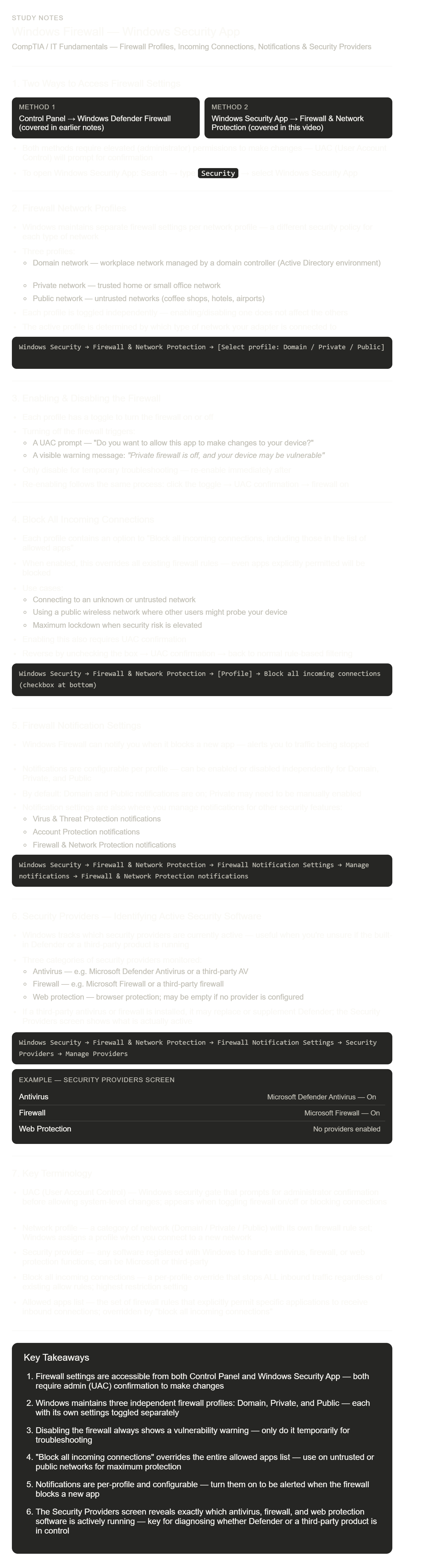
This is a shorter video but a few things are worth noting:
Why two paths to the same settings? The Control Panel firewall interface (covered in the very first video in your notes) gives more granular control — inbound/outbound rules, custom rule creation, advanced security. The Windows Security App firewall interface is a simplified, consumer-friendly view of the same underlying firewall. For everyday on/off tasks and notification settings, the Security App is quicker. For building specific rules, use the Control Panel's Advanced Security view.
"Block all incoming connections" vs just having the firewall on: The firewall being "on" still allows traffic that matches an existing allow rule. The "block all incoming connections" checkbox ignores those rules entirely — it's an emergency lockdown. Think of it like: the firewall being on is a bouncer checking IDs; block all incoming connections is locking the door completely. Useful if you're on hotel Wi-Fi and don't trust anyone else on that network.
Security Providers — the practical use case: If a user calls the help desk saying "my antivirus isn't working" or "I think I have two firewalls running," the Security Providers screen is the first place to check. It immediately shows what's actually active, what's been disabled, and whether a third-party product has taken over from Defender. It also gives you a direct link to open each provider's interface.
UAC and why it appears for firewall changes: UAC exists specifically to prevent malware from silently changing security settings. If UAC didn't gate firewall changes, a malicious script could just turn off the firewall without you knowing. Requiring a confirmation means a human has to actively approve the change — an extra friction point that stops automated attacks.
Windows Security Settings - CompTIA A+ 220-1202 - 2.2
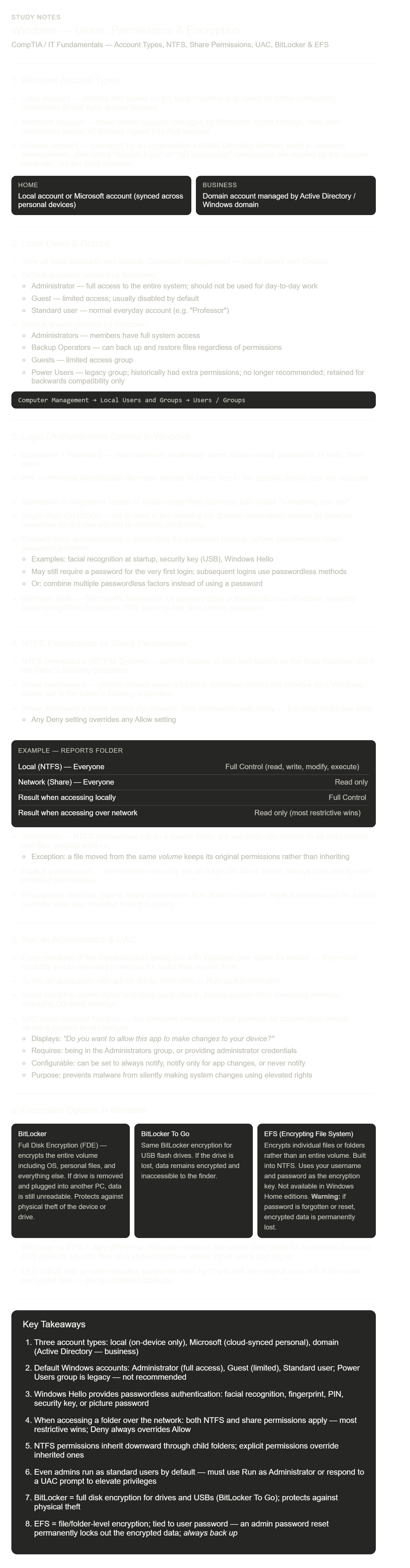
This is one of the most exam-dense videos in the series. A few things worth extra attention:
The "most restrictive wins" rule — a classic exam trap: Imagine NTFS says "full control" and the share says "read only." A user connecting over the network gets... read only. The share permission is more restrictive. Now flip it: NTFS says "read only" and the share says "full control." The user still gets read only — NTFS is now the more restrictive one. The rule always applies: whichever is tighter wins, regardless of which layer it comes from.
Inheritance and the move-vs-copy distinction: When you copy a file into a folder, the copy takes on the permissions of the destination folder (inherits). When you move a file within the same volume (e.g. drag from one folder to another on the same C: drive), the file keeps its original permissions — it didn't actually move physically, just the directory entry changed. If you move a file between volumes (e.g. C: to D:), it behaves like a copy — it inherits the destination's permissions.
Why EFS is dangerous: It uses your Windows login password as part of the encryption key derivation. If an IT admin resets your password through Active Directory (as they would if you forgot it), the new password can't decrypt data encrypted with the old one. The data is gone. This is a well-known support nightmare — which is why EFS is rarely used in enterprise environments without a properly configured Data Recovery Agent (DRA).
BitLocker and the TPM: The video doesn't mention it, but BitLocker typically uses a chip on the motherboard called a TPM (Trusted Platform Module) to store the encryption key. This is why BitLocker is seamless — you don't enter a password at every boot because the TPM provides the key automatically. If the drive is removed and put in another machine, there's no TPM to provide the key — hence data stays encrypted and inaccessible.
Windows Hello PIN vs password: A common misconception is that a PIN is weaker than a password. In Windows Hello, the PIN is actually tied to the specific device and the TPM — it can't be used remotely. A password, by contrast, travels across the network during authentication and can be replayed. The PIN never leaves the device, making it more resistant to phishing and remote attacks.
Active Directory - CompTIA A+ 220-1202 - 2.2
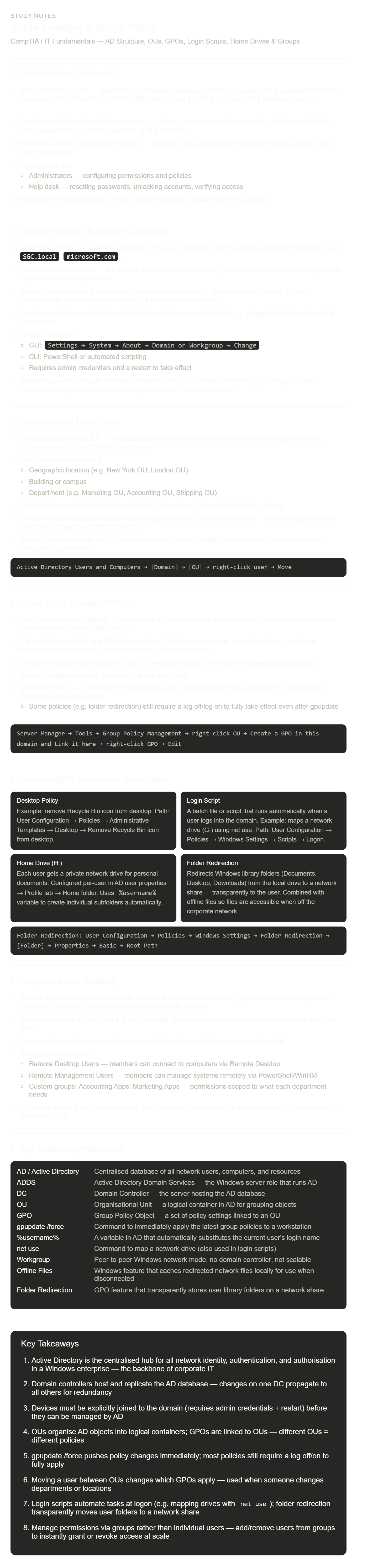
This is one of the most important videos in the whole series for anyone going into IT. A few concepts worth really internalising:
Why OUs exist — the policy problem: Without OUs, you'd either apply the same policy to every single person in the company, or configure each person individually (impossible at scale). OUs let you say "everyone in Accounting gets these policies, everyone in Marketing gets different ones" — and it all happens automatically at login.
The GPO inheritance chain: GPOs actually apply in layers — Local computer policy → Site → Domain → OU (LSDOU). Each layer can override the previous. An OU-level GPO is the most specific and takes priority. This is why you can have company-wide policies AND department-specific policies active simultaneously without conflicts.
%username% as a variable — elegant scalability: When you configure the home folder path as \\Cheyenne1\home\%username%, Active Directory substitutes each user's actual login name when applying the policy. So Rodney gets \\Cheyenne1\home\rmackay and Claire gets \\Cheyenne1\home\claire — all from one configuration. This is how one setting works for thousands of users.
Folder redirection + offline files — why both are needed: Folder redirection alone means "your Documents folder is actually on the server." But what happens when you take your laptop home with no VPN? Without offline files, Documents would be empty. With offline files, Windows keeps a local cache and syncs changes when you reconnect — completely transparent to the user.
Group-based permissions vs user-based — the scale argument: In a 2,000-person company, if you grant permissions to individual users, you have to touch 2,000 accounts individually. If you use groups, you configure permissions once on the group and just add users to it. When someone leaves, you remove them from all groups instantly — one action removes all access everywhere. This is also a security best practice: reviewing group memberships is far easier than auditing thousands of individual permission entries.
Domain controller replication and why it matters: If you only had one DC and it went offline, nobody could log in. Replication across multiple DCs means there's always a backup authentication source. Changes (like a password reset) replicate within minutes across all DCs globally.
Wireless Encryption - CompTIA A+ 220-1202 - 2.3
Here are structured notes from the transcript:
Wireless Network Security
The Core Problem:
Wireless signals travel through the air, meaning anyone nearby can intercept them
Three defenses are required to secure wireless communication:
Authentication — verifying who is allowed onto the network (via username, password, or other factors)
Encryption — scrambling data so interceptors cannot read it
Message Integrity Check (MIC) — a piece of data attached to transmissions that confirms the received information was not altered in transit
Why Encryption Matters:
Tools called wireless protocol analyzers can capture all traffic passing over the air instantly, even without being authenticated to the network
This means encryption must cover all wireless traffic, not just login credentials
The Evolution of Wireless Encryption Standards:
WEP — Wired Equivalent Privacy (pre-2002, original standard):
The earliest encryption method for 802.11 wireless networks
Found to have severe cryptographic vulnerabilities, making it fundamentally insecure
Its failure forced the industry to develop a replacement
WPA — Wi-Fi Protected Access (introduced ~2002):
Designed as a stopgap — a temporary fix to address WEP's flaws while a longer-term solution was developed
Used TKIP (Temporal Key Integrity Protocol) for encryption
A key advantage of TKIP: it ran on existing access point hardware, so no equipment replacement was needed
WPA2 — Wi-Fi Protected Access version 2 (introduced 2004):
The long-term successor to WPA, intended to be used for an extended period
Replaced TKIP with AES (Advanced Encryption Standard) — a significantly stronger encryption method
Downside: AES required more processing power, meaning older access points often had to be replaced
Still widely used today on many networks
WPA3 — Wi-Fi Protected Access version 3 (introduced 2018):
The current modern standard with several improvements:
Stronger AES encryption than WPA2
Improved security during the initial key exchange (the handshake that happens when a device first connects)
Opportunistic Wireless Encryption (OWE) — automatically creates unique encryption keys on open networks (e.g. coffee shop Wi-Fi), so traffic is protected even without a password
Access Point Configuration Modes:
Open System:
No password required; anyone can connect
Typical in hotels, coffee shops, and public spaces
WPA3's OWE feature can add encryption even here
Personal Mode (WPA2/WPA3-Personal):
Uses a pre-shared key (PSK) — a single password shared with everyone who needs access
Common in home networks
Everyone uses the same key, which is a security limitation
Enterprise Mode (WPA2/WPA3-Enterprise), also listed as 802.1X mode:
Each user has their own individual username and password
The access point connects to a centralized authentication database to verify credentials
Standard in business environments
Key advantage: if an employee leaves, their individual account is disabled — no need to change the password for the entire network
Key Takeaways
Wireless networks require three layers of protection: authentication, encryption, and message integrity (MIC) — because the air is an open medium anyone can listen to.
Encryption standards evolved from the broken WEP → temporary fix WPA/TKIP → stronger WPA2/AES → modern WPA3.
Pre-shared keys (PSK) are simple but share one password across all users — suitable for home use only.
802.1X / Enterprise mode gives every user unique credentials tied to a central database, making it the right choice for organizations where access needs to be individually managed.
WPA3 added protections for open networks through automatic encryption, closing a long-standing gap in public Wi-Fi security.
Authentication Methods - CompTIA A+ 220-1202 - 2.3
Centralised Authentication & AAA Protocols
Companies often use a centralised authentication server so employees can use the same username/password for multiple services (VPNs, Windows login, wireless, servers, etc.).
Example process:
User logs into VPN from home.
VPN concentrator/firewall sends credentials to an authentication server.
The authentication server verifies credentials.
If approved, VPN grants access to internal resources.
AAA (Authentication, Authorisation, Accounting)
Authentication = verifies identity.
Authorisation determines what resources a user can access.
Accounting = logs and tracks user activity.
AAA servers use specialised authentication protocols.
RADIUS (Remote Authentication Dial-In User Service)
One of the most common AAA protocols.
Centralises login credentials for many systems.
Used for routers, switches, firewalls, VPNs, wireless networks, and servers.
Allows the same credentials to work across many devices/services.
Works on many operating systems.
TACACS / TACACS+
TACACS = Terminal Access Controller Access Control System.
Originally created for dial-up access to ARPANET.
TACACS+ is the modern version with improved authentication and detailed responses.
Strongly associated with Cisco devices (routers/switches).
Often used in organisations with large Cisco infrastructures.
Kerberos
The main authentication protocol used in Windows domains.
Provides Single Sign-On (SSO).
User authenticates once, then can access multiple resources without repeatedly entering credentials.
Uses cryptography and mutual authentication.
User verifies server.
Server verifies user.
Helps protect against replay attacks and on-path attacks.
Uses a ticket-granting service (TGS):
User logs in once.
Receives a service ticket.
Ticket is presented to other network resources for access.
Native to Microsoft Windows environments.
Authentication Protocol Selection
Organizations choose protocols based on:
Existing infrastructure.
Device compatibility.
Current authentication servers.
Examples:
VPN software may only support RADIUS.
Cisco-heavy networks commonly use TACACS+.
Windows environments commonly use Kerberos.
Multifactor Authentication (MFA)
MFA = using more than one authentication factor.
Authentication factor categories:
Something You Know
Password.
PIN.
Something You Have
Smartphone authentication app.
Hardware token.
Something You Are
Biometrics (fingerprint, face scan, retina scan).
Somewhere You Are
GPS/location-based authentication.
Something You Do
Signature.
Behavioral actions.
MFA Notes
MFA increases security significantly.
Some methods are expensive (hardware tokens).
Others are inexpensive/free (mobile authenticator apps).