Pre-work Digital fundamentals week 2
What is a Programming Language?
Definition: Sets of instructions for computers to perform operations.
Types of Programming Languages:
Machine Codes: Numeric codes (binary) that are processor-specific (e.g., op-code)- only computer understands
Assembly Codes: More human-friendly, symbolic representations (e.g.,
add r1,r2).High-Level Programming Languages: Closer to human language; includes:
Examples: C, C++, Java, BASIC, FORTRAN.
Simpler syntax (e.g.,
uint8_t y = 10 + 23;).
MATLAB: A high-level scripting language similar to Python.
MATLAB User Interface
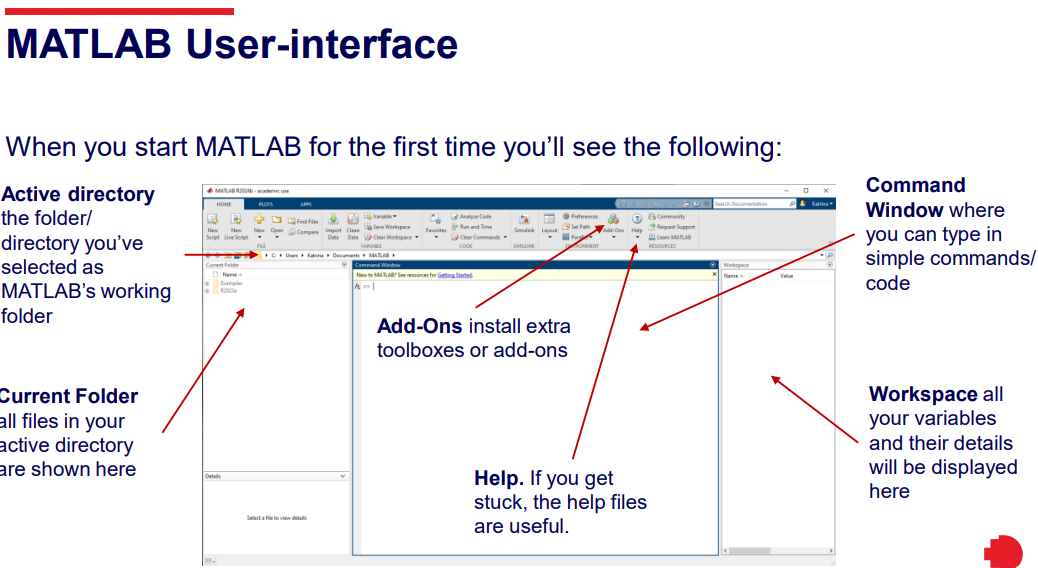
Key Components:
Command Window: Where commands/codes are entered.-user selection
Workspace: Displays all variables and their details.
Current Folder: Displays files in the active directory.
Active Directory: Selected folder for MATLAB’s working environment.
Help: Access help files when needed.
Add-Ons: Tools for additional functionality.
Script Files: More efficient way to write MATLAB code (create
.mfiles).
MATLAB Script Files
Assessment tasks use script files (.m files) for convenience.
Variables: Named storage for data (one type per variable).
Types of variables:
Integer (whole numbers)
Floating-point (decimals)
Character/String (letters/symbols)
Special Variable Types: Structs, tables, cell variables allow multiple data types.
Basic Numeric Variables in MATLAB
To create variables, use the format:
variableName = value;Defaults: Numeric variables are double-precision. Examples:
a = 1.5;mass = 20;lightVelocity = 2.99792e8;variables cannot contain spaces
semi colon stops the variables to being shown on the command window eg makes it cleaner
Variable naming: Use meaningful names. Example of calculations:
force = mass * accel;(Newton's Law)
Basic Character Variables in MATLAB
Creating character arrays:
Use single apostrophes, e.g.,
labelNorth = 'North';
Convert numbers to strings using
num2str():Example:
MyNumStr = num2str(MyNum);
Using Mathematical Operators
Basic operations in MATLAB:
Multiplication:
* or for array of numbers .* to multiply against the whole arrayDivision:
/ for array ./Addition:
+Subtraction:
-Powers:
^
Follow BODMAS rules for order of operations.
Example calculations:
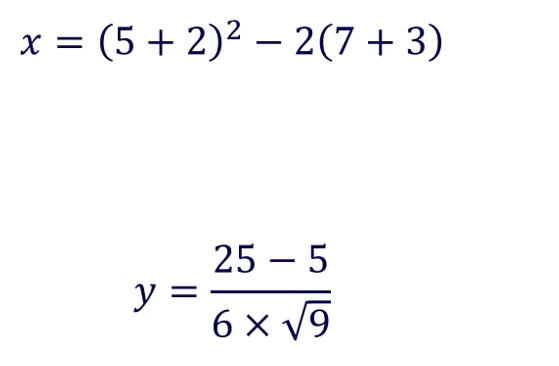
x = (5 + 2)^2 - 2 * (7 + 3);y = (25 - 5) / (6 * sqrt(9));
Debugging Tips and Tricks
Recognize and correct errors in MATLAB code effectively.
Error messages: Displayed in red, indicating the type and line of error.
Warnings: Displayed in orange, suggesting potential issues without stopping execution.
Debugging in MATLAB
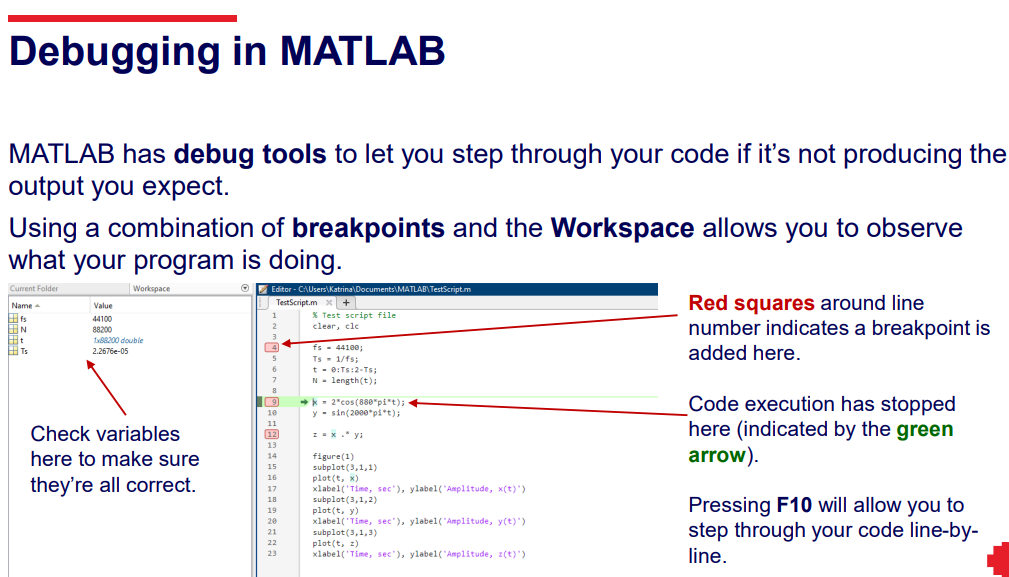
Use breakpoints to halt execution at specific lines.
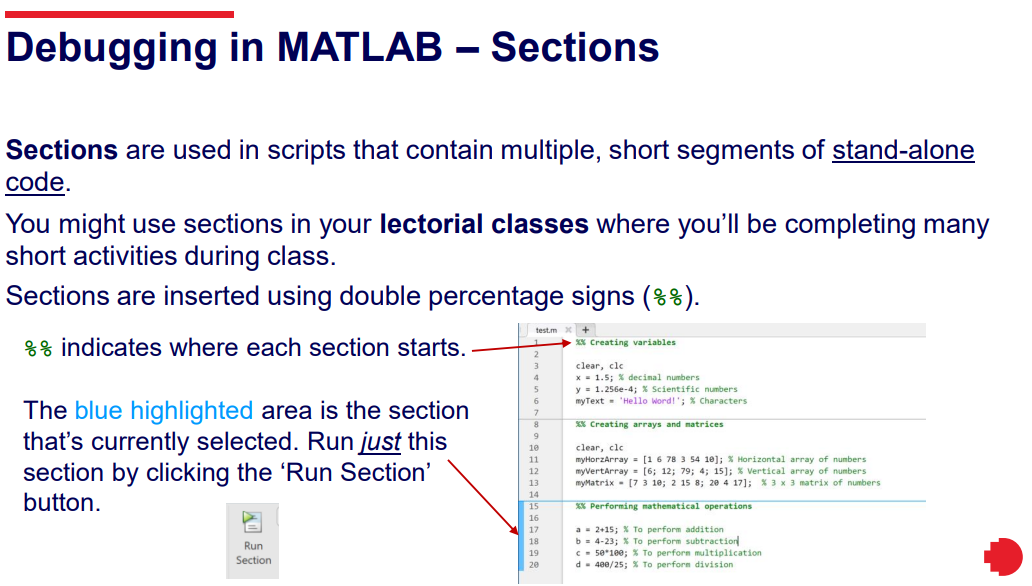
MATLAB sections are indicated by the %% symbol and separate your script file into multiple, stand-alone parts that can be run as a whole (using Run) or individually (using Run Section). Sections are useful when you have MATLAB scripts containing short code samples that are not necessarily related to each other.
Utilize Workspace to monitor variable states as you debug.
Commenting Code:
Use
%for single comments;%{for block comments.Essential for maintaining code clarity.
helps understanding fro whne coming back to the code
it easier to recall the purpose and functionality of specific code segments.
Importing Data into MATLAB
MATLAB’s capability to import/export various file types.
Import Wizard: For user-friendly data importing. Initiate through dragging files or using the Import Data button.
Supported formats: Excel, text, binary, audio, images.
To import files automatically using code, there are several in-built functions
available that allow you to import the following file formats:
• Delimited files (including spreadsheets, comma separated value files, etc.)
• Audio files (including .wav, .ogg, .aiff, .aifc, .au, .flac, .opus, .mp3, and .m4a)
• Image files (most image file formats, e.g., .jpeg, .png, .tiff, .bmp, .gif, etc…)
• Binary data (e.g. text files)
Specific Import/Export Functions
Delimited files:
readmatrix(): Imports numeric data.readcell(): Imports both numbers and text as cell arrays.
Audio files: Use
audioread()andaudiowrite()for importing and exporting audio data.Image files: Use
imread()to import images andimwrite()to export them.
Conclusion
The lecture provided an introduction to the MATLAB environment, basic variable creation, mathematical operations, debugging strategies, and file import/export functionalities.
Emphasized the importance of using script files for tasks and maintaining clean, commented code for clarity and troubleshooting.
Lecture Overview
Title: Digital Fundamentals Introduction to the MATLAB Environment
Lecturer: Dr. Katrina Neville
Contents Covered:
Navigating the MATLAB User Interface: Understanding the layout and functions of the various panels and windows in MATLAB.
Creating and Manipulating Variables: Learning how to create variables, assign values, and perform operations with them.
Debugging Techniques: Strategies for identifying errors in code and using the debugging tools in MATLAB effectively.
Importing Various File Types into MATLAB: Understanding the capabilities of MATLAB to work with different data formats such as Excel spreadsheets, text files, images, and audio files.
CRICOS Provider Number: 00122A | RTO Code: 3046
What is a Programming Language?
Definition: A programming language is a system of notations used to write instructions for a computer to execute specific operations. It enables interaction between humans and machines by providing a means to communicate tasks.
Types of Programming Languages:
Machine Codes: These are low-level codes directly executed by the computer's processor, consisting of binary numbers (0s and 1s) that are specific to each type of processor.
Assembly Codes: A more human-readable form of machine code, employing symbolic representations for operations (e.g.,
add r1,r2), making it somewhat easier to understand for developers.High-Level Programming Languages: These languages are designed for ease of use and are closer to natural languages. Examples include:
C, C++, Java, BASIC, FORTRAN: Each of these languages has its own syntactical rules but generally allows for more human-friendly programming.
Example of Simplified Syntax:
uint8_t y = 10 + 23;
MATLAB: A high-level scripting language similar to Python, known for its simplicity and effectiveness in numerical computations.
MATLAB User Interface
Key Components:
Command Window: The primary area where users can input commands and see immediate results from executed code.
Workspace: A window that provides a detailed view of all current variables and their attributes (values, sizes), assisting in tracking data management.
Current Folder: Displays the contents (files and folders) of the current working directory that MATLAB is accessing.
Active Directory: The selected folder utilized by MATLAB for reading and saving files.
Help: An integrated assistance tool offering documentation and tips to guide users in MATLAB usage.
Add-Ons: A feature that allows users to install additional tools and applications to enhance MATLAB's capabilities.
Script Files: Efficient for writing long amounts of MATLAB code as
.mfiles, enabling easy execution and processes.
MATLAB Script Files
Importance in Assessments: Assessment tasks often require the use of script files to streamline coding processes and provide organized code structure.
Variables: Containers for storing data that can only hold a specific type of information.
Types of Variables:
Integer: Whole numbers without fractions.
Floating-Point: Numbers that represent real numbers, allowing fractions (decimals).
Character/String: Data types that store letters, symbols, or strings of text.
Special Variable Types: Including structs, tables, and cell arrays, which enable the storage of different data types in a single variable.
Basic Numeric Variables in MATLAB
Creating Variables: Utilizes the syntax:
variableName = value;Default Data Types: Numeric variables are by default stored in double-precision format. Example initializations include:
a = 1.5;mass = 20;lightVelocity = 2.99792e8;
Variable Naming Conventions: Naming should be descriptive, making it clear what the variable represents. Example of a physical calculation:
force = mass * accel;representing Newton's Second Law of Motion.
Basic Character Variables in MATLAB
Character Arrays: Defined with single quotation marks. For example,
labelNorth = 'North';Converting Numbers to Strings: Use the function
num2str()to transform numerical values into string format. Example conversion:MyNumStr = num2str(MyNum);
Using Mathematical Operators
Overview of Operations: Basic mathematical operations supported in MATLAB include:
Multiplication:
*Division:
/Addition:
+Subtraction:
-Exponentiation:
^
Order of Operations: MATLAB follows PEMDAS/BODMAS rules for mathematical expressions, determining the sequence of operations. Example expressions:
x = (5 + 2)^2 - 2 * (7 + 3);y = (25 - 5) / (6 * sqrt(9));
Debugging Tips and Tricks
Error Handling: Recognizing and troubleshooting errors that may arise in the code is crucial. Error messages appear in red to indicate issues, while warnings appear in orange, alerting users to potential problems.
Debugging Techniques in MATLAB:
Utilize breakpoints to pause execution at specific code lines and examine variables.
Leverage the Workspace to monitor variable states during debugging sessions.
Commenting Code: Employ comments to clarify code logic, using
%for single-line comments and%{%}for block comments, fostering better code management.
Importing Data into MATLAB
Capability Overview: MATLAB supports the import/export of various data formats.
Import Wizard: A user-friendly tool to facilitate the importing of data through dragging files or using the Import Data button.
Supported Formats Include:
Excel, Text, Binary, Audio, Images: Each requiring specific functions for data manipulation.
Specific Import/Export Functions:
For delimited files: use
readmatrix()to import numerical data, andreadcell()to import mixed data types as cell arrays.For audio files: functions such as
audioread()andaudiowrite()handle audio data inputs and outputs effectively.For images: leverage
imread()to import images andimwrite()for saving exported images.
Conclusion
This lecture provided an extensive introduction to the MATLAB environment, focusing on the foundational aspects of variable creation, mathematical operations, debugging strategies, and file import/export functionalities.
It emphasized the importance of using script files for efficient coding in MATLAB and the necessity of maintaining clean, well-commented code for clarity and troubleshooting.