Operational Procedures
4.1
Ticketing Systems
Ticketing Systems- Used to document issues that are occurring, assigning them to certain support teams, resolving problems, and reporting it
Done by help desks. They take the calls, evaluate, determine the next step, and assign the ticket.
Triage- The process of prioritizing and categorizing tickets based on urgency and impact, ensuring that critical issues are addressed promptly while less severe problems are managed accordingly.
To make a ticket-
Gather information on the user and device, and then describe the problem.
Then apply context to categorize the problem, assign severity, and determine if escalation is required
Do all of this concisely, writing about problem, progress, resolution
Use Active Directory to know who has the issue and who is reporting the problem.
Ensure this contact info is up to date.
Sometimes this is automatic.
Device Description
What device it is (laptop, printer, projector. etc)
Describe issue (very important)
Determine next step (escalate, hand off, investigate more)
Categories
Change request
Hardware request
Problem investigation
Hardware failure
On-boarding/off-boarding
Severity
Low, medium, high, critical
Depends on the issue and who reports it
Escalation
Difficult or unique problems can be handed off to specialists or new tiers
Progress Notes
Log how the problem is resolved step by step, important to find the final solution
Document changes or extra info
Problem Resolution
Document the exact solution
It may be referenced if the problem occurs again
SOP (Standard Operating Procedure)
Software package/custom installation procedure
New-user/onboarding setup checklist
User off-boarding checklist
One ticketing system in an organization makes issues way more easy and cheap to solve, combining several resources.
Asset Management
CMDB (Configuration Management Database)- The central database that records every configuration item and their relationships.
It doesn’t just record these things. It also:
Associates devices with support tickets, device make/model
Associates them with financial records and audits
Tracks depreciation of the devices
Adds an RFID asset or barcode tag to track them and make them easier to troubleshoot from helpdesk
Inventory List- A fundamental record of a company's hardware and software assets detailing equipment types, quantities, and basic identifying information
IT departments use the CMDB to see which users use which devices.
It also shows which devices are under warranty and info about software licenses.
Procurement Life Cycle- The process of an organization purchasing IT equipment and then giving them to the user.
It takes requests from users, tracks the approval of these orders, negotiates with suppliers, and then places an order
This process should be monitored and not a free for all.
Document Types
Incident Reports- Provide information on what led up to an incident, the incident itself, and what was done to respond.
Most organizations have a detailed incident response plan.
Reports and documentation are stored and analyzed for auditing and to prevent further issues.
Standard Operating Procedures
Know when downtime is occurring
Know who to contact when an exact issue occurs
Know what processes are need for software installation/upgrades
All of this is made possible with documentation.
On-Boarding- The process of allowing a new employee to start working, requiring them to sign IT agreements (usage policies), creating account(s) for them (IAM), and providing them with hardware.
Off-Boarding- The process of re-allocating resources when an employee leaves, deciding what happens to the hardware they used, their accounts, and their data.
SLA (Service Level Agreement)- Documents that outline the expected level of service between a service provider and a customer.
Can be used with third party provider or internally
An SLA will declare that there is a maximum level of downtime for a service, how any issues will be resolved, and what the customer needs to do to help resolve specific issues.
Knowledge Bases
External Sources- Documents that can provide information about the IT resources you are using.
Internal Documentation- Institutional knowledge about an organization’s resources provided internally.
Often a searchable archive that is part of helpdesk software.
4.2
Change Management
Changes need to be made all the time.
Changes sometimes cause more problems than they solve. This can be super bad (Crowdstrike).
Change Management- Provides processes with making changes, such as frequency, duration, steps, and rollback.
Major objective is to avoid downtime.
Another major objective that helps this is to schedule these changes properly.
Change Request Forms- Paperwork that formally requests new updates and transparently handles them.
Someone fills out a change request form. You need to determine the purpose, identify the scope, and then schedule it.
Determine the consequences of the change, and evaluate its risk.
Purpose
Purpose is very important. New features? Bug fixes? Performance boost? Security?
Are these worth the cost and risk of failure or downtime?
Scope
Determine how much the change can affect. It can be very far reaching.
Ensure as many possibly affected systems are recognized before the change. This is hard, but important.
Determine how long it can take and ho w much downtime it can require.
Scheduling
Some changes are made o demand. Some rely on scheduled change windows / downtime.
Change freeze occurs when no changes are allowed for any reason.
Rollback Plan- The set of processes and procedures that tell someone how to get back to the original configuration if something goes wrong.
Sometimes it is easy (with a VM). Sometimes it is hard (firmware).
Always back up system.
Backup Plan- Completing the mission of change with secondary paths.
Before you start an upgrade process, have a Plan B, Plan C, Plan D.
Sandbox Testing- Isolated testing environment that provides safe simulations before software is deployed.
Excellent to ensure that software will work and won’t cause downtime.
Sandbox can also test rollback plan for extra safety.
IT Team, business customers, and the stakeholders relying on the software are all part of change process.
Standard Change- Low risk, pre-approved, common change.
Ex: Replacing a monitor
Normal Change- Medium risk, not urgent, must follow change management process.
Ex: Replacing a core switch
Emergency- High risk, must be implemented quickly.
Ex: A patch for a public facing zero day
Risk Analysis
Determine a risk level of a change.
Could be really risky to make the change- it could not fix anything, or it could break something else.
Could be really risky to not make the change- security weakness, application vulnerability, downtime
Be ready.
4.3
Managing Backups
Restoring from backup is super valuable.
So keeping backup is extremely important.
Backups should be done frequently.
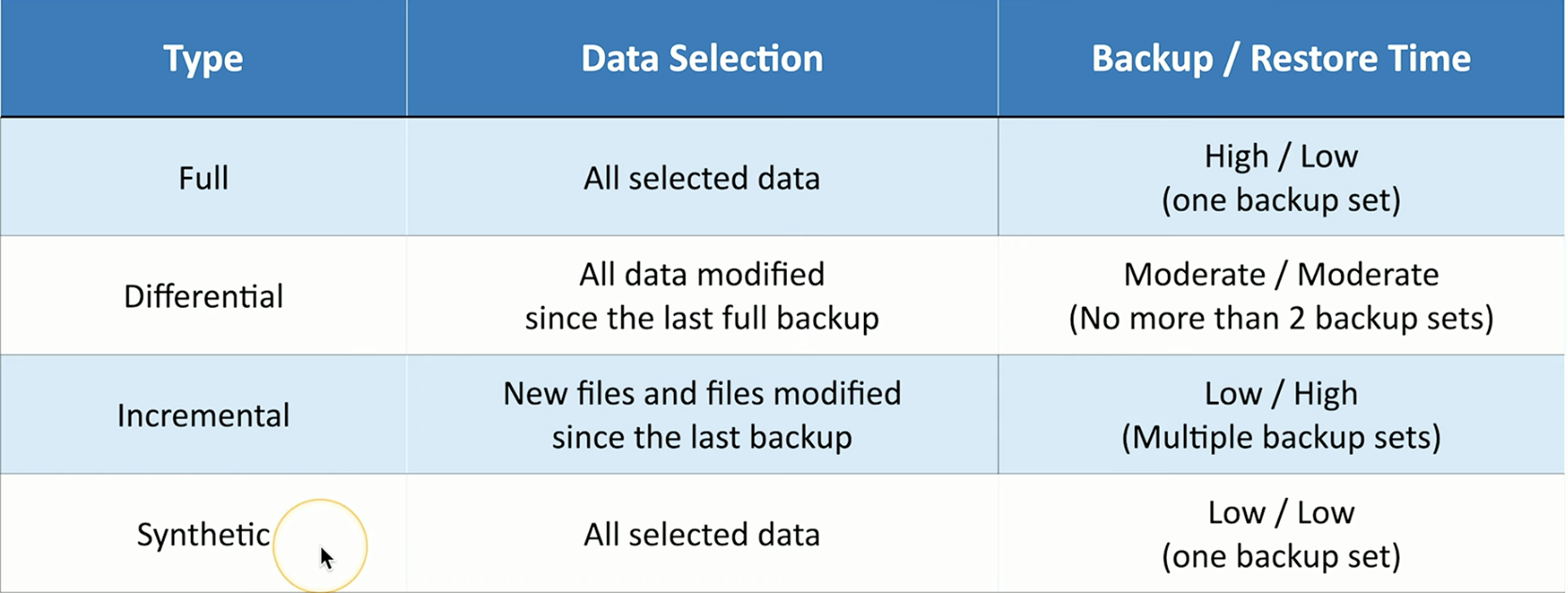
Full Backup- Backs up everything. All OS and files.
Slow and impractical. Uses storage.
Differential Backup- Full backup is taken first, and then subsequent backups contain data changed since the last full backup.
Restoring requires the last full backup and then the last differential backup.
Incremental Backup- After an initial full backup, each incremental backs up data changed since the most recent backup.
Still usually smaller than full backup.
Synthetic Backup- Creates a full backup without actually performing one. It creates full backups from previous backups.
Fast and uses less bandwidth.
Backup Testing- The procedure of ensuring that a backup will work.
Also called disaster recovery testing- you simulate the system going down, then restore from backup.
Performed periodically in audits.
Recovery
In-place / Overwrite- Original files are not viable, new files replace them. Often used when re-imaging.
Alternative Location- Prevents data loss by deploying the backup on a separate system so the original one isn’t lost.
On-Site Backups- No internet link required, data is immediately available, less expensive
Off-Site Backup- Backup data transferred over internet or WAN, data is available after a disaster, restoration can be done anywhere.
Organizations often use both.
GFS (Grandfather-father-son) Rotation- Creates three separate backup rotations in intervals.
Grandfather is done once a month, father is once a week, son is once a day.
3-2-1 Backup Rule- A rule that says 3 copies of data should always be available, 2 different types of media (local, NAS) should be storing them, and 1 copy should be stored offsite (WAN, cloud)
4.4
Managing ESD
Static Electricity- An imbalance/accumulation of electrical charge on the surface of an object.
ESD (Electrostatic discharge)- When static electricity suddenly transfers
When its discharged, it is very damaging to computer components. Silicon is sensitive to it.
Controlling ESD
Done in several ways.
High humidity makes it less likely
Using your hand to self-ground (touching exposed metal chassis before touching component)
Unplugging power connection is often an essential step, but check procedures.
Anti-Static- Connect your wrist to a metal part of the computer to discharge electricity buildup
Can be a wrist strap for maintenance, or a pad to put device on, or a mat to stand on, or a bag to carry with
Handle components by edges just to be safe.
Store them in HVAC regulated environment (50-80 degrees F), avoid high humidity, store them safely
Safety Procedures
Remove all power sources before working on hardware.
Don’t touch what you don’t recognize. The capacitors are the dangerous things.
The power supplies are the real risk. But displays and laser printers can also have high voltage.
Electrical Grounds are crucial to ensure safety. Always verify that devices are properly grounded to avoid electric shocks and equipment damage.
They draw away
Cable Management
Avoid trip hazards
Use cable ties or velcro to group them
Lift things safely and with proper form.
Fire extinguisher is a good solution to a fire. Never use water/foam to put out an electrical fire.
Wear safety goggles if dealing with chemicals (printer repair, toner, batteries)
Use air filter mask (dusty computers, printer toner)
Follow local regulations and building codes.
4.5
Environmental Impacts
SDS (Safety Data Sheets)- Regulated by OSHA to provide hazardous materials and chemicals contained in a product.
Also called MSDS (Material Safety Data Sheet)
Very necessary in IT.
Batteries, displays, and toner fall under it.
It provides information about the product, manufacturer, composition, hazard info, first aid info, fire prevention, and more.
Handling Toxic Waste
Batteries (dispose at local hazardous waste facility)
Toner (recycle and reuse them, often with a return box)
Refer to MSDS for instructions on them.
Room Control
Devices need constant cooling- keep equipment well-ventilated and in HVAC space.
Humidity should be high to prevent ESD risk, but not so high it causes condensation/corrosion
Uninterruptible Power Supply- The backup power or supply used for under-voltage events.
Standby UPS
Line-interactive UPS
On-line UPS
UPS can be automatically shut down, have various capacities, and use different outlets.
Surge Suppressor- An electrical hardware device plugged into a power line that detects sudden voltage spikes and redirects any excess electricity safely into the ground.
More joules of potential suppression is better.
Higher surge amp ratings is also better.
UL 1449 Voltage Let-Through Ratings indicate maximum voltage that can flow through. 500, 400, or 330 volts. Lower is better.
4.6
Incident Response
Chain of Custody- Documented chronological record of the collection, handling, transfer, storage, and disposition of evidence.
First Response Rules
Identify the issue
Report it to the proper channels (management or law enforcement)
Collect and protect information relating to the event
Copy The Drive
Can copy it bit-for-bit, or byte-for-byte
Remove physical drive
Use a hardware write-blocker so it is preserved
Load it up with a software imaging tool
Use hashes for data integrity
Overall, when copying a drive, data integrity and preservation are the priority.
Documentation
For internal or legal use
Summary of the security event
Detailed explanation of data acquisition (step by step)
Findings of data
Your professional opinion on the conclusion
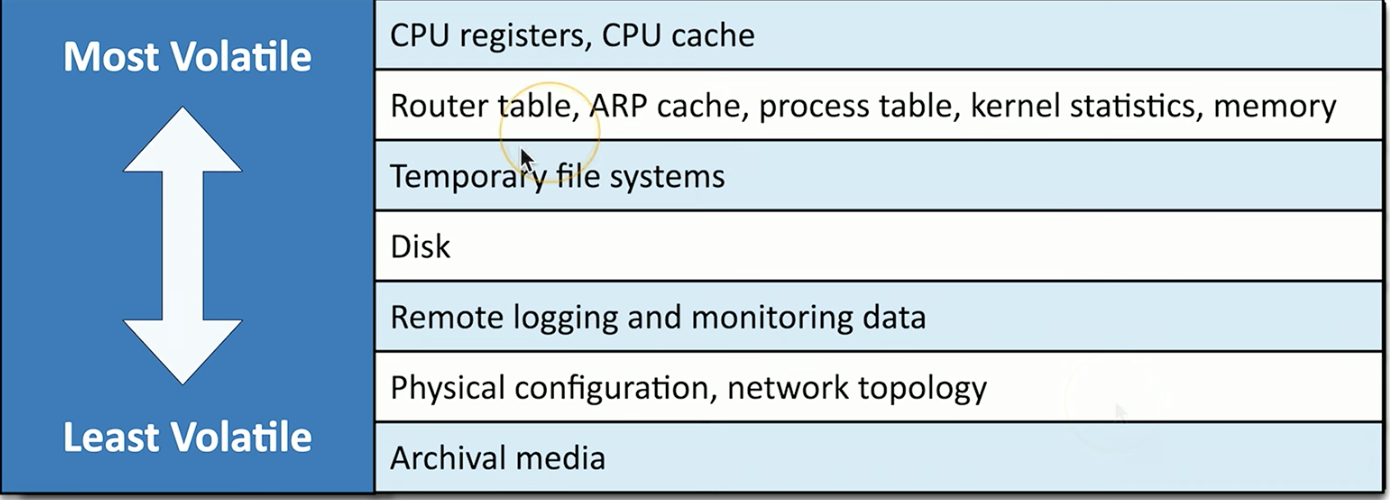
Order of Volatility
Some media is more volatile than others.
Privacy Licensing, and Policies
Software Licenses- The permission, terms, and conditions of use for software that also details number of copies and backup options.
Licenses can be per-seat (per user), concurrent (shared among pool of users), or ongoing subscriptions paid periodically.
Personal License- Designed for the home user, usually associated with a single device.
Corporate Use License- Used for enterprises that can per-seat or for a specific site.
Perpetual License- Allows a customer to use a specific version of a software product indefinitely after making a single, upfront purchase
FOSS (Free and Open Source Software)- Software whose license permits users to access the source and grants specified rights to use, modify, and redistribute it.
Closed Source / Commercial- Uses a private source code in which the end user is given a compiled executable.
EULA (End User Licensing Agreement)- An agreement that determines how software can and cannot be used, including restrictions on installing, copying, and distributing.
NDA (Non-Disclosure Agreement)- Confidentiality agreement between parties, in which information can’t be disclosed and is protected. Could be unilateral (one way) or bilateral/multilateral (mutual).
PCI DSS (Payment Card Industry Data Security Standard)- The industry standard for protecting credit cards, containing six objectives.
Built and maintain a secure network and systems
Protect cardholder data
Maintain a vulnerability management program
Implement strong access control measures
Regularly monitor and test networks
Maintain an information security policy
Personal Government-Issues Information- Used for government services and cos (SSN, driver’s license), must be protected, but has varying restrictions based on local laws.
Government databases have been breached and millions have been affected.
PII (Personally Identifiable Information)- Any data that can identify an individual.
Handling PII is a key part of privacy policy.
Not everyone realizes the importance of this data- just your name and address can compromise you.
PHI (Protected Health information)- Health information associated with an individual (health status, healthcare records, payments, and more).
Data must be shared between providers but still remain secure.
Data Retention Requirements can be based around several needs and vary by organization.
DRM (Digital Rights Management)- A set of access control technologies used by content creators to control how digital software, media, and hardware are used
AUP (Acceptable Use Policy)- Documentation that sets clear guidelines for acceptable usage of an organization’s technology resources, ensuring compliance and reducing risk.
Splash Screens- A message, logo, or graphic shown during startup or login, which can be informational or required legally.
4.7
Professionalism
Dress nicely.
Match the attire of your environment. Formal vs business casual.
Don’t be judgmental. Be culturally sensitive. Be a teacher, not a critic.
You will make big mistakes. So treat others the way you wish to be treated.
Limit interruptions. No personal calls, no texting, no social media.
Apologize for delays and unintended distractions.
Contact the customer if you are going to be late.
Use appropriate professional titles when applicable.
Create an environment for conversation- in person, be open and inviting- on the phone, be in a private space.
Learn how to de-escalate during technical problems. Do not be argumentative or defensive.
Just listen and communicate.
Maintain confidentiality. Be trustable with private info. Use discretion and professionalism when discussing experiences.
Communication
Communication is actually one of the most useful skills for the troubleshooter.
It is very hard to master, but it incredibly valuable.
Rules:
Avoid Jargon
Avoid abbreviation, acronyms, and slang.
Communicate in terms others can understand.
Maintain a positive attitude
Have a positive tone of voice.
Partner with your customer and projecting confidence.
Being positive and giving helpful options is necessary if something can’t be fixed.
Avoid Interrupting
It ruins communication flow.
Actively listen and take notes
Especially important on the phone.
Clarify Customer Statements
Ask pertinent questions. This is extremely important. Just focus on details.
Repeat your understanding of the problem back to the customer.
Setting Expectations
Offer different options (repair or replace)
Document everything (especially with email)
Keep everyone informed (even if status is unchanged). Can be EXTREMELY valuable customer service.
Follow up afterwards.
4.8
Scripting Languages
There are a lot of ways to automate processes.
Scripting is using coding to automate a process or task.
Use the right tools.
Batch Files
.bat file extension
Runs at a command line in Windows
Builds a batch file
Windows PowerShell
Command line for system admins
Provides wide range of functionality
Included with Windows 10 and 11
Uses cmdlets (command-lets) to access or change things in an OS
.ps1 file extension
Become familiar with it.
Windows Virtual Basic Scripting Edition (VBScript)
General purpose scripting in Windows
Back end web server scripting, desktop scripting, scripting inside Microsoft Office apps
.vbs file extension
Shell script
Scripting inside the Unix/Linux shell
Starts with a hash-bang, #!, to designate Unix/Linux shell script
JavaScript
.js file extension
The scripting language used inside of a browser
Adds interactivity to HTML and CSS
Not related at all to Java.
Python
General purpose scripting language
.py file extension
Works across many OS, popular in various fields
Type | Extension |
|---|---|
Batch |
|
PowerShell |
|
VBScript |
|
Shell |
|
JavaScript |
|
Python |
|
Scripting Use Cases
Basic Automation
A script that does something you don’t want to deal with
The script can also monitor and resolve problems before they happen
Much faster than a user, no human error
Automates mundane tasks
Restarting Machines
Turning it off and back on again is a troubleshooting task
Scripts can do this to a remote server- they apply application updates or security patches and then reboot them
Remapping Network Drive
Login scripts connect the user to shared network drives during boot
Common task during startup
Automates software changes
Maps a drive to the repository
Adds or moves user data
Application Installation
Automatically installs applications
Often a built-in feature for apps themselves
Can be on-demand or automatic
Steps will be to map application installation drive, install app without any prompts, disconnect the drive, and then reboot
Automated Backups
Backups are time consuming
Scripts can automatically back up storage during off-hours to save time
Information Gathering
Get specific information from a remote device (monitoring and reporting)
Performance monitoring from a remote device
Inventory management (check hardware or software configuration)
Security and vulnerability checks (ensure latest updates)
Initiating Updates
Scripts can automatically update OS, device drivers, and applications
Other Scripting Considerations
Do not make a script that can expose you to malware
Do not make a script that makes inadvertent changes to system settings
Do not make a script that mishandles resources and crashes system
TEST scripts first.
4.9
Remote Access
RDP (Remote Desktop Protocol)- The Microsoft protocol for accessing a desktop from a remote location.
Clients (applications that use RDP) can be found on Mac OS, Linux, and others.
VNC (Virtual Network Computing)- Open source option that uses RFB (Remote Frame Buffer) protocol to access remote desktops, with clients from various OSes.
You can find if someone has a Microsoft Remote Desktop Service is if they have TCP/3389 open.
VPNs (Virtual Private Networks)- Special communication channel that creates an encrypted tunnel over a public network, allowing a remote user(s) to access a private network from the internet.
VPN Concentrator- The device on your network, often part of your firewall, that manages the VPN connections, encrypts the data, authenticates VPN users, and routes traffic through the VPN.
Can be deployed with special hardware, or it can be software based
Security is critical, so access to concentrator but require secure authentication. They almost always use MFA.
Client-to-site VPN- On-demand access to a private network for a user with a remote device
You connect to the VPN Concentrator over the internet. The Concentrator authenticates your traffic and then lets you into the network.
Site-to-site VPN- Connection between two remote LANs through a VPN concentrator
SSH (Secure Shell)- The communication standard used to access a remote server securely. Uses TCP/22.
Telnet was the old, insecure protocol that did the same thing .
SSH Security
Network traffic is encrypted
Public/private key pair can be used for authentication
Root/admin accounts are often disabled
Password-based authentication is also often disabled
Connections to remote servers can be restrictive and only allow specific IP addresses to use SSH
MSP (Managed Service Provider)- Third party option to handle IT services, providing support for infrastructure management, security, and compliance needs.
RMM (Remote Monitoring and Management)- Tool that an MSP will use to ensure the oversight and maintenance of client systems.
RMMs are targets.
Access to an RMM console must be significantly limited. Use MFA, and do ongoing audits.
SPICE (Simple Protocol for Independent Computing Environment)- A lightweight protocol to view and control the remote display of a virtual machine.
Compatible with many OSes and used for many different devices.
Feels like a normal desktop due to its efficient graphics rendering and fast response times.
WinRM (Windows Remote Management)- A command line tool that runs scripts on a remote Windows server.
Administrators use it, and scripts they make can run on the remote device.
Commonly used by third parties.
Fast alternative to RDP or interactive connections.
Third-Party Tools
Screen sharing
Video conferencing
File transfer (cloud based)
Desktop management for end-user devices and OSes
All need good security.
4.10
Managing AI
Artificial Intelligence.
Designed to meet or exceed human intelligence with technology.
Was science fiction before it became real. Took decades to develop.
Generative AI / GenAI is the use of AI to generate content based on existing data (text, audio, video).
AI is everywhere now.
Search engines (provides results and answers detailed questions)
Email applications (for summaries)
Graphics editors (fills/removes image content)
Appropriate AI Use
Using AI to process large data repositories.
They can look through terabytes of log files to identify security issues.
Automation.
Identifies issues and corrects them without intervention.
Healthcare.
Provides diagnostics and qualifies drug interactions.
Communication
Language translation, transcripts, and proofreading.
Inappropriate AI Use
Impersonating a real person
Unethical shortcuts for software development
Plagiarism and paraphrasing without citation
Directly filling out forms and reports
AI Bias
AI only knows what it is told
AI can provide bias answers based on data it is told
Algorithms themselves can be biases
AI Hallucinations
When AI completely misinterprets data
It can confidently tell you something fully wrong
Many examples of it, happens to even the best engines
AI Accuracy- AI metric used to measure models; they are built by making the AI create predictions and then comparing them to known test data.
Public AI
Openly available on the internet
Private AI
Internal AI engines that contain company data and are only used by the organization
Information put into an AI engine like passwords and encryption keys can be retrieved by others. So using Private AIs makes this less likely.