Week 6 pre-work Anonymous and User-Defined Functions in MATLAB
Digital Fundamentals MATLAB Programming III: Anonymous Functions and User-Defined Functions
Overview of Functions in MATLAB
Functions are modular blocks of code that perform specific tasks in programming languages, including MATLAB.
Functions are invoked whenever specific tasks are required within the code.
Types of functions in MATLAB:
Inbuilt Functions: Predefined functions provided by MATLAB (e.g., sin(), cos(), plot()).
Anonymous Functions: Simple, short functions defined in a single line (e.g., h = @(x) x^2).
User-Defined Functions: Custom functions created by the user and saved as .m files.
Inbuilt Functions
Inbuilt functions are readily available in MATLAB and often used for common operations, such as:
Mathematical functions: sin(), cos(), exp(), sqrt(), log(), log10(), log2()
Specialized functions: downsample(), interp1(), fft(), fftshift()
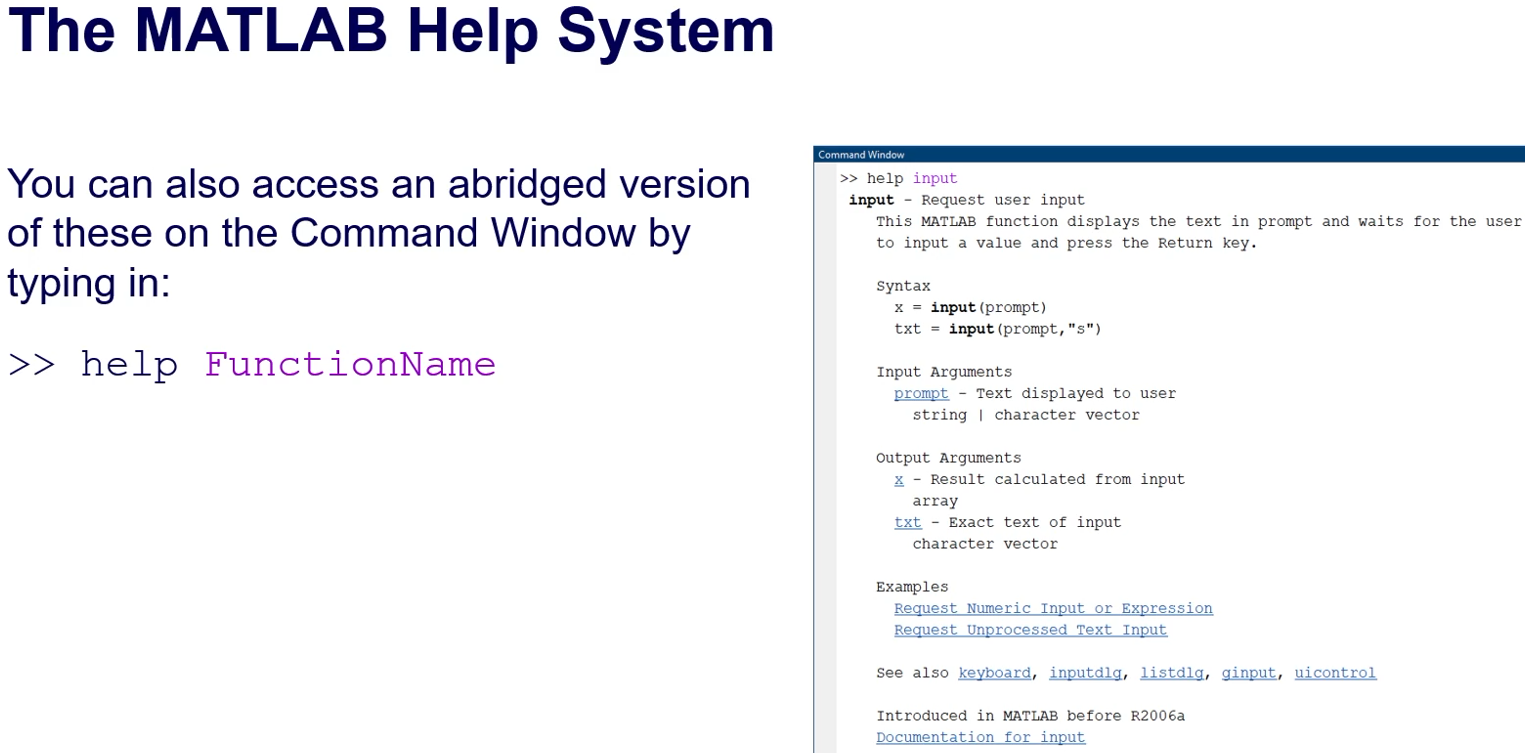
Accessing documentation: Use the MATLAB Help Center or use the
help FunctionNamecommand in the Command Window for usage instructions. MATLAB HELP DOCUMENTS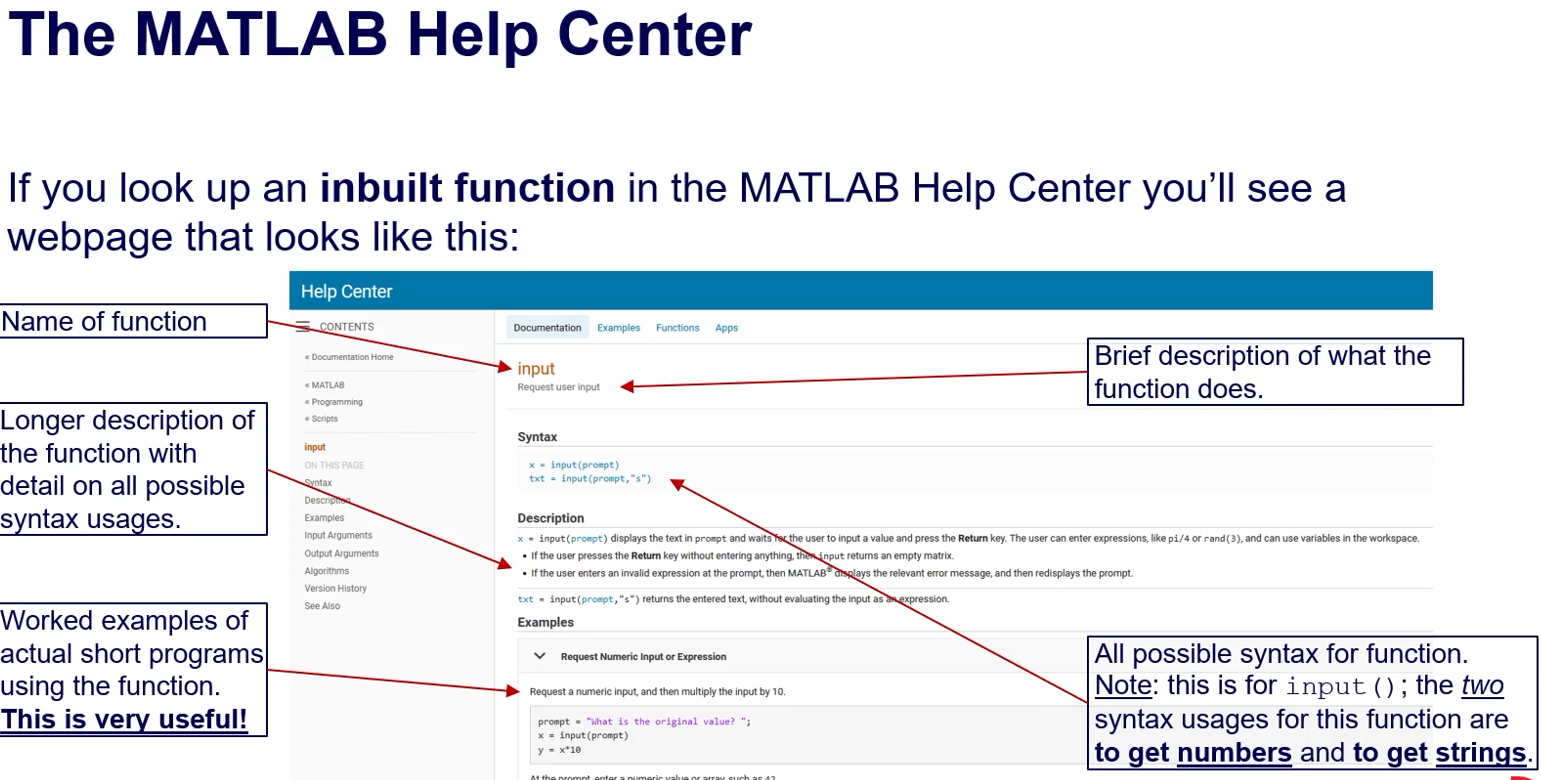
Function Attributes: Inputs and Outputs
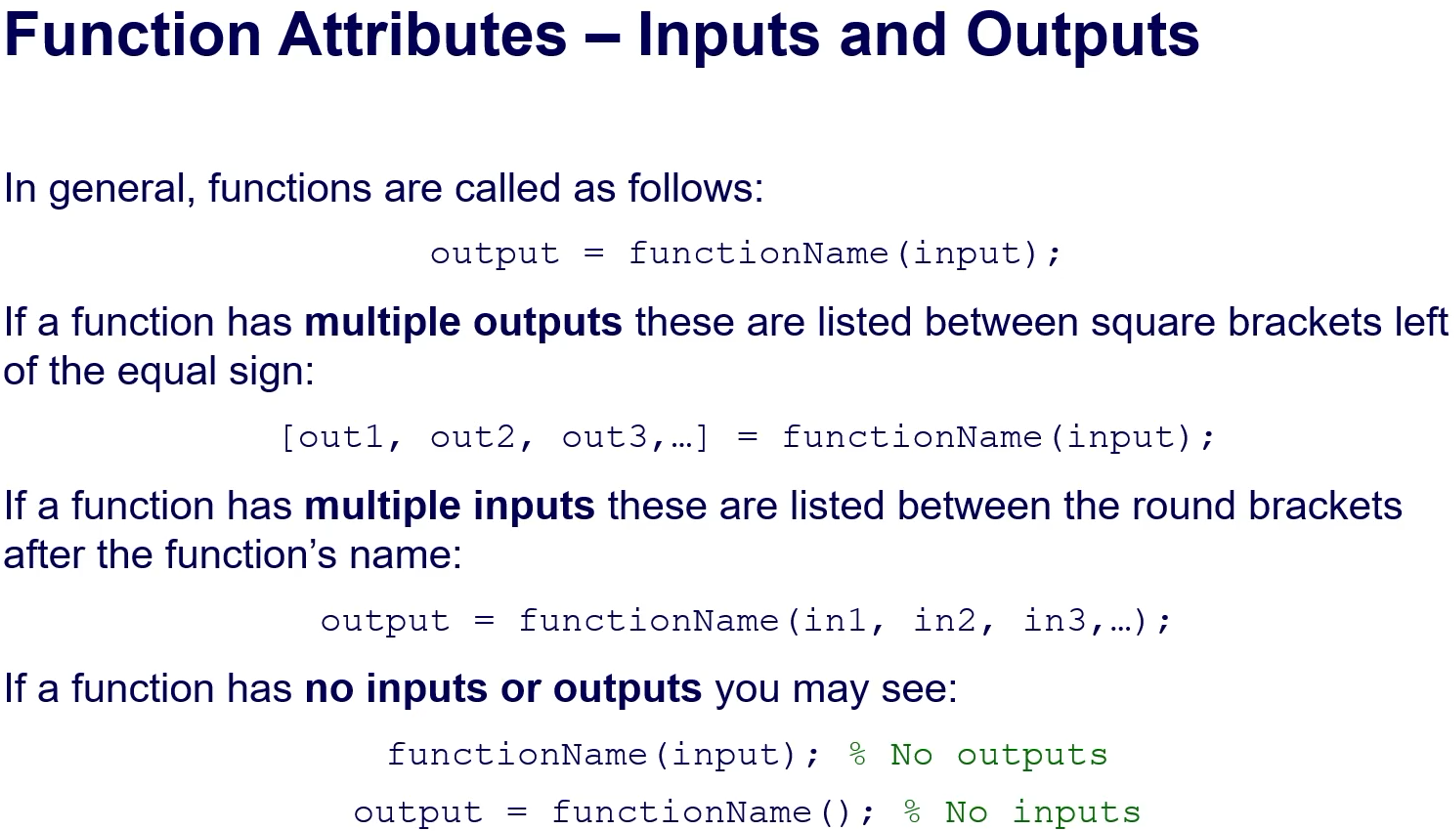
Functions can consist of:
Inputs: Defined within parentheses after the function name.
Outputs: Variables assigned to the left of the equal sign.
Example syntax:
Single output:
output = functionName(input)Multiple outputs:
[out1, out2] = functionName(input)Multiple inputs:
output = functionName(in1, in2)
Function Attributes: Unique Names
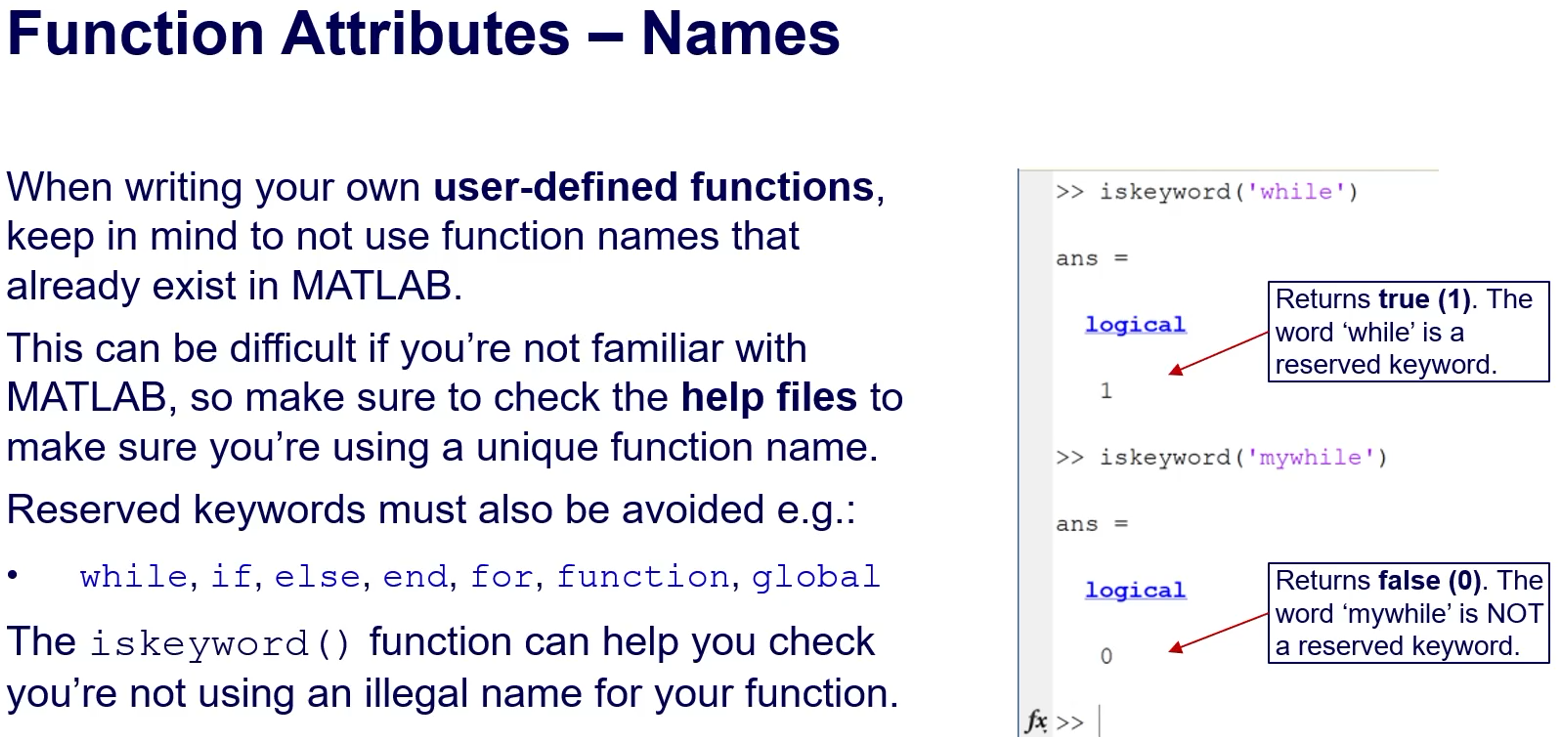
Every function must have a unique name.
MATLAB is case-sensitive, distinguishing between
functionName()andFUNCTIONname().Avoid using names that might conflict with existing MATLAB functions or reserved keywords (e.g.,
while,if,function).Use
iskeyword()to check for reserved keywords, where the function returnstrue (1)for reserved words.
Anonymous Functions
/
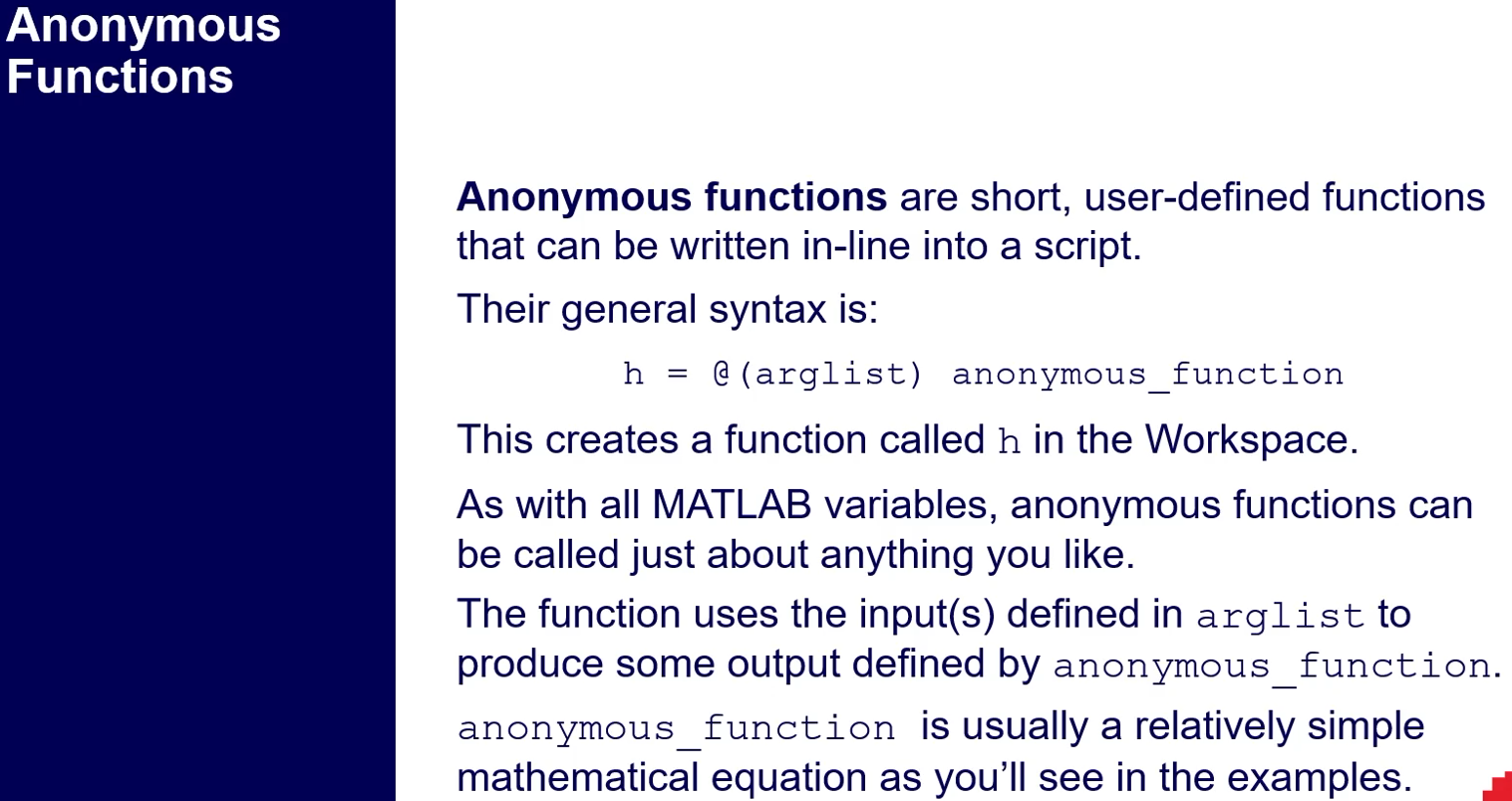
Definition: Anonymous functions allow defining simple functions in a concise way without a separate script file.
Syntax:
h = @(arglist) anonymous_functionExample: To evaluate the quadratic equation
x^2 + 2x - 3:Define the function:
myFunction = @(x) (x.^2) + (2*x) - 3Use with an array:
y = myFunction(0:100)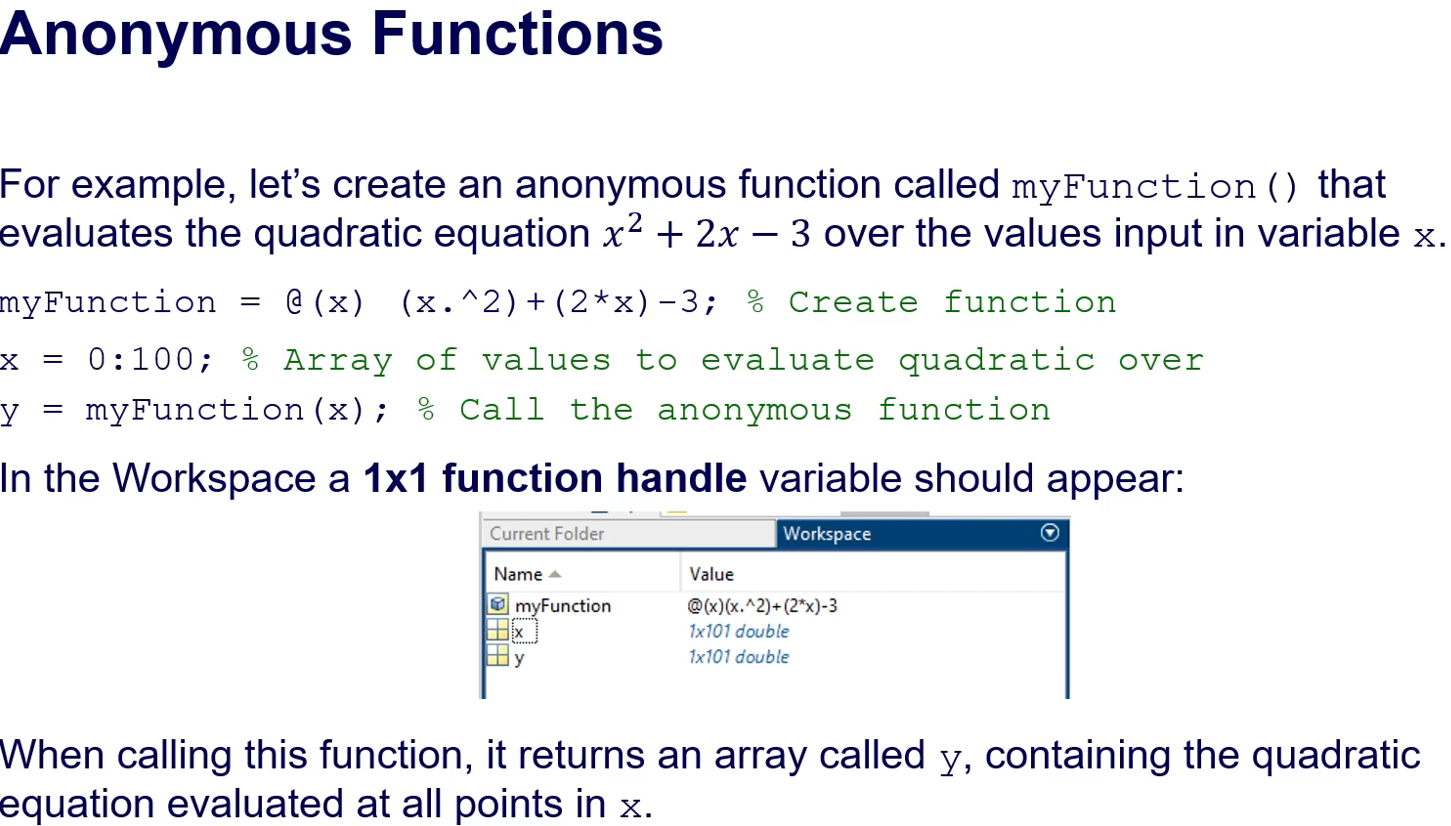
Limitations: Can only contain one executable statement and are single-line functions.
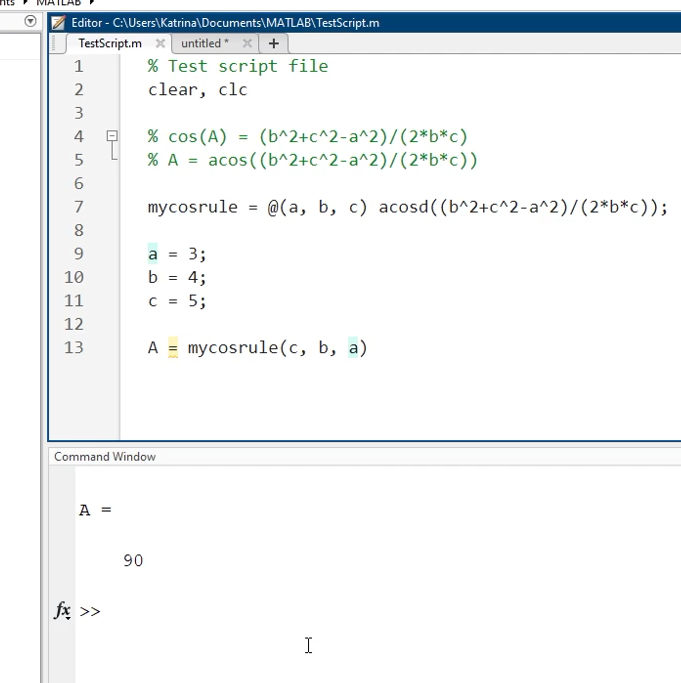
Anonomous functions are limited
only 1 excutable statment
only one single line of script
difficult to allow multiple outputs
this means if you have more complex requirments it is beneficial to use to use user defined function
User-Defined Functions
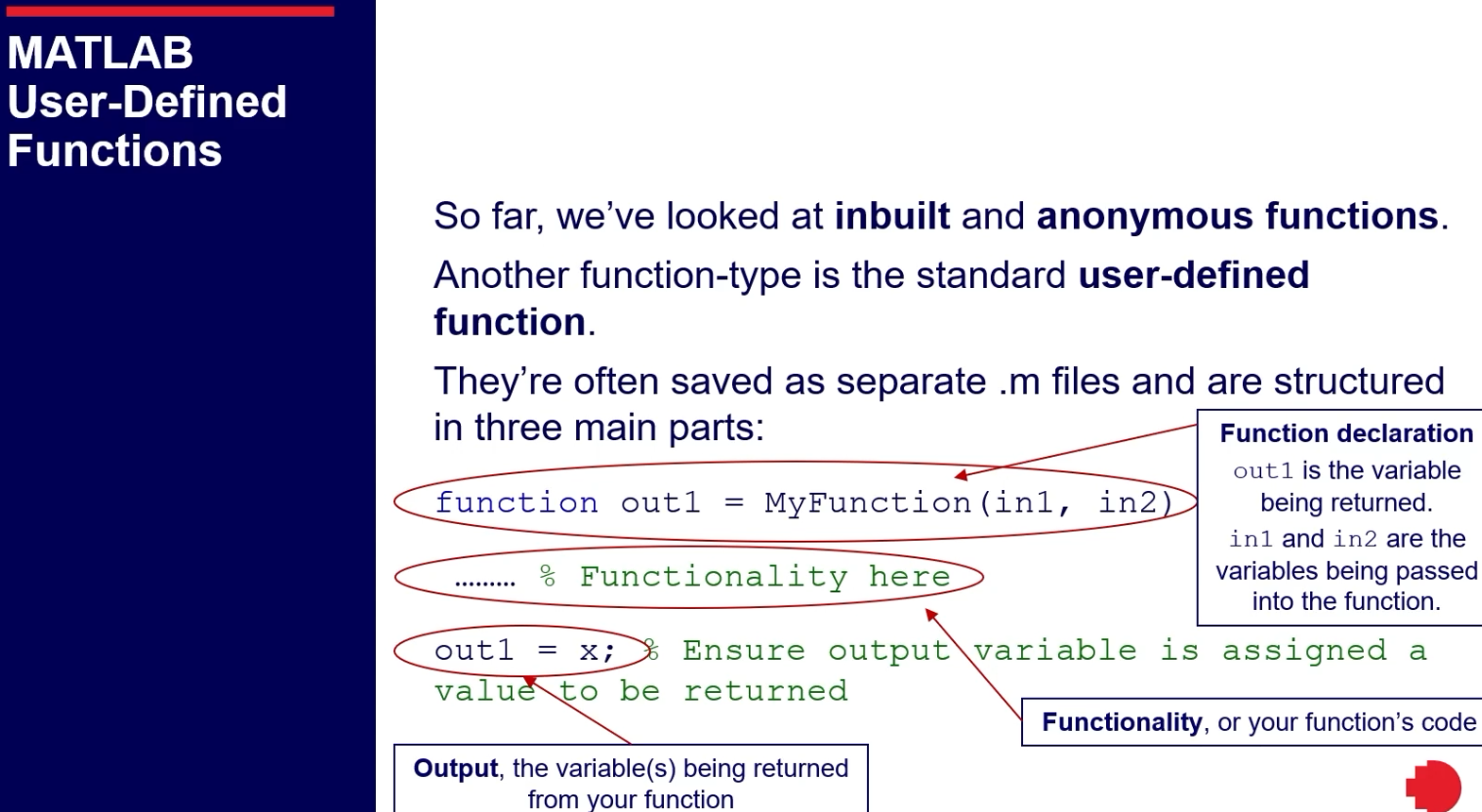
User-defined functions have a structured format saved as separate .m files and are typically structured as:
Function declaration:
function out1 = MyFunction(in1, in2)Functionality code:
[Functionality code for desired operation]Output assignment:
out1 = x
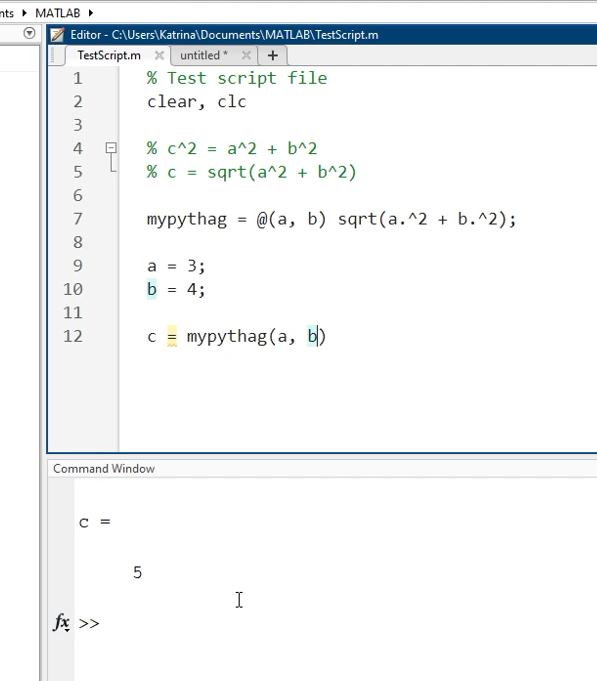
Example Function: To compute the hypotenuse using the Pythagorean theorem:
hypot = @(a, b) sqrt((a.^2)+(b.^2))Call this function with inputs (e.g.,
c = hypot(3, 4)results inc = 5).
/
Writing User-Defined Functions: Examples
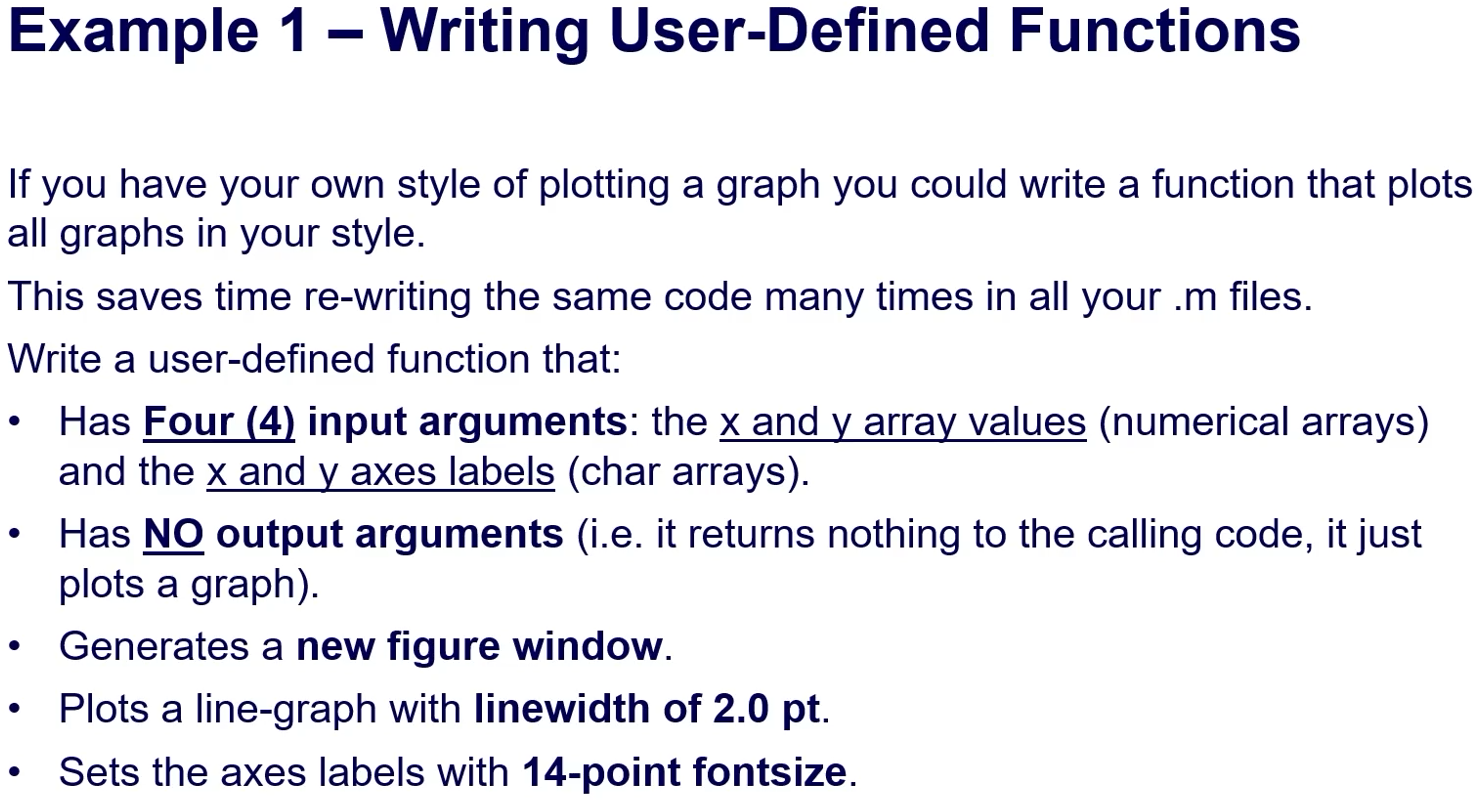
Graphing Function:
Input: Arrays for x and y values, labels for axes.
Output: None, as it plots a graph.
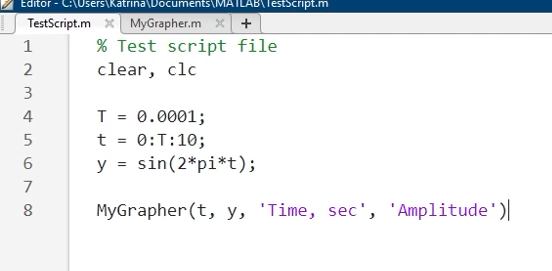
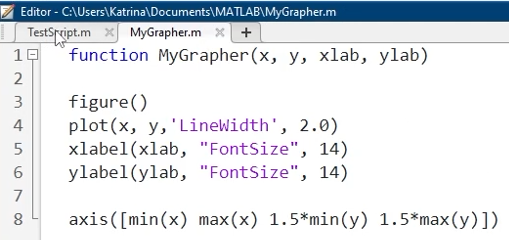
Example implementation:
   function MyGrapher(x, y, xlab, ylab)
       figure();
       plot(x, y, 'Linewidth', 2.0);
       xlabel(xlab, 'Fontsize', 14);
       ylabel(ylab, 'Fontsize', 14);
   end
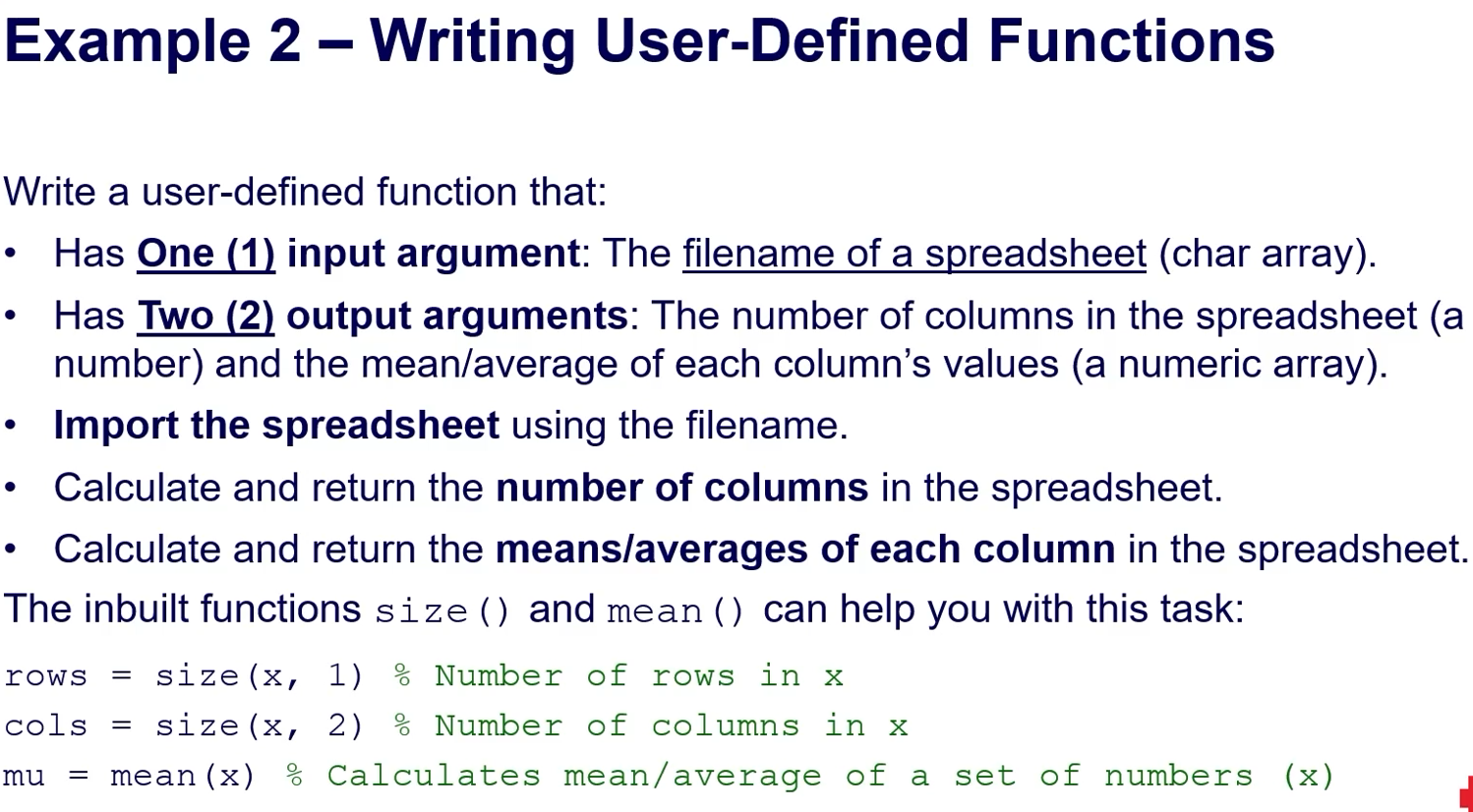
Spreadsheet Function:
Input: Filename of a spreadsheet.
Output: Number of columns and mean values of columns.
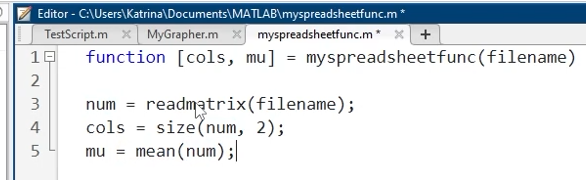
Example implementation:
   function [cols, mu] = myfunc(filename)
       num = readmatrix(filename);
       cols = size(num, 2);
       mu = mean(num);
   end

Flowcharts and Function Calls
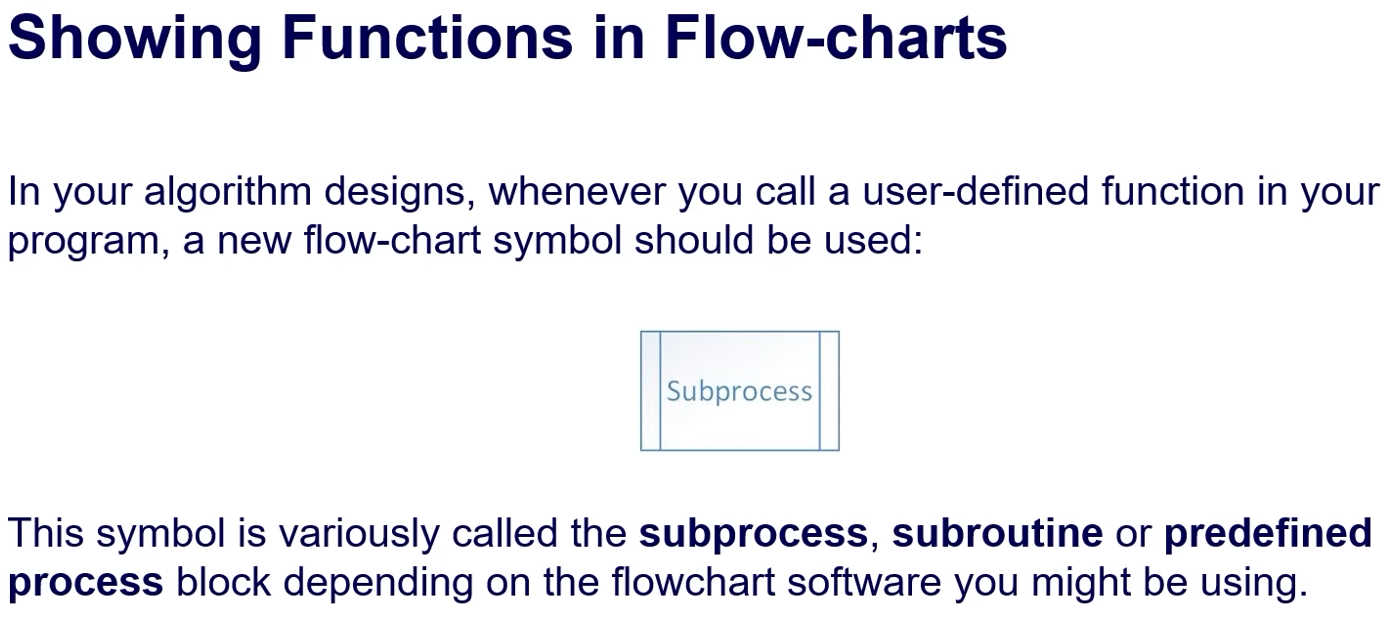
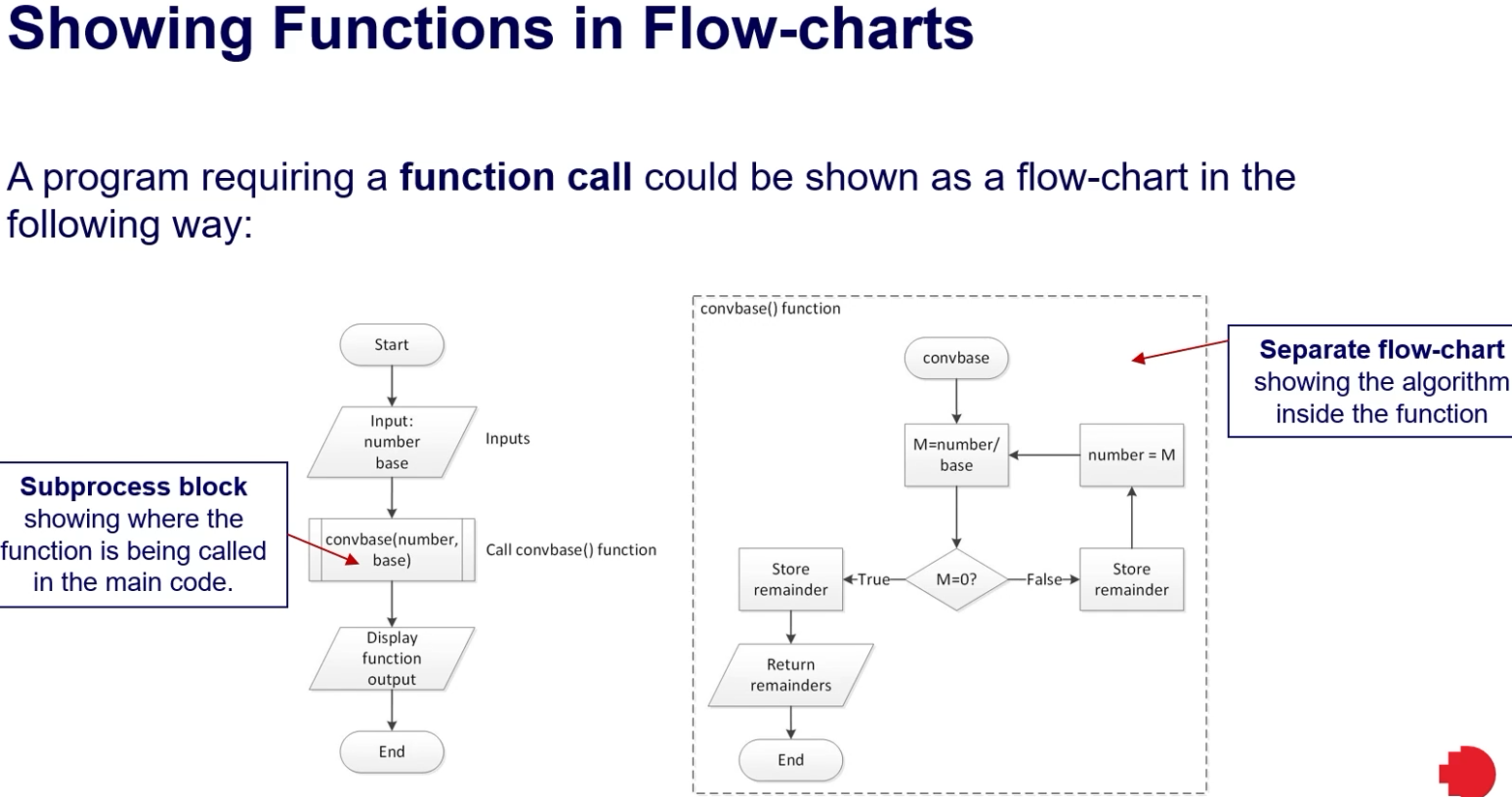
In flowchart designs, user-defined function calls should be depicted using a distinct subprocess symbol, identifying the area where the function is invoked.
Handling Variable Number of Arguments
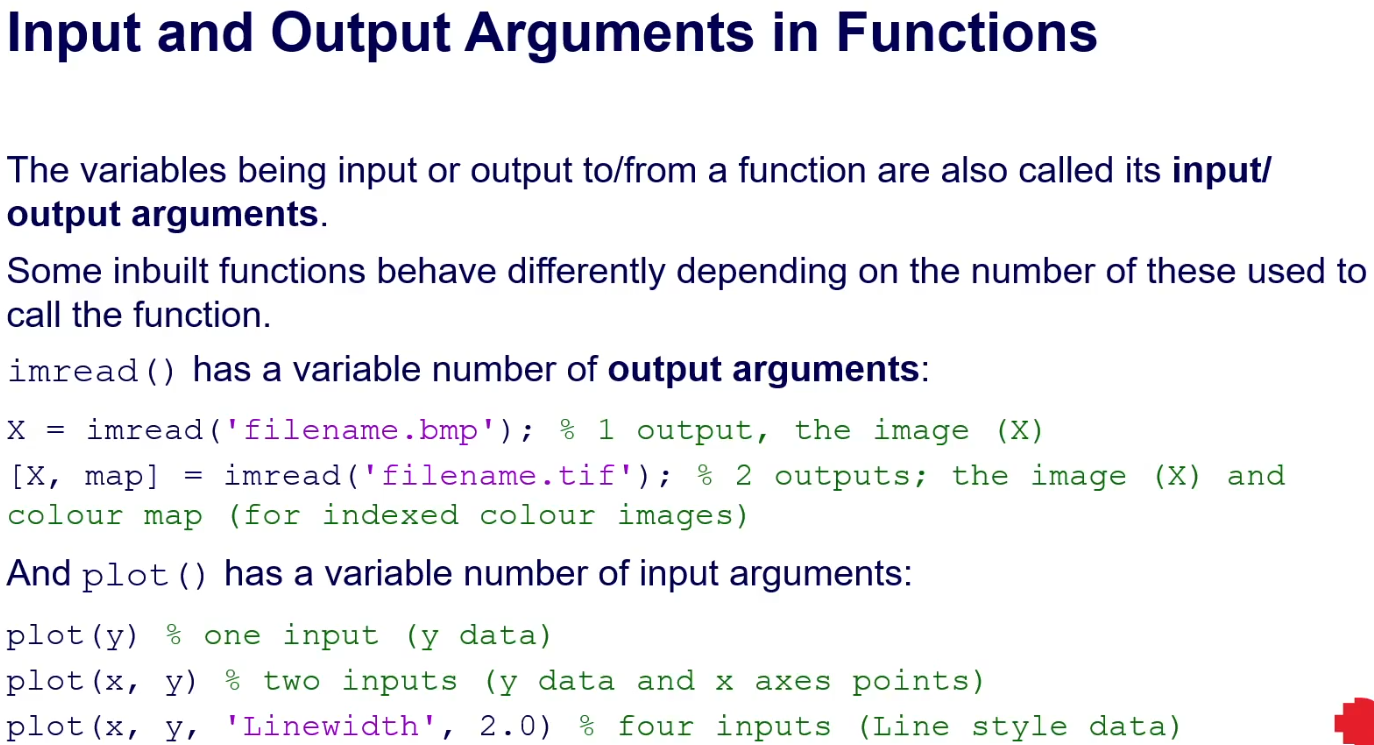
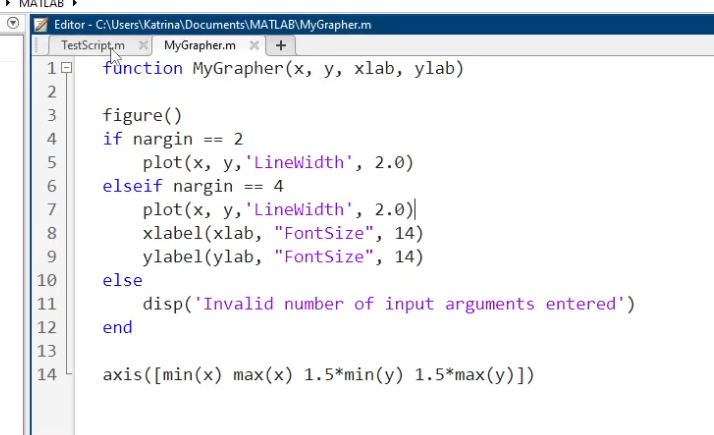
Use
narginandnargoutto manage different numbers of input and output arguments effectively.Keywords:
varargin: Allows flexible input arguments.varargout: Allows flexible output arguments.
Example usage of
vararginin a graphing function: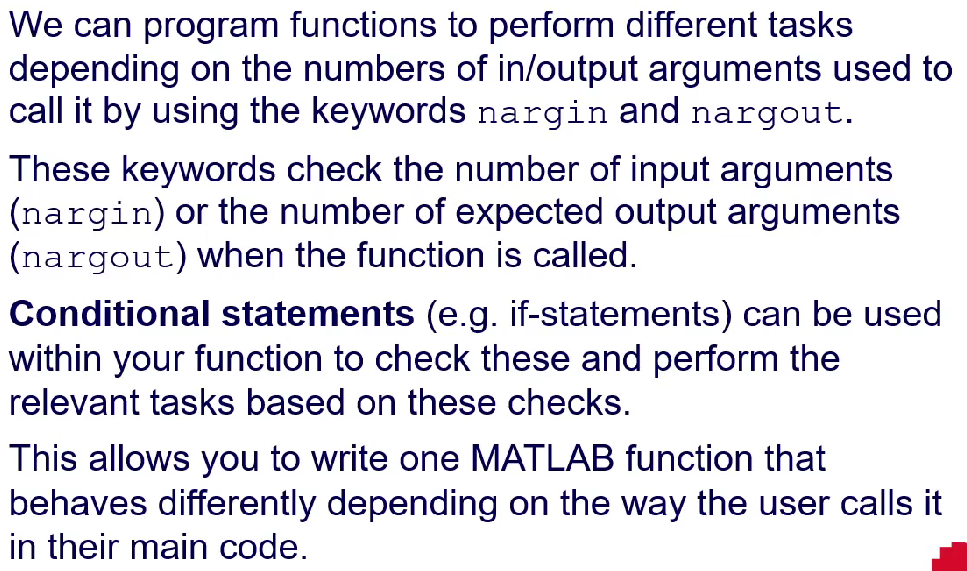
  function MyGrapher(x, y, varargin)
      figure();
      plot(x, y, 'Linewidth', 2.0);
      hold on;
      for k = 2:2:length(varargin)
          plot(varargin{k-1}, varargin{k}, 'Linewidth', 2.0);
      end
  end
Conclusion
The lecture covered fundamental concepts related to MATLAB functions, including inbuilt, anonymous, and user-defined functions, along with practical examples of implementation and flexible argument handling. The related keywords include nargin, nargout, varargin, and varargout to enhance the functionality of user-defined functions.