1.1. Introduction to computers
What is a computer?
there are 3 types of computing devices:
laptops
smartphones
tablets
another common type of computing device is the desktop computer.
Computing devices are electronic (they need electricity to work)
Laptops, smartphones and tablets are portable and run on batteries that need recharging, while desktop computers require a constant supply of electricity from the mains.
All the different types of computing devices are made up of hardware and software.
Hardware & Software
We refer to the physical parts of a computer that we can touch and see as hardware.
examples:
the mouse
the monitor
the keyboard
the printer
all the different parts found inside of the computer box or system unit
To get a computer to do something useful, we need to give it very specific instructions. Such a set of instructions that ‘tells’ a computer what to do, forms part of the software of the computer. We also call these programs.
It is the ability of your computer to execute (run) different types of programs that makes it a multi-purpose tool.
Apart from the fact that all computing devices are made up of hardware and software, they all work in the same basic way - according to a cycle known as the information processing cycle.
The information processing cycle
Computing devices
receive input - usually from the keyboard or the mouse, do something with it (process it), and then produce some form of output - usually on the screen or on a printer.
Often the output needs to be stored for use later or communicated to another computing device or person.
Step 1: Input
Step 2: Processing
Step 3: Output
Step 4: Storage
We use computers to process data into information.
Data is unprocessed facts or items. This can include text, numbers, images, audio and videos
Information is the result of the processing of data and should be useful and meaningful.
In conclusion:
A computer is a multi-purpose electronic devise that can receive input process the input produce output store data/the results of the processing.
Introduction to windows
The most important program on a computer is the one that controls all the activities in the computer. This is know as the operating system, and Windows is probably the most well-known operating system.
Start-up time
The operating system automatically loads when the computer is switched on. We call this the booting process.
When the operating system core has loaded, your device normally waits for you to log on before loading the final, user-specific settings before being ready to be used
Logging on is the process of getting access to the programs and data on a computer which are usually protected with a username and password.
To log on, you are most likely required to authenticate (verify) you identity. The authentication process may differ for different devices and involves one or more of the following actions:
entering a username and password
entering a PIN (digits you can type in)
Swiping in a pattern called a screen lock pattern
letting the device scan and recognise your face or fingerprint - this is known as biometric security
Authentication is a way to check whether you are the person who is allowed to use a computing device
OTP = one-time pin
When you need to enter more than your username and password to access an app it is called multi-factor authentication.
The desktop
When you switch on your computer, you will eventually see what is known as the desktop. This is the first basic ‘screen’ of the operating system.
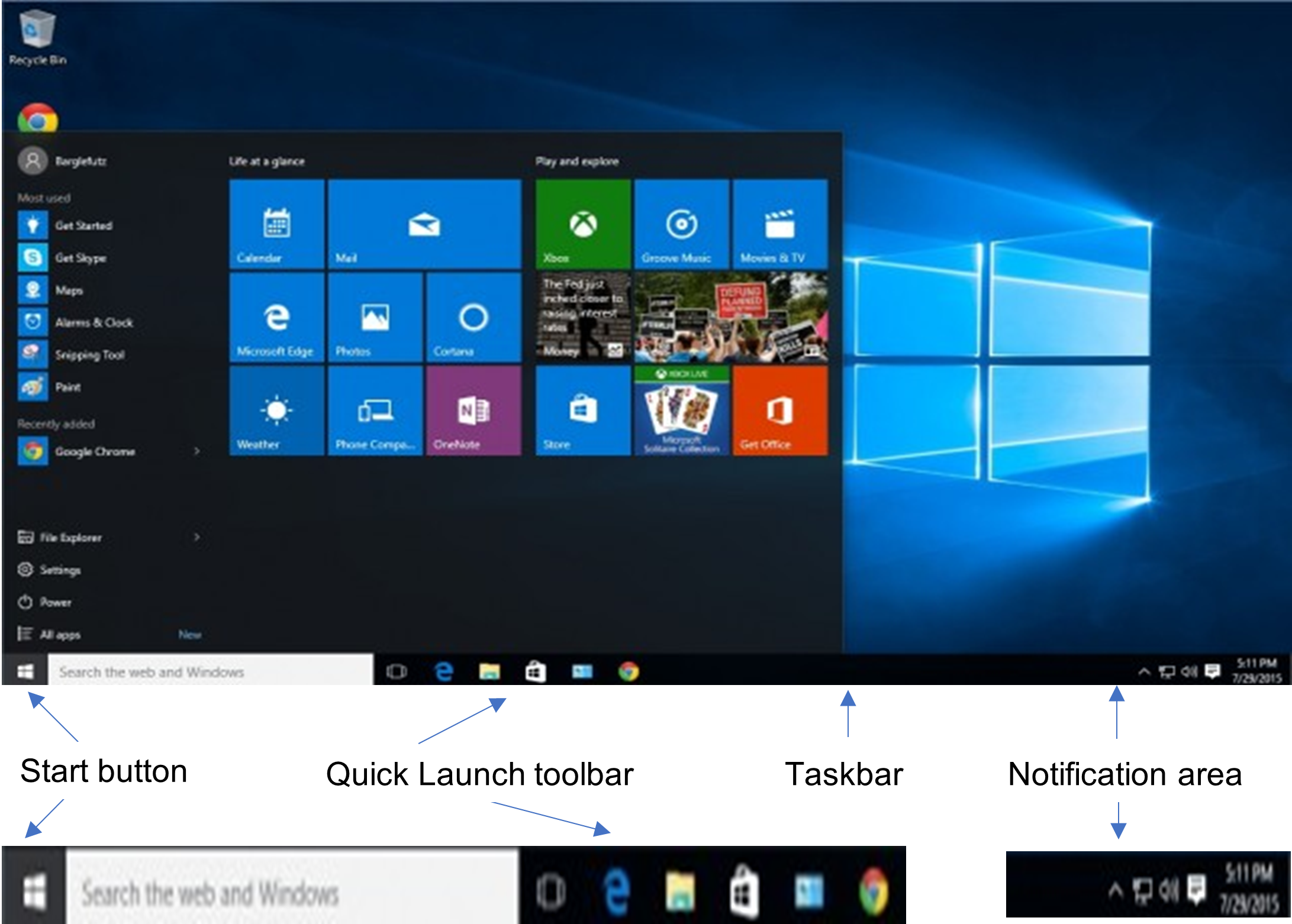
The Taskbar generally runs across the bottom of the screen and gives quick access to frequently used applications and system functions.
The Start button is used to access various features and applications on the computer. Clicking the Start button will will bring up a menu that includes shortcuts to programs, settings and files.
Taskbar icons open applications and provide quick access to them.
The notification area provides quick access to various settings and functions, such as sound and network settings
Working with GUI
All modern software makes use of the graphical user interface or GUI. This allows user to interact with a computing device and to make selections and perform actions through the use of graphical elements such as icons.
A GUI is designed to be used with a keyboard and mouse. Many devices have touch screens that allow you to use your fingers to touch GUI elements directly instead of using a mouse.
Saving your work
When you work on paper, also known as hardcopy, you have a permanent record of everything written down. Computers work differently. Work currently being done on a computer is kept temporarily in memory - and it stays there (in memory) only as long as the program is open, and the computer is switched on. To keep that work so that you can us it again later, you have to save the work to storage.
Memory (RAM): Think of it as your short-term memory. It holds onto things while you’re working on them
Storage: This is your computer’s permanent diary, where everything you save gets stored neatly for later.
Everything that is saved on a computer is saved in files (also known as softcopies). You organise these files by grouping them into folders.
It is important that both files and folders have meaningful names that describe what is kept in them.
Introduction to the keyboard
The keyboard is still the most commonly used input device for text. It allows us to type information into the program that we are using.
The type of keyboard most commonly used with desktops and laptops is know as a QWERTY keyboard because of the fist six letters in the top row of alphabetic keys. On smartphones and tablets a keyboard is displayed by software on the screen.
Touch typing involves the use of all the fingers on both hands. You hold your hands over the keyboard and then you only use specific fingers for specific letters.