A+ Mobile Devices (1-3)
1.1
Laptop Hardware
Laptops: The main kind of computer used today. Fundamentally, they are wireless desktops.
Most features of desktops apply to laptops, but laptops have more varying features and different troubleshooting and security needs.
Laptop Battery: The power source for laptops that replaces the need for Ethernet power seen in desktop. Batteries are either Lithium-Ion (Li-ion) and Lithium-Ion Polymer (LiPo) and can be recharged repeatedly.
Different laptops have different form factors (sizes and shapes) for their batteries.
With modular batteries, it is easy for the user to replace and remove the batteries for that laptop.
If the battery is built into the system this is harder.
Laptop Keyboard: Built in device used for typing, with each press of a key sending a signal to the CPU to tell it that the key is being entered.
Most used component of a laptop. Can and will we swapped out more often than any other component. A few screws and a single ribbon cable are often how an attached keyboard is connected.
External USB keyboards or wireless keyboards can also work and are more convenient at times. Laptop keyboards are designed to be compact.
Keyboards often have special keys like function keys or windows keys to perform unique functions. Some also have additional numbers if they are wide enough.
Some repairs might require removal of a single key cap. Keys are fragile. Instructions are out there for replacing keyboard components.
Internal components of laptops also have smaller components.
Laptop Memory
Use smaller form factor memory than what you would find on traditional desktop motherboard.
Small Outline Dual In-line Memory Module (SO-DIMM)- The type of memory often used in laptops and mobile devices, often easy to install and replace.
Some laptop memory is soldered to the system board, and cannot be upgraded or replaced. Entire system board would need to be replaced to fix.
Back of computers usually have windows where memory can be replaced.
Laptop Storage
Laptop storage is handled by either 2.5 inch form factor SSDs (solid state drives) or M.2 SSDs, both of which are all memory and have no moving parts.
Both can usually be easily replaced with a panel on the back of a computer, and they are faster than magnetic disk drives that are now legacy.
M.2 drives are much smaller and easier to install. They use a single screw and simply slide into an interface.
2.5 inch form factor drive is also easy. You remove a couple of screws, pull out the interface, and install.
HDDs (hard disk drive): Old drives that used spinning magnetic disks for power, now legacy devices that are less convenient.
Upgrading from HDD to SSD requires installing an Operating System on the SSD, moving user documents between drives, installing any required applications.
Imaging Software: Specialized software to make transition from HDD to SSD faster by cloning the disk’s storage rather than manually installing OS and applications.
Sometimes this requires you to create an entire image of the system in a file stored on a separate device, then install the new drive, then download the image file. Or you can sometimes install both drives.
Because today’s laptops are wireless, they use 802.11 (WiFi) and/or Bluetooth for connections.
Mini PCI or Mini PCI Express- Modular expansion cards that enable the use of WiFi or Bluetooth on laptops. They use small connectors that get plugged in to wires that have antennas for wireless connection.
A laptop can use Bluetooth for a PAN consisting of external mouses, keyboards, or other accessories. Many modern laptops have Bluetooth functionalities built in.
Installing mini PCI can be done through panels on the back of the laptop. Wireless antenna wires are on the cards.
WiFi Antennas- Antennas placed on small wires that connect to the motherboard of a laptop to allow wireless connection.
Many of these 802.11 interfaces whether on the system board itself or an external card will have two connectors. One is main WiFi connector and one is auxiliary connector.
These antenna wires wrap around the outside of the display itself. When replacing a laptop screen you will see them coming outside of the screen. They go under keyboard into motherboard.
Biometrics- Powerful authentication method, using things like fingerprint scans or facial recognition that can be configured into laptop OS and hardware.
Camera/Webcam- Video capture with camera on top of laptop screen. Microphone usually right next to it. Very convenient. External cameras can be used as well.
1.2
Connecting Mobile Devices
Everyone uses phones. They communicate in many ways.
Connection not just used for charging- it can be for synchronization, connectivity, backup, and identification.
USB (Universal Serial Bus)- Standard connectors used in networks that enable data transfers and/or power. There are many kinds of USB connectors.
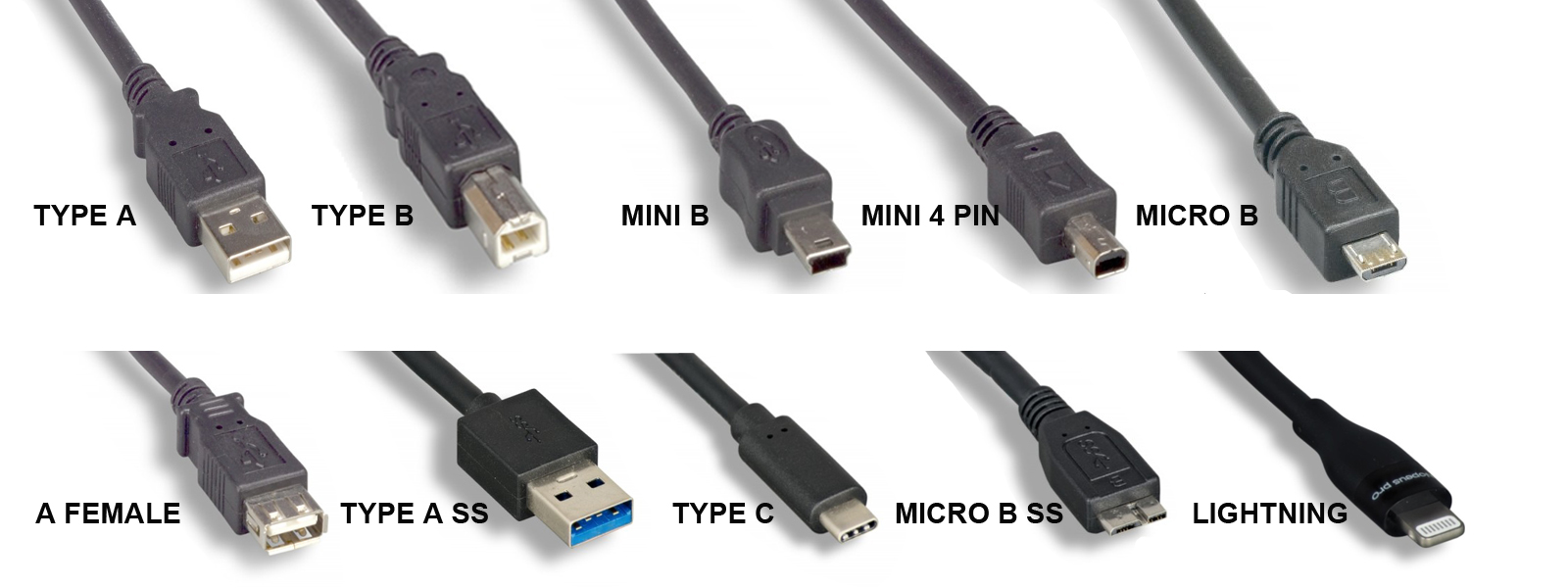
Type A: The classic, double-sided connector that is old but still very common and effective in desktops and laptops.
USB-C: Very common and effective upgrade- small, simple, faster, use 24 pins, double sided, and have various uses (including HDMI and DisplayPort).
Lightning Connectors: Small, specialized connector used by Apple mobile devices with 8 pins. Powerful, simple, great if you used Apple very often.
As of today, Type B, Mini, Micro, Micro B, Mini B, and Lightning are either obsolete or rapidly fading away due to USB-C.
NFC (Near Field Communication): A wireless standard that is very short range (4 cm or less) used for tapping cards or with phones or watches. Very fast and secure. Sends small amounts of data.
NFC is very common for mobile device connection.
Bluetooth: A high speed wireless communication over short distances that revolves around pairing mobile devices with other devices like headsets/headphones, speakers, health monitors, and more.
Revolves around an individual and forms a PAN (Personal Area Network).
Mobile Device Accessories
Stylus: A pen that digitally writes on a screen. Connected to the device with Bluetooth and uses pressure or device buttons to interact with it. Must be compatible (Apple Pencil with iPad).
Headsets: Earphones and microphones.
Can be wired. USB connectors are common on laptops. Or they use a 3.5 mm TRRS (tip, ring, ring, sleeve) connectors (the circular ones). And apple devices can use Lightning ports. These are called analog audio jacks.
Bluetooth is also an option. No wires needed, run on battery. Like Airpods.
Wireless Speakers: Louder than device speakers, battery powered, usually bluetooth connected.
Camera / Webcams: Usually built into mobile devices and laptops. But they are often external on desktops. Accessible from multimedia applications, photo utilities, and video conferencing.
Docking Station: A hardware device that quickly connects and disconnects a laptop to cables on a desk, effectively turning a laptop into a desktop.
Best when using a personal laptop in an office setting.
Without a docking station you have to connect your laptop to everything you need your laptop to do in an office setting. With a docking station you do that with one cable.
They use external keyboard and mouse, often use a new external monitor, extend existing laptop interfaces, add additional functionality, and most importantly they probably contain a network connection. When you are ready to leave you can disconnect your computer from the docking station and leave the entire desk’s cables and connections in place.
Port Replicator: A smaller device with the same function as a docking stations, but built around USB connections (so they can be used on any laptop). Small enough to carry around.
They have jacks for different USB connectors that will be plugged into different accessories.
Trackpad: A touch pad used on laptops that replaces the need for a mouse because your finger moves the cursor around.
Trackpads can be used on desktops as well, in which case they are external, bluetooth connected, and battery powered.
Trackpads have different finger options for zooming or dragging that actually make them more versatile than mouses.
A function key can enable and disable track pads.
Drawing Pad: An external pad that uses an active stylus to draw or write as if you are using paper. Very useful.
Drawing Pads are often third party devices that are supported across many operating systems.
1.3
Mobile Device Networks
“Cell” phones. The term “cell” comes from cellular networks used for communication.
Cellular networks use antennas to cover areas of land called cells. An antenna coverages a cell with certain frequencies.
Cellular networks provide both voice and data communication and you can decide how it is used. For example, you can turn cellular data on and off and only use this as voice communication.
Or you can turn on airplane mode to disable all cellular networks.
3G:
Original cellular technology from 1998. 3G allowed us to send and receive large amounts of data over cellular networks.
This enabled GPS, Mobile Television, Video on Demand, and Video Conferencing.
4G:
Sometimes referred to as LTE (Long Term Evolution).
Based on GSM (Global System for Mobile Communications) and EDGE (Enhanced Data Rates for GSM Evolution).
Standard supports download rates of 150 Mbit/s. This took data capabilities of 3G and expanded on them.
LTE was upgrades to LTE Advanced (LTE-A). This supported 300 Mbit/s.
5G:
Fifth generation cellular networking. Launched in 2020.
Used higher frequencies. Massively improved communications, and eventually got 10 gigabits per second.
Significant IoT impact because bandwidth became less of a constraint. It enabled larger data transfers, faster monitoring and notifications, and additional cloud processing.
Wi-Fi:
802.11 has improved the same way cellular technology has.
Local 802.11 networks are commonly used in homes and offices and have very high speed throughput without any wired connection. But they have limited range and require a router / local access point.
Wi-Fi enables basically any kind of data transfer. Extremely useful when cellular coverage may not be available.
Hotspot:
Hotspot functionality is the ability of your phone to connect to the cellular network using 5G, and then other devices connect to your phone using 802.11.
It effectively turns your phone into a router.
Commonly built into the OS of mobile phones, but carriers (ISPs) sometimes restrict this.
Subscriber Identity Module (SIM): A physical card inside of a mobile phone containing all of the information identifying what your phone is on the mobile network of your carrier (ISP).
It contains a SIM ID, phone number, cellular network information, and storage space for contacts, messages, and more.
Often a tiny physical card inside of your phone that you can take out. Putting it in a new mobile phone transfers this information.
eSIM: A kind of SIM that is physically part of the phone and can’t be removes. The eSIM makes transfer between devices easier.
Bluetooth Pairing: Process of connecting a Bluetooth device, which requires security to verify connectivity and usually only needs to be done once.
Pairing process:
Enable bluetooth on both devices that will connect to one another
Set both devices to be discoverable to each other (often using a sequence)
Select discovered device (many devices may appear)
Enter or confirm PIN, which should be the same on both devices
Test connectivity by powering a device off and back on and ensuring if it automatically reconnects
GPS (Global Positioning System): Created by US DOD. It uses 30 satellites in orbit and provides precise navigation as long as you can connect to at least 4 satellites.
This GPS functionality uses differences in the signal received from these satellites to determine your location based on longitude, latitude, and altitude.
Maps and other apps with location functionality may be using GPS.
Some apps use the WiFi or cellular towers of your network to determine where you might be as well.
Mobile Device Management
MDM (Mobile Device Management) is the process of managing multiple company-owned or user-owned mobile devices.
If user-owned, this means BYOD (bring your own device), also used at work.
Centralized management of the mobile devices.
MDM allows you as the system administrator to set rules on how these mobile devices are used. Set policies on apps, data, camera.
You can control the entire device or partitions of it. With partitions, the user has some private data, and other parts of the device are used for corporate data.
MDMs can be used to manage access control. You can force screen locks and PINs on these user devices.
BYOD: MDM when the employee owns the phone, and since they already have a phone, this simplifies things for them. They don’t need two mobile devices.
But protecting company data while ensuring the user’s personal information is secure is a challenge.
This allows you to configure to the MDM which part is for home purposes and which part is for work purposes. You set parameters for how data is protected and what happens when the device is sold, traded in, or lost.
COPE (Corporate owned, personally enabled): MDM when the company buys the device, used as both a corporate device and a personal device.
Organizations keep full control over the phones and manage every aspect of how it is configured. Laptops and desktops can also work this way.
Company determines how information is stored, what kind of information can be stored, and what happens to the data if the device is turned in or lost.
CYOD (Choose your own device)- Similar to COPE, but the user can choose which device they get.
MDM Policy Enforcement
Having a central MDM policy screen provides flexibility and saves time.
For example, you can configure corporate email settings on the MDM, and the change is pushed down to all company devices. Users do not need to make any changes.
Two-Factor Authentication methods are sometimes used for additional security on the MDM devices (could be biometrics).
MDM can determine which applications are allowed or restricted on a device, and some can be installed automatically.
MDMs store significant and valuable information about managed devices.
Mobile Device Synchronization
Mobile devices have preconfigured settings (like for phone and messages). But different organizations may use different kinds of email, and these configurations can vary. The MDM allows you to have all of these things configured in one central place.
MDM can decide how data is synchronized and determine if it will use WiFi or cellular, and how/where it is backed up and restored.
MDM can specify what kinds of data will be synchronized as well- for example, if calendar and contacts will also be synchronized. And it can change how data will be synchronized.
Most mobile devices fortunately have settings that specify all of this. You can turn off cellular data for certain functions or under certain conditions. MDMs can do this for managed devices.
Business Applications: Things like email, cloud storage, and other services are set up in account settings of the MDM-managed device.
Again, the way these are synchronized can change.