5th Set of Videos
Copper Connectors - CompTIA A+ 220-1201 - 3.2
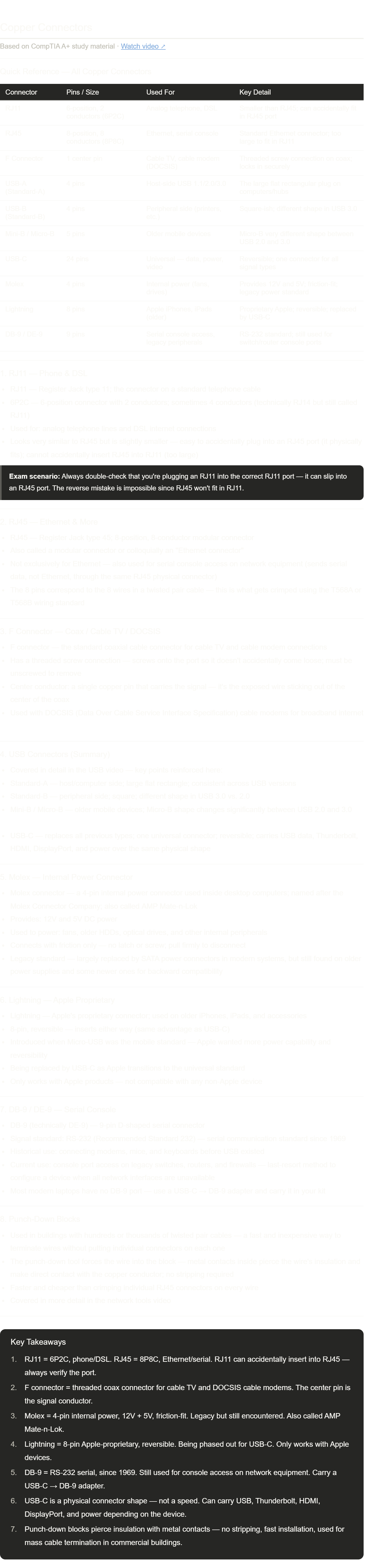
Notes done! This video is a good consolidation video — it revisits many connectors from earlier videos and adds a few new ones.
The two new ones to pay attention to here that haven't appeared prominently before:
F connector — the threaded coax connector. The threading is the key detail. It's specifically designed to not accidentally come loose (unlike RJ45 which just clips in). If the exam describes a "cable TV" or "DOCSIS modem" connection, the answer involves an F connector.
Molex — the old internal power standard. You've seen it referenced in SATA videos as a legacy alternative power option. The key facts: 4 pins, 12V + 5V, friction-fit (no latch), named after its manufacturer. It's being replaced by SATA power but still appears in older systems and is fair game on the exam.
RJ11 vs RJ45 confusion — this is a real practical issue. RJ11 physically fits into an RJ45 port because it's narrower. Plugging a phone line (RJ11) into your switch's Ethernet port (RJ45) by accident is a genuine mistake people make. The reverse can't happen.
Fiber Connectors - CompTIA A+ 220-1201 - 3.2
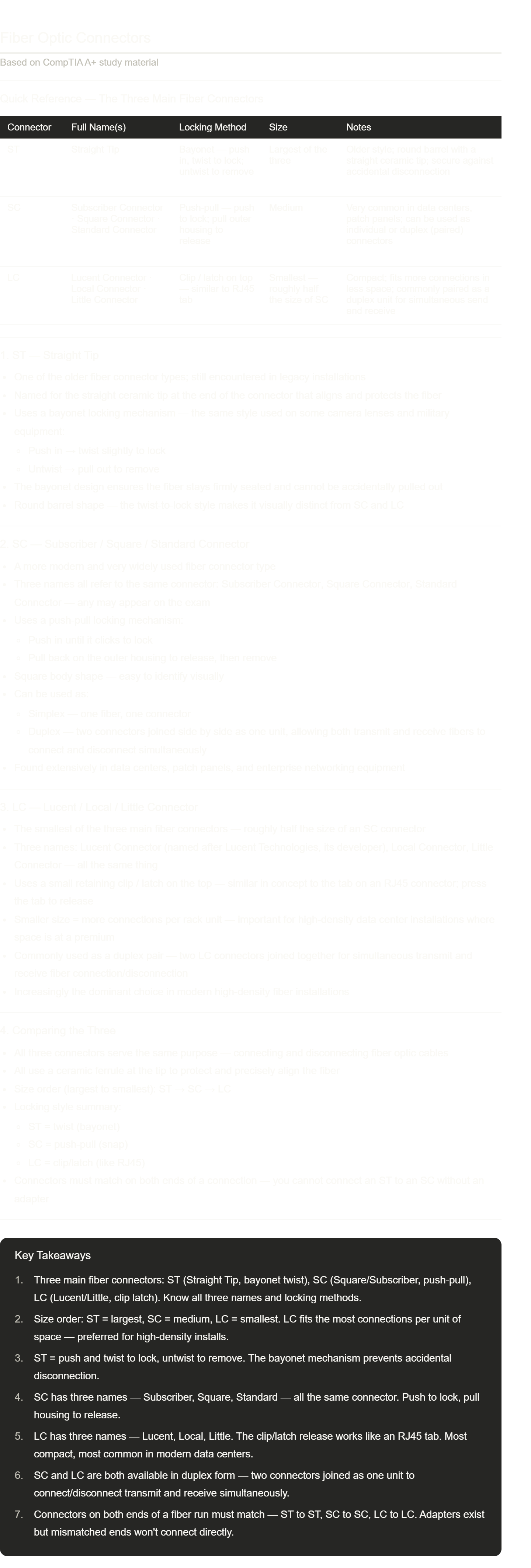
Notes done! Short video but the three connector types are directly tested on the exam, usually in identification scenarios.
The best way to remember the locking mechanisms:
ST = Straight Tip = Twist — the alliteration helps: ST = Twist (bayonet). Think of it like a garden hose fitting.
SC = Snap / Click — push until it clicks, pull to release. Simple.
LC = Latch / Little — the small tab like an RJ45. The smallest one, used where space matters most.
The multiple names for SC and LC trip people up on the exam. If you see "Subscriber Connector," "Square Connector," or "Standard Connector" — they're all SC. If you see "Lucent Connector," "Local Connector," or "Little Connector" — they're all LC.
An Overview of Memory - CompTIA A+ 220-1201 - 3.3
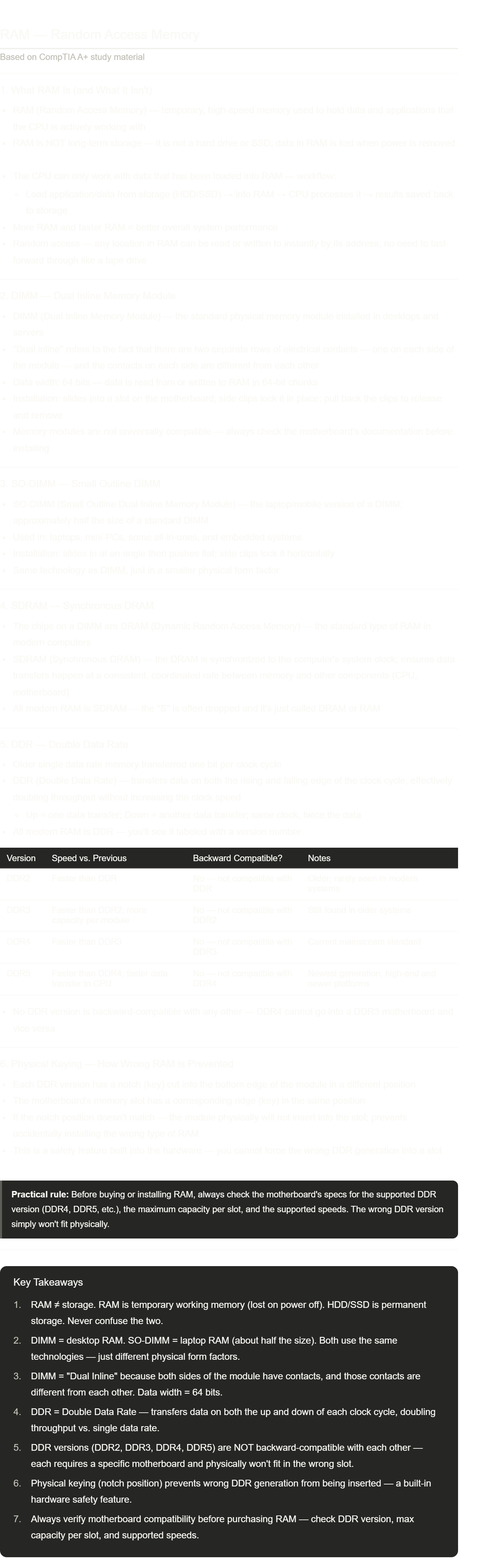
Notes done! A few things worth locking in from this video:
RAM vs. storage — this distinction shows up constantly on the A+ exam in troubleshooting scenarios. "The user says their computer is slow and running out of memory" — that's RAM, not the hard drive. "The user says they're running out of space" — that's storage. Different problem, different solution.
DDR double data rate explained — the clock analogy is the key. Think of a clock hand going up and coming down. Single data rate uses only the "up." DDR uses both "up" and "down" — same speed clock, double the data moved. This is why DDR was such a big deal when introduced.
The notch prevents wrong installation — this is elegant engineering. Each DDR generation's notch is in a slightly different horizontal position on the module. You literally cannot install DDR4 into a DDR3 slot because the ridge in the slot is in the wrong place. This also means you can't easily damage your motherboard by installing the wrong RAM — it just won't go in.
DIMM vs. SO-DIMM — these appeared back in the laptop components video too. Good reinforcement here.
Memory Technologies - CompTIA A+ 220-1201 - 3.3
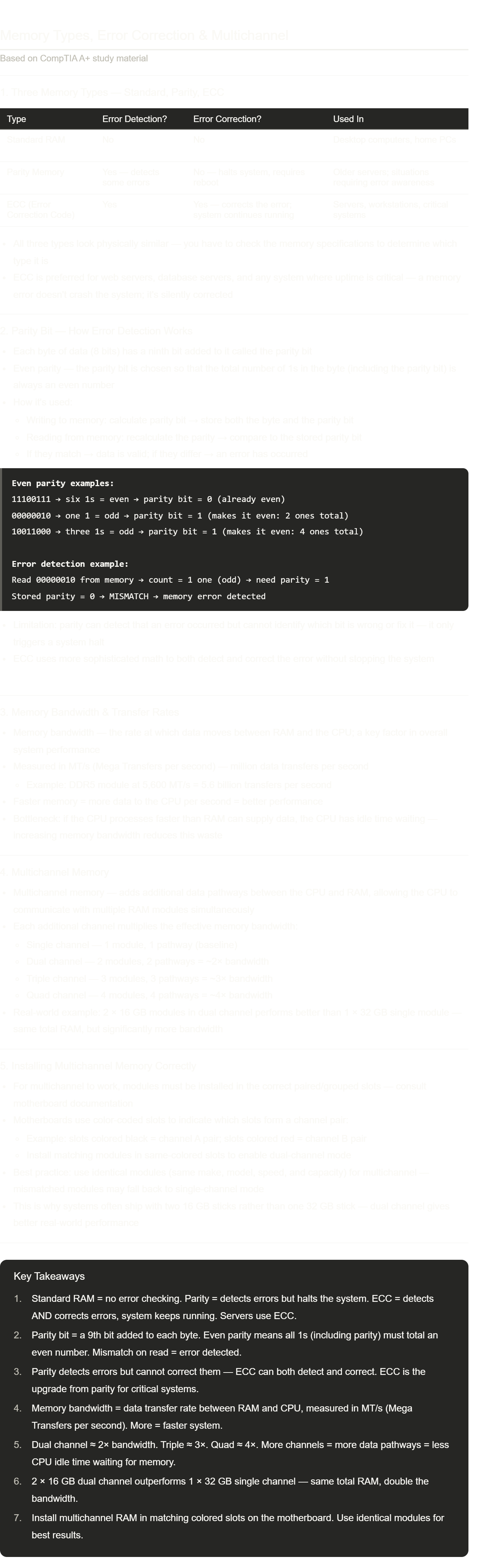
Things to lock in:
Parity vs. ECC — both use extra bits to check memory integrity, but parity only detects (and then crashes the system) while ECC detects and repairs (system keeps running). For any exam scenario involving a server or critical system, ECC is always the right answer.
Even parity rule — count the 1s in the byte. If the count is already even, parity bit = 0. If the count is odd, parity bit = 1. The goal is always: total 1s (including parity bit) = an even number.
The 2×16 vs. 1×32 insight — this surprises a lot of people. Same amount of RAM, but two sticks in dual-channel mode gives roughly double the memory bandwidth. This is why it's almost always better to buy two smaller sticks than one larger one, as long as your motherboard supports dual channel (which nearly all modern boards do).
Color-coded slots — if your motherboard has four slots colored alternately (say black-red-black-red), slots 1 and 3 (same color) form one channel pair, and slots 2 and 4 form the other. Always check your motherboard manual for the exact pairing.
Storage Devices - CompTIA A+ 220-1201 - 3.4
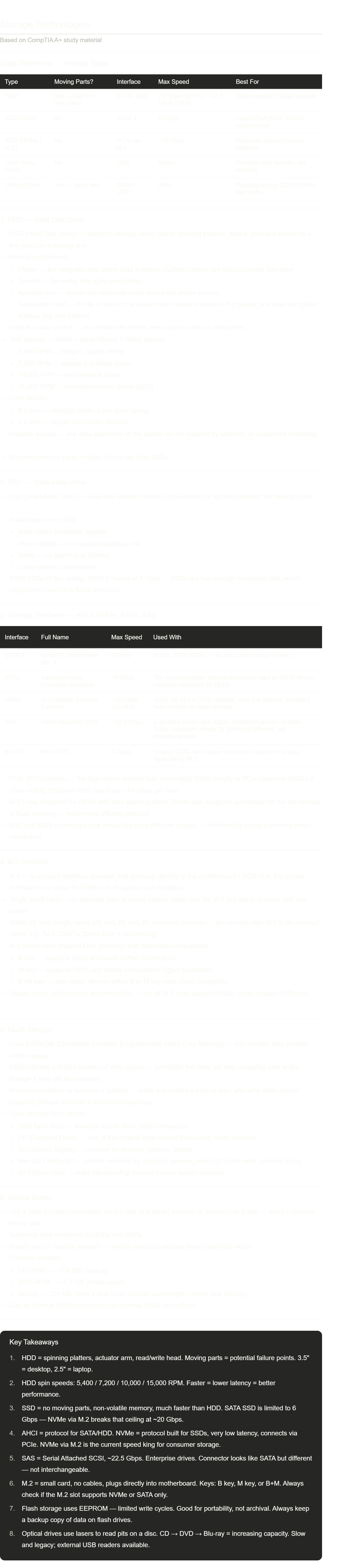
Things to focus on for the exam:
AHCI vs. NVMe — this is the key protocol distinction. AHCI was designed decades ago for slow spinning disks; NVMe was built from the ground up for flash storage with much lower latency and more parallelism. Swapping from SATA+AHCI to NVMe+PCIe is the biggest single speed upgrade you can make to a PC.
The 6 Gbps ceiling — SATA 3 maxes at 6 Gbps. Once SSDs got fast enough to hit that limit, they needed a new pathway → PCIe → NVMe. M.2 is the physical connector that makes this possible on laptops where you can't install a full PCIe card.
M.2 keys — B key, M key, B+M. The exam may show you a drive and ask which slots it's compatible with. A B+M keyed drive fits in either slot type.
SAS vs. SATA confusion — they look very similar but are not interchangeable. SAS is enterprise-grade, much faster (~22.5 Gbps), and designed for 24/7 high-load server environments.
Flash = limited writes — this is why enterprise SSDs are rated by TBW (Terabytes Written). Consumer flash eventually wears out.
RAID - CompTIA A+ 220-1201 - 3.4
# RAID and Drive Redundancy
---
## 1. Storage Reliability and Redundancy
### 1.1 Why Storage Reliability Matters
Computers rely on *hard drives**, SSDs, and other storage devices to save important information
* Data stored on drives may include:
* Personal files
* Operating systems
* Applications
* Business data
* Databases
* Losing this data can be catastrophic
---
### 1.2 Why Drives Fail
Storage drives are still *physical devices**
Especially with *HDDs**, many mechanical parts are constantly moving:
* Platters spin at high speeds
* Actuator arms move across platters
* Read/write heads access data
* If a single important component fails:
* The drive may become inaccessible
* Data may no longer be recoverable
---
### 1.3 Redundancy
* Redundancy = storing extra information so data survives hardware failure
* Instead of relying on one drive:
* Multiple drives are combined together
* If one drive fails:
* The system can still access the remaining data
---
### 1.4 RAID Is NOT Backup
* Important concept:
* RAID does not replace backups
* RAID protects mainly against:
* Physical drive failure
* RAID does NOT protect against:
* Accidental deletion
* Malware/ransomware
* File corruption
* Fire/flood damage
* User mistakes
* Always maintain:
* A completely separate backup system
---
# 2. RAID Fundamentals
---
## 2.1 RAID Definition
* RAID = Redundant Array of Independent Disks
* Sometimes called:
* Redundant Array of Inexpensive Disks
* RAID combines multiple physical drives into one logical storage system
---
## 2.2 Purpose of RAID
* RAID can improve:
* Redundancy
* Performance
* Fault tolerance
* Storage efficiency
* Different RAID levels prioritize different goals:
* Some focus on speed
* Some focus on redundancy
* Some balance both
---
## 2.3 Common RAID Levels
* Major RAID configurations discussed:
* RAID 0 — Striping
* RAID 1 — Mirroring
* RAID 5 — Striping with parity
* RAID 6 — Double parity
* RAID 10 (1+0) — Stripe of mirrors
---
# 3. RAID 0 — Striping
---
## 3.1 RAID 0 Overview
* RAID 0 uses:
At least *two physical drives**
Data is split into pieces called *blocks**
* Blocks are distributed across multiple drives
---
## 3.2 Striping
* Striping = dividing data across drives
* Example:
* A file is broken into multiple blocks:
* Block 1A
* Block 2A
* Block 3A
* etc.
* Different blocks are stored on different drives
---
## 3.3 Why RAID 0 Is Fast
* Multiple drives work simultaneously
* Data writes occur in parallel
* Benefits:
* Faster reads
* Faster writes
* Higher throughput
---
## 3.4 RAID 0 Weakness
* RAID 0 has:
* Zero redundancy
* If one drive fails:
* Part of every file disappears
* Entire array becomes unusable
* Even losing one disk destroys access to all striped data
---
## 3.5 RAID 0 Summary
* Advantages:
* Very high performance
* Full storage capacity usable
* Disadvantages:
* No fault tolerance
* High risk of total data loss
---
# 4. RAID 1 — Mirroring
---
## 4.1 RAID 1 Overview
* RAID 1 = Mirroring
* Requires:
* Minimum of two drives
* Every piece of data is duplicated onto another drive
---
## 4.2 Mirroring
* Mirroring = exact copy of data stored on another drive
* Example:
* Disk 0 stores data
* Disk 1 stores an identical duplicate
---
## 4.3 Storage Cost of Mirroring
* RAID 1 sacrifices storage efficiency
* Because data is duplicated:
* Two 1 TB drives still only provide 1 TB usable space
* Effective storage capacity is cut in half
---
## 4.4 RAID 1 Redundancy
* If one drive fails:
* The mirrored drive still contains all data
* System continues operating normally
* Failed drive can later be replaced and rebuilt
---
## 4.5 RAID 1 Summary
* Advantages:
* Excellent redundancy
* Simple recovery
* High reliability
* Disadvantages:
* Requires double storage space
---
# 5. RAID 5 — Striping with Parity
---
## 5.1 RAID 5 Overview
* RAID 5 combines:
* Striping
* Parity
* Requires:
* Minimum of three drives
---
## 5.2 Parity
* Parity = special calculated information used to rebuild lost data
* Instead of duplicating entire files:
* RAID stores parity information
* If a drive fails:
* Missing data can be reconstructed
---
## 5.3 RAID 5 Structure
* Data is striped across drives
* One portion stores parity data
* Parity is distributed across drives:
* Prevents one drive from becoming a bottleneck
---
## 5.4 RAID 5 Recovery
* If one drive fails:
* Remaining data + parity are used to recreate missing information
* System can continue operating during failure
---
## 5.5 RAID 5 Performance
* RAID 5 is storage-efficient
* Better usable capacity than RAID 1
* However:
* Parity calculations require CPU processing
* Recovery mode may reduce performance
---
## 5.6 RAID 5 Summary
* Advantages:
* Good balance of speed and redundancy
* Efficient storage usage
* Disadvantages:
* Can only survive one drive failure
* Parity calculations add overhead
---
# 6. RAID 6 — Double Parity
---
## 6.1 RAID 6 Overview
* RAID 6 is similar to RAID 5
* Main difference:
* Uses two parity blocks instead of one
---
## 6.2 Fault Tolerance
* RAID 6 can survive:
* Failure of two drives simultaneously
* Even after losing two disks:
* Data remains accessible
---
## 6.3 Degraded State
* Degraded state = RAID is functioning, but with reduced redundancy/performance
* After drive failure:
* Array still works
* But protection is weakened until rebuild occurs
---
## 6.4 RAID 6 Storage Tradeoff
* Additional parity requires extra drives
* More redundancy means:
* Less usable storage capacity
---
## 6.5 RAID 6 Summary
* Advantages:
* Excellent redundancy
* Can survive two drive failures
* Disadvantages:
* More storage overhead
* Slower writes due to extra parity calculations
---
# 7. RAID 10 (RAID 1+0)
---
## 7.1 RAID 10 Overview
* RAID 10 = combination of:
* RAID 1 (mirroring)
* RAID 0 (striping)
* Also written as:
* RAID 1+0
---
## 7.2 How RAID 10 Works
* Data is first striped across drives
* Each striped drive is then mirrored
* Combines:
* RAID 0 speed
* RAID 1 redundancy
---
## 7.3 RAID 10 Requirements
* Requires:
* Minimum of four drives
---
## 7.4 RAID 10 Fault Tolerance
* Multiple drives may fail safely:
* As long as one drive from each mirror survives
* Very reliable and high-performing
---
## 7.5 RAID 10 Summary
* Advantages:
* Excellent performance
* Strong redundancy
* Fast rebuild times
* Disadvantages:
* Expensive
* Requires many drives
* Loses 50% usable capacity due to mirroring
---
# 8. Important Terminology
---
## 8.1 Key Terms
* Redundancy:
* Extra data protection allowing recovery after failure
* Fault Tolerance:
* Ability of a system to continue operating after hardware failure
* Striping:
* Splitting data across multiple drives
* Mirroring:
* Creating identical copies of data
* Parity:
* Mathematical recovery information used to rebuild lost data
* Array:
* Multiple drives working together as one unit
* Degraded State:
* RAID still functions, but with reduced protection/performance
* Rebuild:
* Process of restoring lost data onto a replacement drive
---
# Key Takeaways
1. RAID combines multiple drives to improve speed, redundancy, or both.
2. RAID is not backup — separate backups are still required.
3. RAID 0 uses striping for speed but has zero redundancy.
4. RAID 1 mirrors data for strong redundancy but sacrifices storage space.
5. RAID 5 uses striping with parity to balance performance and fault tolerance.
6. RAID 6 adds double parity and can survive two drive failures.
7. RAID 10 combines striping and mirroring for both high speed and high reliability.
8. Key concepts to understand:
* Striping
* Mirroring
* Parity
* Fault tolerance
* Redundancy
Motherboards - CompTIA A+ 220-1201 - 3.5
# Motherboard Form Factors
---
## Quick Reference — Motherboard Types
| Form Factor | Size | Expansion Slots | Memory Slots | Common Use |
| ------------- | -------- | --------------- | ------------ | ------------------------------------------ |
| ATX | Largest | Many | Usually 4+ | Gaming, workstations, high-performance PCs |
| Micro-ATX | Medium | Fewer | Usually 2–4 | General desktops, office PCs |
| Mini-ITX | Smallest | Very limited | Usually 2 | Media centers, compact systems |
---
# 1. Motherboard Basics
---
## 1.1 What a Motherboard Does
The *motherboard** is the main circuit board inside a computer
* It connects all major components together:
* CPU
* RAM (memory)
* Storage devices
* Network adapters
* Expansion cards
* Every computer platform needs a motherboard:
* Large desktop computers
* Small office computers
* Media center PCs
* Compact mini systems
---
## 1.2 Why Motherboards Differ
* Different computers require different:
* Sizes
* Layouts
* Cooling systems
* Power requirements
* A large desktop has more room for:
* Extra hardware
* Better cooling
* More expansion
* Small computers prioritize:
* Compact size
* Low power usage
* Space efficiency
---
## 1.3 Form Factor
* Form Factor = the physical design standard of a motherboard
* Determines:
* Physical dimensions
* Mounting screw locations
* Power connector types
* Component layout
* Case compatibility
---
# 2. Important Motherboard Considerations
---
## 2.1 Physical Size
* Larger motherboards:
* Support more hardware
* Have more expansion slots
* Allow additional RAM slots
* Smaller motherboards:
* Save space
* Fit compact cases
* Usually sacrifice expandability
---
## 2.2 Layout
* Motherboards organize components differently based on size
* Layout affects:
* Cooling
* Cable management
* Upgrade potential
* Airflow efficiency
---
## 2.3 Power Connections
* Most modern motherboards use standardized power connectors
* However:
* Not every motherboard uses identical power layouts
* Power supply compatibility matters
---
## 2.4 Cooling and Airflow
* Computer components generate heat
* Proper airflow is required to:
* Prevent overheating
* Maintain performance
* Increase component lifespan
* Larger boards often provide:
* Better cooling flexibility
* More fan placement options
---
# 3. Motherboard Standards for A+ Certification
---
## 3.1 Focus of the Exam
* The CompTIA A+ exam focuses mainly on:
* Installing motherboards
* Configuring CPUs
* Installing expansion cards
* Important skill:
* Choosing the correct motherboard for a scenario
---
## 3.2 Main Motherboard Types to Know
* For A+ certification:
* Only three major form factors are emphasized:
* ATX
* Micro-ATX
* Mini-ITX
---
# 4. ATX Motherboards
---
## 4.1 ATX Overview
* ATX = Advanced Technology Extended
* Introduced in:
* 1995
* Became the standard desktop motherboard format
---
## 4.2 ATX Characteristics
* Largest common motherboard type
* Provides:
* Many expansion slots
* More RAM slots
* Better airflow
* Greater upgrade flexibility
---
## 4.3 ATX Power Connectors
* Early ATX boards used:
* 20-pin power connectors
* Modern ATX boards usually use:
* 24-pin power connectors
---
## 4.4 Expansion Capability
* ATX boards commonly support:
* Multiple GPUs
* Extra storage controllers
* Sound cards
* Network cards
* Often include:
* Four or more RAM slots
---
## 4.5 Typical ATX Usage
* Best for:
* Gaming PCs
* Video editing systems
* Workstations
* High-performance desktops
---
# 5. Micro-ATX Motherboards
---
## 5.1 Micro-ATX Overview
* Micro-ATX = smaller version of ATX
* Maintains many ATX standards while reducing size
---
## 5.2 Compatibility
* Uses:
* Same mounting points as ATX
* Same power connectors as ATX
* Often fits in:
* Both Micro-ATX and ATX cases
---
## 5.3 Reduced Resources
* Smaller size means:
* Fewer expansion slots
* Fewer RAM slots
* Example limitations:
* Single expansion slot
* Two memory slots
---
## 5.4 Tradeoffs
* Advantages:
* Smaller system size
* Lower cost
* Good compatibility
* Disadvantages:
* Reduced upgrade options
* Less room for additional hardware
---
## 5.5 Typical Micro-ATX Usage
* Common in:
* Office computers
* Budget gaming PCs
* General-purpose desktops
---
# 6. Mini-ITX Motherboards
---
## 6.1 Mini-ITX Overview
* Mini-ITX is one of the smallest motherboard form factors
* Designed for:
* Extremely compact computers
---
## 6.2 Physical Characteristics
* Very small board size
* Still maintains:
* Standard ATX mounting screw locations
* Can sometimes fit inside:
* Larger ATX cases
---
## 6.3 Hardware Limitations
* Limited room means:
* Fewer expansion options
* Fewer RAM slots
* Less internal space
---
## 6.4 Advantages of Mini-ITX
* Extremely compact
* Low power consumption
* Ideal for tight spaces
* Quiet systems are easier to build
---
## 6.5 Typical Mini-ITX Usage
* Common uses:
* Streaming media systems
* Home theater PCs (HTPCs)
* Small office systems
* Dedicated single-purpose computers
---
# 7. Important Terminology
---
## 7.1 Key Terms
* Motherboard:
* Main circuit board connecting all computer components
* Form Factor:
* Standardized motherboard size and layout
* Expansion Slot:
* Slot used for adding hardware like GPUs or network cards
* RAM Slot:
* Connector used to install memory modules
* Airflow:
* Movement of air used to cool computer components
* Mounting Points:
* Screw locations used to secure the motherboard in a case
* Power Connector:
* Connection supplying electricity from PSU to motherboard
* Mini-ITX:
* Very small motherboard standard for compact systems
* ATX:
* Standard full-sized motherboard design
* Micro-ATX:
* Reduced-size ATX-compatible motherboard
---
# 8. Comparing the Three Form Factors
---
## 8.1 ATX vs Micro-ATX vs Mini-ITX
* ATX:
* Largest
* Most expandable
* Best cooling potential
* Micro-ATX:
* Balanced compromise
* Smaller but still expandable
* Mini-ITX:
* Smallest
* Minimal expandability
* Best for compact systems
---
# Key Takeaways
1. A motherboard form factor defines motherboard size, layout, and compatibility.
2. Larger motherboards usually provide:
* More RAM slots
* More expansion slots
* Better airflow
3. ATX is the standard full-sized motherboard used in high-performance systems.
4. Micro-ATX offers a smaller design while maintaining many ATX standards.
5. Mini-ITX is designed for compact systems with limited expansion.
6. Motherboard selection depends on:
* System size
* Cooling needs
* Expansion requirements
* Intended purpose
7. Important motherboard concepts include:
* Form factor
* Airflow
* Expansion slots
* Mounting points
* Power connectors