Chapter 2 Hands-On Microsoft Windows Server 2019 (MindTap Course List) (Jason Eckert) [91-174]
Module Overview
Completion Goals
Understand tools necessary for managing Windows Server 2019 effectively.
Use Server Manager effectively to oversee server roles and health.
Install and configure Windows Admin Center for enhanced remote management of server functions.
Configure essential hardware devices to ensure optimal performance of the server.
Utilize System File Checker and Sigverif for thorough system file verification and security.
Understand and utilize Windows Registry configurations essential for system and application settings.
Learn Windows PowerShell command components, syntax, and features for advanced administration.
Create robust PowerShell scripts for automating repetitive tasks, improving efficiency, and error reduction in server management.
Server Manager
Introduction
Server Manager is an essential tool that starts by default upon logging into Windows Server 2019, providing a centralized interface for server management.
Functions
Consolidates various management tools into one interface for easier server management, which is crucial for reducing operational complexity.
Enables real-time monitoring of multiple Windows Server systems while managing installed roles, thereby promoting efficiency in server operations.
Post-installation Configuration
Post-installation tasks should utilize the Properties pane under Local Server to ensure all settings are optimized for performance and security.
Roles Display
After adding roles, Server Manager displays various sections in the navigation area that facilitates quick access to roles such as Active Directory Domain Services (AD DS), Dynamic Host Configuration Protocol (DHCP), Domain Name System (DNS), and File & Storage Services.
The displayed status of roles indicates server health, utilizing color codes to quickly communicate critical information to the administrator.
Dashboard Utilities
The dashboard allows administrators to perform common tasks such as configuring local servers and adding new roles/features without extensive navigation.
It offers a comprehensive view of server statuses in real-time, thus enabling proactive management.
Best Practices Analyzer (BPA)
BPA can be run after role installation to assess the server's configuration against Microsoft’s best practices, providing valuable recommendations to enhance server performance and security.
Windows Admin Center (WAC)
Purpose
Windows Admin Center serves as a remote web-based management tool that offers simplified management of Windows Server systems, enhancing accessibility for system administrators.
Installation
It cannot be installed on servers running Active Directory Domain Services (AD DS) configured as domain controllers, making it critical to understand server configurations to ensure proper management setup.
Access
The tool can be accessed with valid credentials, allowing administrators to manage multiple server functions easily from a single interface.
Main Functionalities
Similar capabilities as Server Manager, including the ability to adjust network settings, monitor performance, and manage domain services effectively, allowing for centralized management of multiple servers.
Configuring Server Hardware Devices
PnP Support
Most hardware devices auto-configure using Plug and Play (PnP), streamlining the process of hardware management and reducing installation time.
Device Management Tools
Devices and Printers: A GUI tool to add, remove, and troubleshoot hardware, ensuring devices are functioning as intended.
Device Manager: A comprehensive tool to manage all hardware details, monitor device functionality, and update drivers when necessary.
Manual Steps if Necessary
If auto-detection fails, administrators may need to manually invoke the installation process through the Control Panel, establishing a direct approach to hardware configuration.
Verifying System Files
Importance
Ensuring that critical system files are intact and signed is fundamental for maintaining system integrity and security.
Tools Provided
System File Checker (SFC): A built-in utility that scans for and repairs missing or corrupted system files, thus ensuring the operating system remains stable.
File Signature Verification Tool (Sigverif): A tool that checks for unsigned drivers and system files, promoting system security and preventing potential vulnerabilities.
Configuring Windows Settings
Control Panel Usage
Multiple configuration settings can be managed through the Control Panel:
Performance Options: Adjust processor scheduling and configure virtual memory settings for optimized server performance.
Environment Variables: Define both system-wide and user-specific variables that can affect application functionality.
Power Options: Manage energy efficiency settings, crucial for maximizing performance and minimizing power consumption.
Windows Registry: An essential database for OS configuration; careful modifications are imperative, as incorrect changes can lead to system functionality issues.
Windows PowerShell Basics
Overview
PowerShell is an advanced command-line tool designed for streamlined system configuration, effectively replacing traditional MS-DOS commands.
Cmdlet Structure
Cmdlets follow a Verb-Noun format (e.g., Get-Process) that is intuitive, enabling quick comprehension and execution of commands, while supporting piping between commands for complex operations.
Variables and Objects
In PowerShell, everything is treated as an object, enabling advanced data manipulation and management capabilities that enhance flexibility for administrators.
Execution and Conventions
Understanding how to create, modify, and run PowerShell scripts, including setting execution policies, is critical for automating administrative tasks and ensuring security compliance.
Creating and Managing PowerShell Scripts
Scripts are saved as text files with a .ps1 extension, enabling the automation of repetitive tasks that enhances productivity.
Writing Scripts
Scripts can leverage basic commands that allow for dynamic variable input (such as using Read-Host) to create interactive and flexible automation templates.
Modular Reuse
PowerShell scripts can be designed to accept parameters, allowing a single script file to function across various tasks, promoting reusability and efficiency.
Key Concepts in PowerShell
Control Structures
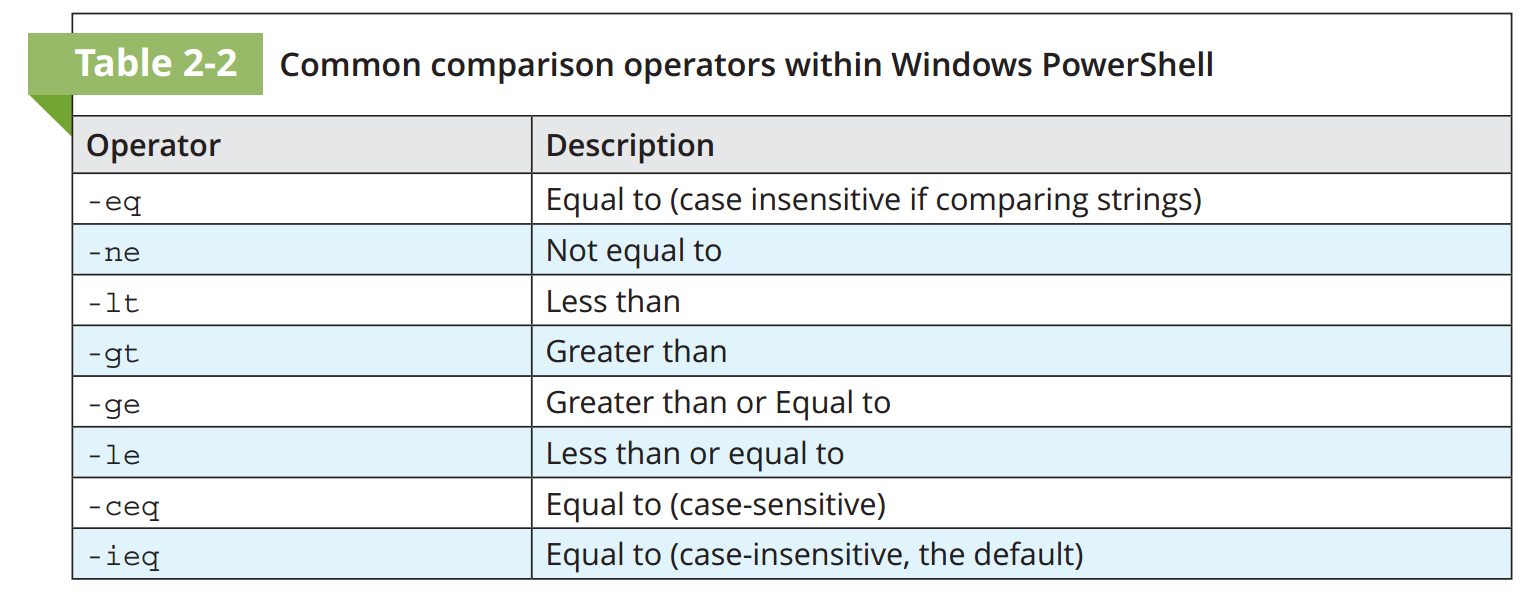
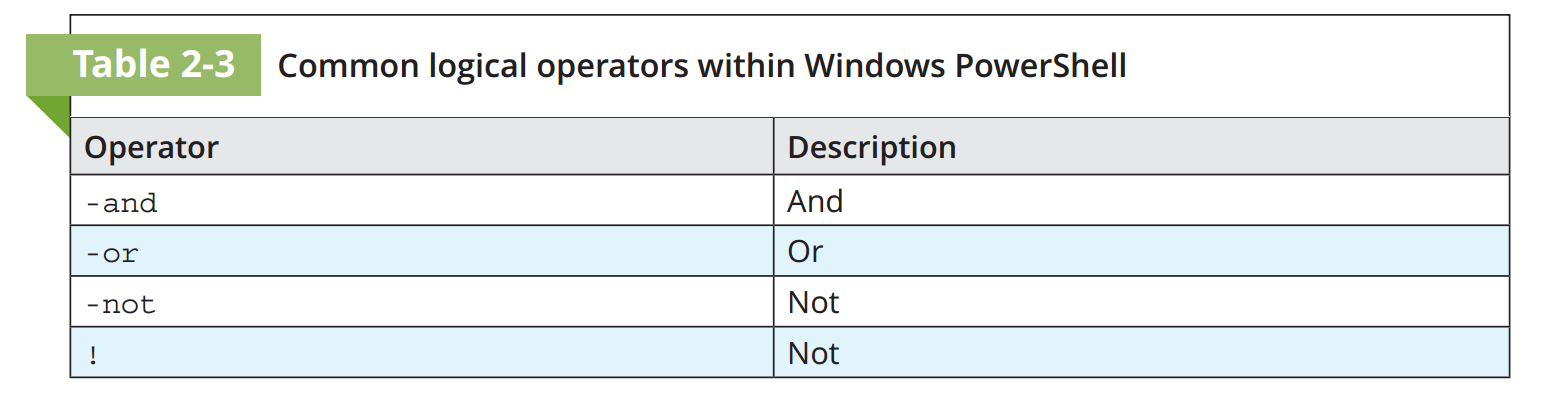
Includes constructs such as if-else for decision-making and looping constructs for managing repetitive tasks, which are fundamental for complex script designs.
Using WMI
Windows Management Instrumentation (WMI) can be accessed to retrieve detailed information about system hardware and configurations seamlessly, enhancing server management capabilities.
Summary
Server Management Importance
Mastery of tools like Server Manager and Windows Admin Center is crucial for effective and efficient server administration, which directly affects business operations.
Understanding PowerShell
PowerShell’s capabilities for automation and server configuration management are essential for modern IT environments, enabling reduced manual workload.
Registry and System Configuration
Careful modifications to the Windows Registry and system settings can significantly enhance system functionality but require precision to avoid adverse effects on system performance and stability.