1.2 - Memory and storage
1.2.1 Primary storage
The need for primary storage
A computer needs primary storage because access times are faster than secondary storage
Primary storage holds data and instructions that the CPU needs to access whilst the computer is turned on
Consists of:
Random access memory (RAM)
Read-only memory (ROM)
Registers
Cache
Primary storage | Secondary storage |
|
|
Why would RAM be faster than a hard disk drive:
RAM has no moving parts
Hard disk has a head - which is a mechanical component
RAM is physically closer to the CPU
Hard disk is physically further away from the CPU
Difference between RAM and ROM
Volatile = when power is switched off it no longer retains any data
Non-volatile = retains/stores data even when not powered
RAM:
Volatile
Can change contents
High capacity
Holds data and instructions
ROM:
Non-volatile
Cannot change contents (Read only)
Low capacity
Holds start-up instructions
Contents of ROM are fixed in the factory
BIOS runs as soon as the computer is switched on
It checks that the hardware is functioning correctly, then runs a second program known as the bootup or bootstrap program that loads the computer's operating system
Virtual memory
Virtual memory = the use of secondary storage as primary storage:
If there isn’t enough main memory for all the programs to run, the CPU uses virtual memory which is slower to access
The CPU must fetch data/programs from virtual memory instead of from RAM
Memory is divided into small fixed chunks called pages
The least recently used page is swapped out of main memory and into virtual memory when main memory is full
If a page is swapped out then needed again - it is swapped back into main memory then another page is swapped out
Disk thrashing:
Happens when a computer spends too much time swapping pages back and forth between main memory and virtual memory
Slowing down the computer
Using virtual memory makes a computer run slower:
The processor has to wait while data is swapped between hard disk and RAM
As secondary storage devices have slower access times than RAM, the computer's processing performance can be decreased
Processing performance can be improved by increasing the size of the RAM, thereby reducing the need for virtual memory
1.2.2 Secondary storage
The need for secondary storage
Secondary storage = non-volatile, long term storage for programs and data:
Saves files over a long period of time
Retains its contents when the computer is switched off
Stores both programs and data
Modifiable
Need:
Used to keep programs and data even when the computer is switched off and is used as a long-term storage
Common types of storage
Optical storage:
Examples include -
CDs
DVDs
Blu Ray
Applications -
CD - Music
DVD - Video/film
Blu ray - HD video/film
Advantages -
Hold reasonable amount of data
650-600MB for CD / 4.7GM for DVD
Portable
Fast data transfer rates
Disadvantages -
Easily scratched - data can’t be read
Memory capacity not great
Cannot overwrite data
How it works:
Holds data using pits burned into a plastic surface that is read by a laser beam
Flat areas known as the lands
A sensor looks at the reflected light:
Reflection (from lands) = a binary “1”
No reflection (from pits) = a binary “0”
Magnetic storage:
Examples include -
Hard disk drive / magnetic tape
Applications -
Main storage for a typical computer
Used to store:
OS
Application software
Files such as documents
Music, videos, etc
Advantages -
Very fast data access
Data can be read directly from any part of the hard disc (random access)
Holds a lot of data (1TB+)
Disadvantages -
Moving parts can break when dropped
And eventually fails
Not portable (takes up space and heavy to carry)
Vulnerable to magnetic fields
A strong magnet might erase the data the device holds
How it works:
Use magnetic fields to magnetise tiny individual section of a metal spinning disk
A magnetised section = a binary “1”
A demagnetized section = a binary “0”
As the disk is spinning a read/write head moves across the surface to magnetise/ demagnetise a section of the disk spinning under it
Solid state storage:
Examples include -
USB stick, solid-state drive, SD card
Applications -
Personal storage
Mobile devices
Portable storage
Same as hard disk drives
Advantages -
Less susceptible to physical shock
Faster access time than hard disk
Not affected by magnets
Lower power consumption
No noise
Disadvantages -
Low storage capacity compared to hard disk drives
Limited number of writes
Expensive
How it works -
Holds data using electrons trapped in solid matter
Characteristics of secondary storage
Capacity
How much data can it store?
Speed
How fast can it access data/ read and write data?
Portabilit
How easy it is to move it from one place to another?
Durability
How robust it is?
Reliability
How consistently does it perform?
Cost
How much does it cost per KB, MB or GB?
Medium | Type | Capacity | Access speeds | Portability | Durability | Reliability |
Hard disk | Magnetic | 500GB - 12TB | Slow | Not portable | Prone to damage if dropped | Very reliable |
CD | Optical | 640MB | Very slow | Very portable | Easily scratched | Very reliable |
DVD | Optical | 4.7GB | Slow | Very portable | Easily scratched | Very reliable |
Blu-ray | Optical | 50 GB | Slow | Very portable | Easily scratched | Very reliable |
Solid-state drive | Flash memory | 256 GB - 4TB | Very fast | Internal SSDs are fixed External SSDs are portable | Robust and resilient | Reliable |
USB memory stick | Flash memory | 2GB - 2TB | Fast | Very portable | Robust and resilient | Reliable |
1.2.3 Units
All data in a computer is stored in binary form:
A binary digit is known as a bit
A bit is the smallest unit of data a computer can use
Unit | Size |
1 nibble | 4 bits |
1 Byte (B) | 8 bits |
1 Kilobyte (KB) | 1,000 bytes |
1 Megabyte (MB) | 1,000 kilobytes |
1 Gigabyte (GB) | 1,000 megabytes |
1 Terabyte (TB) | 1,000 gigabytes |
1 Petabyte (PB) | 1,000 terabytes |
How to calculate file sizes of sound, images and text files:
Sound file size = sample rate X duration (s) X bit depth
Sample rate = number of samples per second measured in Hz
Bit depth = number of bits required to store each sample
Image file size = colour depth X image height (px) X image width (px)
Colour depth = Number of bits required to store each pixel
Text file size = bits per character X number of characters
Why data must be stored in binary format:
Store data in binary because they use electronic switches with two states:
CPUs, memory, and storage devices use transistors
Transistors have two stable states: on or off
These correspond to 1 and 0 in binary
1.2.4 Data storage
Numbers
HAVE TO DO ALL BINARY, DENARY, BINARY ADDITION, BINARY SHIFTS AND HEXADECIMAL PRACTICE QUESTIONS AND LEARN MYSELF
Characters
A character set =
A defined list of characters recognised by the computer hardware and software, with each character being represented by a single number
Important that every computing device uses the same binary number to represent each character
Each character is logically ordered
E.g - character code for “B” will be one more than the character code for “A”
A character can be:
26 Uppercase (A-Z)
26 Lowercase (a-z)
Numbers (0-9)
Punctuation codes @;/?~!$* etc…
Whitespace tabs, line breaks etc…
Two standard character sets in common use are:
ASCII (American Standard Code for Information Interchange)
ASCII uses 7 bits per character - giving a character set of 128 characters (2^7 = 128)
Extended ASCII uses 8 bits per character - giving a character set of 256 characters (2^7 = 256)
Enough to only fit the english language
BUT for the exam, ASCII will use 8 bits!!!
Unicode
Unicode uses 16 bits per character - giving a character set of 65,536 characters (2^16 = 65,536)
Enough for every language in the world
Images
Types of digital images:
Vector graphics -
Stored as a set of mathematical instructions - how to draw each shape
Uses simple geometric objects such as points, lines, curves, and shapes and polygons…
Uses mathematical expressions
Usually has smaller file sizes than bitmap images
Can be scaled infinitely without any loss in quality -
Every line and shape has a value that changes when the image expands
When a vector image is enlarges - entire image is redrawn
no pixelation occurs… smooth rescaling
Bitmap images -
Rely on a series of square blocks called pixels, arranged on a grid
Quality of images depends of the amount of pixels per square inch
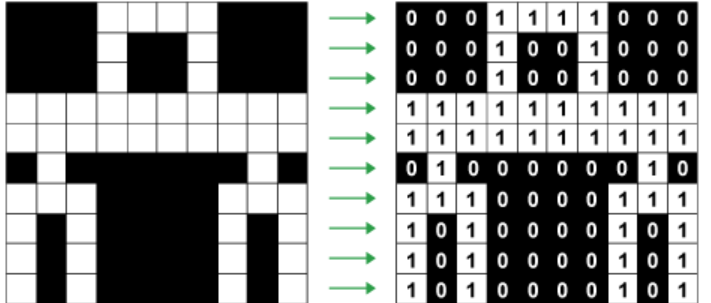
Pixels =
A picture element
Smallest unit of data that can be represented in an image
A single, solid block of colour
More pixels = more detailed images
Pixelated = a term that is used when the pixels in an image are visible
Resolution = how many pixels are displayed in a specific area of an image
Expressed as dots per inch (dpt) or pixels per inch (ppi)
More pixels = a more detailed image/ better image quality
BUT more resolution = a bigger file size
more pixels means more data to store
Colour depth = number of bits per pixel:
Formula for number of colours in a pixel = 2ⁿ
1 bit: 2¹ = 2 colours
2 bits: 2² = 4 colours
3 bits: 2³ = 8 colours
Greater colour depth -
more realistic colours and a better quality image
more bits need to be stored and the file size gets larger
When bitmap image is enlarged - pixelation starts to occur
Sound
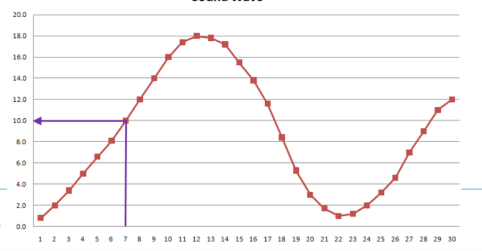
Sound waves are analogue (continuously changing) but digital signals have a distinct value separated by time -
Computers only understand binary
So the continuously variable sound must be converted into discrete binary values
So you measure the amplitude (height) of the wave at regular intervals (sampling)
Then you store each sample as a binary number
What affects the quality of digitally converted sound waves?
Sample rate - how often the amplitude of a sound is recorded
The more often a sample is recorded - a better quality of playback
BUT more often means more data so a bigger file
Number of samples taken per second
Measured in hertz (Hz)
Bit depth - number of bits used to record each sample
The greater the bit depth - a better quality of playback
BUT more bits to store = a bigger a file
1.2.5 Compression
Compression = the process of encoding data so that it needs fewer bits to represent it and reduces the size of files:
Why do we use compression?
Takes up less space on storage devices
Quicker to transfer or stream over the internet
Compressed data must be decompressed to be used
Lossless compression:
Methods of lossless compression:
Dictionary coding - for text based documents
The algorithm scans the original data
It identifies repeated sequences
It stores these sequences in a dictionary
Each time a sequence appears, instead of writing the full data, it writes a short code that points to the dictionary entry
Run-length encoding - for images images
Looks at the data in a file for consecutive runs of the same data
These runs are stored as one item of data
00000011111111000000 (20 characters) becomes:
608160 (6 characters) -
(number of repetitions)(value repeated)
Both lossless compression methods allow us to recreate the file in its original quality
Lossy compression:
Lossy compression compresses data files but does lose come of the information
Used is some loss of accuracy is acceptable (not used on text files as it could remove or change characters)
Produces smaller data files compared to lossless compression
Image file can be compressed by reducing the colour depth
Sound file can be compressed reducing the bit depth