ISTM 210 Notes
Active Study Guide: Chapter Review
Learning Objectives
After studying this section, you should be able to:
Classify common computer failures as hardware, operating-system, application, or network problems.
Recommend business-laptop components based on workload, benchmarks, budget, and price-to-performance.
Evaluate whether an aging machine should be upgraded or replaced.
Explain the operating system’s responsibilities and the importance of file-format compatibility.
Apply install hygiene before downloading or installing software.
Use the four-move diagnostic protocol to isolate a problem before attempting a fix.
Compare short-term hardware spending with long-term diagnostic competence.
Concept Mastery Checklist
1. Diagnosing Problems by Layer
Official definition: No glossary definition is provided on this page. The section distinguishes four diagnostic layers: hardware, operating system, application, and network.
Why it matters: Correctly identifying the layer prevents you from buying or replacing equipment unnecessarily.
How to recognize it:
Hardware: Slowness or crashes tied to one machine; possible causes include the CPU, RAM, or storage.
Operating system: Boot problems or driver issues.
Application: A problem occurring only in one program or during one program-specific task.
Network: A problem that follows the connection, such as a choppy video call.
How to apply it:
Describe the symptom precisely.
List the possible layers: hardware, OS, application, and network.
Ask whether the problem follows:
The task
The machine
The connection
Test the cheapest explanation first.
Fix the component you proved was responsible.
Common mistake: Assuming the computer itself is defective when the actual problem is the network or one application.
2. Choosing a Business Laptop
Official definition: No glossary definition is provided on this page. A sensible laptop balances workload, performance, reliability, and cost.
Why it matters: Spending more does not always produce proportional performance gains. You should spend where the price-to-performance curve provides meaningful benefit.
How to recognize a sensible specification:
A mid-to-upper-tier CPU selected using benchmark results.
Enough RAM for the intended workload.
More RAM for databases and analytics.
An SSD, preferably an NVMe SSD, instead of an HDD for speed.
A reliable manufacturer.
Every component justified by the tasks the computer must perform.
How to apply it:
Identify the buyer’s workload.
Set the budget.
Compare processors using benchmarks rather than labels alone.
Select enough RAM for the workload.
Prefer SSD storage, ideally NVMe.
Choose a reliable manufacturer.
Explain how each choice supports the user’s tasks.
Common mistake: Buying the most expensive component simply because it is the fastest, without considering whether the workload benefits enough to justify the price.
3. Upgrade Versus Replace
Official definition: No glossary definition is provided on this page. The decision depends first on the machine’s upgrade profile—which components can actually be replaced or expanded.
Why it matters: Some modern laptops and most Macs have soldered memory and non-replaceable storage. In those cases, upgrading may not be practical.
Highest-leverage upgrades:
Replace an HDD with an SSD.
Add RAM, up to the machine’s maximum supported amount.
These upgrades reduce the time the CPU spends waiting for data.
How to apply it:
Check whether the memory and storage are replaceable.
Determine the maximum supported RAM.
Identify whether the machine uses an HDD.
If possible, replace the HDD with an SSD.
Add RAM if the workload and machine support it.
Replace the machine if important components cannot be upgraded or the upgrade profile is too limited.
Common mistake: Assuming every computer can be upgraded in the same way, especially assuming laptop memory and storage are replaceable.
4. Operating-System Responsibilities
Official definition: No glossary definition is provided on this page. The operating system manages files, schedules the processor’s attention among open programs, communicates with hardware devices, and determines which applications can run.
Why it matters: The OS connects applications, hardware, files, and the user. Problems involving booting, drivers, or application compatibility may depend on the OS.
What the OS does:
Manages files.
Schedules processor attention among open programs.
Communicates with hardware devices.
Determines which applications can run.
How to apply this concept: When diagnosing a problem, consider the OS if the symptom involves booting, drivers, hardware communication, or whether a program can run at all.
Common mistake: Treating the OS as merely the visual interface. It also manages hardware, processor scheduling, files, and application execution.
5. File-Format Compatibility
Official definition: No glossary definition is provided on this page. File formats act as a “treaty zone” between systems, allowing files to be used across platforms and applications.
Why it matters: A file format tied to one platform-specific application can create a dependency. Cross-platform formats improve sharing and collaboration.
Examples:
.sketch may depend on a particular application or platform.
.pdf, .csv, and .docx are examples of cross-platform formats.
How to recognize compatibility issues:
A file opens only in one application.
A recipient cannot open or edit a file.
Sharing requires a specific platform or program.
Common mistake: Assuming that a file can be opened or edited universally simply because it can be attached to an email.
6. Install Hygiene
Official definition: No glossary definition is provided on this page. Install hygiene means checking whether existing software already performs the needed task and asking IT before installing a new tool on a work machine.
Why it matters: Installing software on a work machine affects more than one user because it may affect everyone on the network.
How to apply it:
Identify what the download is supposed to do.
Check whether existing software already performs that function.
For example, a browser may already read PDFs.
If existing software is insufficient, ask IT before installing.
Treat the installation as a decision affecting the wider work environment.
Common mistake: Downloading a new tool immediately without checking existing capabilities or consulting IT.
7. The Four-Move Diagnostic Protocol
Official definition: No glossary definition is provided on this page. The four-move diagnostic protocol is:
Name the symptom precisely.
List the candidate components.
Run the cheapest minimal test that separates the candidates.
Fix the component you proved rather than the one you suspected.
Why it matters: This method prevents “diagnosing by purchase”—buying hardware before proving that hardware is the problem.
How to apply it:
Replace “my computer is bad” with a specific symptom such as “video calls become choppy only on this connection.”
Consider hardware, OS, application, and network.
Change one relevant condition at a time.
Observe whether the problem follows the task, machine, or connection.
Repair only after the evidence identifies the responsible component.
Common mistake: Jumping directly from a symptom to an expensive replacement.
8. Dollars Now Versus Competence Forever
Official definition: No glossary definition is provided on this page. The trade is dollars-now versus competence-forever.
Why it matters:
Hardware spending buys time or performance for one machine until the next purchase.
Diagnostic skill helps you on every machine you use.
The chapter argues that competence forever is underpriced because users often over-invest in hardware and under-invest in diagnostic skill.
Key example: Replacing three laptops to fix a router demonstrates the cost of misdiagnosing a network problem as a hardware problem.
Common mistake: Assuming that purchasing newer equipment is always the best solution.
Self-Test Questions
Try answering from memory before checking the answers.
What are the four layers used to classify computer failures?
A program crashes only when you insert images. Which layer is most likely responsible?
A video call is choppy, but only on one network connection. Which layer should you investigate first?
What components should you consider when specifying a business laptop?
Why should you use benchmarks when selecting a CPU?
Why is an SSD generally preferred over an HDD?
What two upgrades are identified as highest leverage when possible?
Why might a modern laptop or most Mac computers need to be replaced rather than upgraded?
What four responsibilities does the operating system perform?
Why are
.pdf,.csv, and.docxuseful for cross-platform work?What should you check before downloading a new tool?
Why should you ask IT before installing software on a work machine?
State the four moves of the diagnostic protocol in order.
What question helps split hardware, application, OS, and network candidates?
Explain the difference between dollars-now and competence-forever.
What does “diagnosing by purchase” mean?
A workbook opens slowly. What possible hardware cause should you consider?
Why is replacing three laptops to fix a router an example of poor diagnosis?
Self-Test Answers
Hardware, operating system, application, and network.
The application layer.
The network layer.
CPU, RAM, storage, and manufacturer reliability, matched to workload and budget.
Benchmarks help compare practical performance and support price-to-performance decisions.
SSDs provide faster storage performance than HDDs.
Replacing an HDD with an SSD and adding RAM up to the machine’s maximum.
Memory may be soldered and storage may be non-replaceable.
It manages files, schedules processor attention, communicates with hardware, and determines which applications can run.
They are cross-platform formats that reduce dependencies on one platform-specific application.
Whether existing software already performs the task.
An installation on a work machine can affect everyone on the network.
Name the symptom; list candidates; run the cheapest minimal separating test; fix what you proved.
Ask whether the problem follows the task, the machine, or the connection.
Hardware spending helps one machine temporarily; diagnostic competence helps across every machine you use.
Buying or replacing equipment before proving that it is the source of the problem.
A full disk or slow storage may be responsible.
The actual problem was likely at the network layer, not the laptop hardware layer.
Worked Example
Scenario: A user reports, “My computer is slow.”
Solution walkthrough:
Identify the symptom precisely
Ask when it is slow:
During every task?
Only when opening one application?
Only during online calls?
Only when opening files?
List candidate components
Hardware: CPU, RAM, or storage.
OS: boot or driver issue.
Application: one program may be malfunctioning.
Network: online tasks may be affected by the connection.
Run a minimal separating test
If only one application is affected, compare another application.
If only online tasks are affected, test another connection.
If files open slowly, check whether the disk is full or storage is slow.
If all tasks are slow on one machine, investigate hardware or OS causes.
Verify before fixing
Do not replace the laptop simply because the user described it as slow.
Fix the component supported by the test results.
Memory Aids
Diagnostic layers: Remember H-O-A-N:
Hardware
Operating system
Application
Network
Four-move protocol: Remember Name–Candidates–Test–Fix:
Name the symptom.
List candidates.
Test cheaply.
Fix what you proved.
Splitting question: Use the phrase “Task, machine, or connection?”
Follows the task → likely application.
Follows the machine → likely hardware or OS.
Follows the connection → likely network.
Upgrade priority: Think “SSD first, RAM next” when those upgrades are supported.
OS memory image: Imagine the OS as a manager who:
Files information.
Schedules workers.
Talks to equipment.
Decides which programs are allowed in.
Common Pitfalls
Mistake: Replacing hardware before diagnosing the symptom
Why it’s wrong: The problem may be an application, OS, or network issue.
Correct approach: Run the cheapest test that separates the candidates.
Mistake: Describing symptoms vaguely
Why it’s wrong: “The computer is bad” does not identify what needs testing.
Correct approach: State when, where, and how the problem occurs.
Mistake: Buying the highest-end laptop
Why it’s wrong: Price may rise faster than performance.
Correct approach: Choose components at the useful price-to-performance point.
Mistake: Ignoring workload
Why it’s wrong: Different tasks require different amounts of CPU performance and RAM.
Correct approach: Match specifications to intended tasks; databases and analytics may benefit from more RAM.
Mistake: Assuming all laptops are upgradeable
Why it’s wrong: Many modern laptops have soldered memory and non-replaceable storage.
Correct approach: Check the machine’s upgrade profile first.
Mistake: Treating all file formats as equally portable
Why it’s wrong: Some formats depend on one application or platform.
Correct approach: Prefer cross-platform formats when collaboration requires them.
Mistake: Installing software without checking existing tools
Why it’s wrong: You may add unnecessary software or create work-machine risks.
Correct approach: Check whether existing software already does the job, then ask IT.
Mistake: Fixing what you suspect instead of what you proved
Why it’s wrong: Suspicion is not evidence.
Correct approach: Test first and repair the confirmed source.
Quick Reference Card
Term | Meaning | When to Use |
|---|---|---|
Hardware | Physical components such as CPU, RAM, and storage | Slowness or crashes tied to one machine |
Operating system | Software that manages files, processor scheduling, hardware communication, and application execution | Boot, driver, hardware-communication, or program-running issues |
Application | A specific program used to perform a task | Problems occurring only in one program |
Network | The connection through which devices communicate | Problems that follow the connection |
Benchmark | A performance comparison used to evaluate components | Selecting a CPU based on performance and value |
Price-to-performance | The relationship between additional cost and additional performance | Deciding whether a higher-tier component is worth buying |
SSD | Faster storage technology than an HDD | Improving storage speed; especially important when replacing an HDD |
NVMe | A preferred type of SSD identified in the section | Selecting fast storage for a business laptop |
Upgrade profile | The set of components a machine can realistically replace or expand | Deciding whether to upgrade or replace |
File-format compatibility | The ability of files to work across platforms and applications | Sharing files with people using different systems |
Install hygiene | Checking existing software and consulting IT before installing a new tool | Downloading or installing software on a work machine |
Diagnostic protocol | Name the symptom, list candidates, test cheaply, and fix what is proved | Investigating a fresh computer problem |
Dollars-now versus competence-forever | Hardware provides short-term machine-specific benefit; diagnostic skill provides lasting benefit | Comparing equipment purchases with developing troubleshooting ability |
Final Exam Checklist
Before moving on, make sure you can:
Explain why a choppy video call may be a network problem.
Distinguish an application failure from a hardware failure.
Justify RAM, CPU, and SSD choices for a specific workload.
Explain why price-to-performance matters.
Identify when replacement is more sensible than upgrading.
List the operating system’s four major responsibilities.
Explain why cross-platform file formats matter.
Apply install hygiene to a real download.
Recite the four diagnostic moves without notes.
Explain why diagnostic competence can be more valuable than repeatedly buying new hardware.
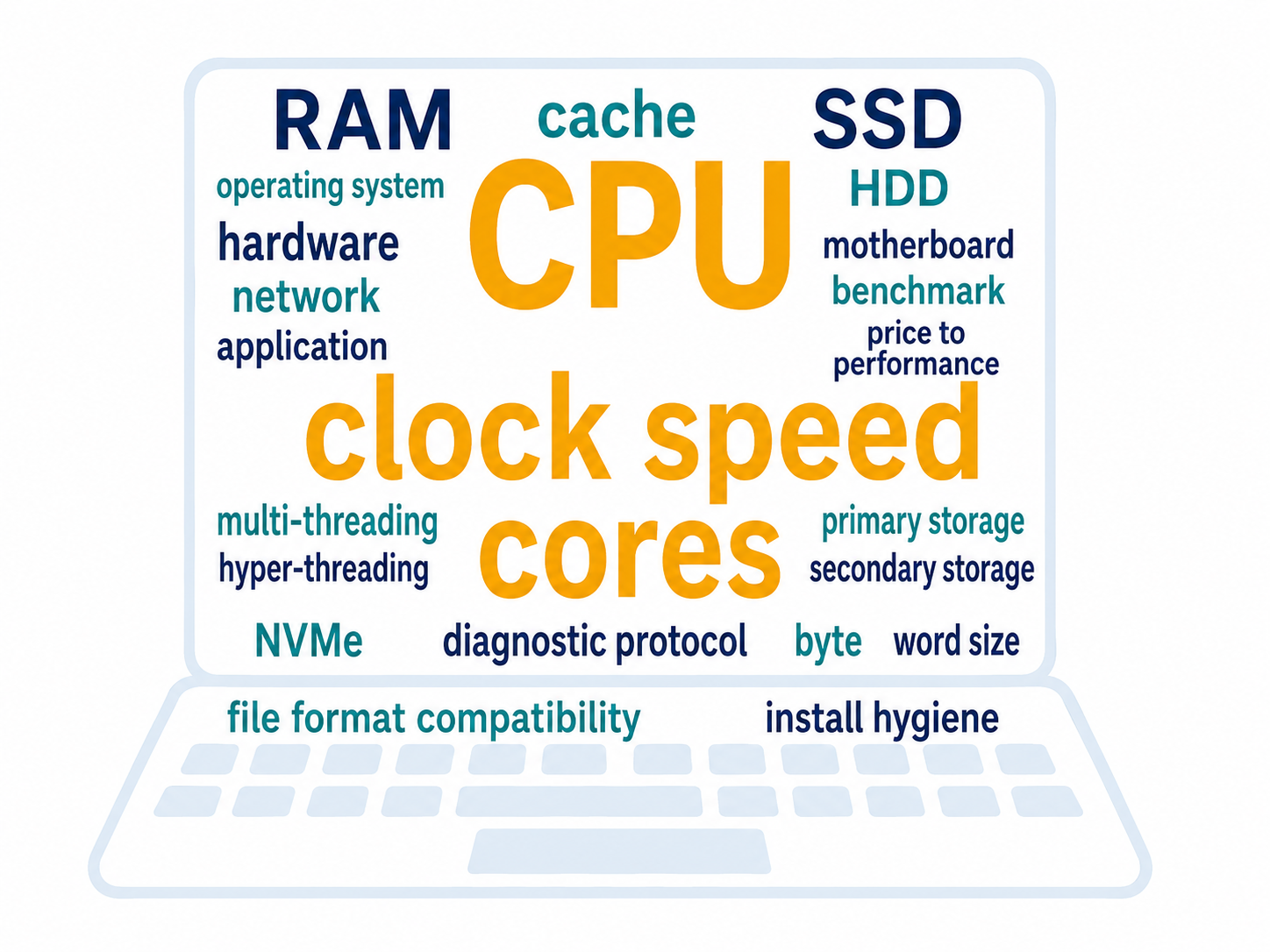
Figure 2.15: The key vocabulary of Chapter 2 at a glance.
Work through these questions from memory before you read the answer beneath each one; retrieval beats re-reading. Then complete the required reading quiz to check your recall.
Match five common failures to hardware, OS, application, or network. (If stuck: revisit the Introduction and the stack figure.)
Answer: Approach this by matching each symptom to the layer that produces it: hardware (CPU, RAM, storage) for slowness or crashes tied to one machine, the OS for boot or driver issues, the application for problems in a single program, and the network for anything that follows the connection. For example, a choppy video call is usually network, a program that crashes only when inserting images is the application, and a slow-to-open workbook may be a full disk.
Spec a sensible business laptop for a given budget and justify each component. (If stuck: revisit the Computer Buyer’s Guide.)
Answer: Justify each component against the buyer’s-guide principle that price rises faster than performance, so you spend where the curve inflects rather than at the top end. Choose a mid-to-upper-tier CPU by benchmark, enough RAM for the intended workloads (databases and analytics benefit from more), an SSD (ideally NVMe) over an HDD for speed, and a reliable manufacturer, explaining each choice in terms of the tasks the machine must do.
Decide upgrade-versus-replace for an aging machine and name the highest-leverage upgrade. (If stuck: revisit the Computer Upgrade Guide.)
Answer: Decide by checking the machine’s upgrade profile first, since many modern laptops and most Macs have soldered memory and non-replaceable storage, which pushes the decision toward replacement. When upgrades are possible, the highest-leverage moves are replacing an HDD with an SSD and adding RAM up to the model’s maximum, because both directly cut the time the CPU spends waiting for data.
Explain what the OS does and what file-format compatibility has to do with it. (If stuck: revisit Operating Systems at a Literacy Level.)
Answer: The operating system manages files, schedules the processor’s attention among open programs, communicates with hardware devices, and determines which applications can run at all. File-format compatibility follows from that last job: formats are the treaty zone between systems, so a format tied to one platform’s application (such as .sketch) becomes a dependency, which is why cross-platform formats like .pdf, .csv, and .docx exist.
Apply the install-hygiene rule to a download you are tempted by this week. (If stuck: revisit Browsers and Productivity Software.)
Answer: Apply the install-hygiene rule: before downloading a tool, check whether something you already have (such as your browser, which is already a PDF reader) does the job, and if not, ask IT before installing, because on a work machine an installation is a decision you make for everyone on the network. Point the rule at a specific download you are tempted by this week and walk through those checks.
Run the four-move diagnostic protocol on a fresh symptom, end to end. (If stuck: revisit Diagnosing Workflow Problems.)
Answer: Run the four moves end to end: name the symptom precisely rather than vaguely, list the candidate components (hardware, OS, application, network), run the cheapest minimal test that splits the candidates by asking whether the problem follows the task, the machine, or the connection, and then fix the component you proved rather than the one you suspected. The splitting question is what keeps you from diagnosing by purchase.
State the dollars-now versus competence-forever trade and which side this chapter argues is underpriced. (If stuck: revisit the closers.)
Answer: The trade is dollars-now versus competence-forever: spending on hardware buys time at the margin for one machine until the next purchase, while diagnostic skill buys time on every machine you ever touch. The chapter argues that competence-forever is underpriced, because most users over-invest in hardware and under-invest in diagnostic skill, which is how a company replaces three laptops to fix a router.
Complete the required reading quiz below before class. It draws a fresh set of questions from a larger bank, so use your result to find weak spots before class.
2.9 Hardware and Networking Basics Quiz
The review quiz test bank is randomized per student with only ONE attempt.
Due Date: Fri, Aug 28, 2026, 11:59 PM
Points: 10
Your Submission:
Graded on Fri, Aug 28, 2026, 4:44 PM
Submission Score
10 / 10 (100.00%)
Submit Time
Aug 28 at 16:44
Grade Time
Aug 28 at 16:44
Compared with a hard-disk drive, what is the main reason a solid-state drive is faster?
It uses magnetic platters
It holds much more data
It costs far less money
It has no moving parts
Feedback
1 / 1 (100.0%)
Correct Answer: It has no moving parts
An SSD is a form of flash memory with no moving parts, so it avoids the mechanical delay of spinning platters and a moving arm.
Before deciding to upgrade a laptop's memory, why should you first learn the device's upgrade profile?
Warranties won't always allow it
Upgrades don't always help speed
Some memory is soldered (unremovable)
All of the above
Feedback
1 / 1 (100.0%)
Correct Answer: All of the above
Many modern laptops and most Macs use soldered or unified memory, so the RAM simply cannot be replaced after purchase.
According to the chapter, which of these is one of the operating system's core jobs?
Manufacturing the processor's physical cache
Scheduling the processor's attention
Soldering the volatile memory modules
Setting the CPU clock faster
Feedback
1 / 1 (100.0%)
Correct Answer: Scheduling the processor's attention
The operating system manages files, schedules the processor among programs, controls devices, and defines which applications can run.
A CPU's clock speed measures how many operating cycles it performs each second. In what unit is this rate expressed?
Threads per program
Bytes per second
Cycles per second
Blocks per platter
Feedback
1 / 1 (100.0%)
Correct Answer: Cycles per second
Clock speed is measured in cycles per second, and modern CPUs run billions of cycles per second, expressed as gigahertz.
What happens to the data held in RAM when the computer loses power?
It stays until overwritten
It moves into the cache
It copies onto storage
It is lost immediately
Feedback
1 / 1 (100.0%)
Correct Answer: It is lost immediately
RAM is volatile primary storage, meaning everything stored in it is lost or erased when the power is turned off.
What does having multiple physical cores allow a CPU to do?
Raise its overall clock speed
Run tasks simultaneously
Replace the volatile RAM sticks
Shrink the built-in cache size
Feedback
1 / 1 (100.0%)
Correct Answer: Run tasks simultaneously
Multiple physical cores are independent processors, so the CPU can truly perform more than one task at the same time.
A processor’s speed does NOT depend on which one of the following?
Capacity of the hard drive
Number of threads
Cache size
Heat
Number of cores
Clock speed
Feedback
1 / 1 (100.0%)
Correct Answer: Capacity of the hard drive
All else equal, the faster the clock speed, the faster the CPU will perform. But because other factors limit computer performance, increasing the clock speed by a certain percentage does not mean that computer performance will increase by that same percentage. Other factors like the amount of cache, the amount of RAM, and the number of CPU cores also impact computing speed.
Notice that the “best” processor is based on a combination of speed, cache size, cores, hyper-threading, and more. Additionally, processors vary in terms of the amount of power required (TDP in the table). More power means that the processor will run hotter at max usage. Heat slows down the processor well below the processor’s theoretical limits.
Tablets (e.g., iPads) and cell phones make extensive use of ________ to store the operating system and applications that are included with the device.
Optical memory
Flash memory
Cache memory
RAM
Feedback
1 / 1 (100.0%)
Correct Answer: Flash memory
SSDs use no moving parts—hence the name solid state. This makes SSDs much faster than HDDs. Current notebook HDDs have sequential read and write speeds of about 60 to 90 MBs per second. Current SSDs have sequential read and write speeds of about 200 to 400 MBs per second. So SSDs are four to five times faster than HDDs. An SSD is a form of flash memory. Because flash memory is faster, more compact, and more tolerant of shaking, small mobile devices (e.g., tablets and smartphones) use SSDs instead of HDDs.
Following the chapter's install-hygiene rule, what should you do before downloading an unfamiliar tool on a work machine?
Install the first result
Check existing tools first
Disable the network firewall
Uninstall the current browser
Feedback
1 / 1 (100.0%)
Correct Answer: Check existing tools first
The rule is to check whether a tool you already have does the job and, if not, ask IT before installing on a shared work machine.
True or false: A physical CPU core without hyper-threading enabled can process two instructions at the same time.
Feedback
1 / 1 (100.0%)
Correct Answer: False
Without simultaneous multi-threading (Intel brands it hyper-threading), one physical core processes one instruction stream at a time; it can still appear to juggle programs by rapidly switching among them, which the chapter calls multitasking. With simultaneous multi-threading enabled, the one physical core presents two logical cores and can work two threads. So the statement is false.