Files And Directories In Operating Systems
 Files and Directories in Operating Systems
Files
A file is a collection of data or information stored on a storage medium, such as a hard disk or flash drive.
Files can be of different types, such as text files, image files, audio files, etc.
Each file is identified by a unique name and can have an extension that indicates its type.
Files can be created, modified, and deleted by users or applications.
File operations include reading, writing, opening, closing, and seeking within a file.
Directories
A directory, also known as a folder, is a container that holds files and other directories.
Directories provide a hierarchical structure for organizing files.
Directories can contain subdirectories, allowing for a nested structure.
The root directory is the top-level directory in a file system, and all other directories are located within it.
Directories can be created, renamed, moved, and deleted.
Users can navigate through directories to access files and subdirectories.
File System
The file system is responsible for managing files and directories on a storage medium.
It provides a way to organize and store files efficiently.
File systems have different structures and features, depending on the operating system.
Common file systems include FAT32, NTFS (Windows), HFS+ (Mac), and ext4 (Linux).
File systems use data structures like file allocation tables or inode tables to keep track of file locations and metadata.
File system operations include formatting a storage medium, mounting and unmounting file systems, and managing file permissions.
File Paths
A file path is the unique address that specifies the location of a file within a file system.
Absolute paths start from the root directory and provide the full path to a file.
Relative paths are specified relative to the current working directory.
File paths can include directories and subdirectories separated by slashes (/) or backslashes () depending on the operating system.
Special characters like ".." (parent directory) and "." (current directory) can be used in file paths.
File Attributes
Files have associated attributes that provide information about them.
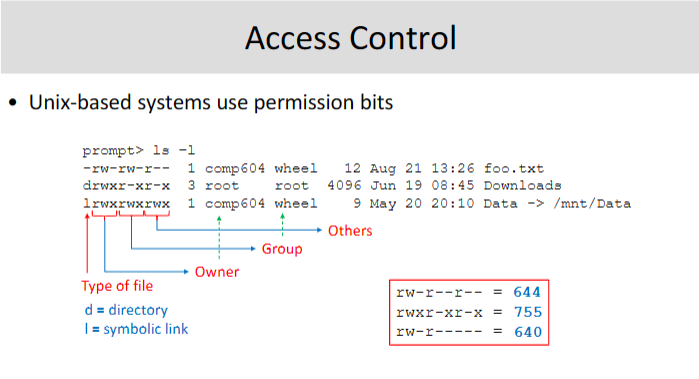
Common file attributes include the file size, creation date, modification date, and file permissions.
File permissions determine who can read, write, or execute a file.
File attributes can be viewed and modified by users or applications.
Some file systems support additional attributes like file compression,
Extended Notes:
Hard Links in Operating Systems
Introduction
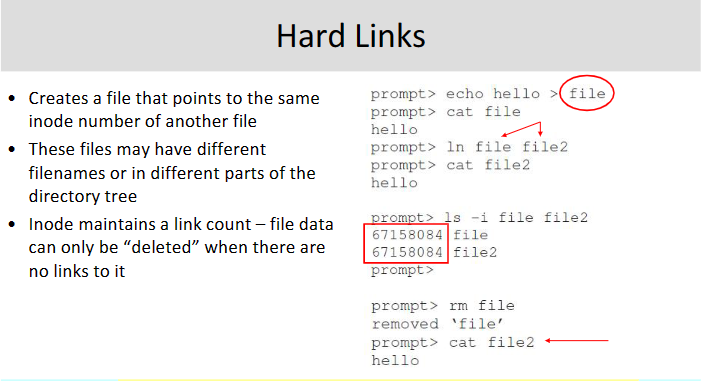
Hard links are a feature of file systems in operating systems that allow multiple directory entries to point to the same physical file or directory.
Unlike symbolic links, hard links directly reference the file or directory by its inode number, rather than by its path.
Characteristics of Hard Links
Same inode: Hard links share the same inode number as the original file or directory.
Same data and metadata: All hard links to a file or directory have the same content and metadata, including permissions, ownership, and timestamps.
No distinguishable original: There is no concept of an original file or directory among hard links. All links are equal and can be accessed independently.
Space-efficient: Hard links do not consume additional disk space for the file or directory content. They only require additional directory entries.
File Hard Links
File hard links allow multiple directory entries to point to the same file.
All hard links to a file are essentially different names for the same file.
Deleting any hard link does not affect the file until all hard links are removed.
Directory Hard Links
Directory hard links, also known as hard links to directories, allow multiple directory entries to point to the same directory.
Creating a hard link to a directory creates an additional entry in the parent directory that points to the same inode as the original directory.
Directory hard links can create loops or cycles, leading to infinite directory traversal if not handled properly.
Benefits of Hard Links
Space savings: Hard links allow multiple directory entries to share the same file or directory content, reducing disk space usage.
Efficient file organization: Hard links provide a way to organize files and directories without duplicating content.
Backup and version control: Hard links enable efficient backup and version control systems by referencing the same content across different locations.
Limitations of Hard Links
Within the same file system: Hard links can only be created within the same file system. They cannot span across different file systems or partitions.
No cross-platform compatibility: Hard links may not be fully supported or behave differently on different operating systems or file systems.
Vulnerable to accidental deletion: If all hard links to a file or directory are deleted, the content becomes inaccessible, even if it still exists on the disk.
Conclusion
Hard links in operating systems provide a way to
Symbolic Links in Operating Systems
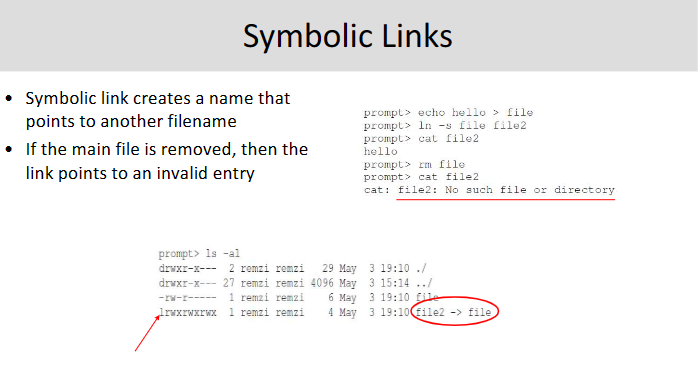
Symbolic links, also known as soft links or symlinks, are a feature in operating systems that allow for the creation of a special type of file that acts as a pointer to another file or directory.
Unlike hard links, symbolic links are not direct references to the file or directory they point to. Instead, they contain the path or location of the target file or directory.
Symbolic links provide flexibility and convenience by allowing multiple paths to access the same file or directory. They can be created across different file systems and even point to files or directories on remote systems.
Creating a symbolic link involves using the
lncommand in Unix-like systems or themklinkcommand in Windows. The syntax typically includes the target file or directory and the desired name and location of the symbolic link.Symbolic links can be identified by the
lorsflag in the file permissions listing, indicating that they are links rather than regular files or directories.When accessing a file or directory through a symbolic link, the operating system transparently redirects the request to the target location. This allows for seamless navigation and management of files and directories.
Symbolic links can be used to create shortcuts to frequently accessed files or directories, simplify directory structures, or provide alternative names for files or directories.
However, it's important to note that if the target file or directory is moved or deleted, the symbolic link will become broken and no longer function properly.
Symbolic links can be removed or updated using the appropriate command for the operating system. Removing a symbolic link does not affect the target file or directory.
Overall, symbolic links are a powerful tool in operating systems that enhance file and directory management by providing flexibility, convenience, and the ability to create virtual paths to files and directories.