Code
Movement vectors
Vector3.forward   (0, 0, 1)
Vector3.back      (0, 0, -1)
Vector3.right     (1, 0, 0)
Vector3.left      (-1, 0, 0)
Vector3.up        (0, 1, 0)
Vector3.down      (0, -1, 0)
These are relative to the world space, but you can also use transform.forward, transform.right, and transform.up for directions relative to the object’s local space.
Exporting Variables In Unity
✅ Method 1: public variables
public int health = 100; This makes the variable editable in the Inspector.
Also exposes it to other scripts (which may not always be desirable).
✅ Method 2: [SerializeField] with private or protected
[SerializeField] private float speed = 5f; This keeps the variable private (encapsulation = good) but still visible and editable in the Inspector.
Best practice for most cases.
🛑 NOT shown in Inspector:
private int score = 0; Private and not serialized → won't show up in the Inspector.
🧠 Bonus: Custom Inspector Name
[SerializeField, Tooltip("The speed the player moves.")] private float speed = 5f; Tooltipgives a helpful hover description in the Inspector.
Unity Functions
what is PlayerInput?
a built-in mechanism for connecting input actions defined in an Input Actions asset to scripts on a GameObject, typically the player's game object.
PlayerInput playerInput;

playerInput = GetComponent<PlayerInput>();
moveAction = playerInput.actions.FindAction("Move");
What is GetComponent<>()
GetComponent<>() is a method provided by Unity that lets you access other components attached to the same GameObject.
What is a Component?
In Unity, a GameObject (like a player, an enemy, or a tree) is made up of components. Some examples:
Transform(position, rotation, scale)Rigidbody(physics)Collider(collision detection)PlayerInput(input system stuff)Camera(for rendering a view)
Each of these is a component attached to a GameObject.
// Get a reference to the Rigidbody component on the current GameObject
Rigidbody rb = GetComponent<Rigidbody>();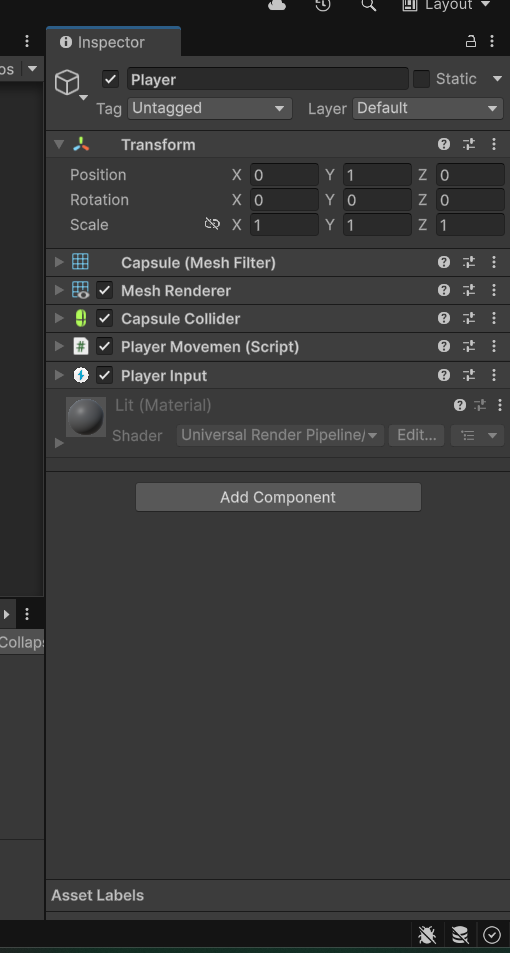
What is InputAction?
InputAction moveAction;

moveAction = playerInput.actions.FindAction("Move");playerInputreferences the PlayerInput component..actionsgives access to all input actions defined in your Input Actions asset..FindAction("Move")grabs the specific action named "Move".
Vector Movement
Vector2 direction = moveAction.ReadValue<Vector2>();You're reading the current value of the
"Move"input action.That action is expected to give you a Vector2 — usually from:
WASD keys
Arrow keys
Left analog stick on a controller
For example:
Pressing W gives you
(0, 1)Pressing A gives you
(-1, 0)Pressing W and D at the same time gives you
(1, 1)(but normalized)
So at this point, direction holds something like Vector2(1, 0) if the player is pressing D.
transform.position += new Vector3(direction.x, 0, direction.y) * speed * Time.deltaTime;Converts the 2D movement direction into a 3D direction.
xgoes toxy(from the Vector2) becomeszin 3D spacey(up/down) is set to 0 so the player doesn't fly up or fall through the ground
more information about Vector 2 and Vector3 -
🎮 1. Why is input usually a Vector2? -
Because most player movement comes from a 2D input device:
Keyboard (WASD / Arrow keys)
Gamepad left stick
Touch joystick on mobile
These all only give input on two axes:
Left–right →
xForward–backward →
y
So Unity’s Input System is designed to give you a Vector2 because that’s what those devices naturally produce.
Input - Binding Actions
Type | Use For | Example |
|---|---|---|
➕ Add Binding | Simple input | Jump on Spacebar |
🔄 Composite (Up/Down/Left/Right) | Directional input | WASD or Arrow Keys for movement |
🎮 Binding with One Modifier | Combo input | Sprint with Shift + W |
🎮🎮 Binding with Two Modifiers | Advanced combo input | Dev menu with Ctrl + Shift + M |
sqrMagnitude
The function sqrMagnitude returns the square of the vector's length, which is the sum of the squares of its components (e.g., x² + y² for Vector2, or x² + y² + z² for Vector3)
when to use - You’re comparing distances or lengths, not needing the exact number.
Need | Use |
|---|---|
Just comparing distance | ✅ |
Need exact distance | ❌ |
atan2() function
Quadrant Handling: Unlike
Mathf.Atan(y/x), which only gives a result between -90 and 90 degrees (or -π/2 and π/2 radians),Mathf.Atan2correctly determines the angle based on the signs of bothxandy, covering all four quadrants (0 to 360 degrees or 0 to 2π radians).Significance: It's crucial for accurately determining angles and directions, especially in 2D and 3D games, where you need to know the angle between a target and a point or between a character and a direction.
Usage: It's commonly used in game development for tasks like:
Calculating the angle of a vector
Rotating game objects towards a target
Implementing player movement and aiming systems
Mathf.SmoothDampAngle()
Mathf.SmoothDampAngle is a super useful Unity function for smoothly rotating something over time, especially when dealing with angles that can wrap around (like 0° and 360°).
🧩 Parameters Explained:
Parameter | Meaning |
|---|---|
| The current angle (in degrees) |
| The target angle you want to rotate to |
| A reference float Unity uses to track speed between frames (you must declare and keep this value) |
| How long it should take to reach the target angle (lower = faster) |
| Max speed (in degrees per second). Defaults to infinite |
| Usually just use |
Hiding and locking the mouse
Cursor.lockState = CursorLockMode.Locked;
Cursor.visible = false;
Awake() vs Start()
🟦 Awake():
Happens first.
Think: “Set up my stuff.”
Called right when the object loads.
Good for: Getting components, setting default values.
🟩 Start():
Happens after
Awake(), just before the game starts running.Think: “Do things once everything is ready.”
Good for: Starting actions, using other objects that are now ready.
🔁 Simple Example:
Imagine you're baking:
Awake()= gathering ingredients and preheating the oven.Start()= actually putting the cake in the oven when it's ready.
Character Movement Code
Character Controller vs RigidBody
Feature | Character Controller | Rigidbody |
|---|---|---|
Physics-Based | ❌ No | ✅ Yes |
Collision Handling | ✅ Built-in (via | ✅ Physics-based (via forces or velocity) |
Gravity | ❌ Must apply manually | ✅ Handled automatically |
Jumping | You calculate manually | Use |
Movement Style | Controlled, smooth, game-like | Realistic, physics-driven |
Ground Check | Built-in ( | You must write custom checks |
Pushing Objects | ❌ Not supported | ✅ Yes (via collisions) |
Use Cases | FPS, RPG, third-person movement | Platformers, physics puzzles, ragdolls |
Which to Use?
Use Character Controller if:
You want fine control over movement (like in an FPS or RPG).
Your character isn't meant to interact physically (pushing objects, ragdolls, etc.).
You prefer manually coding gravity and jump logic.
Use Rigidbody if:
You need physics interactions (knockbacks, bouncing, falling naturally).
Your game relies on realism, physics puzzles, or ragdoll effects.
You’re comfortable managing forces and drag.
🧪 Example Use Cases:
Game Type | Better Choice |
|---|---|
First-Person Shooter | ✅ Character Controller |
Puzzle Platformer (like Portal) | ✅ Rigidbody |
3D Adventure (like Zelda) | ✅ Character Controller (usually) |
Physics Sandbox | ✅ Rigidbody |
Multiplayer FPS | ✅ Character Controller (often combined with Rigidbody for knockbacks) |
Code Reference
using System;
using System.Collections;
using NUnit.Framework;
using UnityEngine;
using UnityEngine.InputSystem;

public class CharacterMovement : MonoBehaviour
{
    private Vector2 _input;
    private CharacterController _characterController;
    private Vector3 _direction;


    [SerializeField] private float smoothTime = 0.05f;
    [SerializeField] private float speed;
    [SerializeField] private float jumpPower;
    private int _numberOfJumps;
    [SerializeField] private int maxNumberOfJumps = 2;

    private float _currentVelocity;
    private float _gravity = -9.81f;
    [SerializeField] private float gravityMultiplier = 3.0f;
    private float _velocity;


    private void Awake()
    {
        _characterController = GetComponent<CharacterController>();
    }

    private void Update()
    {
        ApplyGreavity();
        ApplyRotation();
        ApplyMovement();
    }

     private void ApplyGreavity()
     {
        if (IsGrounded() && _velocity < 0.0f)
        {
            _velocity = -1.0f;
        }
        else
        {
            _velocity += _gravity * gravityMultiplier * Time.deltaTime;
        }

         _direction.y = _velocity;
     }

    private void ApplyRotation()
    {
        if (_input.sqrMagnitude == 0) return;

        var targetAngle = MathF.Atan2(_direction.x, _direction.z) * Mathf.Rad2Deg;
        var angle = Mathf.SmoothDampAngle(transform.eulerAngles.y, targetAngle, ref _currentVelocity, smoothTime);
        transform.rotation = Quaternion.Euler(0.0f, angle, 0.0f);
    }

    private void ApplyMovement()
    {
        _characterController.Move(_direction * speed * Time.deltaTime);

    }

    public void Move(InputAction.CallbackContext context)
    {
        _input = context.ReadValue<Vector2>();
        _direction = new Vector3(_input.x, 0.0f, _input.y);
    }

    public void Jump(InputAction.CallbackContext context)
    {
        if (!context.started) return;
        if (!IsGrounded() && _numberOfJumps >= maxNumberOfJumps) return;
        if (_numberOfJumps == 0) StartCoroutine(WaitForLanding());

        _numberOfJumps++;
        _velocity = jumpPower;
    }

    private IEnumerator WaitForLanding()
    {
        yield return new WaitUntil(() => !IsGrounded());
        yield return new WaitUntil(IsGrounded);

        _numberOfJumps = 0;
    }

    private bool IsGrounded() => _characterController.isGrounded;
}
ApplyGravity Function
private void ApplyGreavity() {
   if (IsGrounded() && _velocity < 0.0f)
   {
      _velocity = -1.0f;
   }

   else
   {
      _velocity += _gravity * gravityMultiplier * Time.deltaTime;
   }

   _direction.y = _velocity;

   }
checking for velocity < 0.0f because
When you land on the ground, your character might still have leftover downward velocity from falling.
If you don’t clamp/reset it, the character may:
sink into the floor slightly before popping back up
or have jittery contact with the ground
why _velocity -1.0f?
It’s a small downward value to keep the character “snapped” to the ground.
Unity’s Character Controller needs a bit of down movement to keep
isGroundedstable, due to how collisions work.0.0for positive values could causeisGroundedto return false unexpectedly.
why direction.y = velocity.y?
_directionis the full movement vector: left/right (x), forward/back (z), and up/down (y)._velocityis your vertical speed — like how fast you're falling or jumping.
"Plug my current jump or fall speed into the movement direction, so the character knows how to move vertically."
You already set x and z from the player input. Now you're just filling in the y part:
🎯 In Summary:
Line | Meaning |
|---|---|
| “If I'm grounded and falling, stop falling.” |
| “Apply a small downward pull to stay snapped to ground.” |
| “Apply gravity over time if airborne.” |
| “Update my final move vector with vertical velocity.” |
Apply Rotation Function
private void ApplyRotation()
{
    if (_input.sqrMagnitude == 0) return;

    var targetAngle = MathF.Atan2(_direction.x, _direction.z) * Mathf.Rad2Deg;

    var angle = Mathf.SmoothDampAngle(transform.eulerAngles.y, targetAngle, ref _currentVelocity, smoothTime);

    transform.rotation = Quaternion.Euler(0.0f, angle, 0.0f);
}
Why Input.sqrtMagnitude?
"If the player isn’t pressing any movement input, then stop — don’t bother rotating the character."
✅ What is sqrMagnitude?
_inputis a Vector2 (probably from your joystick or WASD keys).sqrMagnitudetells you how far the stick is pushed, but it skips the square root math thatmagnitudedoes.
📦 It's a faster version of checking if the vector has any length:
_input.magnitude == 0 // Slower (uses square root) _input.sqrMagnitude == 0 // Faster (no square root) And since we only care whether there's any input at all, this is the better choice.
var targetAngle
“Calculate the angle (in degrees) that the player should be rotated toward, based on movement input.”
_direction.x and _direction.z
These come from your movement input (
_input), turned into a 3D direction vector.Example:
Pressing W might give
_direction = (0, 0, 1)Pressing D gives
_direction = (1, 0, 0)
So
xis sideways movement,zis forward/backward.
🟡 MathF.Atan2(x, z)
This is the arctangent function, and it returns the angle (in radians) between the vector
(x, z)and the positive Z-axis.MathF.Atan2(0, 1) = 0 radians → 0 degrees……Character should face forward (0°)
Var angle
SmoothDampAngle - "Gently turn from the current angle to the target angle over time."
Part | What It Means |
|---|---|
| Your current Y rotation (the way the character is facing right now). |
| The angle you want to face (calculated from movement direction). |
| Keeps track of how fast the angle is changing — needed for smoothness. |
| How quickly to reach the target angle (smaller = faster rotation). |
what is ref? - used to pass arguments to methods by reference, rather than by value. This means that when a variable is passed with ref, any changes made to it within the method will be reflected in the original variable outside the method.
Transform.Rotation
“Rotate the character around the Y-axis (up/down) by a certain number of degrees.”
Part | What it does |
|---|---|
| This is how you set the rotation of your character or object in 3D space. |
| Creates a rotation based on Euler angles — that’s just a fancy way of saying angles in degrees. |
| You're rotating only on the Y-axis (left/right). The X and Z axes (tilt and lean) stay at 0°. |
ApplyMovement Function
private void ApplyMovement()
{
    _characterController.Move(_direction * speed * Time.deltaTime);
}
Code | What it does |
|---|---|
| This is Unity's built-in CharacterController component — it handles movement without needing rigidbodies or physics. |
| This is the function that actually moves the character. |
| This is the direction the player wants to go — based on keyboard or joystick input (like forward, left, right, etc.) plus gravity/jump (vertical movement). |
| Controls how fast the character moves. |
| Makes the movement frame-rate independent (so it moves the same speed no matter how fast or slow your computer is running). |
move function()
public void Move(InputAction.CallbackContext context)
{
    _input = context.ReadValue<Vector2>();
    _direction = new Vector3(_input.x, 0.0f, _input.y);
}
InputAction.CallbackContext context
This is a parameter passed by Unity’s new Input System.
It contains info about the player’s input — like whether a key is pressed, released, or held, and what the input value is.
_input = context.ReadValue<Vector2>();
This reads the player’s movement input.
Vector2means it gets a 2D value (like a joystick or WASD keys)..x→ horizontal input (A/D or left/right).y→ vertical input (W/S or up/down)
_direction = new Vector3(_input.x, 0.0f, _input.y);
This turns the 2D input into a 3D direction for your character.
X → left/right (sideways movement)
Y → vertical (up/down — we set this to 0 because we're not jumping here)
Z → forward/backward
Jump Function
public void Jump(InputAction.CallbackContext context)
{
    if (!context.started) return;
    if (!IsGrounded() && _numberOfJumps >= maxNumberOfJumps) return;
    if (_numberOfJumps == 0) StartCoroutine(WaitForLanding());

    _numberOfJumps++;
    _velocity = jumpPower;
}
🔧 The Jump Method (line by line):
public void Jump(InputAction.CallbackContext context) This runs when the player presses the jump button (like spacebar or a controller button).
What is context? - context is a special object that comes from Unity's Input System.
It contains information about the input action — like:
When it was pressed (started)
If it's being held (performed)
If it's released (canceled)
What value was input (like a direction or a button state)
✅ Step 1:
if (!context.started) return; If the player is holding the button down or releasing it — we don’t want to jump again.
We only care about the exact moment they press it.
Unity's Input System tracks the life cycle of a button press:
started→ the moment it's first pressedperformed→ when it's being held or movedcanceled→ when it's released
So context.started checks: ✅ "Did the player just press the button down?"
If they didn’t — the line return; says: ❌ "Stop here. Don’t run the rest of the Jump() method."
✅ Step 2:
if (_numberOfJumps == 0) StartCoroutine(WaitForLanding()); This checks if the character is making the first jump (i.e.,
_numberOfJumpsis 0).When you press jump for the first time, the code starts the coroutine
WaitForLanding().The coroutine runs separately from the rest of your code, which means it runs in the background.
private IEnumerator WaitForLanding()
{
    yield return new WaitUntil(() => !IsGrounded()); // Wait until they're airborne
    yield return new WaitUntil(IsGrounded);          // Wait until they land
    _numberOfJumps = 0;                              // Reset the jump counter
}
Let’s explain what this is doing:
yield return new WaitUntil(() => !IsGrounded());
→ Waits for the moment they leave the ground.yield return new WaitUntil(IsGrounded);
→ Then waits until they land again._numberOfJumps = 0;
→ Finally, resets the jump counter so they can jump again next time.
What is IEnumerator? - In Unity, IEnumerator is used to create coroutines — methods that wait or pause and then continue without freezing your game.
private IEnumerator MyRoutine()
{
    // Step 1
    Debug.Log("Start");

    // Step 2: Wait 2 seconds
    yield return new WaitForSeconds(2);

    // Step 3
    Debug.Log("Done waiting!");
}
This runs like:
"Start" gets printed
Waits 2 seconds
Then prints "Done waiting!"
And all of this happens without freezing the game ✅
Camera Rotation Code
using UnityEngine;

public class CameraManager : MonoBehaviour
{
    [SerializeField] private Transform target;
    private Vector3 _offset;

    [SerializeField] private float smoothTime;
    private Vector3 _currentVelocity = Vector3.zero;

    private void Awake()
    {
        _offset = transform.position - target.position;
    }

    private void LateUpdate()
    {

        var targetPosition = target.position + _offset;

        transform.position = Vector3.SmoothDamp(transform.position, targetPosition, ref _currentVelocity, smoothTime);
    }
}
[SerializeField] private Transform target; //the character 🧠 What is Transform?
In Unity, every GameObject (player, camera, enemy, etc.) has a Transform component.
The Transform stores three key things:
Position – where the object is in the world (e.g.,
(0, 5, -10))Rotation – which way it’s facing
Scale – how big it is
You're creating a reference to the Transform component of another GameObject — in this case, probably the player.This allows the camera to track the player's position using:
target.position
And because of [SerializeField], you can drag the player GameObject into this field in the Unity Inspector — and Unity will automatically assign its Transform.
[SerializeField] private Transform target;
private Vector3 _offset;_offset: Stores the distance between the camera and the target when the game starts. This keeps the camera the same distance away during gameplay._currentVelocity: Used internally bySmoothDampto track how fast the camera is moving. It changes every frame, so it needs to be stored across frames (which is why it’s not avarinsideUpdate()).
private void Awake()
{
    _offset = transform.position - target.position;
}
This runs before the first frame.
It calculates the initial distance between the camera and the target.
This offset makes sure the camera stays the same distance behind the target, no matter where it moves.
Example: If the target is at (0, 0, 0) and the camera is at (0, 5, -10), _offset becomes (0, 5, -10), and the camera will always try to stay at that relative position.
private void LateUpdate()
    {

        var targetPosition = target.position + _offset;

        transform.position = Vector3.SmoothDamp(transform.position, targetPosition, ref _currentVelocity, smoothTime);
    }
}LateUpdate()runs after all Update() calls, which is perfect for camera movement — it lets the player move first, and then the camera follows.target.position + _offset: Calculates the new camera position based on the target’s new position and the original offset.Vector3.SmoothDamp(...): Smoothly moves the camera from its current position towardtargetPosition.It takes:
current→transform.position(where the camera is now)target→targetPosition(where the camera wants to go)ref _currentVelocity→ needed by Unity to calculate smooth movementsmoothTime→ how fast it moves (you set this in the Inspector)