A+ Security Basics
2.1
Physical Security
lol
Barricades / Bollards- Metal or concrete poles or balls that prevent physical access, particularly for vehicles
Access Control Vestibule- A secured entry area that typically consists of two sets of doors, minimizing the risk of unauthorized entry and ensuring that only one door is open at a time.
Could be set up differently:
All doors normally unlocked, but opening one door causes the others to lock
All doors normally locked, but unlocking one door preventing others from being unlocked
Can be opened with access card reader.
Badge Readers- Grant access via access card, powered by magnet, RFID, or NFC
Can be used by just a computer or by security guard.
Video Surveillance- Recording area(s) using CCTV cameras to detect objects, identify license plate or faces, and detect motion.
One person can monitor various locations.
Alarm Systems
Different kinds.
Circuit Based- Electrical circuits are used to trigger alarms when a breach occurs.
Motion Detection- Sensors detect movement within a designated area, triggering an alarm when unexpected motion is sensed.
Duress- Manually triggered alarm, turned on by a person in emergency. The big red button.
Door Locks
Different kinds.
Conventional: Lock and key
Deadbolt: Physical bolt
Electronic: Keyless, PIN
Token-based: Uses a badge reader
Biometric: Hand, fingers, or retina scan
These can also be combined.
Mantrap- Two interlocking doors where the first door must close and lock completely before the second door can open, effectively trapping someone trying to sneak through a door while its still open.
Equipment Locks- Used in data centers to restrict access to critical hardware and ensure that only authorized personnel can access servers and network devices.
Guards and Access Lists- Basic measure where guards validate the IDs of employees or provide guest access.
Visitor log is maintained as well.
Fences- Yeah.
Privacy Filter Screen- Physical filter placed over computer screen so others can’t look at it.
Physical Access Security
Key Fobs- Devices that allow access to secured areas, often replacing traditional keys for convenience.
Smart Cards- Plastic cards embedded with a chip that provides authentication and access control.
Can be required to access a computer.
Mobile Digital Keys- Replace physical keys using a digital key on a smart phone.
Used for doors and cars.
Harder to lose than physical key.
Keys- Physical metal keys. Yeah.
For IT security, keys are usually a backup option and not the go-to. But still often used for doors/storage/cabinets.
Biometrics- Authentication based on your physical traits.
Examples of these traits are fingerprint, face ID, retinal scan, handprint, voice recognition)
Very secure, because features hard to copy or change.
Face ID uses FRT (facial recognition technology). It is the strongest form, using an infrared camera and laser dot projector to create a 3D map of your phase. Extremely secure option.
Voice Recognition authenticates you by requiring you to say a few specific phrases, comparing them to a pre-recording of your voice.
Lighting- Under-looked tool. More light means more security- they strengthen cameras.
Magnetometer- Metal detector.
Hardware Token- Physical authentication device used to prove possession, such as a USB security key or token that generates authentication codes.
Logical Security
Least Privilege
The concept that every user’s rights and permissions should be set to the bare minimum for their assigned tasks.
You get what is needed for your objective, and no more.
Zero Trust
Security model that does not trust any devices, whether they are inside or outside the network.
Every device, user, and process must be authenticated.
Often involves adding firewalls inside the network.
In the past, networks were only secured against threats from the outside and didn’t have backup plan if the firewall was bypassed.
ACL (Access Control Lists)
Broad technology used to allow or deny traffic through a point on the network.
Commonly used on the ingress or egress of a router interface.
Criteria includes:
Source IP
Destination IP
TCP / UDP port numbers
ICMP
Requires knowing what to do if denying or permitting access.
Also possible inside an OS.
Do not confuse an ACL with a firewall.
A firewall inspects and controls traffic over a wider range, but an ACL just controls traffic at a specific point on your network (usually a router).
MFA (Multifactor Authentication): Security measure to prove who you are using different methods, beyond just a password or key.
Could be a mobile app, a code sent to your mobile device, your GPS location, or a biometric.
There are different ways to define factor:
Something you know → password/PIN
Something you have → phone, smart card, hardware token
Something you are → fingerprint/face/retina
Somewhere you are → location
Using any two of these is MFA.
Using two passwords is not an example of MFA- both are in the same factor.
Email Authentication- Security measure to associate a person with an email address.
Treats your email as your username.
Useful during registration, randomly authenticate you further, or to modify / reset information.
Text Authentication- Using SMS (Short message service), a code is used to send a login factor to a predefined phone number as an extra login step.
Security vulnerabilities exist. Phone numbers can be reassigned to a different phone using SMS spoofing, and SMS messages can be intercepted.
Voice Call- Security measure where a phone call provides the token, rather than texting you.
Similar set up to text authentication, and similar security vulnerabilities.
Authentication Apps- Pseudo-random token generators commonly stored on mobile device apps.
Extra layer of security and backup to physical keys.
OTP (One Time Password- A password/code valid for only one authentication attempt and session.
TOTP (Time-based OTP)- A type of OTP generated based on the current time, typically changes every 30 seconds.
Same principles as OTP, but it uses a time synch.
Timestamp increments are usually every 30 seconds, even if your app is closed or phone is off.
Authentication and Access
SSO (Single Sign On)- A method of authentication that allows users to access multiple applications with a single set of credentials.
This way, they do not have to enter credentials for every application. They only need to log in once.
Usually limited by time- the SSO can last 24 hours, and then you need another login for any application.
Not every application supports SSO.
SAML (Security Assertion Markup Language)- Open standard for authentication, used to provide access to a certain application.
With SAML, access to an application relies on a third party authorization server, which backs up a variety of applications and servers.
SAML Authentication Flow

Just-In-Time Access
In many organization, the IT team is assigned administrator/root elevated account rights. But this makes the administrator account a major target for cyber attacks.
Just-In-Time Access is a system that grants administrator access to a user for just a limited amount of time, and revokes it when they are done.
Users have to request access from a central clearinghouse that contains credentials. They are then given a temporary administrative account. That account’s credentials are never released and deleted after use.
This way, breached user accounts will never automatically have administrator access.
PAM (Privileged Access Management)- The broader approach to manage superuser access.
It oversees Just-In-Time access and stores privileged accounts securely.
PAM enables:
Centralized password management
Automation of access for each user
Extensive tracking and auditing
MDM (Mobile Device Management)- The organizational process of managing the mobile devices of users.
Devices can be company-owned (COPE) or user-owned (BYOD).
MDM centralizes the management by setting policies on apps, data, camera, and more.
It can also set policies that forces users to enable certain authentication measures on their devices.
DLP (Data Loss Prevention)- The implementation of policies that protect sensitive data from unauthorized access or loss.
Make sure info is stopped before getting in the wrong hands.
Companies often use many different kinds of DLP.
DLP can be applied to endpoint clients or cloud-based systems.
IAM (Identity and Access Management)
Organizations use a lot of systems and have a lot of data.
IAM is the framework of authentication/access used by a business to give permissions to the right people at the right time.
Applications are available anywhere (various devices), data can be located anywhere (local or on cloud), apps have various users (employees, vendors, customers, contractors).
IAM Functions:
Providing an identity to every device and user.
Ensuring an entity only gets access to what it needs, and it ensures entities prove they are who they claim to be.
Tracking these processes for audit purposes.
IAM is constantly in huge demand and it is often a regulatory requirement. It sounds like PAM, but PAM is just a subset of IAM.
Directory Service- Centralized database of everything on the network.
Computers
User accounts
File shares
Printers
Groups
It is VITAL for security because all usernames, passwords, applications, and devices are centrally stored in the directory.
The Windows directory service is called Active Directory.
2.2
Defender Antivirus
Microsoft Defender Antivirus- The built-in antivirus and anti-malware software for Windows.
Continuously scans your device for malware, and prevents/removes it.
Included in Windows Security app (under Virus & threat protection)
Also called “Defender Antivirus” or “Windows Defender”
Windows Security app can be searched from taskbar.
For the overwhelming majority of Windows functions it should be left on. It runs in real-time and automatically identifies malware.
Different elements of it can be disabled and re-enabled (real time protection, cloud delivered protection, etc.). Just scroll down.
Updated Definitions
Antivirus is only as good as lated malware signatures, so antivirus needs to be updated.
The app will tell you about latest updates, and you can check for new ones at any time.
Defender Firewall
Firewalls are security devices that provide both port security (allowing/blocking traffic based on ports/protocols) and also application security (permitting/blocking specific applications from communicating over the network)
Microsoft Defender Firewall- The built-in firewall for the Windows OS.
It filters network traffic according to firewall rules.
Included in Windows Security app (under Firewall & network protection)
It has a Private Network version for when you are home, and Public Network version when you are out.
Different setup also possible for a Domain Network (workplace).
Incoming Connections
A setting you can block to prevent anyone from accessing your private network.
Ignores even the exception list of your Windows Firewall.
Useful for additional security (if you are on a public, insecure network)
Other settings:
Notifications
Allows the Security App to notify you when your firewall blocks something, when you make a scan, when you find threats, etc.
Security Providers
Lets you know if you are using built-in Windows or additional third party software fas your Antivirus / Firewall
Windows Security Settings
Login to Windows desktop requires a login account.
Usually this can be synchronized between devices and applications (Office 365).
Local account- Exists on and authenticates against a specific Windows computer.
Microsoft account- Cloud-connected account that can synchronize Microsoft services/settings across devices.
Computer Management —> Local Users and Groups
Navigation to the accounts you have (administrator, standard users, guest)
Power Users- A legacy user option that is in-between standard user and admin, now relatively pointless to use
Login Options
Username / password
PIN
Biometrics
SSO
Authenticating a password solves issues related to mismanaging your password.
Biometrics / USB security key / PIN do this (Windows Hello)
NTFS vs Share
NTFS is the standard Windows file system that handles file compression, encryption, symbolic links, large files, security, recoverability
Shares are a method of granting network access to resources, allowing users to access files or folders over a network.
Access permissions can be granted to specific files and directories for both NTFS and Share.
Windows files/folders can have attributes such as read-only, hidden, system, and archive.
NTFS Permissions- Protects access to individual files, applying to users of a file system accessing them locally (sitting at machine) or remotely (over the network)
Share Permissions- Protects access to the root shared folder only, applying to users on connecting over the network (they are bypassed by local logins).
To make a more secure environment, implement both. But NTFS locks down an individual device much more.
The most restrictive configuration wins.
Any file permission settings set to deny will overpower allow settings.
NTFS vs Share
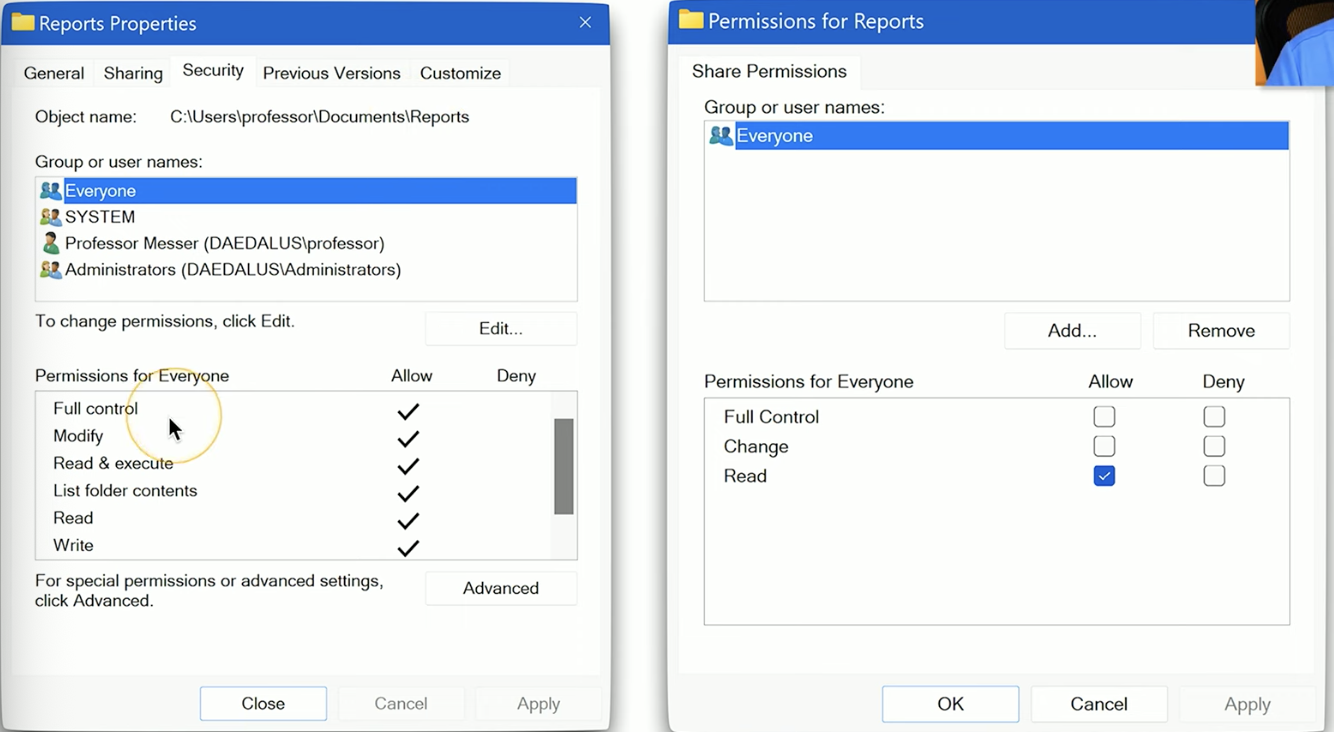
NTFS permissions are inherited from the parent folder/object.
This means that if a parent folder has restrictive permissions, those restrictions will affect all child files and folders, ensuring that access control is maintained consistently throughout the file structure.
Explicit and Inherited Permissions
Explicit Permissions: Permission directly assigned to an object (you can/can’t access this file)
Inherited Permissions: Permission received from its parent object (you have access to file bc you have access to the folder it is in)
Run as Administrator- An option available by right clicking an application that gives you enhanced functions.
Requires permission.
UAC (User Account Control)- Limits software access to protect your computer from unauthorized changes.
UAC Settings menu allows you to be notified about changes to your system.
BitLocker- The software that enables full disk encryption (FDE) on Windows and protects all of your data, including the OS. It encrypts an entire disk / partition.
Your data is protected even if the physical drive is removed.
Supported by all editions of Windows except for Home- so the average user doesn’t have this.
BitLocker To Go- Encrypts removable USB flash drives.
EFS (Encrypting File System)- Lightweight encryption option that encrypts at the file system level rather than encrypting a disk or partition.
Also supported by all editions of Windows except for Home- so the average user doesn’t have this.
Active Directory
Active Directory (AD DS)- Microsoft's directory service used to centrally organize, authenticate, and manage domain objects such as users, computers, and groups.
All computers, user accounts, file shares, MFDs, groups, and more.
Very important for authentication. Access the AD to see if you are using the right credentials.
AD centralizes access control and is used to determine which users can access which resources.
Helpdesks constantly use AD.
Domain- The name associated with the group of users, computers, and resources.
If you work at Microsoft you are on the Microsoft domain. If you work at Citizens you are on the Citizens domain.
Domain Controller- The servers that host and maintain a copy of the Active Directory database.
Joining the Domain
A device/user has to be added to a domain by someone with admin status.
This can be done with Active Directory or CLI tools like PowerShell
Entering Domain:
System —> About —> Domain or Workgroup —> Select ‘Change‘ —> Enter Domain —> Enter Admin login
OU (Organizational Units)- Logical segments of an Active Directory created for specific purpose (divided by countries, states, buildings, departments, etc.)
Very useful for assigning group policies to different segments.
Tools —> Active Directory Users and Computers
Can show various properties, settings, and members for OUs
Moving Objects in OUs
Done using the ADUC tool (Active Directory Users and Computers). It may need ot be installed separately.
Right click on an object in one OU and then move it to another.
Applying Group Policy
Manages the computer or users within a group policy.
A central console can manage:
Login scripts
Network configurations (for QoS)
Security parameters
These changes usually do not get enforced until a user logs back in, but they can be forced using > gpupdate /force.
Group Policy Object- A feature in Microsoft Windows that allows administrators to manage settings and configurations for users and computers in a networked environment, facilitating enforcement of security policies across the organization.
Login Script- Allows for automatic execution of specified programs or commands during user login.
Makes things easier for users.
Assigning a Login Script
Under the Group Policy Management Editor:
Configuration —> Policies —> Windows Settings —> Scripts
AD can assign a login script to a specific user, group, or OU.
Group Policy Management Editor
User Configuration —> Policies —> Windows Settings —> Scripts
Assigning Home Folders
It is beneficial to assign a user Home folder to a network folder. Their files can be backed up and they can use other devices.
User documents in one place is better. The folder is automatically created when added to the user profile, and you can do it for several users at a time.
Select all of the users in an OU —> properties —> connect —> select H: \\intended_share\home\%username%
Configuring Folder Redirection
Some users and applications user Windows Library folders (Desktop, Downloads, Documents)
We may want to redirect all of these folders to a central network share while making it seem to users like they haven’t moved. This can be very useful.
Active Directory also makes this possible.
User Configuration —> Policies —> Windows Settings —> Folder Redirection
You are required to set a root path (a share and intended folder)
Selecting Security Groups
For large organization you should create a group, assign permissions to them, and add or remove users.
This sets rights and permissions effectively.
To do this from Active Directory Users and Computers
Select user in an OU —> Properties —> Member of —> Add… —> Search group for permission —> add
Phenomenal way to actually assign users.