HTML Beginner Lesson
Introducing HTML Tags and Elements
HTML Tags - this tells the browser that to do with the text. If you want the text to have a font style “bold” you can use tags <> so the web browser can read the command.
Element - this includes the opening/closing tags and the content. For example, <p>Hello world!</p>
Common HTML Tags:
Tag | Description |
|---|---|
| The "container" tag for the entire HTML document. All other tags are written inside the HTML element. |
| The header container. The header typically includes references to other files the page or site needs. It also can include data that search engines and social media sites use to better find your website. |
| This is what the user sees on the screen. |
| The division tag creates a section in HTML. Sections usually have similar content or content that is related to one another. |
| These are header tags. They give some structure to the HTML document. They tell the browser to format the text between them in a specific way to show that hierarchy. |
| These tags are comments in HTML. They don't create rendered output. They're used by developers to make their code easier to find, share, and understand. |
| These comment tags are used in Cascading Style Sheets. |
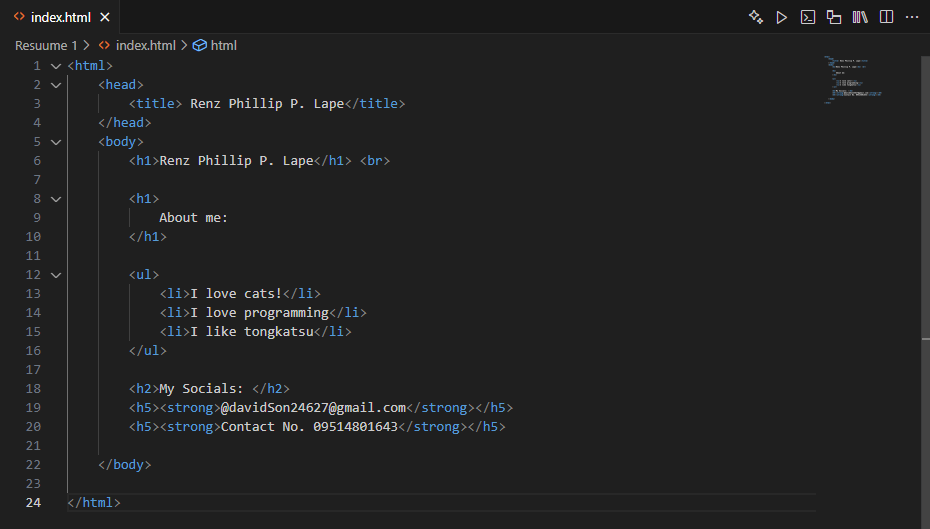
Here’s an example:
Output:
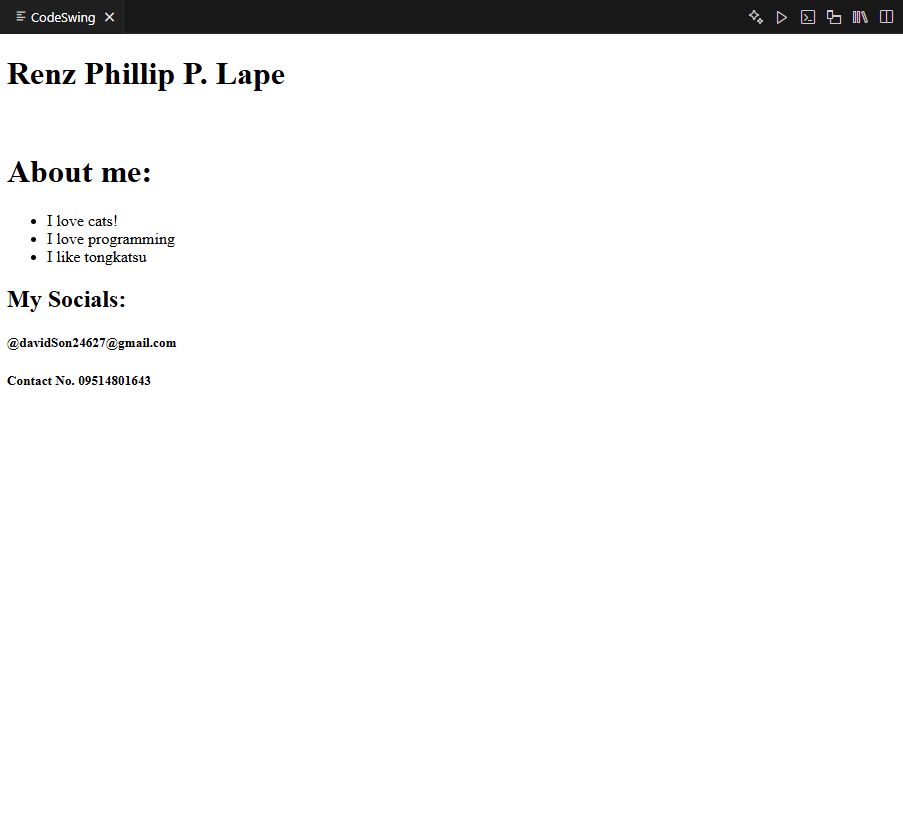
Note:
<head>= behind-the-scenes info (metadata)<body>= what shows up on screen
Every HTML page has html as the root core element, with all content contained inside of it. html normally has two direct children, head that contains metadata, and body that contains the information to be displayed.
This is how you write comments html.
Bonus: <! -- comments here -- >
Metadata Containers
"Metadata" means "data about data".
It’s not shown on the page but helps browsers and search engines understand the page.
Examples:
<meta charset="UTF-8">— Tells the browser how to read characters<title>My Page</title>— Sets the browser tab title<meta name="description" content="A site about cats">— Used by search engines<link rel="stylesheet" href="style.css">— Loads CSS<script src="main.js"></script>— Loads JavaScript (can also go in<body>)
Research links, lists, and images
The word "hypertext" means you can display more than just text on a web page. HTML offers the ability to create links to other resources and add images to a page.
Hyperlinks
Hyperlinks (or just links) allow a user to navigate to other things. This could be another page on your website, a completely separate website, or even an email address. One of the main goals of HTML was to allow these "pointers" to be added to a page for easy access. This is done through links.
The tag used to create a link is
a, which is short for anchor. The content between the open and closeatag becomes hypertext that enables a user to access the resource.The resource being referenced is indicated by using an attribute called
href(or hypertext reference). Attributes are added inside the opening tag and are typically a name paired with a value (called key-value pairs) with the value contained in quotes.
Example:

Bonus: Key-value pairs are used in forms. If you fill out a form, you may be asked for your first name and last name separately. The form has a label First name and a blank space and another label Last name and a blank space. The labels are like keys in HTML attributes, and whatever you put in the blank space is the value. In HTML attributes, the key and the value are joined by an equal sign to show they belong together.
Resource Indicators
There are many types of resources a link can point to. Many times links point to other web pages or websites. But a link also can point to an email address, a file (like a PDF document), a video, or an image.
To create a link to an external site, you use the full address of the site. For example, to create a link to Microsoft's documentation site, you could use:
Example:

It's possible to link to an email address. This type of link will automatically open the user's email client and complete the To field with the address indicated after the
mailto:directive.
Example:

Accessibility and Links
If you put a link in the HTML page you're creating, you notice that the text between (not inside) the opening and closing tag turns blue. You'll also notice that the address is hidden. Finally, you notice that the word is now selectable. That is, you select the word to be taken to the resource.
The text that is displayed as the link is known as link text. Using good link text is a key to ensuring your page is accessible to all users. Phrases like "click here" are disruptive to screen readers and other non-browser tools used to navigate the web. As a best practice, always use link text that briefly describes the resource being referenced. You can learn more about ensuring accessibility by exploring the Accessibility Learn module.
Images
The
imgtag is used to display images on a page. Unlike most other elements,imghas no closing tag. Thesrcattribute is used to point to the location of the image to display on the page, and thealtdescribes the contents of the image for things like search engines and screen readers.
Note:
While the height and width attributes can be used to specify the display height and width of the image, they do not resize the image file itself. The best practice is to make the image file the dimensions you use on the page.
Example:

Creating Lists
You will frequently need to display a list of information on a page. When building your resume, you want to list prior roles or qualifications. HTML provides two different types of lists, ordered and unordered.
To create a list, you will first decide the type of list you wish to create. An ordered list is ordered with numbers (the default) or letters and uses
olfor ordered list. An unordered list uses bullet points and is identified withulfor unordered list. The items are indicated withlifor list item.
Unordered Lists (bullets) - Use <ul> with <li> tags:

Output:

Ordered Lists (numbers) - Use <ol> with <li> tags:

Output:

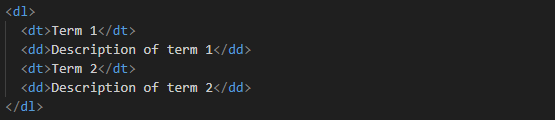
Description Lists - Use <dl> with <dt> and <dd> tags:
Output:

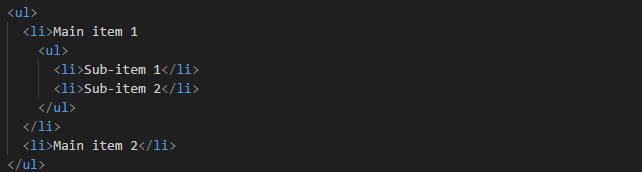
Nested Lists
Output:
