3.0 Computer Hardware
3.1 Chapter Introduction
Computer Hardware
This chapter covers the purpose of computer hardware, focusing on internal components like the processor, memory, motherboard, and storage. It includes practical exercises with hardware simulators for installing and troubleshooting components, and concludes with an overview of careers in computer hardware.
After finishing this chapter, you should be able to:
Compare and contrast the features of various computing devices.
Identify, install, and troubleshoot internal hardware components.
Identify, install, and troubleshoot input and output devices.
Identify, install, and troubleshoot storage devices.
Identify common careers in computer hardware.
3.2 Computing Devices
desktop
popular computer systems, equipped with peripheral devices monitor, keyboard, mouse and speakers
notebook/laptops
small computer easily carried, combined with a display and keyboard
mobile devices
small computing devices (tablet/smartphones) that’s more portable
3.2.1 Computing Devices
Computing Devices
every computing devices is composed of two components: hardware and software
Hardware and Software
hardware
is the physical components: screen, keyboards, wires and chips
Software
it sends instructions to tell the hardware what to do
Types of Computing Devices
three types: desktops, notebook, and mobile devices
Desktop Computers
used in business and industry
components
monitor, keyboard, mouse speakers, video camera
repairs and upgrades are straightforward (generally more powerful)
not portable, requires A/C power
Notebook
they are lighter and more compact, wireless networking hardware
they are difficult to upgrade or repair and more expensive and have less computing power than a desktop
Mobile Device
they are mobile than any other device, have integrated hardware and they are difficult to repair and impossible to upgrade
3.2.2 Computing Device Facts
desktops (aka workstations or PCs)
they come with peripheral devices like
monitor, keyboard, mouse and speakers
easy maintenance, has powerful CPU-tasks, also has larger storage
but not portable, requires continuous power and uses network clients
all-in-one devices
comes with all components (except keyboard and mouse)
requires less space and easy to relocate
but harder/expensive to repair (made professional services) memory and disk upgrades are limited
notebooks and laptops (sub notebooks)
compact computers with all components
can run at a desktop level, smaller/lighter, more energy efficient, portable, built-in wireless networking
but harder to upgrade and repair, more expensive and less computing power
hybrid laptop devices (a tablet laptops) {2 in 1 devices}
combine features of tablets/laptops
can run standard laptops operating systems, laptop grade processors and touchscreen
Gaming consoles (gaming box or video game console)
has computer components like: CPU, GPU, RAM, Operating System and disk storage
has higher graphics, used HD TVs
network client - devices that connect to a network
Mobile Devices {like tablets and smartphones}
highly mobile, less expensive, uses touch screen and has integrated features like
cameras, microphones, and wireless networking
difficult to repair and impossible to upgrade, batters non-replaceable, limited support and less computing power
servers
to provide shared disk storage like
web hosting, email or database management
for businesses
3.2.3 Activity: Research Computing Devices
3.3 Internal Components
bus (derived from Latin omnibus “for all“)
communication system enabling data transfer between computer components
central processing unit (CPU)
most important part, it controls the other parts of the computer
random access memory (RAM)
main memory accessible by the CPU, stores data and instructions
motherboard
large, flat component that connect key parts (CPU, RAM, BIOS chip)
power supply
unit that supplies electricity to the motherboard and other components
graphics processing unit (GPU)
an additional processor enhancing, performance and reliving the CPU
network interface card (NIC)
a component, integrated/added to the motherboard, enabling network connectivity
cooling system
components, heat sinks and fans, keep the computer from overheating
electrostatic discharge
when two objects with different charge levels causing a shock
the fetch-execute cycle
three-step cycle (fetch, decode and execute) use to execute, instructions
X86
processors by intel and AMD using a common instruction set
advanced risc machines (ARM) processors
optimized for mobile devices, it has power power requirements through a reduced instruction set
expansion card
circuit board adds more power/functionality by connecting to the motherboard
heat sink
a component that attaches to a chip (like CPU) that disperses heat to prevent overheating
air cooling
common method using fans to remove hot air
active-liquid heat sink
cooling system with liquid heat sink, internal pump, and radiation, active circulating liquid without assistance
immersion cooling
advanced system of cooling, liquid coolant as in direct contact with CPU. At high level of heat transfer that reduces temperature of CPUs surface
3.3.1 Internal Computing Components
CPU
the brain of the computer that controls other parts, by receiving raw data from the user and executes each program line by converting it into information one at a time
RAM
stores instruction and data for programs, extremely fast memory, volatile (loses all data when computer is off) has short-term memory
Motherboard
connects CPU, RAM and other components via electrical signals, controls basic functions, ensures components are connected and functional during startup, instructs systems to load after a restart
Power Supply
converts AC power from wall into DC power for the computer. Provides cables and plugs to connect to the motherboard and power components
GPU
uses CPU and RAM on the motherboard for graphics. Found on expansion cards into the motherboard and has a cooling fan
NIC (Network Interface Card)
enables the computer to connect to the Internet, can be built into the motherboard (wired or wireless)
Cooling
heatsink: absorbs and dissipates heat uses thin branches to max air contact
fans: replace hot air with cool external air
3.3.2 Internal Computing Component Facts
CPU
its the brain, receives raw data and applies it to a program and executes instructions and puts it into information
RAM
stores instructions, CPU retrieves, executers and store in RAM. RAM is fast but volatile, short-turn memory
Motherboard
connects CPU, RAM and other components, handles basic system functions, ensures components are connected and functional
GPU (Graphics Processing Unit)
essential for gaming, video editing, and 3D modeling/animation but also expensive
NIC (Network Interface Card)
enables computers connect to Internet (wired or wireless)
3.5.1 Storage Types
heat sink: absorbs and dissipates heat through thin branches for max air contact
fans: replace hot air with cool air outside
3.3.3 Electrostatic Discharge
Static Charge
when two objects contact then separate (one gains an electron and the other losses and electron)
electrostatic discharge — objects with different charge levels combine, charge flow causes electrostatic shock
component damage
memory chips and CPU can be damaged by 100 volts
3,000 to be seen or felt
smaller discharges can still harm PC components
ESD Prevention
discharge yourself
touch the case from of the PC
Use static Mats
equalizes electrical potential between you and the PC. prevents charge build up keeps electrical balance
follow Safe handling Guidelines
don’t touch gold/silver leads on memory chips or CPU, avoid touching tab connectors on expansion boards. Static discharge can short circuit and damage the component
use static shielding bags
gray bags with a protective layer to absorb and dissipate electrical discharges, prevents ESD from damaging components
pink, blue, green or clear bags require extra caution
Remorse static producing materials
plastic and Styrofoam generate electrical charge and static shock damaging components
humidity
higher humidity = less ESD
dry air = more ESD
3.3.4 The Fetch-Execute Cycle
A Simple Computer
CPU
performs calculations, execute instructions, and controls other devices. A clock determines the speed of instruction execution (faster ticks = faster performance)
program counter tracks: instruction location
instruction register: stores current instruction
accumulation: holds intermediate calculation results
RAM
stores instructions and calculation results
Running a Program
instruction moved to long-term storage to RAM
1. action what to do
2. memory address where it should perform
the processor follow a cycle (fetch, decode and execute) {the CPU follows this}
every ninth tick (3rd cycle) the process repeats
Machine language
instructions and memory values (0 and 1) programming in binary is possible but very difficult. Human-readable coding (C++). Translates programming language into machine language. Binary saved on RAM and executed by CPU
Clock Speeds
2GHz processor: executes 2 billion instructions per second
dual-core processor: executes 4 billion instructions per second
counting to 4 billion at 1 number per second would take 126 years
3.3.5 CPU Types
x86 processors (from Intel and AMD) [consume a lot of energy and generate a ton of heat
common in desktops, laptops and servers
x86 defines the list of commands a processor can execute, modern x86 CPUs processors 64 bits while older models process 32 bits
ARM
used in tablets and smartphones since its smaller in size, consume less power and generate less heat
3.3.6 CPU Facts
CPU types and descriptions
x86 processors
found in desktops/laptops major producers are Intel and AMD
Original x86: designed for 16-bit processor
Older x86: designed for 32 bits
Modern x86: designed for 64 bits
ARM processors
advances RISC Machine processor used int ablets and smartphones
smaller size uses less power and generate less heat
found in Apple, HTC, Nokia, Xian Aoi, Sony Ericsson, Samsung, NVidia Terga
CPU Brands
AMD
equivalent to Intel Pentium, found in lower-end desktops/laptops
AMD Ryzen Series
Ryzen 3 - Home Computer
Ryzen 5 - Mid-range computers
Ryzen 7 and 9 - High-end workstations and gaming systems
threadripper: high-end processor for demanding tasks
pro designation: for enterprise configurations
epyc: high-performance server processors
intel
Pentium 4 (2000-2008): single-core CPU for entry level servers
Core Series:
Original Core: 32-bit dual-core from Intel P6
Core 2: Introduced 64-bit processing and multi-core support
Core i-Series: (i3:lower ; i5:mid-range ; i7&i9:high end )
Celeron: low-end CPU for budget personal computers
Atom: low-voltage CPU, low power consumption and reduced heat (planned and tablets)
Xeon: in 1998 for workstations, servers and systems for non-consumer markets
3.3.7 Motherboards and Expansion Cards
Bus Technology
is the communication system that allows data to be transferred between the components inside a computer
power: supplies electricity to components
data: transfers information between components
memory location: tracks addresses where data is stored in memory
clock timing: synchronizes components vice the system clock
PCI (Peripheral component Interconnect): older tech, 32 bit (133 ,MBps) or 64-bit (266 MBps) at 33 MHz
AGP (Accelerated Graphics Port): designed for graphics, replaces PCI for video cards
PCIe (PCI Express): modern point-to-point connection supports full-duplex transmission, backward compatible with PCI
PCIe is the standard for video cards and high-speed device connections
Version 1: 250 MBps per lane
Version 2: 500 MBps per lane
Version 3: 1 GBps per lane
Version 4: 2 GBps per lane
Multiple lanes: can scale from x1-x32 lanes for higher bandwidth
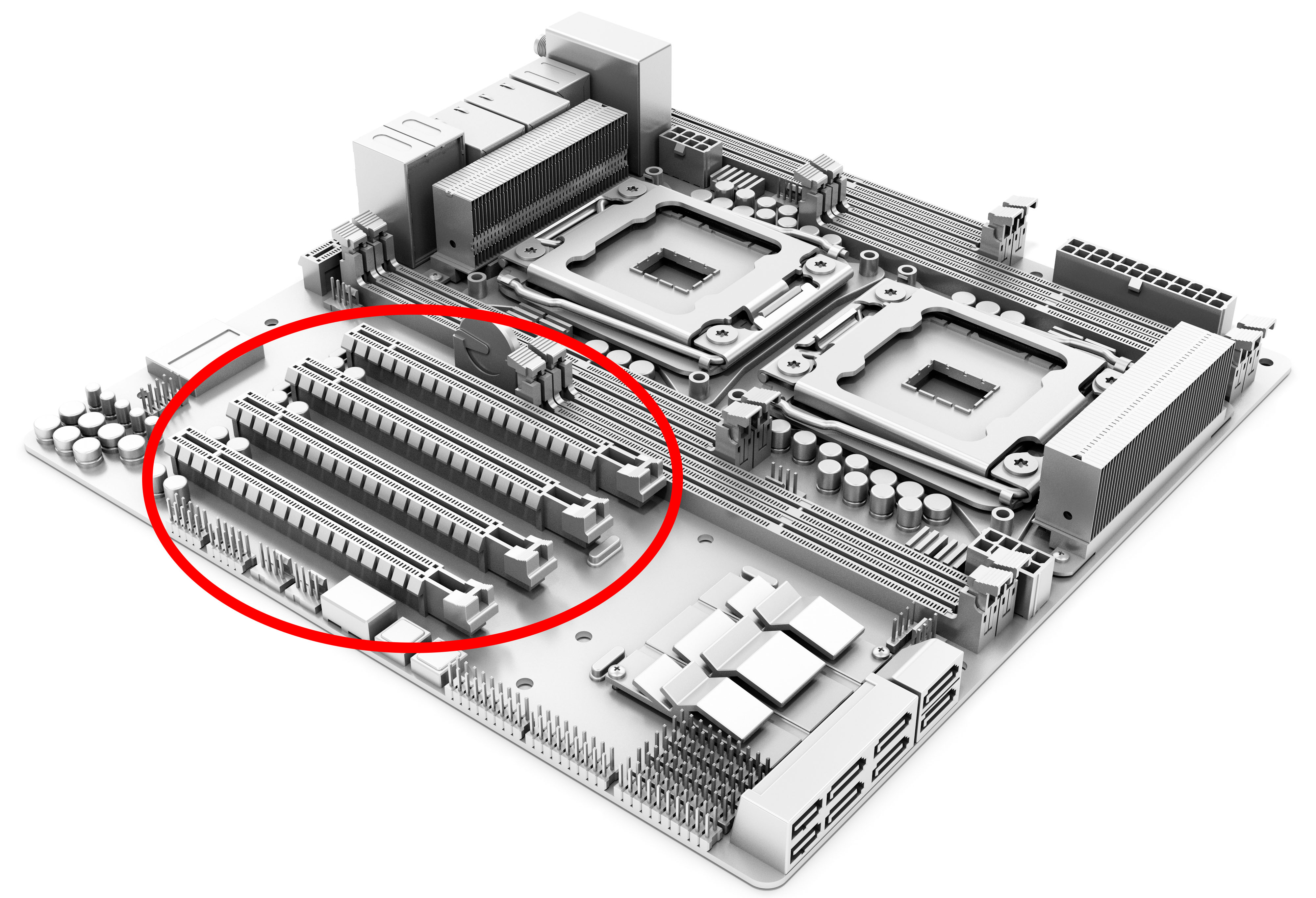
Expansion Cards
circuit boards that connects to the motherboard to provide additional power or functionality
expansion slots on motherboard
video cards
network cards
audio cards
other card types
expansion slots
Video Cards
enhances the quality of displayed images and handles graphic rendering to free the main processes for other tasks
GPU; Cooling Mechanism; Memory; Monitor ports
Network Cards
enables a device to connect to a network, but modern computers have built in NIC , it uses RJ-45 port to connect via an unshielded twisted pair (UTP cable)
Audio Cards
converts electrical signals to audio signals using digital signal processor (DSP) recreates sounds for speakers or earphones. VoIP, teleconferencing and surround sound. It has input/output and ports for connecting, headphones microphones or speakers and color-coded ports
Color and their Connector meaning
Lime green - line out, for front speakers and headphones with 5.1 surround sound systems
Pink - microphone
Light blue - stereo line-in
Orange - subwoofer and center out with 5.1 surround sound system
Black - rear sound speaker 5.1 and 7.1 systems — output
Gray - middle surround speaker for 7.1 systems
Gold - midi/game port (a joystick)
3.3.8 Power and Cooling Options
Power
converts AC power from the outlet into low-voltage DC power
300W-500W for standard systems
1000W for higher-performance systems with powerful CPUs/GPUs
insufficient power can cause random restarts, freezes and other issues
a fan can expel air and regulate temperature
modern PSUs follow the ATX standards, providing 5-Volt Standby
connections
connect to — motherboard, fans, hard drives, optical drives
cooling
heat sink
disperses heat, prevents overheating by transforming the heat away from the chip. Usually paired with air cooling
air cooling
liked stacking or parallel, they aren’t as efficient as other tech but their large and load
water cooling
placed near heat source to absorb and dissipate heat. reduces air temperatures and lower fan speed
active-liquid heat sink
composed of liquid heat sink, internal liquid pump, a fan, and radiator
immersion cooling
where the coolant contacts the CPU some use de-ionized water sprays for cooling but requires draining the tank
3.3.10 Explore the Motherboard
Motherboard
how much memory is installed in the computer?
what is the speed of the installed processor?
what type of power supply is installed in the system?
what type of power supply is installed in the system?
how many SATA hard drives are installed
How many additional USB ports are currently available on the back panel
what type of video ports is currently being used for the monitor?