Hardware
Hardware refers to the physical components of a computer that you can touch. That includes the monitor, the mouse and keyboard, the computer case, the components inside the case and all the devices that you can connect externally to the computer (called peripherals).
Input
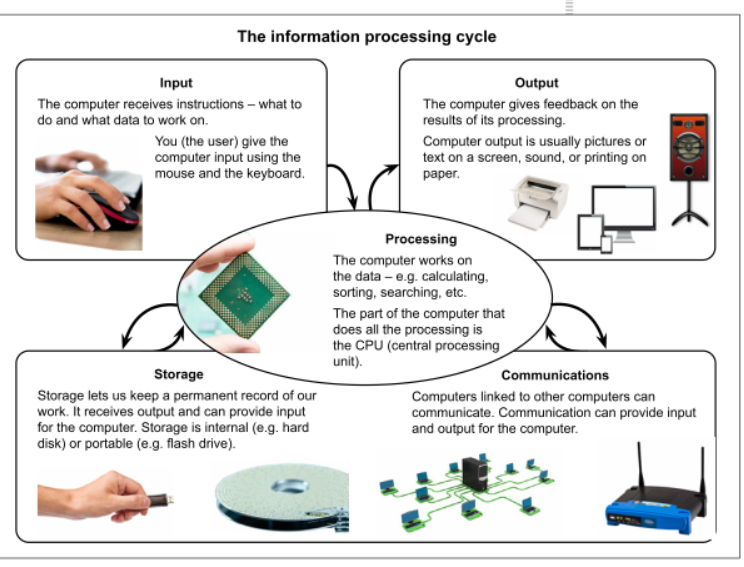
Input is the data and instructions that are given to a computer. Providing the input is the first step of getting a computer to do anything.
A computer operates under the control of instructions.
Instructions can be given to a computer in the form of programs, commands and user responses:
A program is a set of instructions which is loaded into memory when you run the program.
Programs respond to commands given by users, for example when you click on the Font Size command in Word.
A user can also respond to a question ‘asked’ by a program. If, for example, you try to close a Word document without having saved it, Word will ask whether you first wish to save it. Your response influence what happens next.
Computers need data because without it there is nothing to process. There are many different kinds of data that computers can work with - which includes text, numbers, graphics, audio, and video.
Keyboard
The keyboard is the most commonly used input devices. It allows us to type data in the program that we are using. Keyboards come is many shapes and sizes - they are built into portable devices like laptops, and can even appear on the screen on touch screen devices such as tablet and smartphones.
The keyboard also has special keys that act as shortcuts themselves.
Some of these are:
F1 - The F1 key at the top left of the keyboard usually opens a help screen for the program you are working in.
Esc - The escape key lets you get out of options or cancels choices.
The Print Screen key activates the print screen function, which enables your computer to take a ‘photo’ of everything that is displayed on the screen at the moment.
This ‘screen capture’ is copied as an image to the clipboard. You can edit the image by first opening Paint and then pressing <Ctrl><V> to paste the image into Paint.
(Windows now provides a Snipping Tool which provides more options that the Print Screen function)Using the Windows key together with the <E>, will open Windows/File Explorer. (<Windows><E>).
<Windows><D> will take you to the desktop.
The clipboard is an area in the memory where text and other objects that have been copied are temporarily stored. They are kept there until they are pasted somewhere (or until the program is closed or the computer is shut down). Most programs make use of the clipboard facility.
Mouse
Because most software makes use of a graphical interface (GUI) and is designed to be interactive, you need some way to interact with the graphics on the screen (icons, menu items, buttons, etc.). The computer displays a pointer on the screen to show what they are interacting with. A pointing device is any kind of input device that is used to move the pointer around.
The mouse is the most common pointing device used with desktop computers today. It normally has two buttons and a scroll wheel between the buttons.
A mouse works by shining a light onto the surface it is moved on. Sensors can sense how the light is reflected and so detect in which direction and with what speed the mouse is being moved.
Mouse action | Use |
Click | Used to select an option or an object such as a file or a folder. |
Double-click | Used to start a program or open a file or folder |
Right-click | Usually opens a pop-up menu that gives you options or actions that are relevant to the object that was right-clicked. |
Drag | Used to select and drag an object from one location to another. |
Scroll | Allows you to use the mouse wheel to scroll in lists, long documents or web pages without having to move the mouse to the right of the screen to use the vertical scrollbar. |
Keyboard and Mouse combinations | Pressing and holding keys such as Shift, Alt and Ctrl can change the meaning of a mouse click. For example, you can zoom in or out by holding down the Ctrl key and rotating the mouse wheel forwards and backwards. |
Wireless mouse and keyboard
Advantages | Disadvantages |
less clutter (no cables) | require batteries |
a wider range of movement | slightly more expensive |
can easily be stolen | |
interference with wireless signal |
Bluetooth is a technology that allows devices such as mice, printers and smartphones to communicate wirelessly over short distances.
Output
Output is whatever the computer produces to provide us with the results of its processing.
Monitor
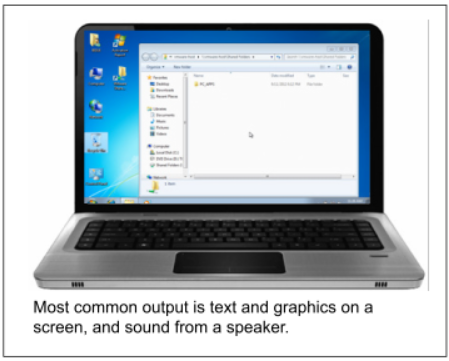
The monitor (screen/display) is the device most commonly used to obtain output from the computer. Modern monitors are called LCD / LED monitors (because of the technology they use).
Size
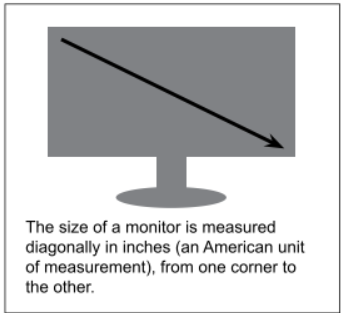
Monitors come in a variety of sizes. A common size if a 19” monitor.
Resolution
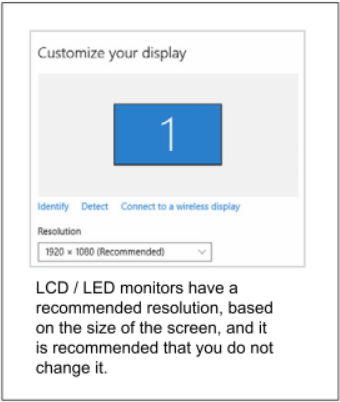
This refers to the number of pixels (small dots) used to form the screen image.
The resolution is measured horizontally and vertically in pixels.
A monitor with a resolution of 1920 X 1080 will display rows of 1920 pixels across the screen and 1080 pixels vertically down the screen.
Graphics card
The size and quality of the image displayed is only partially determined by the monitor used.
Cheaper computers use built-in graphics circuitry and use some of the computer’s memory to hold the images generated for the display.
This is not ideal because it leaves less memory for other programs and data.
Printers
Printers produce hard copy which means they produce output on paper.
Inkjet printers
spray microscopic dots of ink onto the paper
are relatively cheap to buy
use ink cartridges
are capable of producing good quality colour printouts
Laser printers
work like a photocopier machine - using toner instead of ink
more expensive than inkjet printers
cheaper to run in the long run if you print large volumes
prints faster than inkjet printers
Health and environmental issues
Health concerns
Using a mouse and keyboard requires frequent small movements of the wrists - movements that are not natural. Combined with poor body posture this can lead to painful conditions where the wrists and joints become sore and inflamed.
Repetitive strain injury (RSI) is the name given to injuries resulting from fast, repetitive actions.
In additions, the use of well designed, comfortable hardware, especially keyboards and mice, are important. Many devices now incorporate features to prevent RSI.
Other health issues related to extended computer usage include eyesight problems, stiffness of the back, and general tiredness.
ergonomically designed equipment
Health tips for using computers
Using ergonomically designed equipment, eg, a keyboard with a built-in wrist rest.
Sit correctly - dont slouch or hunch
Adjust the height of your seat and/or table so you can sit with your hands at the keyboard while keeping your upper arms fairlslack at your sides, and your elbows and wrists level with each other. Your upper legs shoulf be parallel to the floor and your feet flat on the floor.
Make sure the lighting is adequate
Make sure the ventilation/air circulation is adequate
Make sure your mouse and keyboard are close together and within easy reach - you should never have to starin to reach them.
Make sure your monitor is positionaed at the corrent level and distance from your eyes, so you do not have to strain your next and shoulders of lean forward in order to read the screen.
Every once in a while, turn your eyes away from your monitor and focus on something else in the room, or look out the window. This will help prevent eye strain.
Take regular breaks - dont work for more than an hour at a time without taking at least a short break.
Green computing
Green computing is a term to describe using computers in a way that is sensitive to the environment. Already a lot of equipment is designed to consume less power. Newer LCD monitors, for example, consume less electicity than older types of monitors.
At one stage computers were supposed to create a ‘paperless’ world and office. Infact, the opposite has happened. Printers are ao cheap and easy to use that we end up using more paper than we ever did before. Computer hardare includong ink and toner cartridges, can have a negative impact on the environment as well. They contain electronic circuitry, plastic, and other components that are not biodegradable (do not decompose easily)
Electronic waste (e-waste)
Also referred to as e-scrap, this refers to outdated or broken electronic equipment, such as computer equipment and cell phones, that get dumped. This equipment often contains extremely toxic chemicals and materials. E-waste is often not recycled and is simply dumped in landfills, often in Africa and Asia. E-waste is potentially harmful to the environment and people living near these landfills.
Tips on how to practise green computing
Switch off computers and devices you are not using.
Try to avoid the senseless wasting of paper by proofreading on the screen before you print. You can also save paper by printing ‘2 pages on 1’ (most printers allow you to do this)
Rather than throw old or broken hardware away, see if someone else can make use of it, or try to repair or upgrade it.
Dont just throw away ink and toner cartridges. Rather return them to the manufacturer when you have finised with them. The manufacturer will then be able to re-use them or dispose of them in an environmentally friendly way.
Investigate the possibility of refilling and reusing ink and toner cartridges.