6th Set of Videos
Motherboard Expansion Slots - CompTIA A+ 220-1201 - 3.5
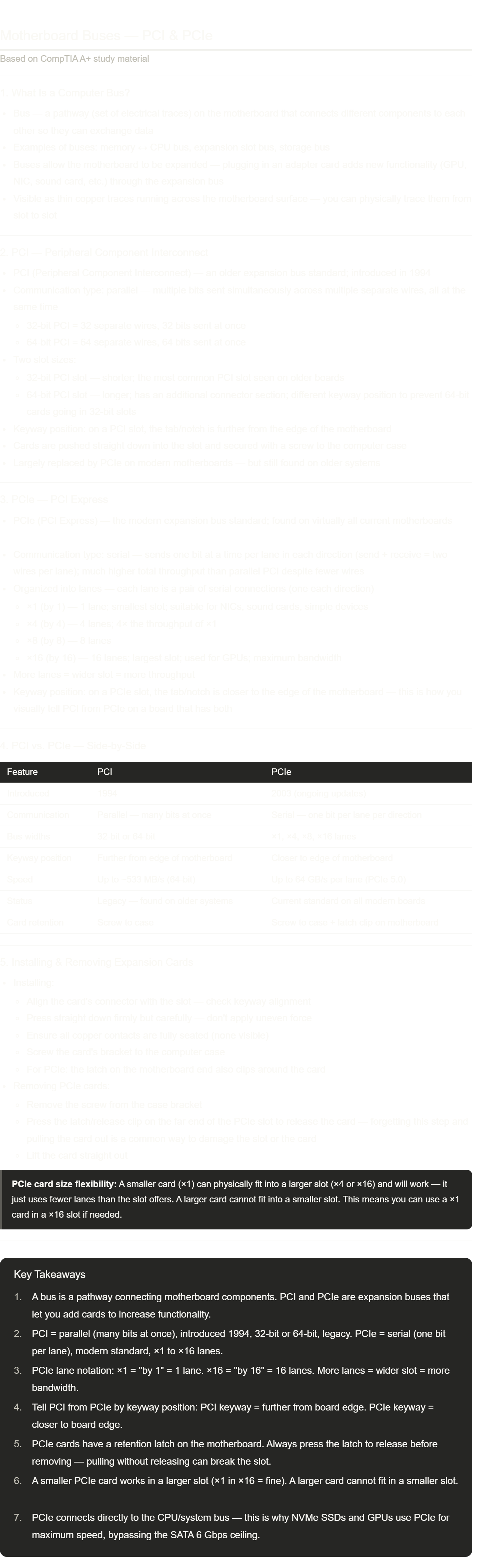
Notes done! This video ties together several earlier topics — PCIe was already mentioned in the storage video (NVMe) and the Thunderbolt video. Now you have the full picture of what PCIe actually is.
Things to focus on:
Parallel vs. serial — PCI is parallel (like a wide highway with many lanes sending all at once). PCIe is serial (like a narrow but extremely fast road with dedicated bidirectional lanes). Counterintuitively, serial PCIe is much faster than parallel PCI because you don't have the synchronization overhead of keeping all those parallel bits in step.
The ×1 / ×4 / ×8 / ×16 notation — "by" not "times." A PCIe ×16 slot is 16 lanes, each bidirectional. GPUs need ×16. A basic NIC might only need ×1. Knowing this explains why GPU slots are so much larger than other slots on the motherboard.
The latch — always press the PCIe retention clip before removing a card. This is a real technician trap. GPU cards especially require pressing the latch firmly (often awkward to reach under the card) before they'll release.
PCIe backward lane compatibility — ×1 in ×16 works. This is useful when you run out of smaller slots; any PCIe card works in a larger slot.
Send the next one whenever you're ready!
Motherboard Connections - CompTIA A+ 220-1201 - 3.5
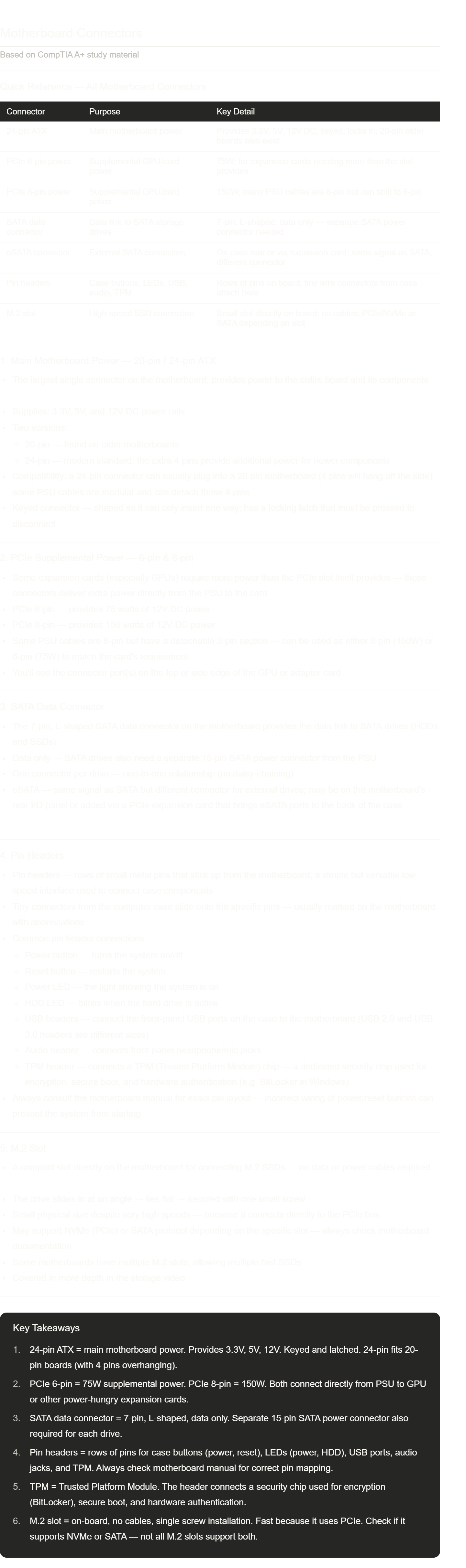
Notes done! Short but practical video — this is the kind of knowledge you need when physically building or servicing a PC.
A few things worth focusing on:
Pin headers are the most error-prone part of a PC build — the front panel connectors (power button, reset, LEDs) are tiny 2-pin connectors that must go on specific pins. Getting the power button on the wrong header means the PC won't turn on. Always use the motherboard manual.
TPM — this is increasingly important to know. Windows 11 requires TPM 2.0. BitLocker disk encryption relies on it. The exam tests what TPM is and what it's used for. Key answer: security chip for encryption and hardware authentication.
PCIe 6-pin vs. 8-pin wattage — 75W and 150W respectively. A high-end GPU may need two 8-pin connectors for 300W total. If a GPU isn't getting enough power, it won't boot or will crash under load.
24-pin compatibility — the 4-pin extra section on a 24-pin connector is often detachable or just overhangs on a 20-pin board. This is a real scenario in the field when upgrading a motherboard.
Send the next one whenever you're ready!
Motherboard Compatibility - CompTIA A+ 220-1201 - 3.5
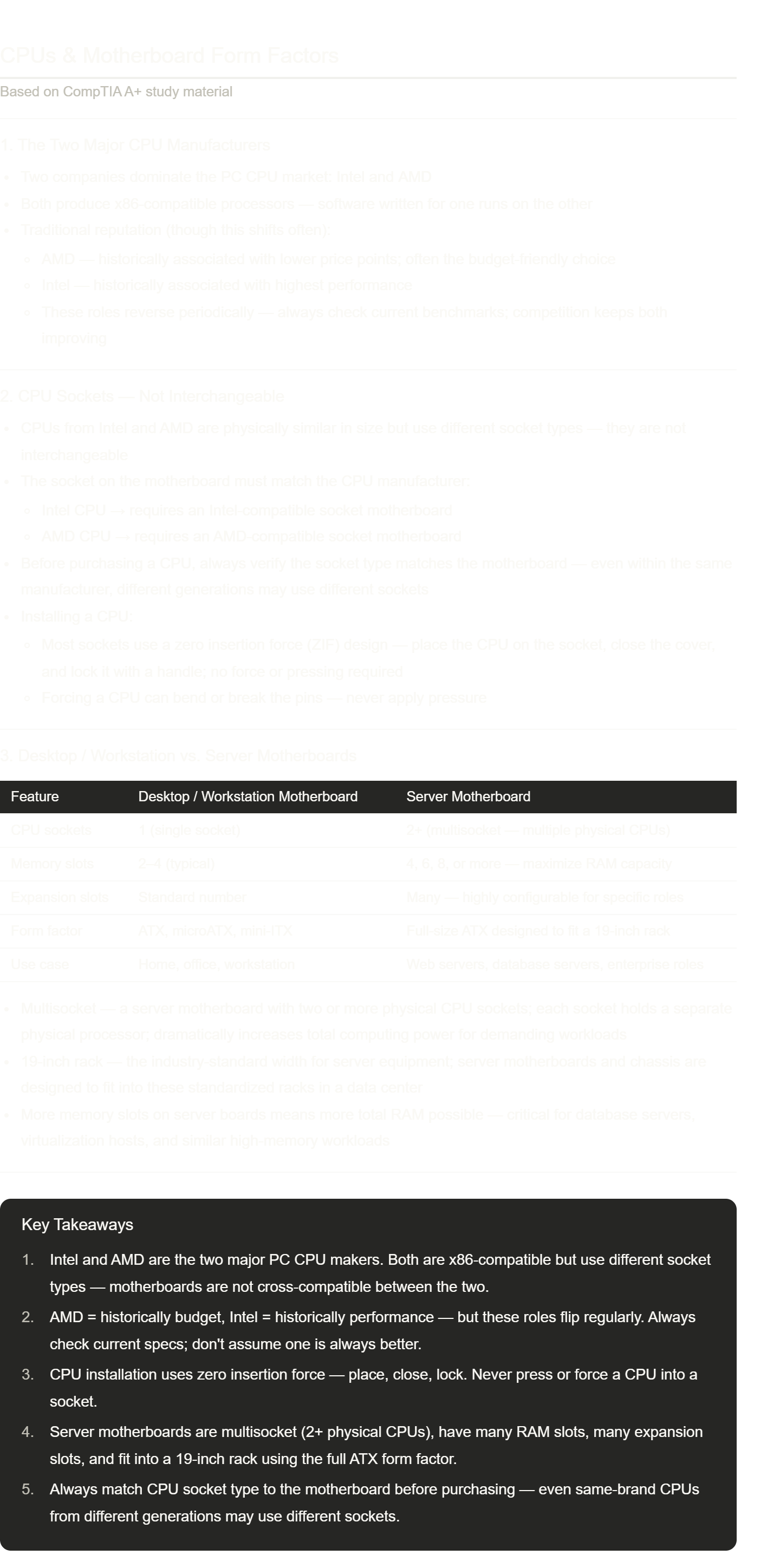
Notes done! Shorter video this time but a few things worth noting for the exam:
ZIF (Zero Insertion Force) — the video describes it without using the term, but this is the official name for the socket design where the CPU just drops in and the lever locks it. ZIF is a term you should know — the exam may ask about it directly.
Socket compatibility — this is a classic exam trap. "A technician has an Intel i7 and wants to install it in an AMD motherboard" → it won't fit, wrong socket. Even within Intel, an older LGA1151 CPU won't fit in a newer LGA1700 board. Always check compatibility.
Multisocket servers — the exam may describe a server needing enormous processing power and ask what hardware feature enables this → multisocket motherboard. Two physical CPUs = roughly double the cores and threads available.
19-inch rack — this is the data center standard. All rack-mount servers, switches, patch panels, and other equipment are designed around this width. It's a small but testable detail.
Send the next one whenever you're ready!
The BIOS - CompTIA A+ 220-1201 - 3.5
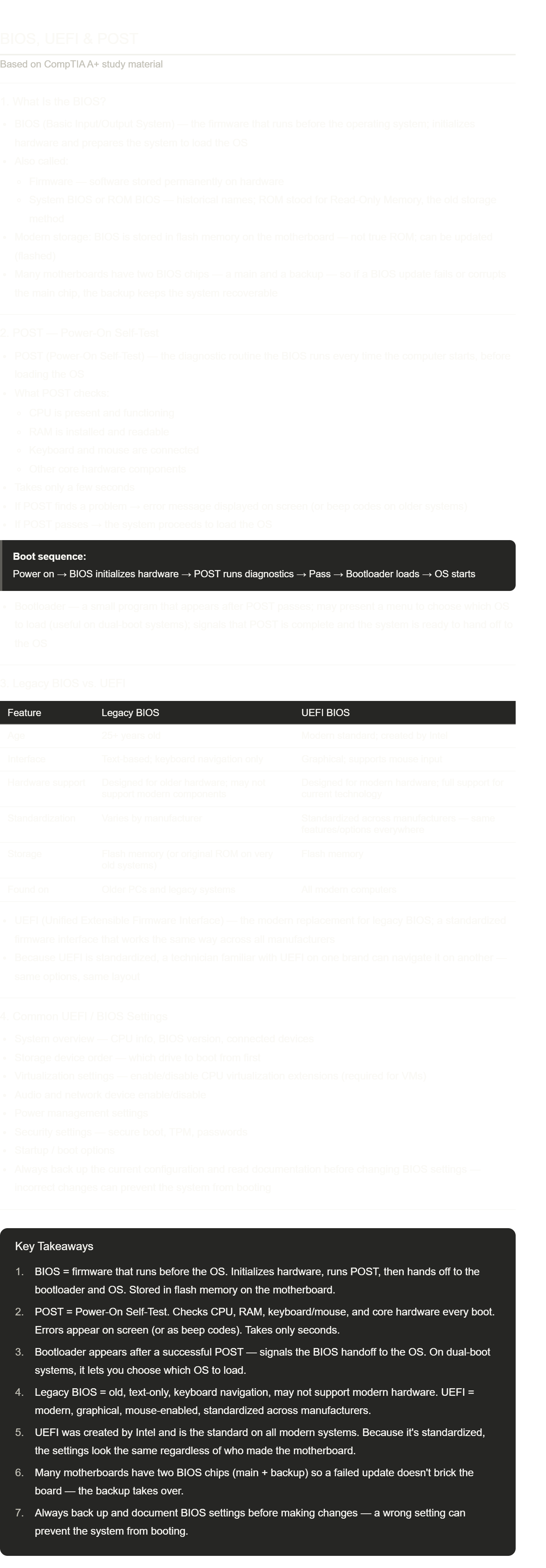
Notes done! The BIOS/UEFI/POST topic appears in both hardware and troubleshooting sections of the A+ exam.
Things to lock in:
POST vs. BIOS vs. bootloader — three distinct things that happen in sequence. BIOS runs POST → POST passes → bootloader runs → OS loads. The exam gives scenarios like "the computer beeps on startup and nothing appears on screen" → POST failure (hardware not detected).
UEFI vs. legacy BIOS — the key distinctions are: graphical interface (UEFI) vs. text-only (legacy), mouse support (UEFI) vs. keyboard-only (legacy), and standardized across brands (UEFI) vs. varied (legacy). Legacy BIOS also can't support modern hardware features like GPT disks over 2TB or Secure Boot.
Flash memory — the BIOS used to be in true ROM (read-only, could never be changed). Modern BIOS is in flash memory, which is why you can "flash" or "update" a BIOS. This update process is delicate — two BIOS chips protect against a corrupted update bricking the board.
Virtualization in BIOS — enabling CPU virtualization extensions (Intel VT-x or AMD-V) in UEFI is required before you can run virtual machines. This is a common real-world config step and appears on the exam.
Send the next one whenever you're ready!
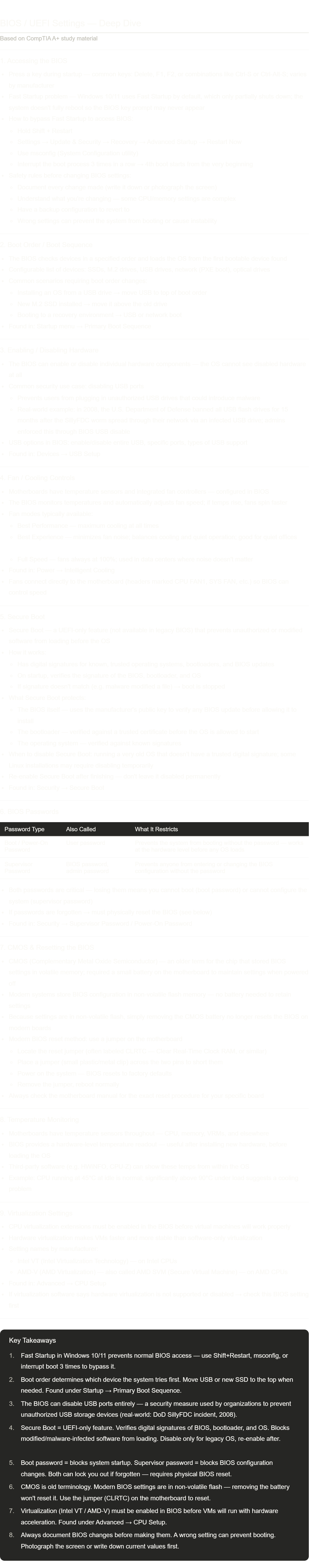
BIOS Settings - CompTIA A+ 220-1201 - 3.5
HSM and TPM - CompTIA A+ 220-1201 - 3.5
Encryption, TPMs, and HSMs
Quick Reference — TPM vs HSM
Feature | TPM | HSM |
|---|---|---|
Full Name | Trusted Platform Module | Hardware Security Module |
Scope | Single computer/device | Multiple systems/network infrastructure |
Purpose | Protect local encryption keys | Centralized enterprise key management |
Location | Built into the motherboard or a separate chip | Dedicated hardware appliance/server |
Common Uses | BitLocker, phone encryption, secure boot | Web server certificates, certificate authorities |
Mobility | Tied to one device | Can manage many devices |
Performance | Basic cryptographic operations | Hardware-accelerated cryptography |
1. Importance of Encryption
1.1 Why Encryption Matters
Technology constantly handles:
Private data
Personal information
Financial records
Login credentials
This information must remain secret from unauthorized users
1.2 What Encryption Does
Encryption converts readable data into unreadable scrambled data
Only someone with the correct key can decrypt and read the information
Encryption protects:
Stored data
Data sent across networks
Mobile device communications
1.3 Common Uses of Encryption
Mobile phones encrypt:
Stored files
Wireless communications
Web traffic uses encryption:
HTTPS
Secure web sessions
Storage devices may use:
Full-disk encryption
File-level encryption
2. Encryption Concepts
2.1 Encryption Standards
Most encryption methods are:
Publicly documented
Standardized
Security does NOT depend on hiding the encryption process
Security depends on:
Protecting the cryptographic key
2.2 Lock and Key Analogy
Encryption is similar to:
A physical door lock
Anyone may understand how the lock works
But only the correct key opens it
2.3 Cryptographic Keys
Cryptographic Key:
Digital value used for encryption and decryption
If data is encrypted with a key:
The same or related key is required to decrypt it
Protecting the key is critical
3. Trusted Platform Module (TPM)
3.1 TPM Overview
TPM = Trusted Platform Module
Specialized hardware security component
Designed specifically for:
Cryptographic operations
Secure key storage
3.2 TPM Hardware
TPM may exist:
As a separate chip/module
Built directly into the motherboard
TPM includes:
Cryptographic processor
Secure memory
Random number generation hardware
3.3 TPM Functions
TPM can:
Generate cryptographic keys
Store encryption keys
Perform encryption operations
Generate random numbers
Includes:
Persistent memory
Versatile memory for temporary storage
3.4 TPM Security Features
TPM is built for strong hardware security
Features include:
Password protection
Secure hardware isolation
Anti-tampering protections
Makes it difficult to steal cryptographic keys
4. TPM and Device Security
4.1 Unique Device Identity
Every TPM contains:
Unique cryptographic keys
These keys are tied specifically to:
One physical computer
No two systems share identical TPM keys
4.2 Full-Disk Encryption
TPM is commonly used with:
BitLocker
Other disk encryption systems
Encryption keys are stored securely inside the TPM
4.3 Protection Against Drive Theft
If someone removes a hard drive:
They still cannot access encrypted data
Reason:
Decryption keys remain inside the original TPM
Moving the drive to another computer will not help
5. Root of Trust
5.1 Root of Trust Definition
Root of Trust:
Hardware component trusted as the foundation of system security
TPM acts as a hardware root of trust
5.2 Why Root of Trust Matters
TPM uniquely identifies a computer
Systems across a network can:
Verify device identity
Detect hardware changes
Ensure trusted communication
5.3 Hardware-Based Trust
TPM is physically attached to the system
It cannot easily be copied or cloned
Provides stronger trust than software-only security
6. TPM Configuration
6.1 BIOS and TPM
TPM settings are managed in:
BIOS/UEFI firmware
Common settings include:
Enable TPM
Disable TPM
Clear TPM data
6.2 Trusted Computing Group (TCG)
TCG = Trusted Computing Group
Organization responsible for:
TPM standards
Security specifications
6.3 TPM 2.0
Modern systems commonly use:
TPM 2.0
Improved security and functionality over earlier versions
7. Hardware Security Modules (HSMs)
7.1 HSM Overview
HSM = Hardware Security Module
Dedicated hardware system for:
Large-scale cryptographic key management
7.2 Why HSMs Are Needed
Enterprises may manage:
Hundreds or thousands of devices
Each system may have:
Encryption keys
Certificates
Authentication secrets
HSM centralizes and protects these keys
7.3 HSM Functions
HSMs can:
Store encryption keys
Back up keys securely
Perform cryptographic operations
Accelerate encryption/decryption
7.4 Hardware Acceleration
HSMs often include:
Specialized cryptographic hardware
Instead of software encryption:
Cryptographic tasks occur directly in hardware
Benefits:
Faster performance
Reduced server workload
8. Types of HSMs
8.1 Enterprise HSMs
Used in:
Data centers
Large organizations
Often protect:
Web server certificates
Certificate authority (CA) keys
Infrastructure encryption systems
8.2 Lightweight or Personal HSMs
Smaller portable HSMs also exist
Used for:
Personal key storage
Cryptocurrency wallets
Can move securely between computers
9. TPM vs HSM
9.1 TPM Characteristics
Usually protects:
One local device
Common in:
PCs
Laptops
Phones
Tied directly to motherboard hardware
9.2 HSM Characteristics
Designed for:
Multiple systems
Enterprise infrastructure
Centralized management
High-performance cryptographic processing
9.3 Key Difference
TPM:
Local hardware trust and device security
HSM:
Large-scale centralized security management
10. Important Terminology
10.1 Key Terms
Encryption:
Process of scrambling readable data into unreadable form
Decryption:
Converting encrypted data back into readable form
Cryptographic Key:
Secret digital value used for encryption/decryption
TPM (Trusted Platform Module):
Hardware chip that securely stores cryptographic keys
HSM (Hardware Security Module):
Dedicated hardware appliance for enterprise key management
Root of Trust:
Trusted hardware foundation used for system security
BitLocker:
Microsoft full-disk encryption technology
Full-Disk Encryption:
Encrypting all data on a storage device
Random Number Generation:
Creation of unpredictable values used in cryptography
Certificate Authority (CA):
Trusted organization/system issuing digital certificates
Key Takeaways
Encryption protects sensitive information both in storage and during transmission.
Encryption security depends heavily on protecting cryptographic keys.
A TPM is a hardware security chip designed to securely store keys on a single device.
TPMs support:
BitLocker
Secure boot
Device authentication
Full-disk encryption
TPMs create a hardware-based root of trust unique to each computer.
An HSM is an enterprise-level security device used for centralized cryptographic key management.
HSMs can accelerate encryption operations using dedicated hardware.
TPMs secure individual systems, while HSMs protect large infrastructures and many devices simultaneously.
CPU Features - CompTIA A+ 220-1201 - 3.5
CPU Architectures, 32-bit vs 64-bit, and Processor Cores
Quick Reference — CPU Types
Type | Also Called | Memory Addressing | Common Use |
|---|---|---|---|
32-bit | x86 | Up to 4 GB RAM | Older systems |
64-bit | x64 | Extremely large memory support | Modern computers |
ARM | Advanced RISC Machine | Efficient low-power architecture | Phones, tablets, modern laptops |
1. System Information Basics
1.1 Understanding System Information
Computer system information shows:
Operating system type
CPU architecture
Hardware specifications
Example specifications:
64-bit operating system
ARM-based processor
1.2 Why CPU Architecture Matters
CPU architecture determines:
How much data the processor handles at once
How much memory the system can address
What applications and drivers are compatible
2. 32-bit vs 64-bit Systems
2.1 Bit Size
The term 32-bit or 64-bit refers to:
The amount of information a CPU processes simultaneously
Also affects:
Memory addressing capability
2.2 32-bit Processors
A 32-bit processor can reference:
(2^{32}) memory addresses
2^{32}
In practical terms:
About 4 GB of RAM
Older architecture commonly used in:
Legacy computers
Older operating systems
2.3 64-bit Processors
A 64-bit processor can reference:
(2^{64}) memory addresses
2^{64}
This equals:
Roughly 17 billion GB of memory
Modern operating systems use 64-bit architecture because:
Modern systems require much more memory
2.4 Real-World Memory Limits
Even though 64-bit CPUs support enormous memory sizes:
Real systems are limited by:
Motherboard design
Operating system edition
Hardware capabilities
Still vastly larger than 32-bit limits
3. Operating System Differences
3.1 Driver Compatibility
Hardware drivers must match the OS architecture:
32-bit OS → requires 32-bit drivers
64-bit OS → requires 64-bit drivers
3.2 Application Compatibility
A 32-bit operating system:
Cannot run 64-bit applications
A 64-bit operating system:
Usually CAN run 32-bit applications
3.3 Windows Program Files Structure
Windows separates application types:
Program Files → 64-bit applications
Program Files (x86) → 32-bit applications
4. x86 and x64 Terminology
4.1 x86
x86 refers to:
32-bit Intel-compatible architecture
Name comes from:
Older Intel processors like the 8086
4.2 x64
x64 refers to:
64-bit processor architecture
Common in:
Modern Intel and AMD CPUs
5. ARM Architecture
5.1 ARM Overview
ARM = Advanced RISC Machine
Architecture designed by:
ARM Limited
ARM licenses processor designs to manufacturers
5.2 RISC Architecture
RISC = Reduced Instruction Set Computing
Focuses on:
Simpler instructions
High efficiency
Lower power consumption
5.3 ARM Advantages
ARM processors are known for:
Low power usage
Reduced heat generation
High efficiency
Strong performance per watt
5.4 ARM Usage
ARM dominates:
Mobile phones
Tablets
About:
99% of smartphones use ARM processors
Increasingly used in:
Laptops
Desktop computers
6. CPU and Processor Cores
6.1 CPU Overview
CPU = Central Processing Unit
Main processor responsible for:
Executing instructions
Performing calculations
Managing computer operations
6.2 Processor Cores
Modern CPUs contain multiple:
Processor Cores
Each core acts like:
An individual processor
6.3 Multi-Core Processors
CPUs may contain:
4 cores
8 cores
16 cores
More
Example names:
Quad-core
Octa-core
16-core processor
6.4 Benefits of Multiple Cores
Multiple cores allow:
Simultaneous instruction processing
Improves:
Multitasking
Parallel processing
Overall system performance
6.5 Cache Memory
Each core often includes:
Dedicated cache memory
Cache Memory:
Very fast temporary memory inside the CPU
Stores:
Frequently used instructions/data
Reduces delays when processing information
7. CPU Die and Internal Structure
7.1 CPU Die
CPU Die:
Physical silicon chip inside the processor package
Contains:
Processor cores
Cache memory
Internal circuitry
7.2 Core Layout
On a CPU die:
Individual cores may be visible as separate sections
Example:
A 16-core CPU contains 16 separate processing cores
8. Important Terminology
8.1 Key Terms
32-bit:
CPU architecture supporting smaller memory addressing
64-bit:
CPU architecture supporting extremely large memory addressing
x86:
32-bit Intel-compatible architecture
x64:
64-bit processor architecture
ARM:
Energy-efficient processor architecture widely used in mobile devices
CPU (Central Processing Unit):
Main processor executing instructions
Core:
Individual processing unit inside a CPU
Cache Memory:
High-speed memory inside the processor
RISC:
Reduced Instruction Set Computing
Driver:
Software allowing operating systems to communicate with hardware
Memory Address Space:
Maximum memory locations a processor can reference
9. Comparing CPU Architectures
9.1 x86/x64 vs ARM
x86/x64:
Traditionally dominant in desktops and servers
High compatibility
Strong performance
ARM:
Optimized for efficiency and low power
Dominates mobile computing
Becoming more common in laptops/desktops
9.2 32-bit vs 64-bit
32-bit:
Limited to ~4 GB RAM
Older architecture
64-bit:
Massive memory support
Better modern performance
Standard today
Key Takeaways
32-bit and 64-bit refer to CPU processing and memory addressing capabilities.
A 32-bit processor can address about 4 GB of RAM, while 64-bit processors support vastly larger amounts.
x86 refers to 32-bit architecture, while x64 refers to 64-bit architecture.
A 64-bit OS can usually run 32-bit applications, but a 32-bit OS cannot run 64-bit applications.
ARM processors prioritize:
Efficiency
Low power consumption
Reduced heat generation
ARM architecture dominates mobile devices and is increasingly used in desktops/laptops.
Modern CPUs contain multiple cores, allowing simultaneous processing.
Cache memory improves CPU speed by storing frequently accessed data close to the processor.