Introduction to Windows
Windows is an Operating System - a program that controls all the activities done on the computer.
An Operating System is the most important program on a computer.
Other Operating Systems: |
|
|
What is a computer?
electronic (because it needs electricity to work)
Multi-purpose (can be programmed to perform different tasks)
Some are mobile (laptops, tablets, smartphones
A smartphone is also a ‘computer’
Desktop computers have separate parts (components) that need to be connected to each other
Two critical components: hardware and software
- Hardware refers to the physical parts of a computer that we can touch and see - the mouse, the screen, the keyboard, a printer, etc.
- Software refers to specific instructions or programs we need to give to the computer so that it will do something useful for us.Information Processing Cycle: Computers receive input, process it and then produce some form of output.
Often the output needs to be stored for use at a later stage. Communication with other computers is also important
Data and information
- Data is unprocessed items. This can include text, numbers, images, audio, and video.
- Information is the result of the processing of data and should be useful and meaningful.
Start up time
The operating system automatically loads when the computer is switched on.
(the booting process)
Depending on how the computer is set up you may have to press <Ctrl><Alt><Delete> to log on. Or, you may be asked to enter a username and password.
Logging on is the process of getting access to the programs and data on a computer, which are protected with a username and password.
This is necessary when many people use the same computer, and when a computer is linked to several other computers in a network. (likely at a school)
The use of a unique username and password is for security purposes - so that only YOU can access your files Other users must not be able to view, tamper with or delete your files.
The desktop
The first basic ‘screen’ of the operating system that appears after switching on your computer is the desktop.
The tiles (bigger rectangular blocks) and the smaller pieces or icons on the desktop itself, represent programs or ‘places’ on the computer.
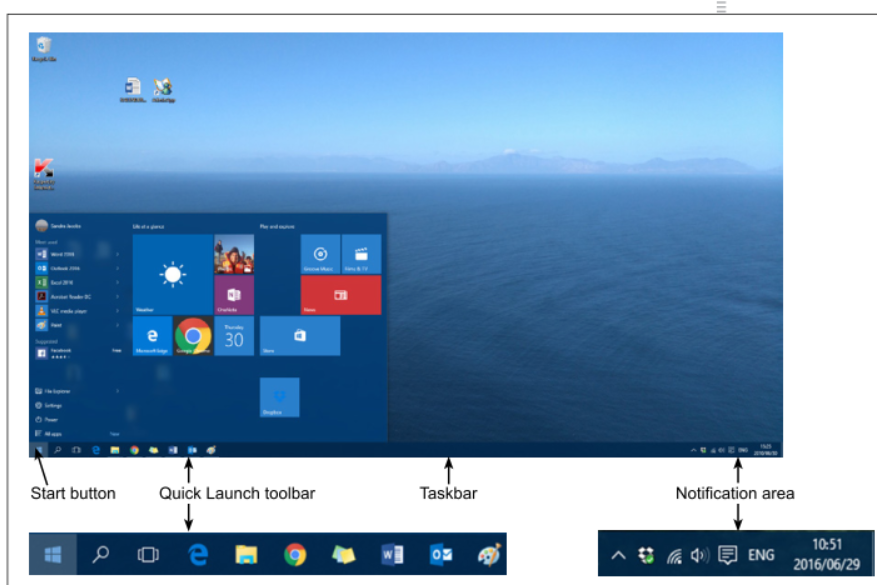
All modern software makes use of a Graphical User Interface (GUI)
A GUI is designed to be used with a keyboard and mouse (or a finger or hand in a touch screen environment)
Common actions:
Clicking: resting the pointer on an object and then selecting the object by clicking the left button once.
Double-clicking: Quickly clicking the left button twice.
Right-clicking: Clicking the right mouse button instead of the left mouse button.
Dragging - clicking on an object, holding down the left mouse button and moving the mouse. The object will move along with the pointer.
Scrolling: Most mouses have a wheel between the two buttons, which is used to scroll up and down in a document on the screen.
Common features of programs:
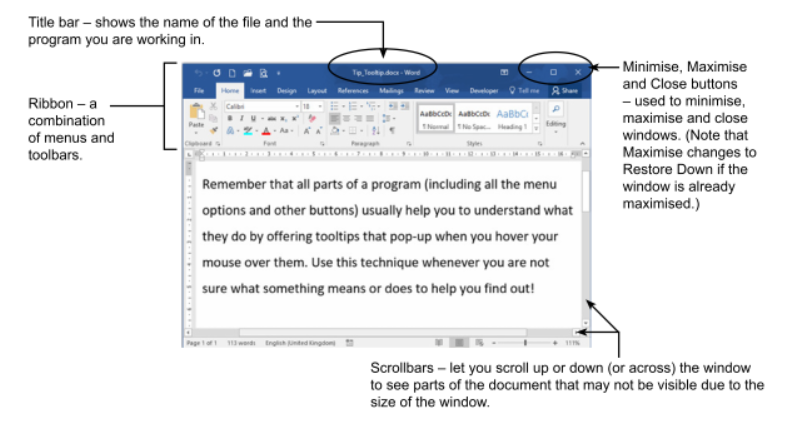
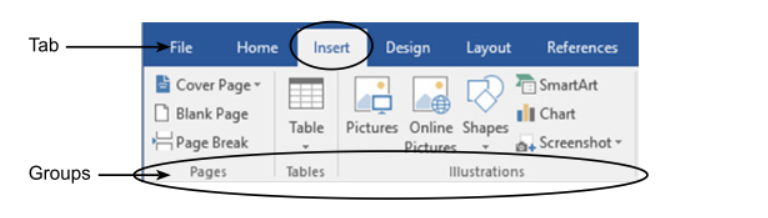
In Microsoft Office applications, the separate menus and toolbars have been combined into a new type of component - the Ribbon. The Ribbon has the commands organised in logical groups on different tabs (such as the Pages, Tables, and Illustrations groups on the Insert tab of Word.
Keywords:
Start Button - a rectangular area on the screen used to display the feedback or output of a program
Desktop - the first basic screen that appears when Windows is loaded
Drag and drop - a mouse operation to move objects
Esc key - the key used to cancel an option or get back to where you were
Icons - the small pictures on the desktop which represent programs or ‘places’ on the computer.
Restore Down - pictures or icons which have a small curved arrow in the bottom left corner
Right-click - A mouse action that causes a pop-up menu to appear.
Maximise - an action which make the size of a window as large as possible
Booting - the process of starting a computer and loading the operating system
Minimise - an action which reduces a window to a button on the taskbar
Operating system - the most important program, that controls al activities in a computer
Ribbon - a combination of menus and toolbars into a new component used in Microsoft Office
Scroll - using a mouse to move up or down in a document
Shortcuts - pictures or icons which have a small curved arrow in the bottom left corner
Taskbar - the horizontal bar at the bottom of the desktop, which holds minimised programs
Title bar - the bar at the top of the program/window that displays the name of the file and the program you are working in
Tooltip - a tip or information that pops up when you rest the pointer on an icon or object
Saving our work
Work currently being done on a computer is being kept temporarily in memory - and it stays there only as long as the program is open and the computer is switched on.
To keep that work so that you can use it again later you have to save the work to storage.
Everything that is saved on a computer is saved in files and you organise files grouping them into folders.
Introduction to the keyboard
The keyboard is the most commonly used input device. It allows us to type information into the program that we are using.
Input
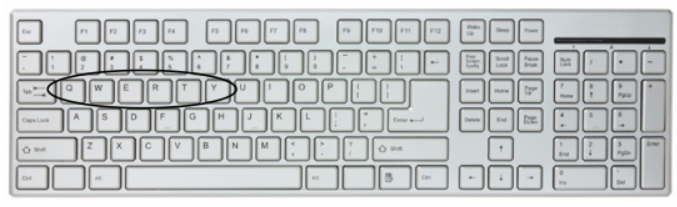
The type of keyboard that is most commonly used with desktops and laptops is known as a QWERTY keyboard because of the first six letters on the top row of the alphabetic keys.
On smartphone and tablets the keyboard is displayed by software on the screen - which allows you to change the keyboard to display letter alphabetically rather than is the QWERTY order.