First 7 Videos
Operating Systems Overview - CompTIA A+ 220-1202 - 1.1
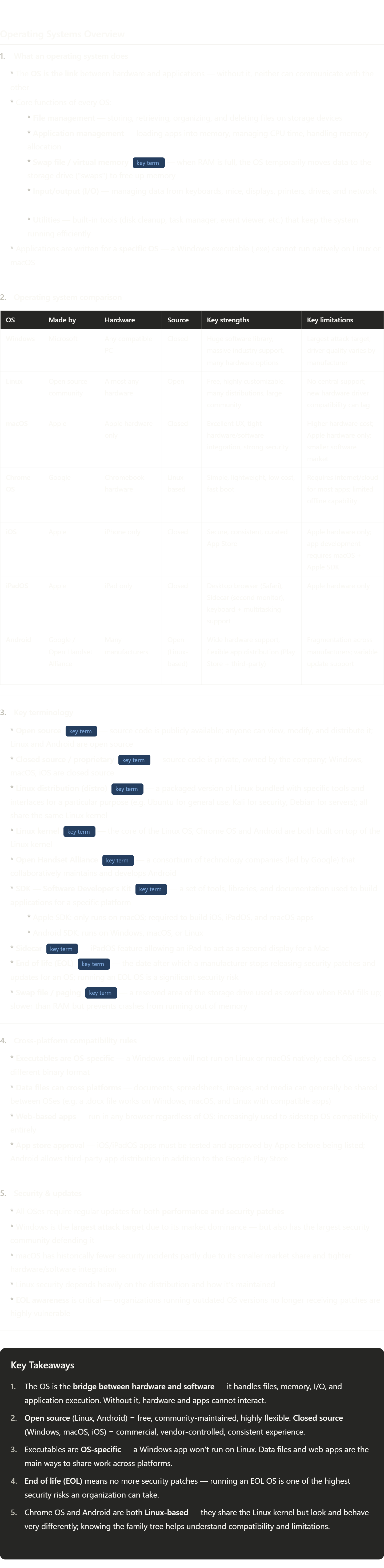
Great foundational topic. Here's the terminology worth understanding deeply:
Kernel — the innermost core of an OS. It's the part that directly controls hardware — CPU scheduling, memory allocation, device communication. Everything else (the GUI, file manager, apps) sits on top of the kernel. Linux, Chrome OS, and Android all share the Linux kernel, even though they look completely different on the surface. Think of the kernel as the engine — the car body (interface) can look totally different but the engine underneath is the same.
Open source vs. closed source — beyond just "free vs. paid." Open source means the actual code is publicly readable and modifiable. This enables community improvements, security auditing by anyone, and the ability to run it on any hardware. Closed source means the company controls the code entirely — you trust the vendor to fix bugs and add features, but you can't inspect or change it yourself.
Linux distributions — Linux is just the kernel. A "distro" is the kernel plus everything else: a package manager, desktop environment, pre-installed software, and configuration tools. Ubuntu, Fedora, Debian, Kali, CentOS, Arch — all Linux, all completely different experiences. This is why "Linux" is both one thing and hundreds of things simultaneously.
SDK (Software Developer's Kit) — the full toolkit for writing apps for a platform. Apple's is called Xcode, and it only runs on macOS — if you want to build an iPhone app, you must own a Mac. Google's Android SDK (usually used with Android Studio) runs on any OS. This is a significant practical difference for developers.
Swap file / virtual memory / paging — RAM is fast but limited. When it fills up, the OS starts using a portion of the storage drive as slow, temporary RAM. This area is called the swap file (Windows calls it the page file). Accessing it is far slower than real RAM, which is why heavily loaded systems feel sluggish — they're constantly reading/writing to disk instead of RAM. SSDs mitigate this significantly vs. HDDs.
End of life (EOL) — one of the most important concepts in IT security. When Microsoft stops supporting Windows 10 (for example), every vulnerability discovered after that date goes unfixed forever. Organizations running EOL software are essentially leaving known unlocked doors open permanently. This is why IT departments have strict OS upgrade cycles.
Open Handset Alliance — Google founded this in 2007 specifically to create an open alternative to iOS. Members include Samsung, HTC, Sony, Intel, Qualcomm, and dozens of others. The OHA's existence is why Android runs on so many different devices — it was designed by committee for maximum hardware diversity.
File Systems - CompTIA A+ 220-1202 - 1.1
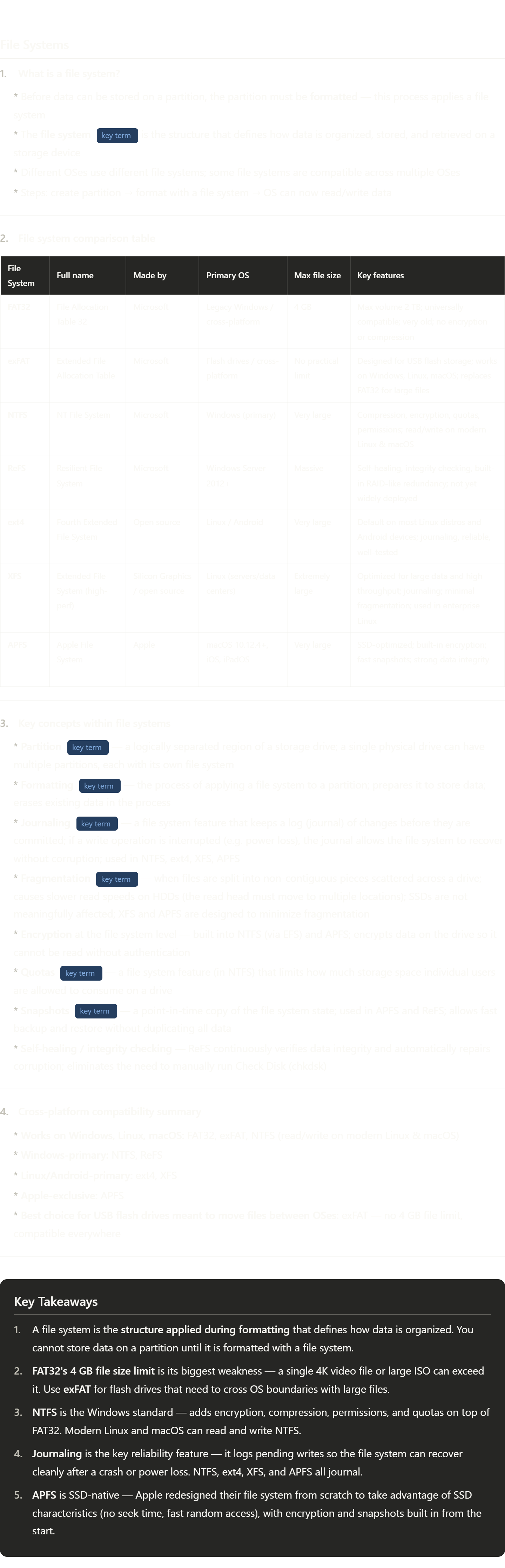
File systems are one of those topics that sounds dry but has very real practical implications. Here's the terminology worth owning:
Partition vs. volume vs. drive — a physical drive can be divided into partitions (logical sections). Each partition can have its own file system and appears as a separate "drive letter" or mount point in the OS. "Volume" is often used interchangeably with partition, though technically a volume can span multiple partitions (in RAID or dynamic disk setups).
Formatting — this word gets used loosely. A "quick format" just writes a new empty file system index, telling the OS "this space is available." A "full format" actually writes zeros to every sector and checks for bad sectors. Data appears deleted after either type but can often be recovered until the space is reused — which is why secure deletion tools exist.
Journaling — think of it like a transaction log at a bank. Before the bank actually moves money, it writes "I'm about to transfer $100 from A to B" in a log. If the power goes out mid-transfer, the bank reads the log and knows exactly what to finish or undo. File systems do the same — without journaling, a sudden power loss can leave files half-written and the directory in an inconsistent state, requiring manual repair (chkdsk, fsck).
Fragmentation — imagine writing a book chapter by chapter, but each chapter is stored in a random drawer in a large filing cabinet. Every time you want to read the book in order, you have to run around the room opening random drawers. That's fragmentation on an HDD — the read head physically has to move to multiple locations. SSDs don't have moving parts, so fragmentation barely matters (no physical travel required to jump between sectors).
exFAT — the practical choice to remember for the exam and real life. Any flash drive you buy today is likely exFAT. The 4 GB limit of FAT32 was designed in an era when 4 GB was enormous. Today a single video file can be 20–50 GB, which is why exFAT exists.
APFS snapshots — a snapshot doesn't copy all the data; it just records which blocks existed at that moment. If a block later changes, the old version is preserved separately. This is how Time Machine on Mac can offer near-instant backups — it's just recording what changed, not copying everything. ReFS has similar capability.
Installing Operating Systems - CompTIA A+ 220-1202 - 1.2
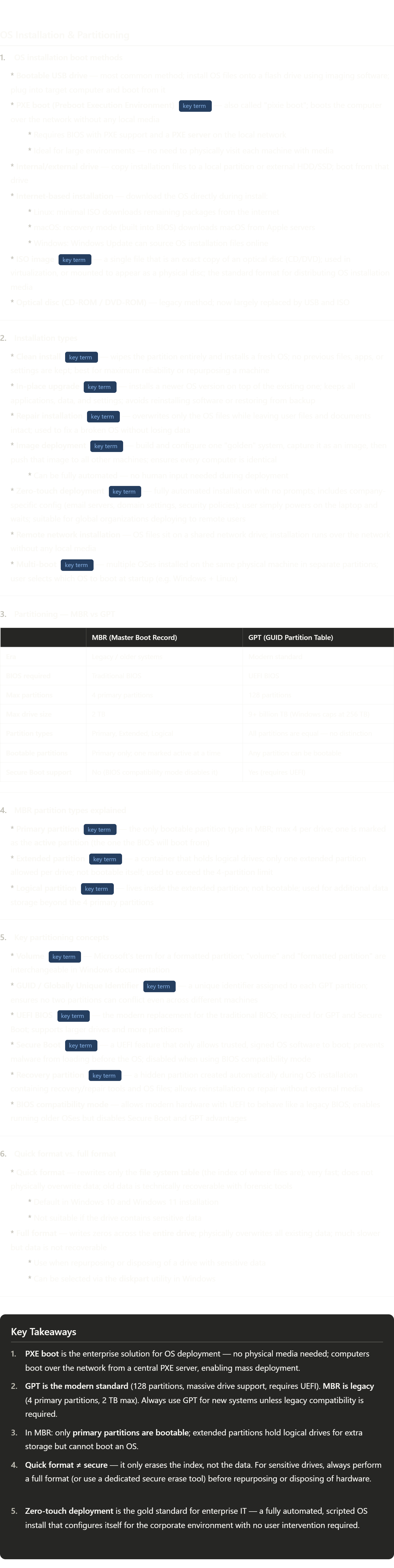
This is dense but foundational material. Here's the key terminology to really understand:
PXE (Preboot Execution Environment) — pronounced "pixie." The genius of PXE is that the network card itself has a tiny bootstrap program burned into it. When PXE is enabled in BIOS and no local OS is found, the NIC broadcasts a DHCP request. The DHCP server responds with an IP and the address of a TFTP server hosting the OS installer. The machine downloads a tiny bootloader, which then downloads the full installer. You can deploy an OS to 500 machines simultaneously this way.
ISO image — originally named after the ISO 9660 standard for optical disc formatting. An ISO is a bit-for-bit copy of an entire disc packaged as one file. When you "mount" an ISO in a VM or using software like Rufus, the OS sees it exactly as if a physical disc were inserted. The extension .iso is the telltale sign.
MBR (Master Boot Record) — a 512-byte section at the very start of a drive containing the partition table and a tiny bootloader. It's been around since 1983. Its 2 TB limitation comes from using 32-bit sector addresses — 2^32 sectors × 512 bytes = 2 TB ceiling. With modern drives exceeding 20 TB, MBR is simply obsolete.
GUID (Globally Unique Identifier) — a 128-bit number expressed as 32 hexadecimal characters in groups (e.g. 550e8400-e29b-41d4-a716-446655440000). The probability of two GUIDs being identical is astronomically low. GPT uses GUIDs to identify each partition uniquely — even if you clone a drive, the partitions get new GUIDs to avoid conflicts.
UEFI vs. legacy BIOS — UEFI (Unified Extensible Firmware Interface) is the modern replacement for the original BIOS (Basic Input/Output System) that dates to the 1970s. UEFI supports larger drives, faster boot times, a graphical interface, network access before OS load, and Secure Boot. Legacy/traditional BIOS cannot do any of this.
Secure Boot — UEFI checks a digital signature on the bootloader before running it. If the signature doesn't match a trusted certificate database, the BIOS refuses to boot it. This blocks rootkits and bootloader malware that try to load before the OS. Enabling BIOS compatibility mode disables this protection entirely.
Zero-touch deployment — the pinnacle of enterprise IT automation. Tools like Microsoft Deployment Toolkit (MDT), SCCM, Autopilot, or Intune script the entire process. The machine contacts a deployment server, downloads its config, applies group policies, installs approved software, joins the domain, configures email — all before the user even types their first password.
diskpart — a Windows command-line tool for partition management. Much more powerful than the graphical Disk Management interface. You can use it to convert between MBR and GPT, create/delete partitions, mark partitions active, and perform full formats. Every IT technician should know its basic commands.
Upgrading Windows - CompTIA A+ 220-1202 - 1.2
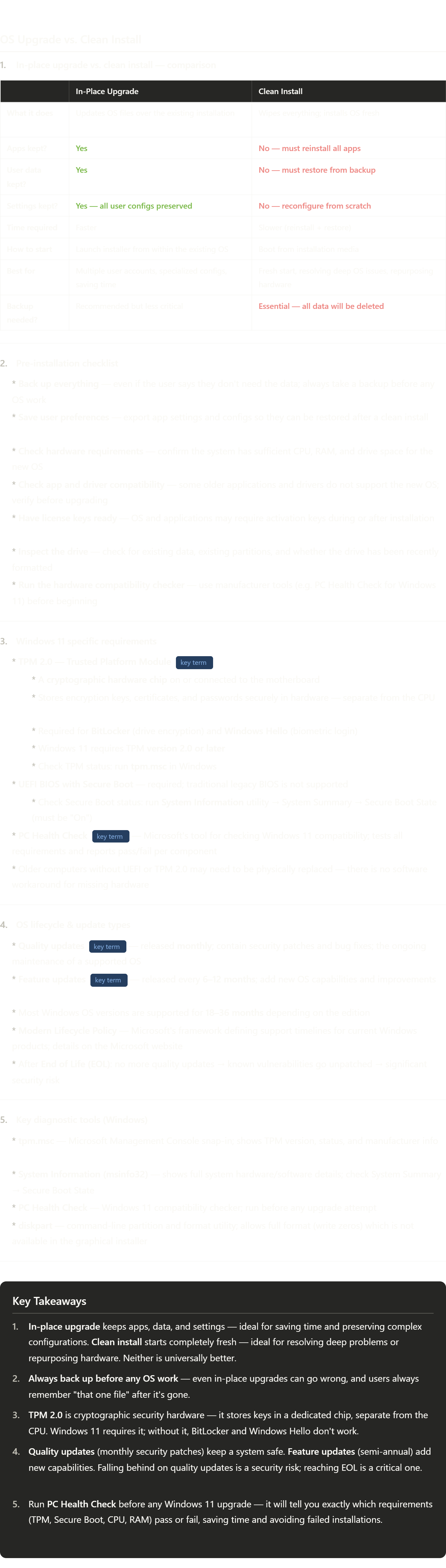
Key terminology from this video worth really understanding:
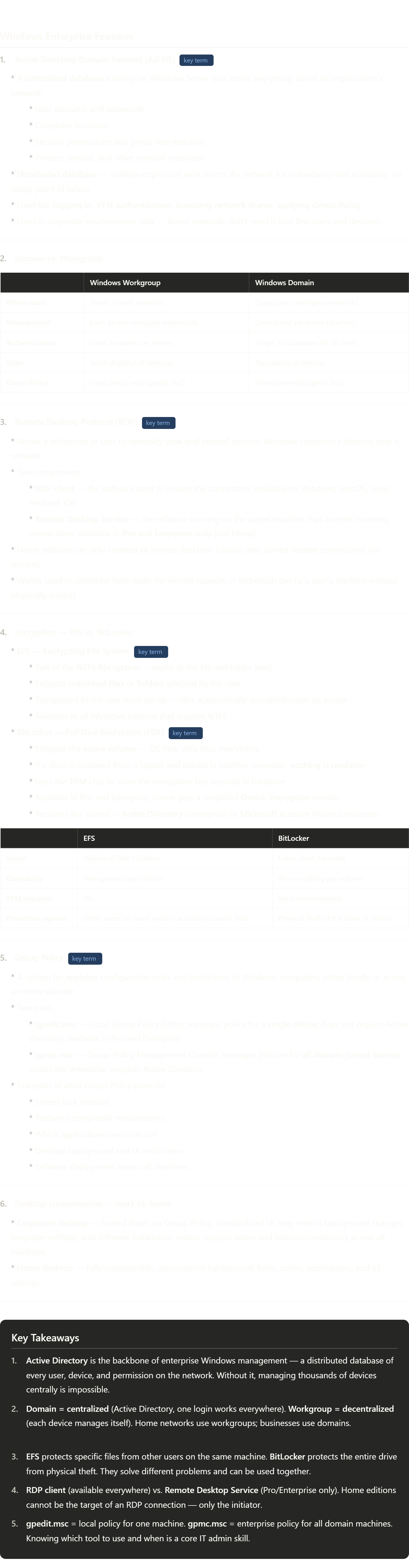
TPM (Trusted Platform Module) — think of it as a tiny vault on your motherboard that holds cryptographic keys. Unlike storing encryption keys in software (where malware could potentially steal them), the TPM stores them in dedicated hardware that physically cannot be read externally. When you encrypt a drive with BitLocker, the key is sealed inside the TPM. If someone removes the drive and puts it in another computer, the TPM isn't there — the drive stays locked. TPM 2.0 being required for Windows 11 was controversial but reflects Microsoft pushing hardware-rooted security as the baseline.
BitLocker — Windows' built-in full-disk encryption. It encrypts the entire OS drive so data is unreadable without the TPM (and optionally a PIN or USB key). If a laptop is stolen, the thief can't access any data even by removing the drive. Requires TPM 2.0.
Windows Hello — Microsoft's biometric authentication system (fingerprint, facial recognition, PIN). The biometric template is stored securely in the TPM, not in a file that could be copied. This is why it's more secure than a password — the credential never leaves the hardware.
Quality updates vs. feature updates — this distinction matters in enterprise IT. Quality updates (Patch Tuesday, every second Tuesday of the month) are the critical security fixes. Feature updates are the big semi-annual upgrades that can sometimes break things. Many organizations delay feature updates by weeks or months to test compatibility, but they push quality updates immediately due to security importance.
Modern Lifecycle Policy — Microsoft's commitment to supporting products as long as customers keep them updated. The old "Fixed Lifecycle" gave fixed end dates years in advance. Modern Lifecycle is ongoing — Microsoft can adjust support timelines, and users must stay current to remain supported. Effectively: keep updating or fall off the support cliff.
tpm.msc and msinfo32 — two of the most useful Windows diagnostic commands to know. tpm.msc opens the TPM management console directly. msinfo32 opens System Information — a single pane showing everything about the hardware and software configuration of a machine, including Secure Boot state, BIOS version, installed RAM, OS version, and much more. Both run from the Start menu search or Win+R dialog.
An Overview of Windows - CompTIA A+ 220-1202 - 1.3
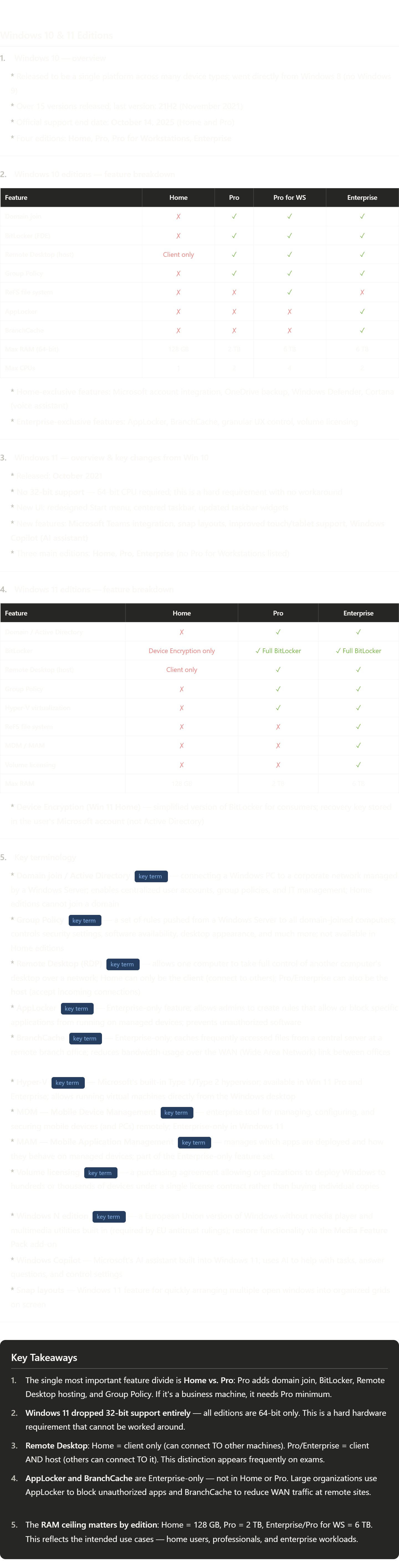
This is classic exam content — lots of specific feature comparisons. Here's the terminology worth really owning:
Active Directory (AD) — Microsoft's directory service running on Windows Server. Think of it as the corporate phone book and rulebook combined. Every user account, computer account, and security policy in an organization lives here. When you "join a domain," your PC registers itself with Active Directory and agrees to follow its rules. Home editions cannot do this — they only support local accounts.
Group Policy — the mechanism Active Directory uses to push settings to domain-joined computers. An admin writes a policy ("all PCs must lock after 5 minutes of inactivity," "users cannot install software," "the desktop background must be the company logo") and it applies to every matching machine automatically. Without domain join, Group Policy doesn't exist — which is why Home editions have no real enterprise management capability.
Remote Desktop Protocol (RDP) — Microsoft's built-in remote access tool. The "client only" restriction on Home is deliberate and commercial — Microsoft wants businesses to pay for Pro. The Home edition can use Remote Desktop to connect to a Pro machine, but you cannot connect to a Home machine via RDP. This comes up constantly on the A+ exam.
AppLocker — essentially a software whitelist/blacklist enforced by the OS. An admin can say "only these specific executables are allowed to run." Prevents users from running games, crypto miners, or unauthorized tools on company machines. More powerful than just hiding shortcuts — the OS itself blocks execution.
BranchCache — solves a real enterprise problem. Imagine a company with headquarters in New York and a branch office in Chicago. Every time a Chicago employee opens a shared document from the NY server, it crosses the WAN link (slow, expensive). BranchCache caches that document locally in Chicago after the first download — subsequent requests are served locally. Massive bandwidth savings for companies with many remote offices.
MDM vs. MAM — two layers of mobile management. MDM controls the whole device (can wipe it, enforce passcodes, block certain features). MAM controls specific applications on the device (can remotely wipe just the corporate email app without wiping personal photos). MAM matters in BYOD (Bring Your Own Device) environments where you can't wipe someone's personal phone but still need to protect corporate data in the work apps.
Volume licensing — rather than buying 500 individual Windows licenses with 500 product keys, an enterprise signs a single agreement (like Microsoft's Enterprise Agreement or Open License) covering all devices. Simpler to manage, often cheaper at scale, and allows centralized deployment without entering product keys on every machine.
Windows Features - CompTIA A+ 220-1202 - 1.3
Task Manager - CompTIA A+ 220-1202 - 1.4
Windows Task Manager
1. Purpose of Task Manager
Task Manager is a Windows utility used for:
Monitoring system performance
Viewing running applications
Managing startup programs
Troubleshooting system issues
Provides a real-time view of important system statistics.
2. Ways to Open Task Manager
Several methods can launch Task Manager:
Keyboard Shortcuts
Ctrl + Alt + Delete
Opens security menu
Select Task Manager
Ctrl + Shift + Escape
Directly opens Task Manager
Fastest shortcut
Taskbar Method
Right-click the Windows taskbar
Select Task Manager
3. Task Manager Tabs
Task Manager contains multiple tabs used for different monitoring and troubleshooting functions.
Services Tab
4. Services Management
Displays all Windows services currently installed and running.
Services
Background programs that support:
Windows functions
Applications
Networking
Security
Functions Available
Start a service
Stop a service
Restart a service
Additional Tools
Can launch the full Services applet for advanced management.
Why This Matters
Useful when troubleshooting:
Crashes
Startup problems
Network issues
Disabled services
Startup Tab
5. Startup Applications
Shows applications that automatically start when Windows boots.
Purpose
Helps manage boot performance.
Useful for troubleshooting slow startup times.
Troubleshooting Method
Disable startup applications.
Restart the computer.
Re-enable apps one at a time to locate the problem.
Options
Enable startup apps
Disable startup apps
Important Term
Startup Application:
Program that launches automatically during boot.
Processes Tab
6. Running Processes
Displays all active:
Applications
Background processes
Windows processes
Metrics Displayed
CPU
Memory
Disk
Network
GPU
Uses
Identify applications using excessive resources.
Detect programs slowing down the computer.
Customization
Rearrange columns
Sort by usage
Add extra metrics
Important Terms
Process:
A running program or task.
Background Process:
Process running without visible user interaction.
Performance Tab
7. System Performance Monitoring
Displays graphical performance data over time.
Monitored Components
CPU utilization
Memory usage
Disk activity
Network usage
GPU activity
Graph Features
Shows approximately the last 60 seconds of activity.
Helps identify spikes in resource usage.
Troubleshooting Uses
Detect:
High CPU usage
Memory shortages
Disk bottlenecks
Network congestion
Important Terminology
CPU Utilization:
Percentage of processor resources being used.
Memory Usage:
Amount of RAM currently in use.
GPU (Graphics Processing Unit):
Processor specialized for graphics and visual tasks.
Users Tab
8. User Connections
Displays all users connected to the computer.
Types of Connections
Local users
Network users accessing shared resources
Functions
View connected users
See resource usage per user
Disconnect users from the system
Why This Matters
Important in:
Shared systems
Remote access environments
Server management
Important Term
Multi-user Operating System:
OS that supports multiple users simultaneously.
9. Common Troubleshooting Uses
Diagnose slow computers
Find programs consuming resources
Disable problematic startup apps
Restart failed services
Monitor hardware performance
Disconnect unwanted users
10. Important Terminology
Task Manager:
Windows utility for monitoring and managing system activity.
Service:
Background function supporting Windows or applications.
Startup Program:
Application launched during system boot.
Process:
Running program or task.
CPU Usage:
Amount of processor power being used.
Memory Usage:
Amount of RAM currently consumed.
GPU:
Graphics processor used for visual computing tasks.
Performance Monitoring:
Tracking hardware resource usage over time.
Key Takeaways
Task Manager is a major troubleshooting tool in Windows.
The Services tab manages background system services.
The Startup tab controls applications that run during boot.
The Processes tab shows active applications and resource usage.
The Performance tab provides real-time hardware statistics.
The Users tab displays connected local and network users.
Task Manager helps identify performance bottlenecks and system problems.