Software
Software is a set of instructions that ‘tells’ a computer what to do.
Software has other names as well:
- program
- application
- app
- package
- platform
(a set of instructions that runs on a computing device)
Software is kept on a storage device when it is not working or running.
To work, the software must be loaded from storage into memory so that the CPU can start following the instructions. You can easily tell the computer to start running any software that is installed on its storage - you simply double-click the file or icon of the program you want to run.
Application versus system software:
There are two main types of groups of software, namely application software and system software.
Application Software
Application software is a group of programs that perform specific tasks for us as users.
Examples of application software include:
Word processing programs such as Microsoft Word which allows us to type letters and prepare and print all sorts of documents.
Typing Tutor software, which teaches us and allows us to practice to become efficient keyboard users.
Gaming software, which allows the user to play games on the computer
System Software
System software is software that is intended to control, support or operate the computer.
The program we associate most with system software is the operating system.
This is the software that manages the computer as a whole and creates the user interface. When you buy a computer it comes with the operating system already installed. You then have to buy and install the application software you want to work with.
Apart from operating systems system software also includes utility software such as anti-virus software to prevent your computer from being affected by computer viruses. Another example is compression software such as WinZip which reduces the size of files. Some utilities are included in the operating system, but you are free to buy others or extra utilities as when you need them.
The Operating System
The operating system is the system software which controls all activities that take place in a computer. Every computer needs an operating system in order to be able to function, and this is the first set of programs that loads when we boot a computer.
Well known examples of operating systems include:
the Windows rage of operating systems such as Windows 8 and Windows 10 (older versions are Windows XP, Windows Vista and Windows 7)
Apple’s macOS Sierra (older versions were known as OS X Yosemite, OS X EI Capitan)
Linux (Ubuntu is a popular version of Linux - created under the guidance of Mark Shuttleworth, South Africa’s own internet billionaire)
Mobile devices also need operating systems:
IOS (for Apple devices such as the iPhone, iPad, and iPod touch)
Android (examples of versions are Marshmallow and Nougat)
Windows for smartphones
Operating systems have the following functions:
Managing all the hardware and software on the computer.
The operating system works at a very low level, giving the computer instructions on how to do the very basic task such as how to load a file from disk or how to display information on the screen.Maintaining security (with the use of passwords, etc.)
This is done mainly by the creation of different users, each with their own usernames and passwords. Users should not be able to see, use or change other users’ data.Providing a user interface
The interface allows us to interact with the computer and with programs on the computer. This is how me communicate with the computer.
The interface
An important part of the operating system is the interface. The interface is the way the content of the screen is arranged and presented to us to use. Almost all software provides is with a Graphical User Interface (GUI).
The interface is presented to us in a graphical way with small pictures called icons and other visual aids such as menus and buttons which make it easy for us to understand and use.
The desktop
The desktop is where you get to personalise the computer by changing the background image and arranging shortcuts to your favourite apps ad folders so that you can get them easily.
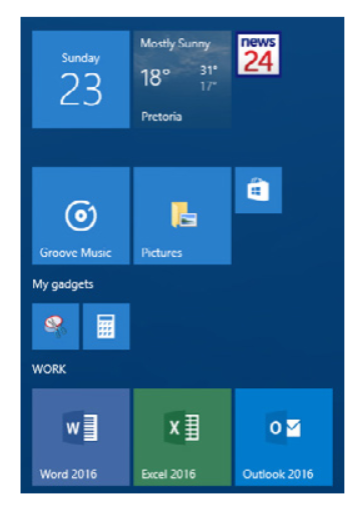
Apps can also be represented by the icons knows as tiles. Some of these apps are ‘live’ tiles because they update and change their display information. An example is the Weather tile of the weather app, which displays updated temperature information on the tile itself. Internet access is required for this.
Tile and shortcuts perform similar functions, however, and both can be double-clicked to open the underlying (associated) app or program.
Using menus
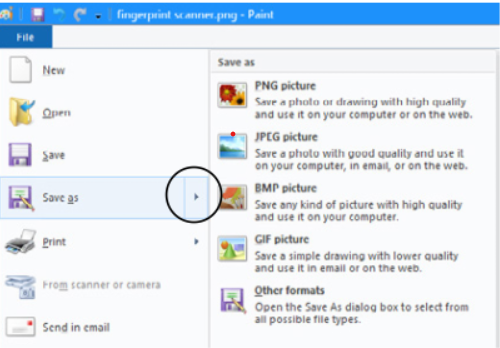
Sometimes further sub-menus (normally indicated by the presence of an arrow pointing to the right) will appear asking you to make a choice for that particular menu selection.
If an option is ‘greyed out’, then that option is not currently available.
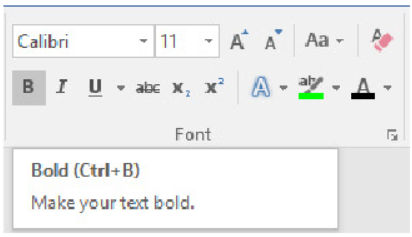
Shortcut keys are sometimes listed alongside the menu option or in the tooltip. These often make use of the Ctrl key and another key.
Some of the keyboard shortcuts are used by lots of program. Examples include <Ctrl><C> to copy something and <Ctrl><S> to save a file.
Each program has shortcuts which perform a specific function within that program. Knowing some of the more common keyboard shortcuts can make you a much more efficient computer user.
Other Windows components
Besides the windows, icons, menus and toolbars, Windows software also makes use of a number of other commonly used components. The first one we are going to look at is the dialog box.
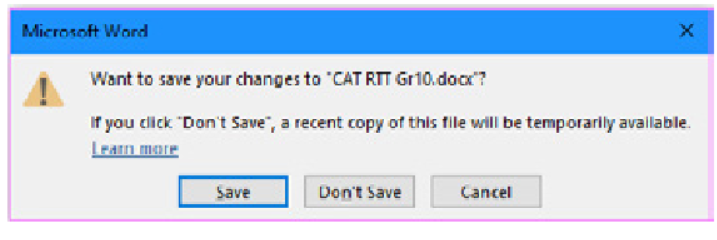
A dialog box is basically a small window that is used for communication or ‘dialog’ between a computer and a user. It usually provides a user with options to complete a small task. Dialog boxes can also be used to convey warnings or error messages .
Consider the following dialog boxes which are taken from Word. They provide options for formatting paragraphs and setting tabs.
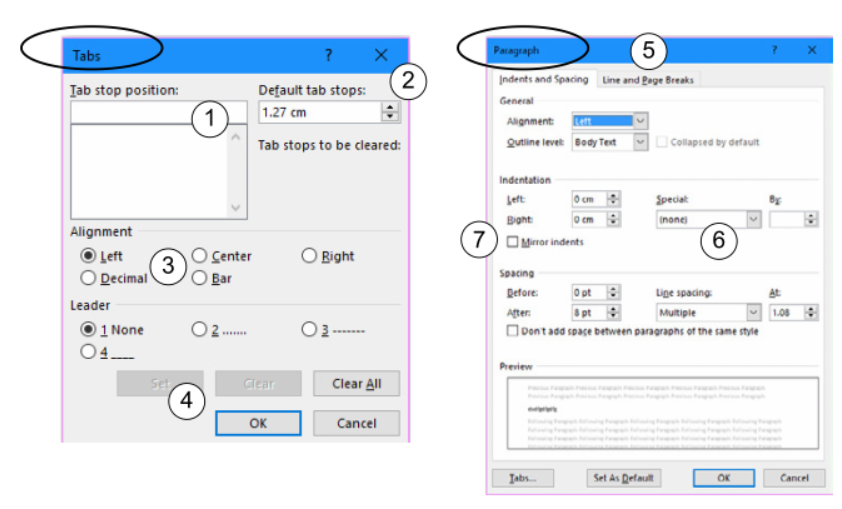
Control | Function | |
Textbox | A control that gives the user space to enter information | |
Spinner | A spinner can be used to change a value by clicking on an ‘up’ or ‘down’ arrow. The value of the spinner appears in the text box next to the spinner. The user can adjust the value using the spinner, or by editing the value directly in the text box. | |
Radio button | A radio button allows the user to choose only one from the given (small) set of options | |
Command button | A command button performs a command (makes something happen) when you click on it. For example, clicking on the OK button will mean that you are happy with your choices and that the dialog box can then close | |
Tag in dialog | This control sometimes appears in dialog boxes so that different options can be shown on each tab or sheet. You can only view one tab at a time | |
Combo and List box | These controls allow you to choose from a list of given options. They are identified by a down arrow appearing to the right of the control. Combo boxes differ from list boxes in that combo boxes allow the user to add an option of their own, while the list boxes force the user to choose only from the options listed. | |
Check box | Check box controls are similar to radio buttons in that they can be selected or deselected. The difference is that if a few of them are grouped together, more than one may be chosen or ticked. |
Utilities:
A number of utilities or apps come bundled with most operating systems. Some people call them ‘accessories’. These are programs that are not specifically aimed at the core functioning of the operating system. They are there rathe to provide useful add-on programs for the user
Snipping Tool
We often want to ‘capture’ or copy a section (picture) of what appears on our screen.
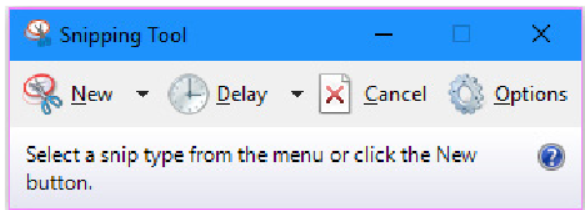
The Snipping Tool provides different options to capture screenshots:
The Free-form Snip option allows you to draw an area (by dragging the mouse) to select a portion of the screen.
The Rectangular Snip options allows you to select a rectangular area on the screen.
The Window Snip option allows you to select and capture an image of a window or dialog box.
The Full-screen Snip option allows you to capture the entire screen when you select this type of snip.
Calculator
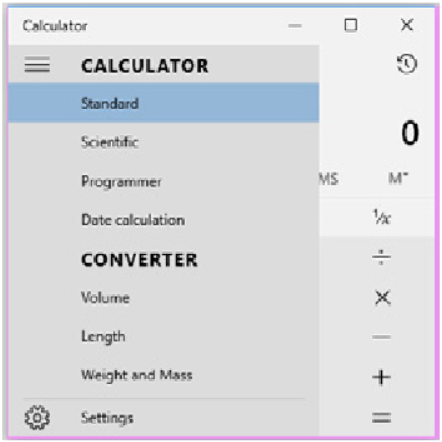
The Calculator app in Windows 10 provides different types of calculators as well as Converter functions for things like volume and length.
Application software
Application software is normally purchased separate from the computer - on a CD-ROM or DVD, or purchased and downloaded via the internet.
Type of program and what it is used for | Examples |
Graphics and design - Used to create and manipulate images (graphics) on the screen | CoreIDRAW, Adobe Photoshop, Adobe Illustrator, Adobe FreeHand, AutoCAD, Microsoft Paint |
Word processor - Used to create, edit, format, and print text-based documents | Microsoft Word, OpenOffice Writer |
Spreadsheet - Allows you to perform tasks that are based on calculations | Microsoft Excel, OpenOffice Calc |
Database - Can be used to store data in an organised manner, manipulate the data and process the data into information. | Microsoft Access, OpenOffice Base, MySQL |
Presentation software - Can combine text, sound and graphic including animation into a presentation - usually in the form of an electronic slide show. | Microsoft PowerPoint, OpenOffice Impress |
Communication software - Allows the user to communicate electronically with other user on a network. | Microsoft Mail & Outlook (email) |
Office suite - Combines commonly used ‘office’ software such as a word processor, spreadsheet, database, presentation and communication software as an integrated unit. | Microsoft Office 2016, OpenOffice, LibreOffice |
Desktop publishing (DTP) - Allows the user to lay out documents that combine text and graphics professionally to produce publications such as books, magazines, newspapers, adverts, and brochures. | Microsoft Publisher, QuarkXPress, Adobe InDesign |
Games - Most modern computer games allow you to enact roles and have adventures in virtual worlds or scenarios. Many of them provide interfaces which make use of very realistic 3D graphics and sound effects | League of Legends, Grand Theft Auto, World of Warcraft |
Web authoring software - Used in the design and creation of websites. | Adobe Dreamweaver |
Web browser - Used to access and view web pages on the internet. | Edge, Internet Explorer, Opera, Safari, Mozilla Firefox, Google Chrome |
Plug-in - Plug-ins used to be essential for adding multimedia to web pages. The problem is that they were slow and buggy and easy to hack. They often need to be updated as well so it is not recommended to use web browser plug-ins if you can avoid them. Instead of plug-ins most web pages use HTML5 which deals with all the multimedia content and the web page without needing plug-ins. | Flash, QuickTime |
Financial applications - Used to record and report financial transactions and run accounts systems and budgets. | Pastel Accounting, Microsoft Money Plus Sunset, Quicken, Quickbooks |