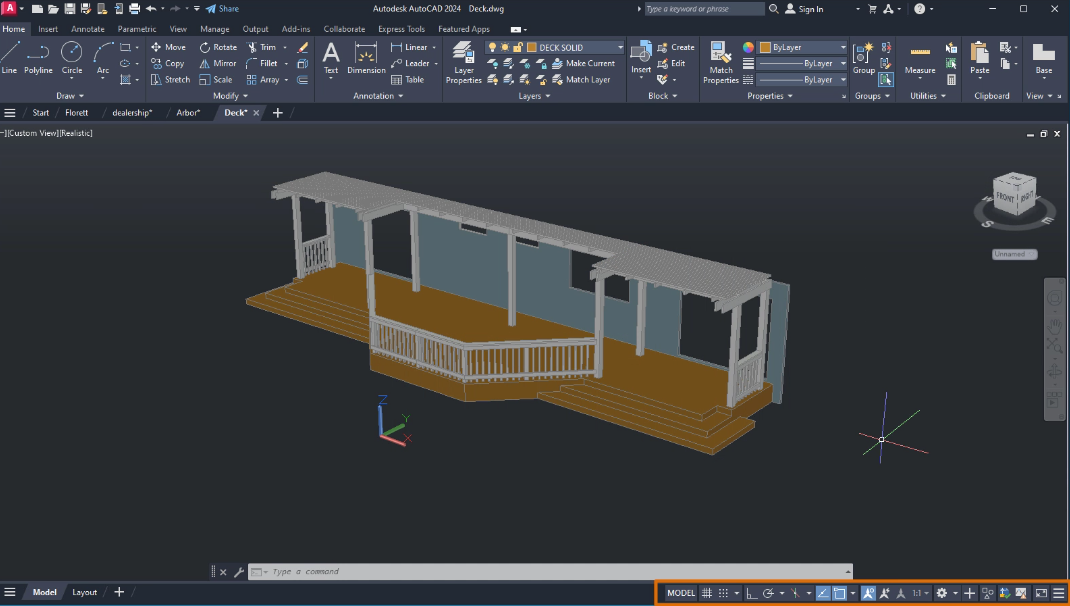
1. Tour the AutoCAD UI
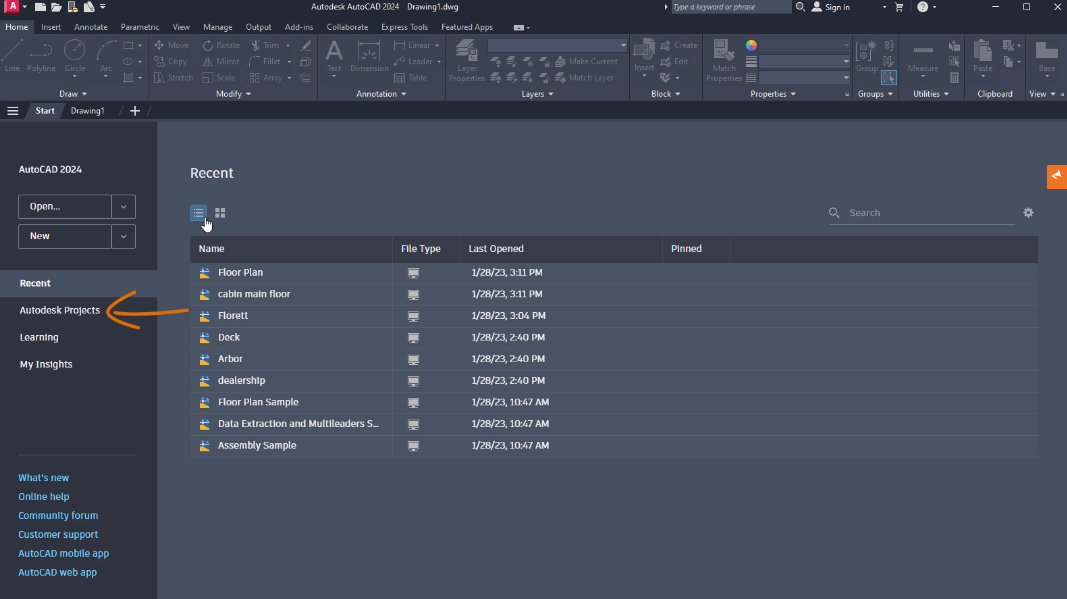
The AutoCAD Homepage
Start Tab:
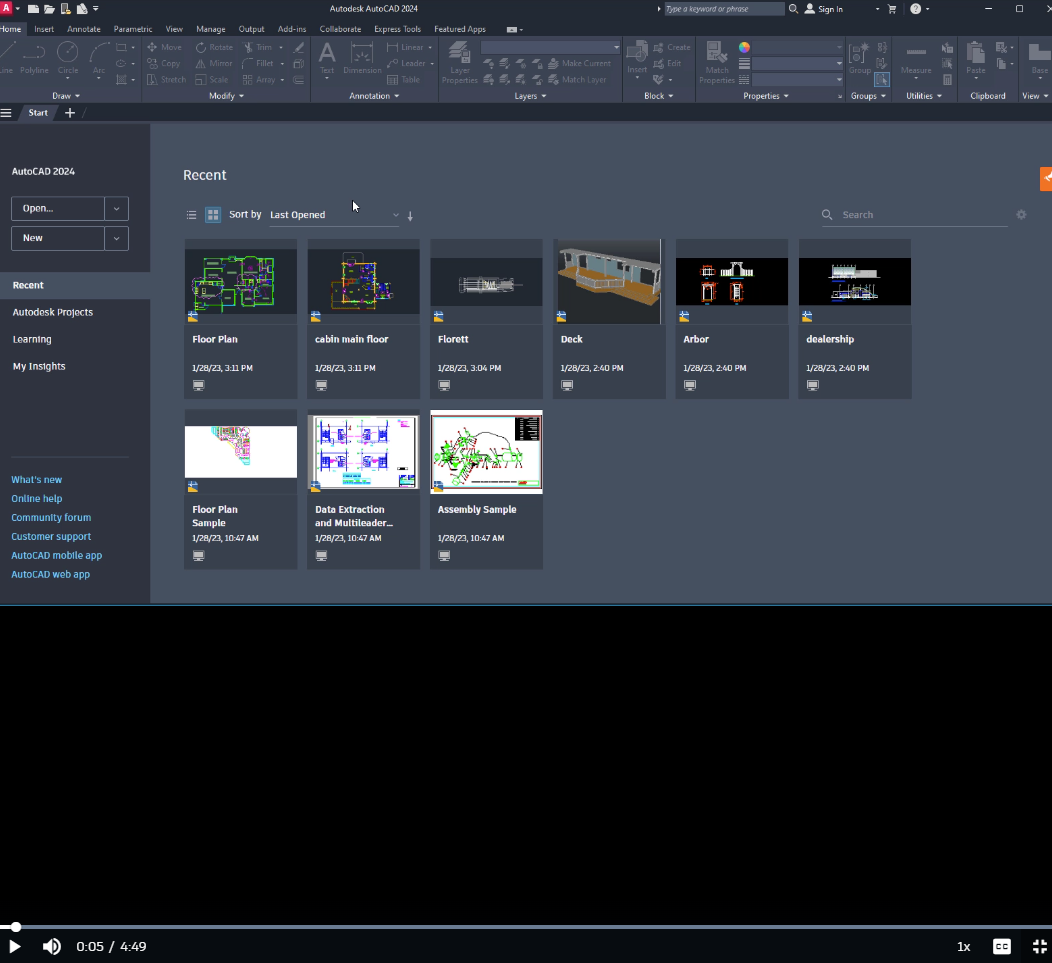
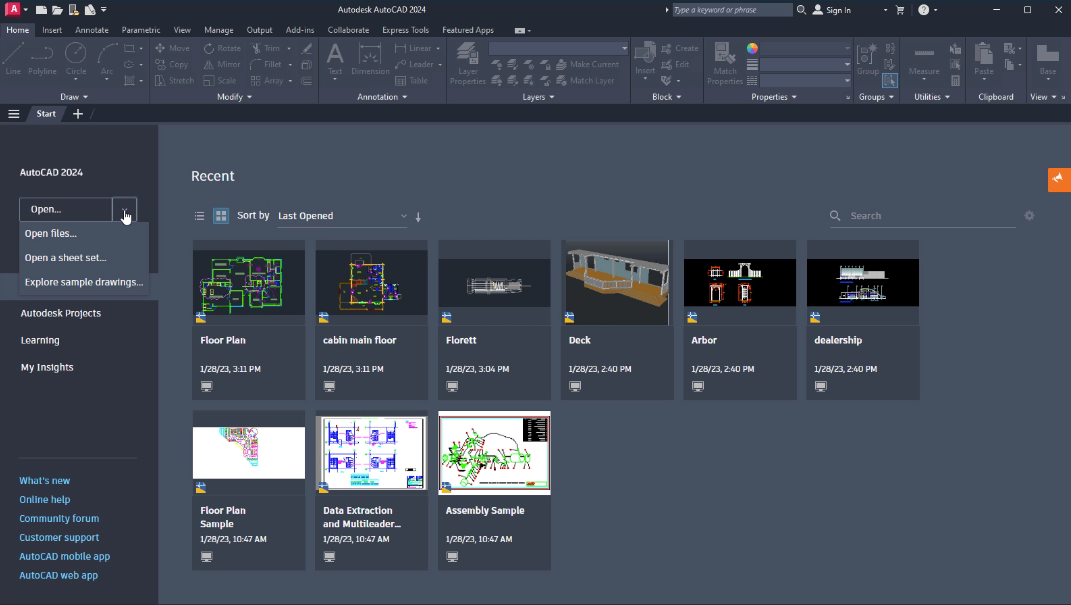
Open Button:
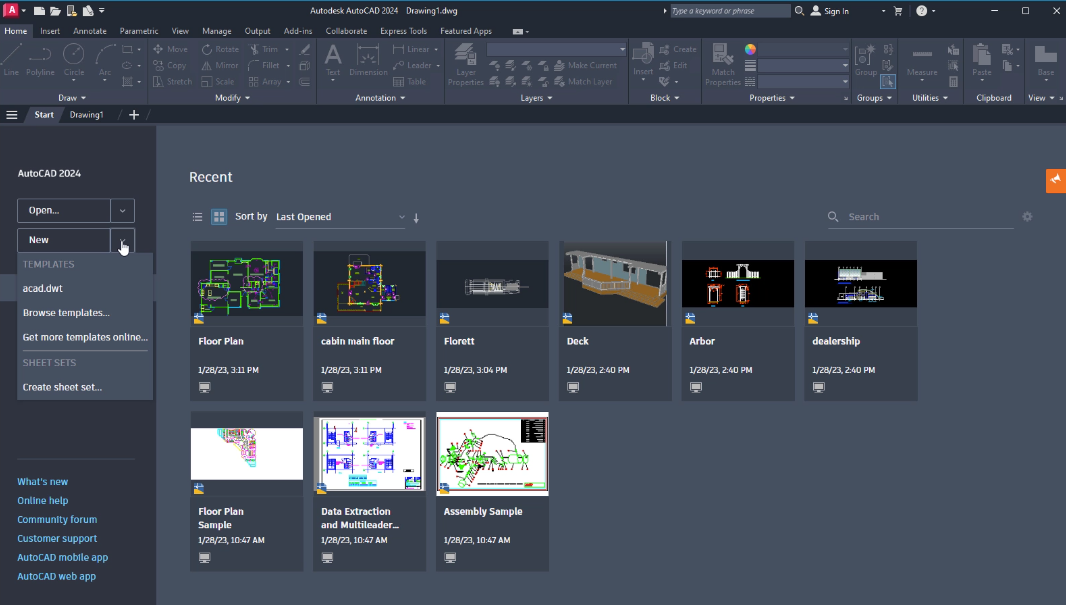
New Button:
Left-Side Menu and Online Resources:
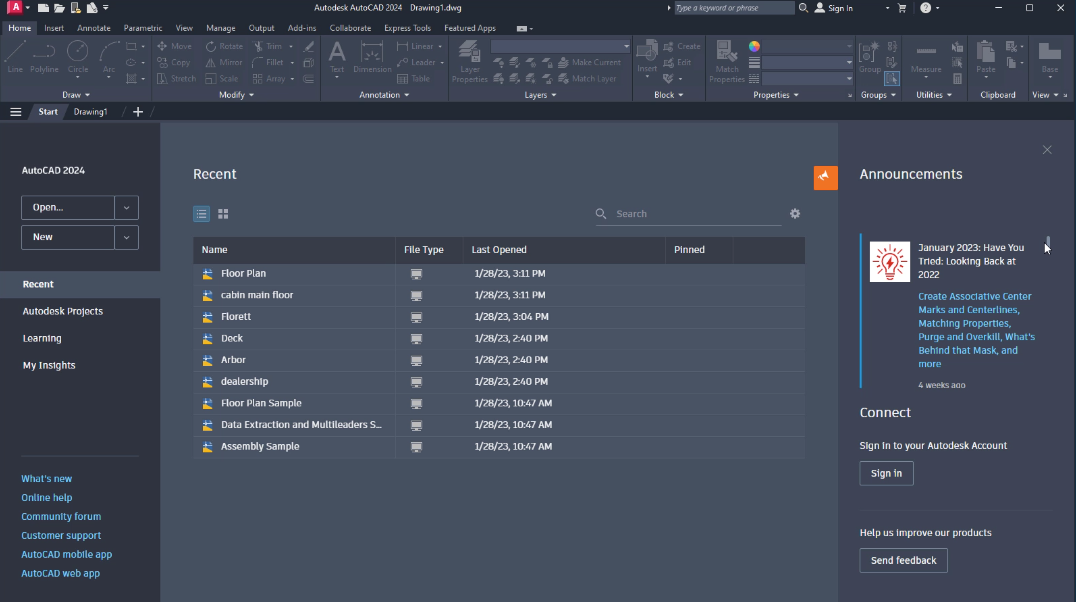
Announcements Tab:
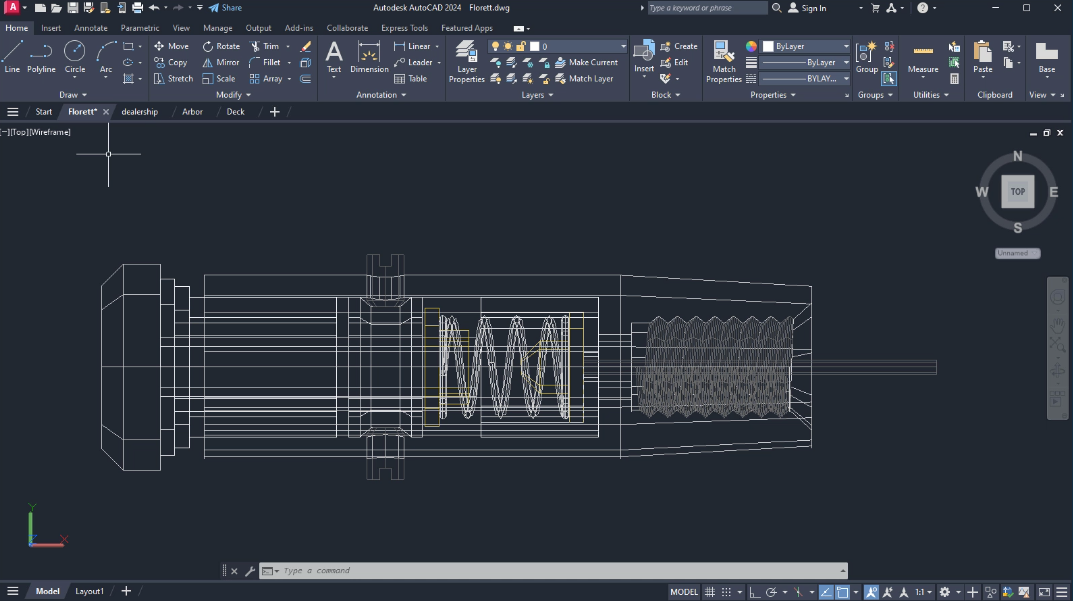
The Drawing Area
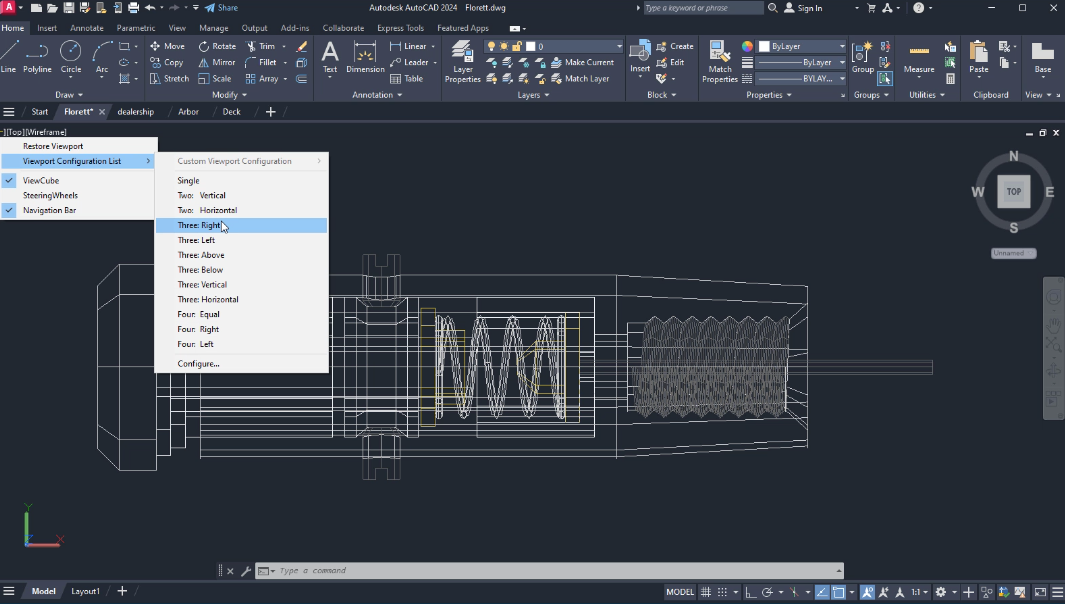
The Viewport Controls:
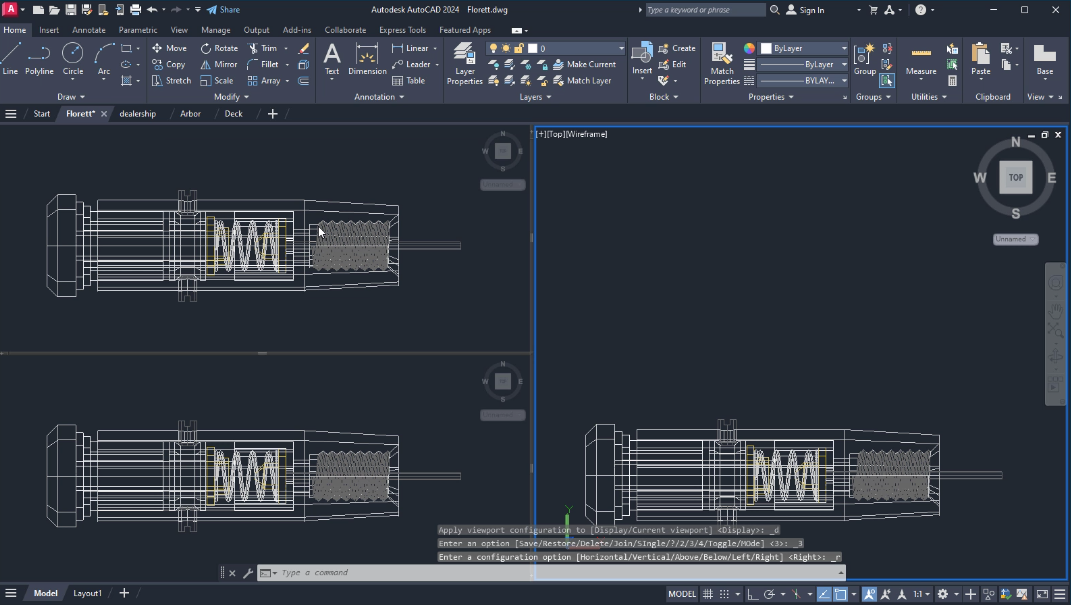
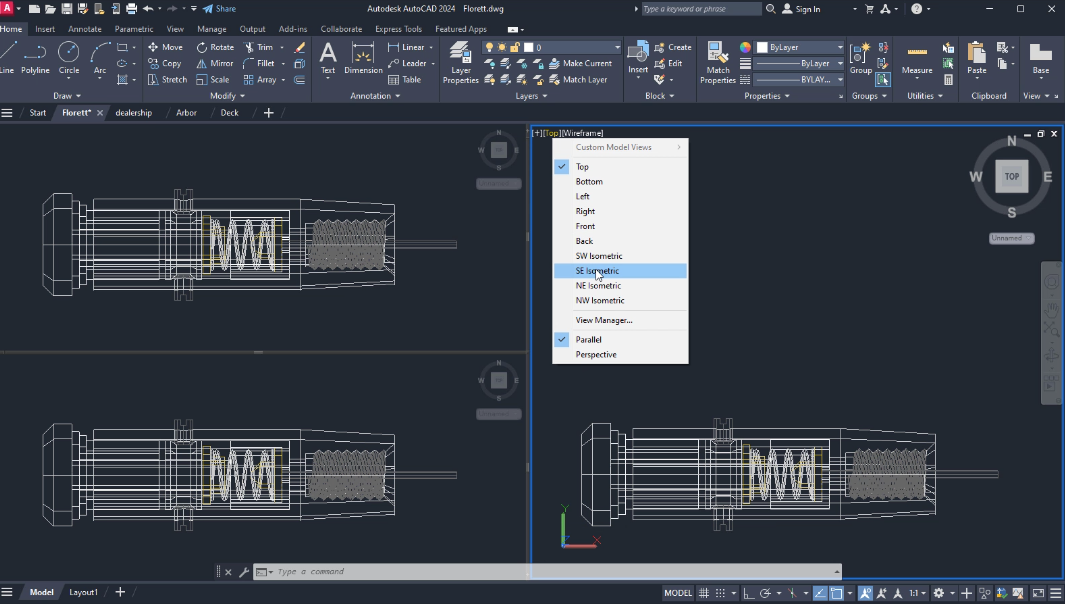
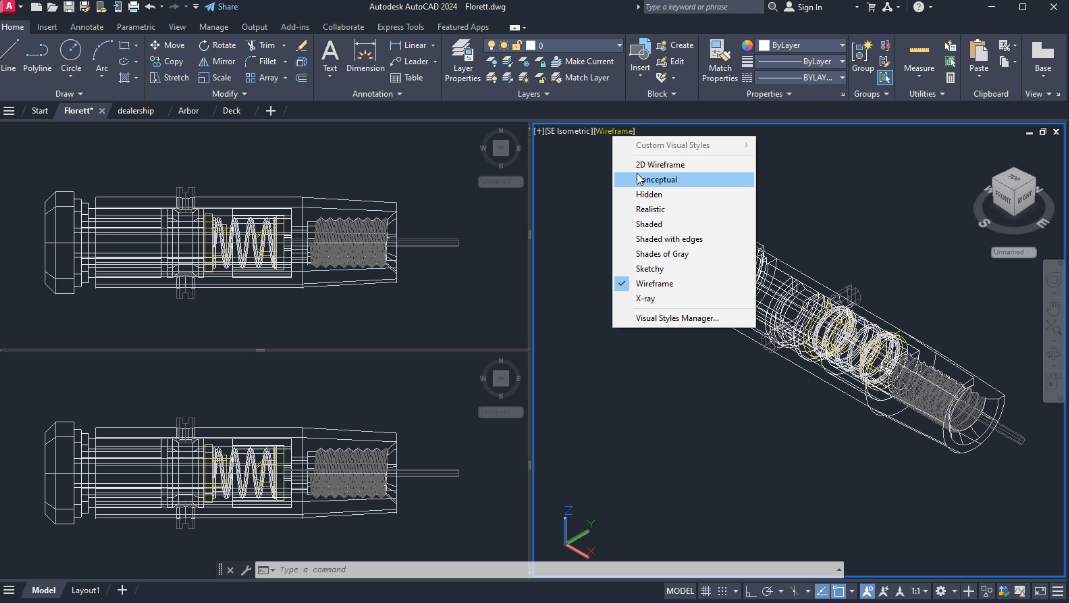
The Navigation Bar:
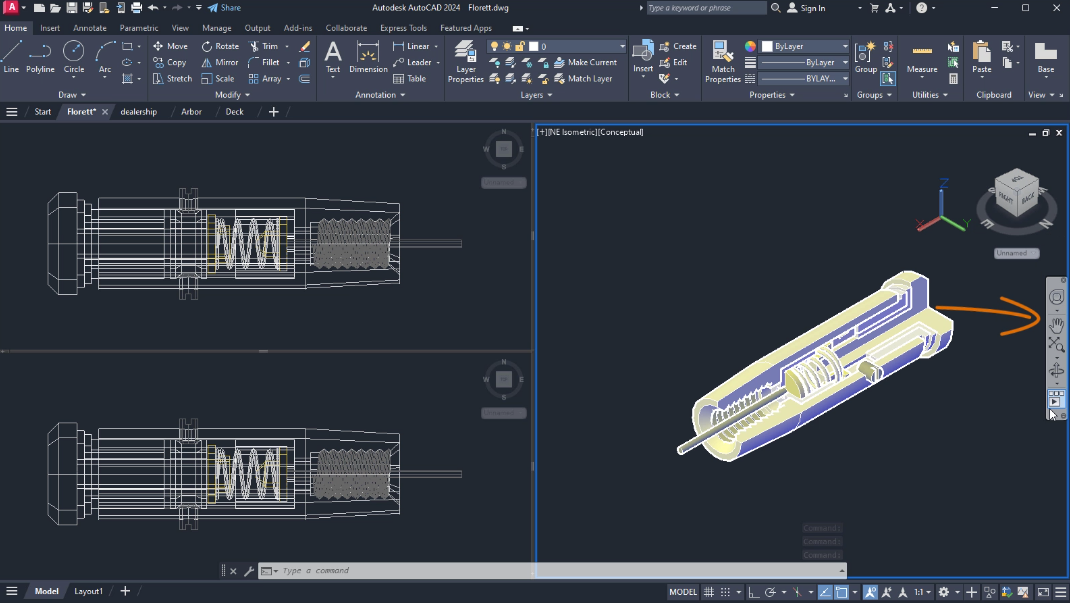
Provides access to the SteeringWheel, Pan, Zoom, Orbit, and ShowMotion features
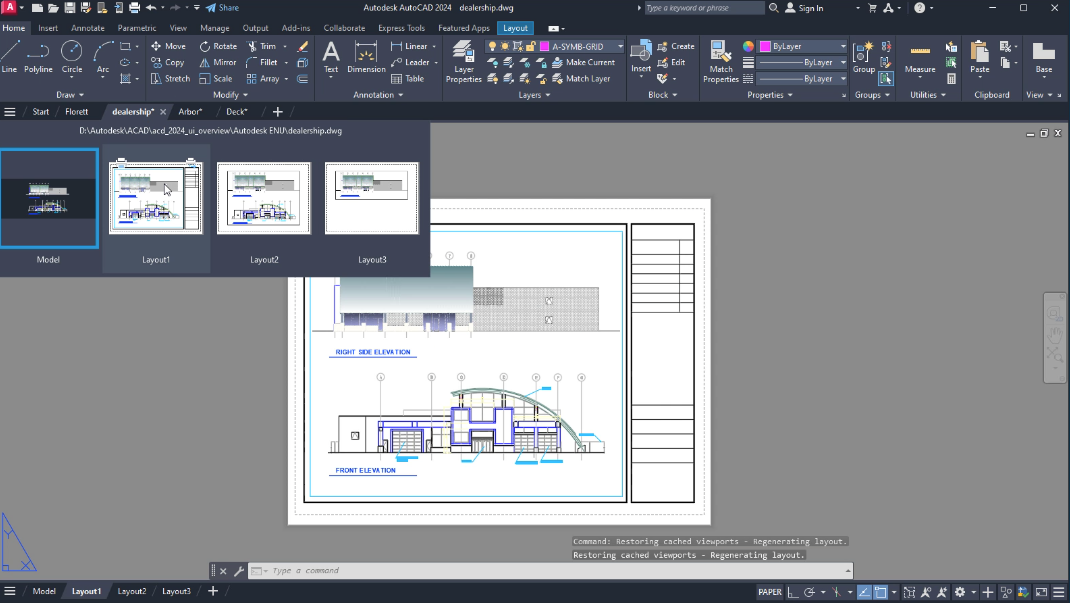
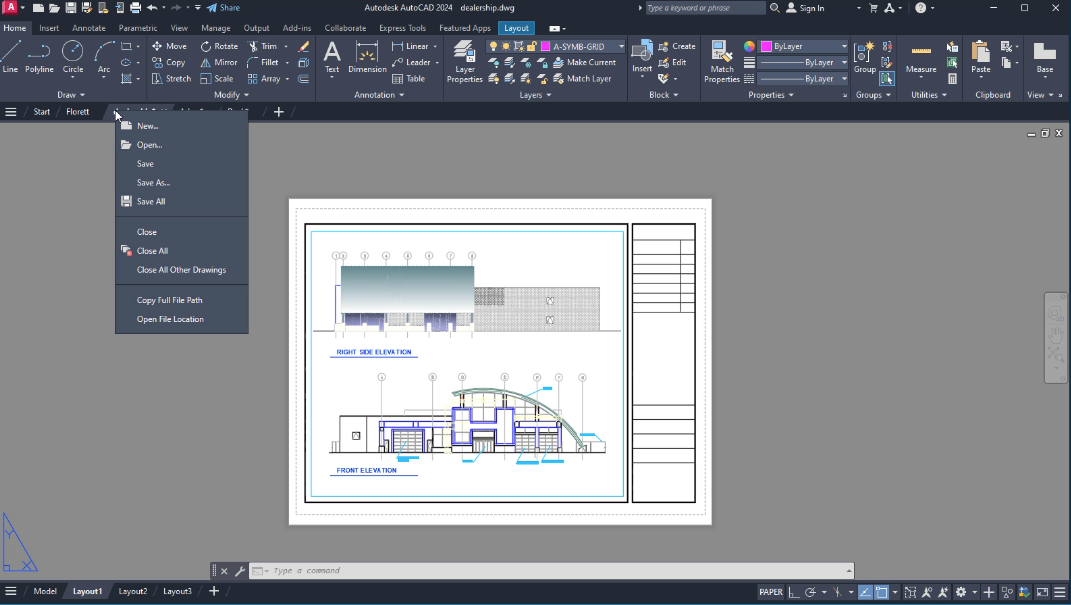
Previewing Drawing Layouts:
The Ribbon:
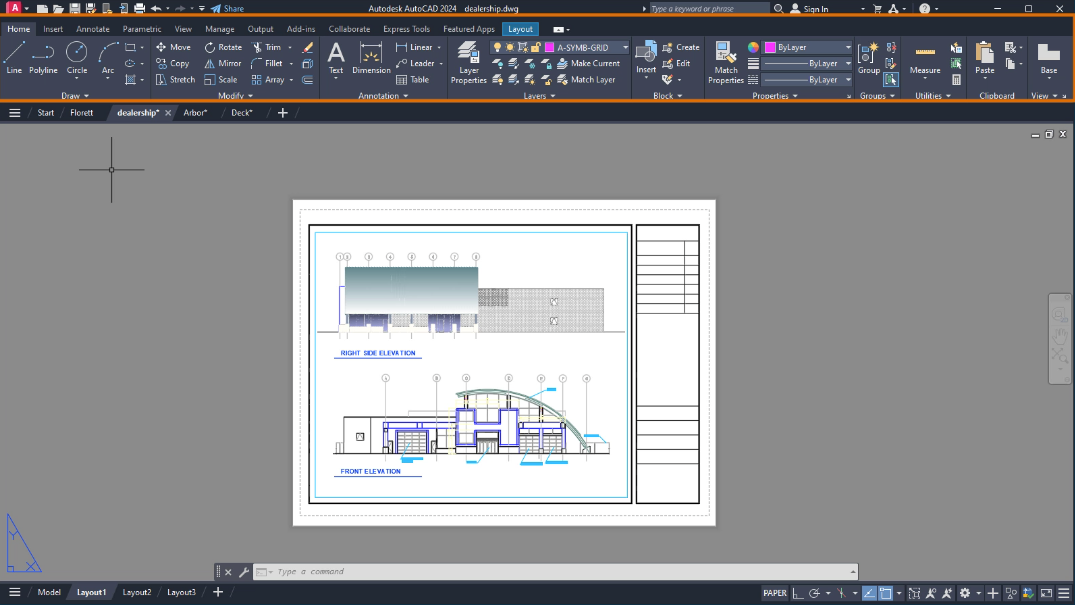
Draw Pannel: Holds the tools required to create basic objects
Modify Pannel: Contains tools to change the shape or location of basic objects
Application Button:
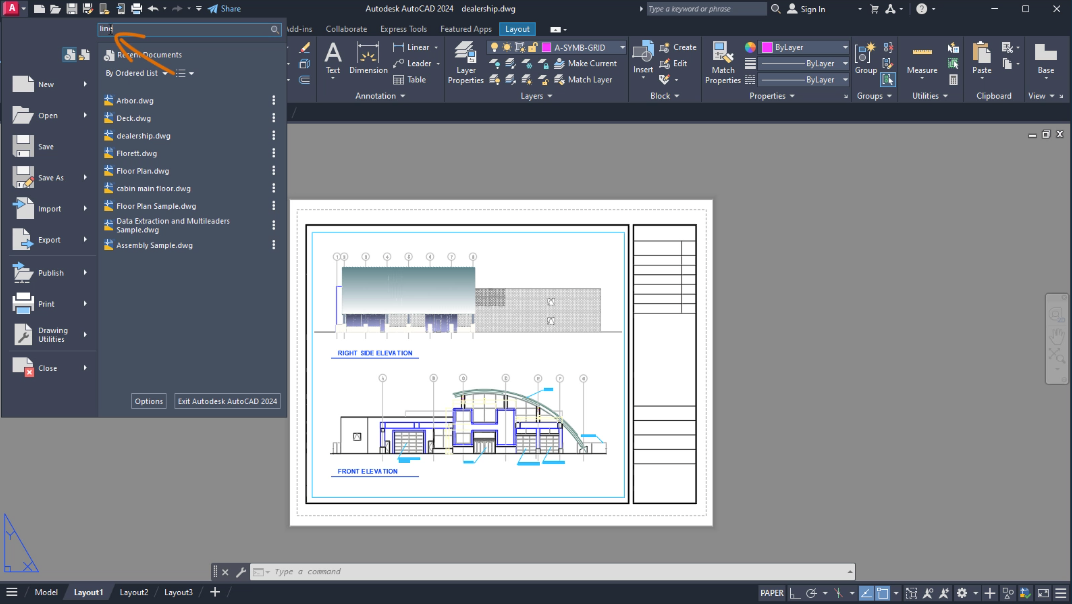
Commands can also be searched for using this button
Bottom Bar:
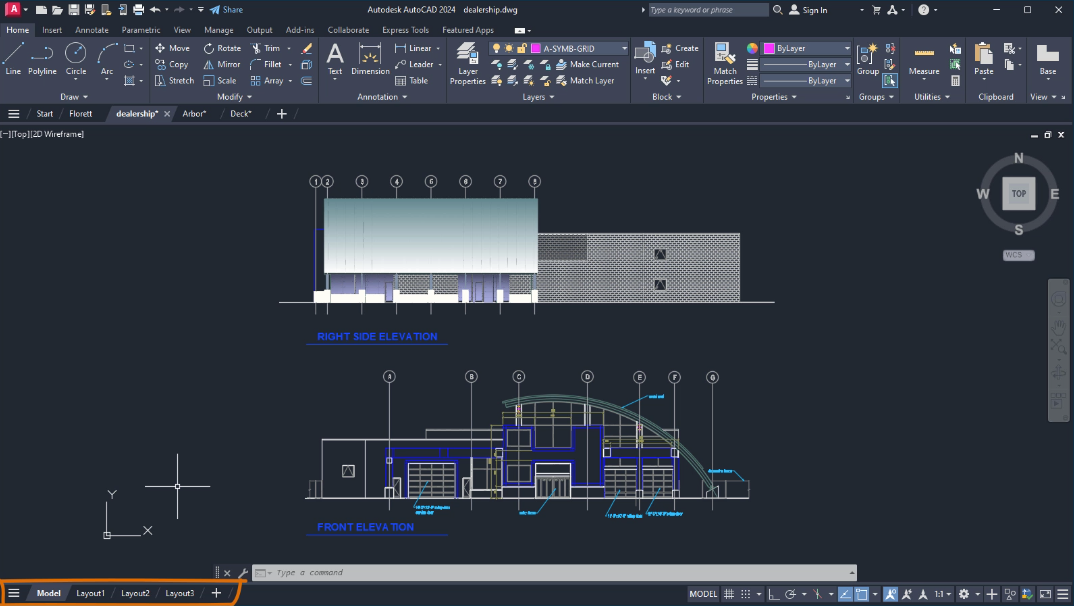
Used to navigate between the model being worked on and the paperspaces where sections of the model will be published
The Command Line:
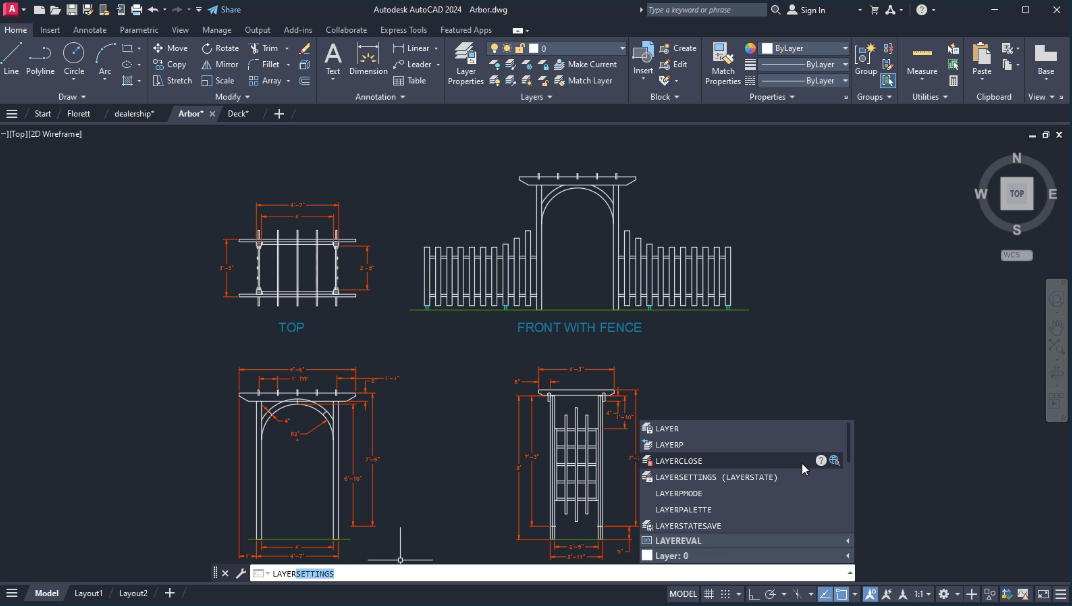
Layers, Blocks, and Hatch Patterns can also be accessed via the command line
Application Status Bar: